> ## Documentation Index
> Fetch the complete documentation index at: https://help.descript.com/llms.txt
> Use this file to discover all available pages before exploring further.
# Edit Word Gaps in Your Script
> Set or shorten the gaps between words to adjust pacing in your script.
Control your pacing by adjusting the space between words right in the Script editor. Tighten a dragging pause, or open up a beat of breathing room.
## How to adjust word gaps
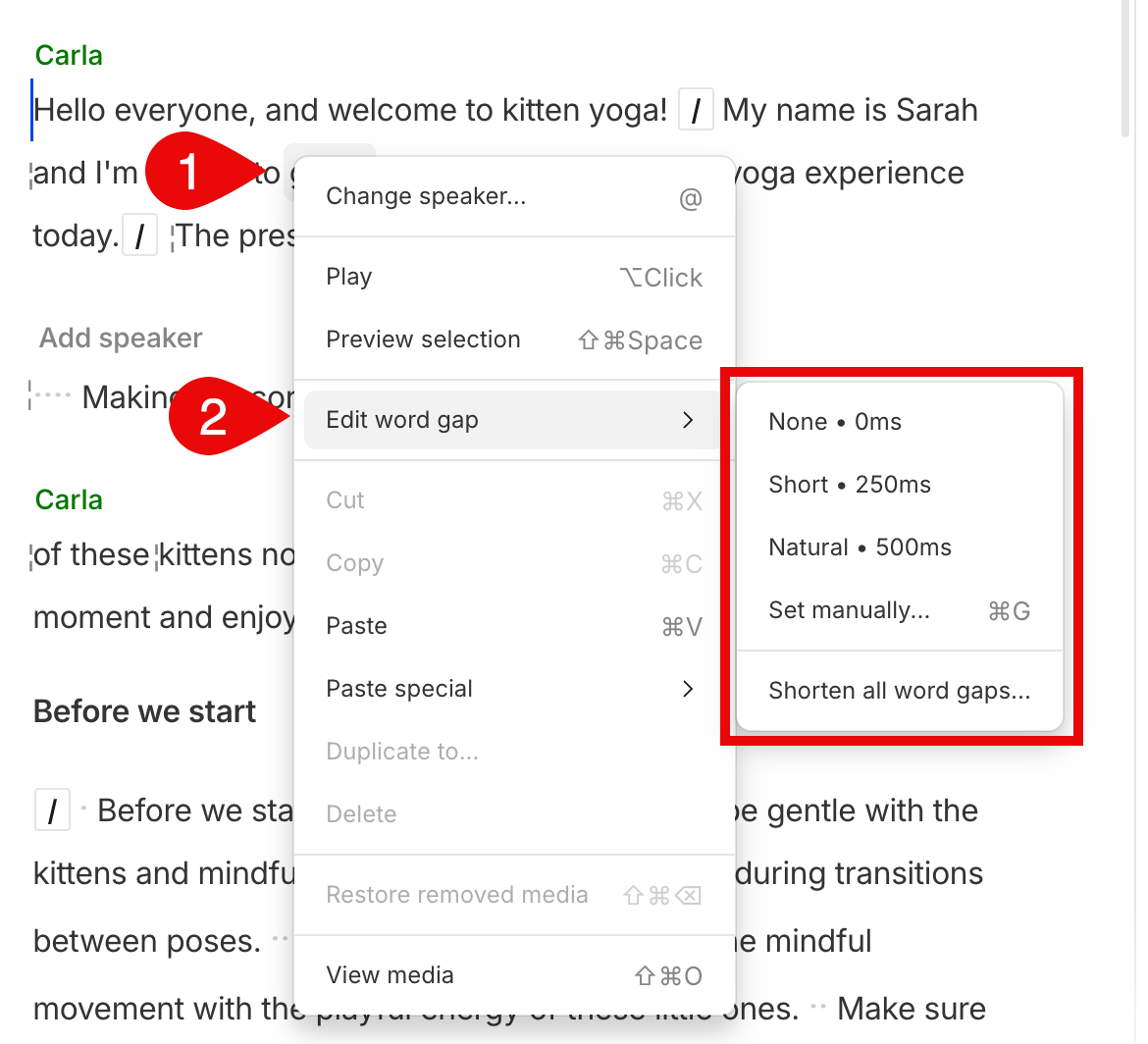
1. Right-click in your script where you want to adjust a word gap. Please note that at this time, adjusting word gaps on a selected range is not supported.
2. Select **Edit word gap**.
3. Choose one of the preset options, **Set manually...**, or [Shorten all word gaps](/script-editing/shorten-word-gaps).\\
 4. If you choose to set the word gap manually, type in the word length in the type box and press `Return` (macOS) or `Enter` (Windows). Descript will playback the section you just adjusted.
5. Continue making adjustments as necessary.
**Use keyboard shortcuts to speed up your editing**
* `Command + G` (Mac) or `Control + G` (Windows) — adjust a word gap at your cursor's location.
* `Command + Shift + G` (Mac) or `Control + Shift + G` (Windows) — adjust the word gap at your cursor's location to the last used word gap duration.
4. If you choose to set the word gap manually, type in the word length in the type box and press `Return` (macOS) or `Enter` (Windows). Descript will playback the section you just adjusted.
5. Continue making adjustments as necessary.
**Use keyboard shortcuts to speed up your editing**
* `Command + G` (Mac) or `Control + G` (Windows) — adjust a word gap at your cursor's location.
* `Command + Shift + G` (Mac) or `Control + Shift + G` (Windows) — adjust the word gap at your cursor's location to the last used word gap duration.