> ## Documentation Index
> Fetch the complete documentation index at: https://help.descript.com/llms.txt
> Use this file to discover all available pages before exploring further.
# Trim and Adjust Spaces Between Words
> Tighten or expand the timing between words to control pacing.
Close an unwanted pause, add a beat of breathing room, or clean up gaps left by an edit.
**Convert AI speech to audio first**
To adjust timing on an [AI Speaker](/ai-speech/ai-speakers-overview) voice, first [convert the AI voice clip to audio](/ai-speech/covert-to-audio).
## Adjust word spacing from the script
[ ](/images/external/descript-29109354311949-1e3b9c45e8.gif)
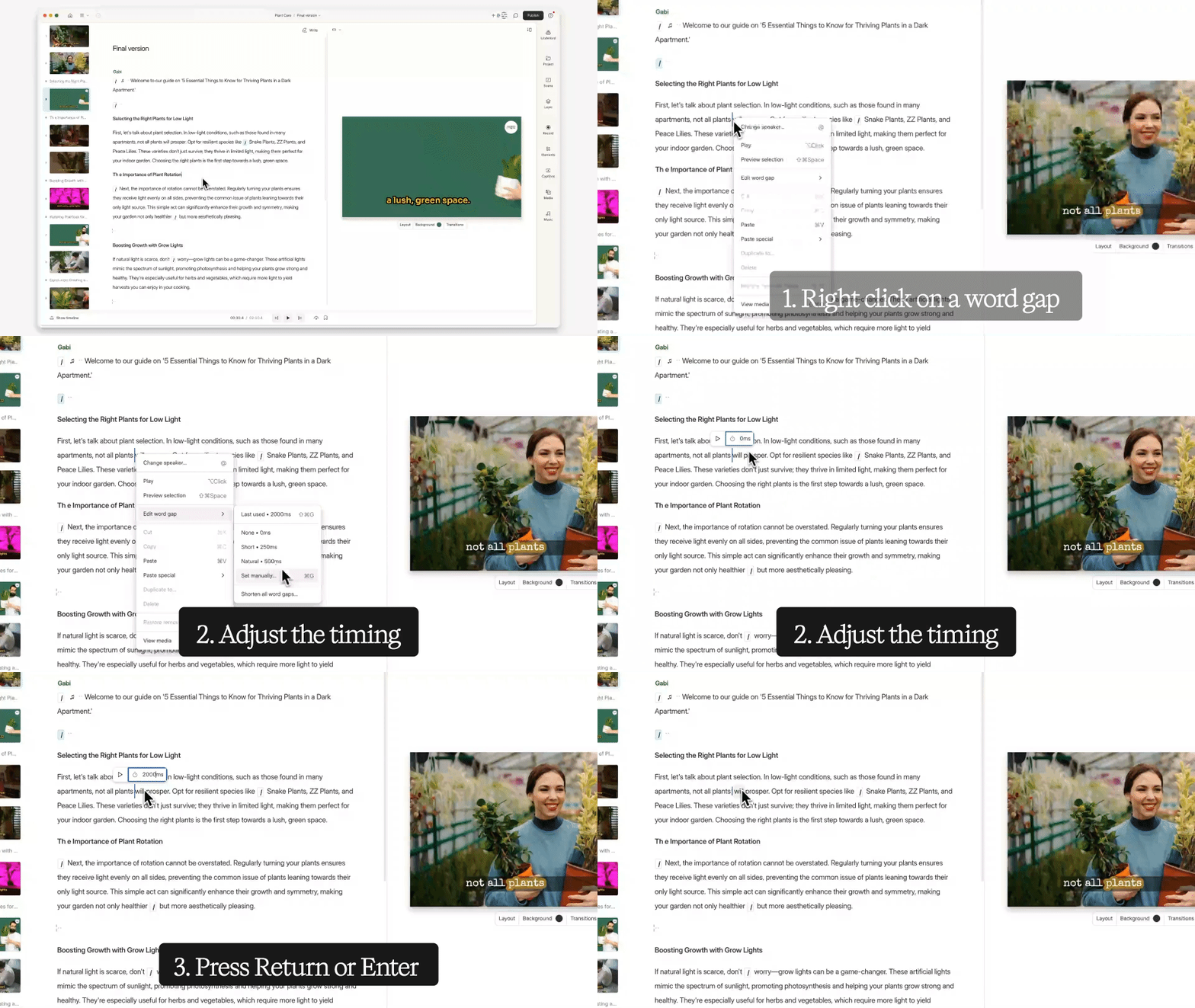
1. **Right-click** the gap between words you want to adjust.
2. Hover over **Edit word gap**, then choose a preset or enter a custom value. Press `Return` (Mac) or `Enter` (Windows) to apply it. Descript will play back the updated section.
3. Extending a gap creates a [gap clip](/timeline/using-gap-clips). Longer gaps may appear as [wordless media](/script-editing/wordless-media).
## Adjust word spacing from the timeline
Use these tools in the timeline depending on the type of adjustment you need:
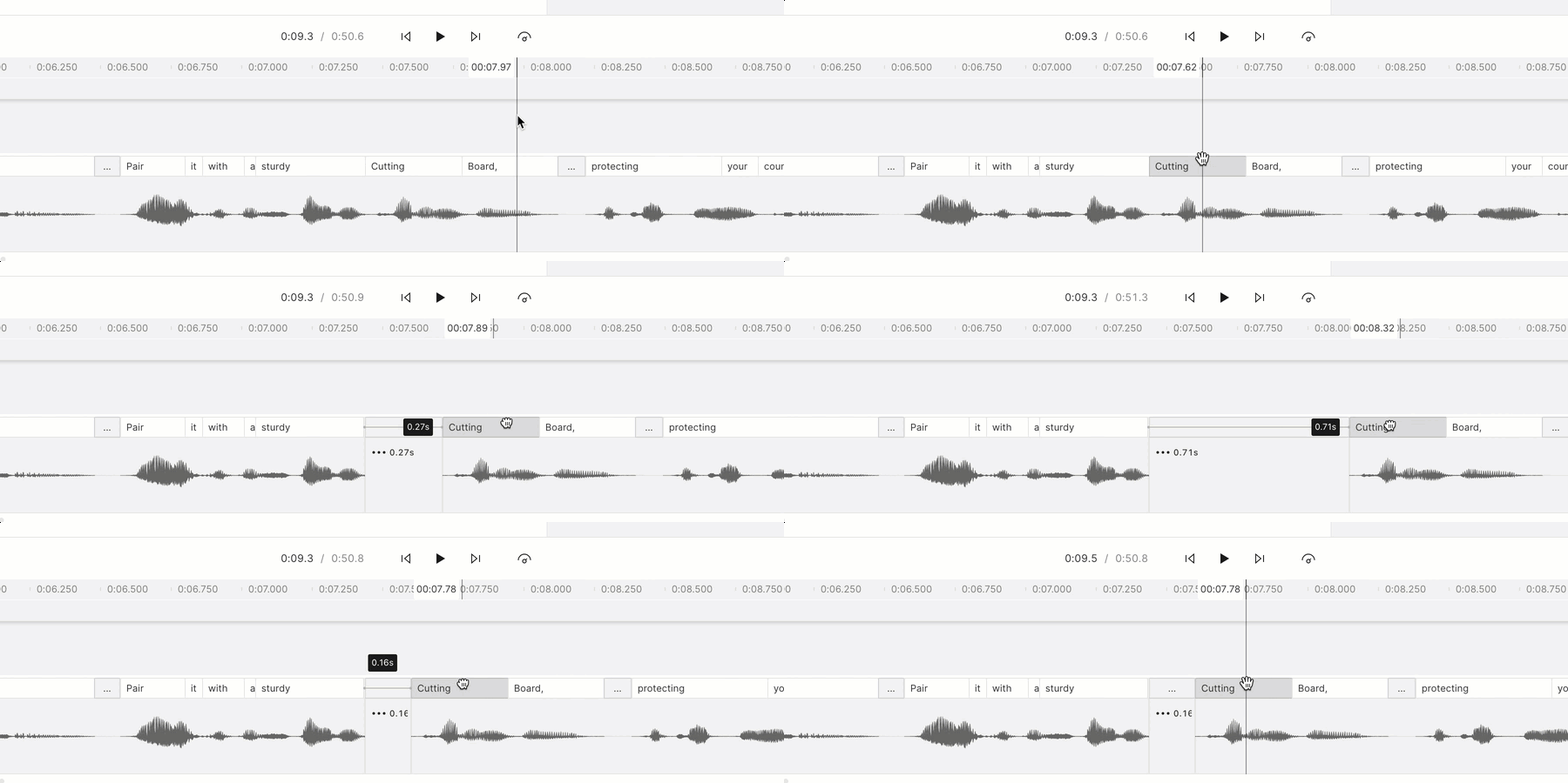
* **Wordbar:** Drag a word left or right to nudge timing. Best for small adjustments.
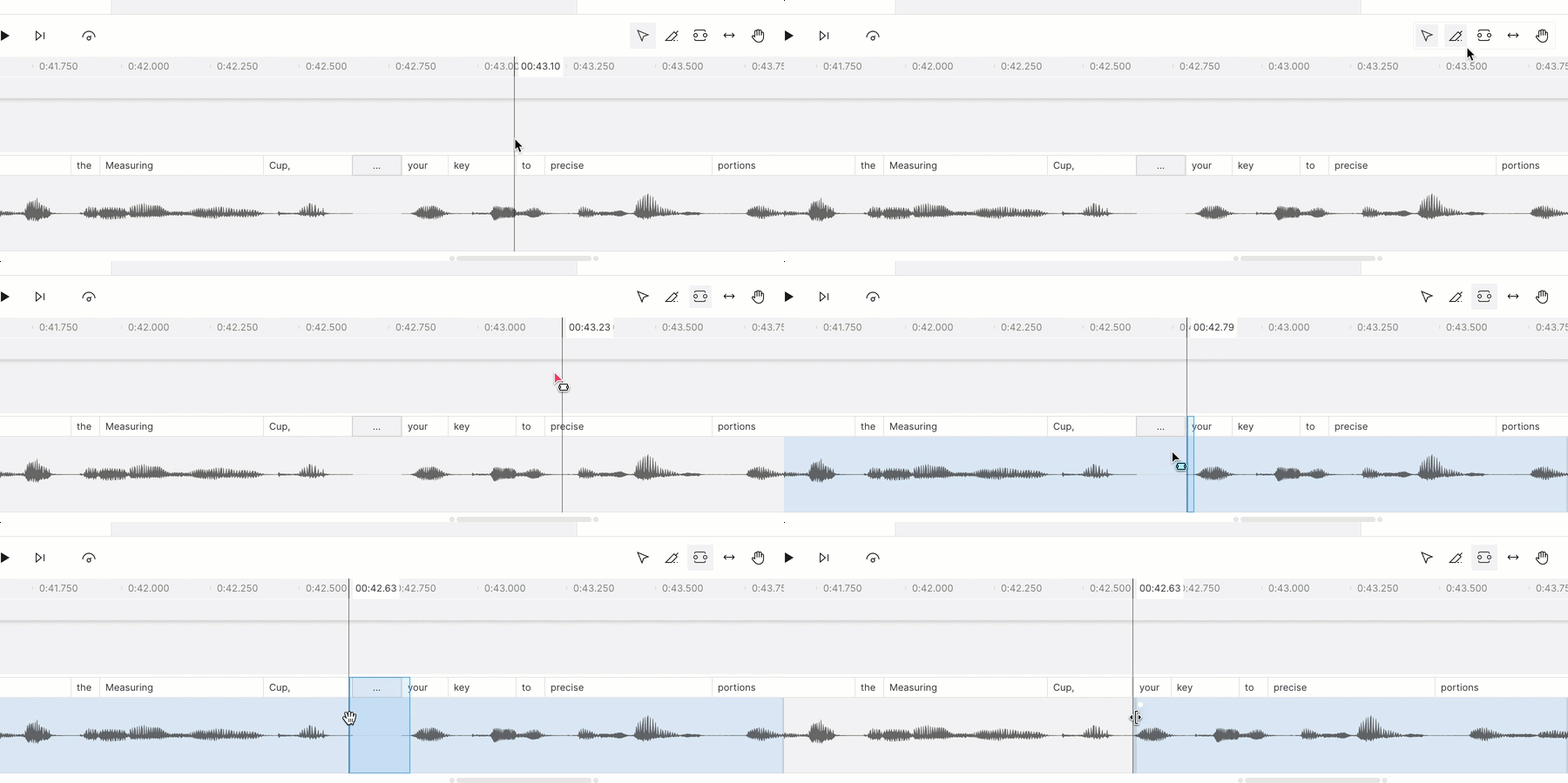
* **Range tool:** Select and delete a span of time. Best for removing breaths or silence.
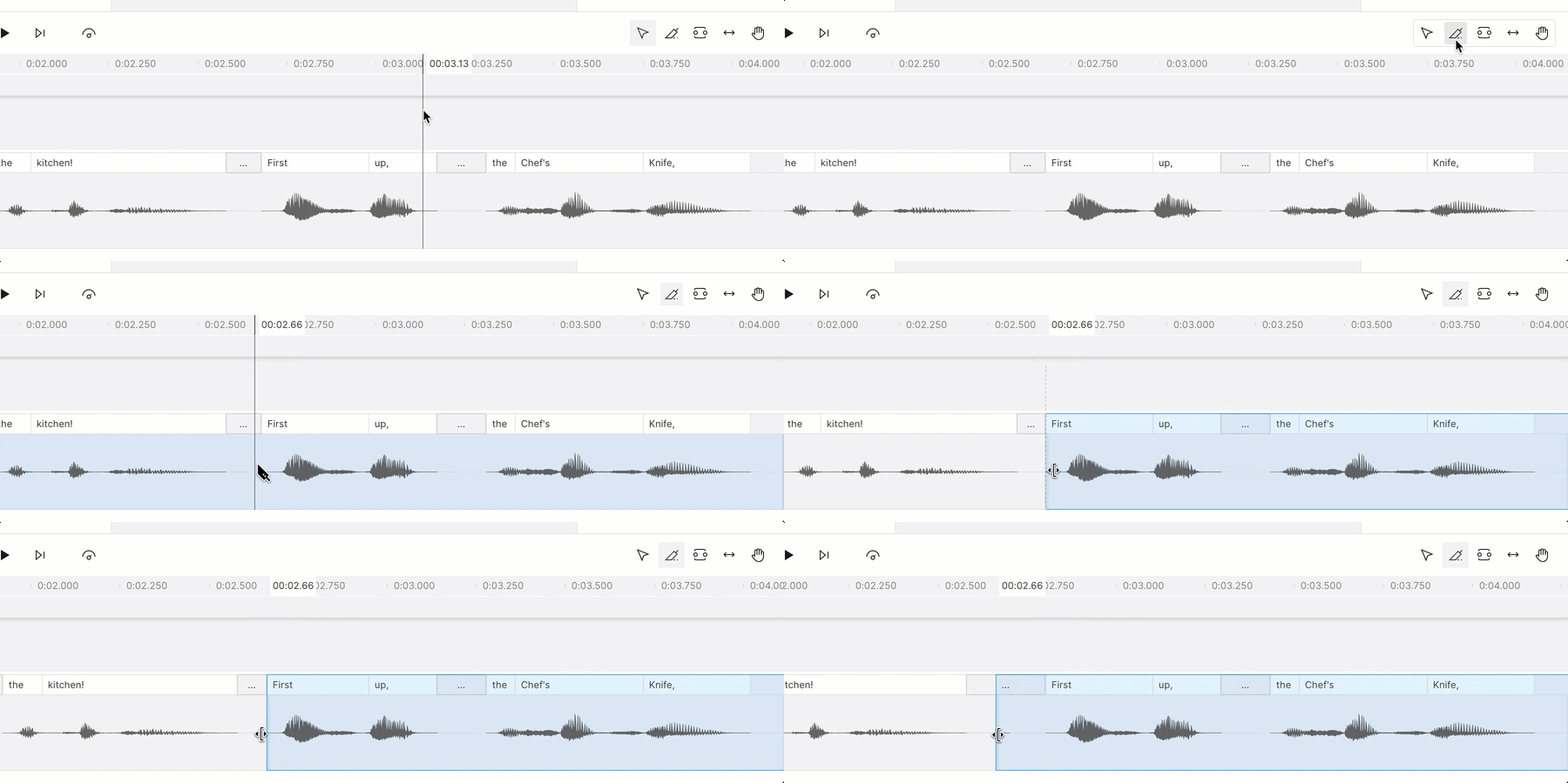
* **Blade tool:** Create an edit point, then expand or collapse it. Best for reversible edits.
**Adding space in a video creates a black frame**
Increasing the space between words in a video project creates a [gap clip](/timeline/using-gap-clips), which inserts a black frame in your video.
### Use the wordbar
1. Click and hold a word in the [wordbar](/script-editing/the-wordbar).
2. Drag left to reduce the space before the word, or right to increase it.
](/images/external/descript-29109354311949-1e3b9c45e8.gif)
1. **Right-click** the gap between words you want to adjust.
2. Hover over **Edit word gap**, then choose a preset or enter a custom value. Press `Return` (Mac) or `Enter` (Windows) to apply it. Descript will play back the updated section.
3. Extending a gap creates a [gap clip](/timeline/using-gap-clips). Longer gaps may appear as [wordless media](/script-editing/wordless-media).
## Adjust word spacing from the timeline
Use these tools in the timeline depending on the type of adjustment you need:
* **Wordbar:** Drag a word left or right to nudge timing. Best for small adjustments.
* **Range tool:** Select and delete a span of time. Best for removing breaths or silence.
* **Blade tool:** Create an edit point, then expand or collapse it. Best for reversible edits.
**Adding space in a video creates a black frame**
Increasing the space between words in a video project creates a [gap clip](/timeline/using-gap-clips), which inserts a black frame in your video.
### Use the wordbar
1. Click and hold a word in the [wordbar](/script-editing/the-wordbar).
2. Drag left to reduce the space before the word, or right to increase it.
 ### Use the Range tool
1. Press `R` to select the [Range tool](/timeline/timeline-tools).
2. Click and drag across the [script track](/timeline/timeline-overview) to select the timing you want to remove.
3. Press `Delete`.
### Use the Range tool
1. Press `R` to select the [Range tool](/timeline/timeline-tools).
2. Click and drag across the [script track](/timeline/timeline-overview) to select the timing you want to remove.
3. Press `Delete`.
 ### Use the Blade tool
1. Press `B` to select the [Blade tool](/timeline/timeline-tools).
2. Click on the timeline to create a cut.
3. Drag the edit point to expand or collapse the gap. This is non-destructive—you can drag it back at any time.
### Use the Blade tool
1. Press `B` to select the [Blade tool](/timeline/timeline-tools).
2. Click on the timeline to create a cut.
3. Drag the edit point to expand or collapse the gap. This is non-destructive—you can drag it back at any time.