> ## Documentation Index
> Fetch the complete documentation index at: https://help.descript.com/llms.txt
> Use this file to discover all available pages before exploring further.
# Transcription Glossary
> The Transcription Glossary helps Descript accurately transcribe difficult words like proper names, brand terms, or technical jargon.
Give Descript a list of the tricky terms in your recordings, and it'll transcribe them correctly instead of guessing. The Transcription Glossary works like a custom word bank and holds up to **30 terms** per Drive.
## Feature availability and limitations
* The Transcription Glossary is available on all Descript plans. Business and Enterprise plans have additional team-level features for managing shared glossaries through [Brand Studio](/branding/brand-studio).
* The glossary currently supports **English only** and will not affect translated transcripts.
* Glossaries are **Drive-specific**. All users and projects on the same Drive share the same glossary. If you work across multiple Drives, you’ll need to manage each glossary individually. [Learn how to switch Drives](/account-and-app-settings/switch-drives).
## How to add words to the glossary
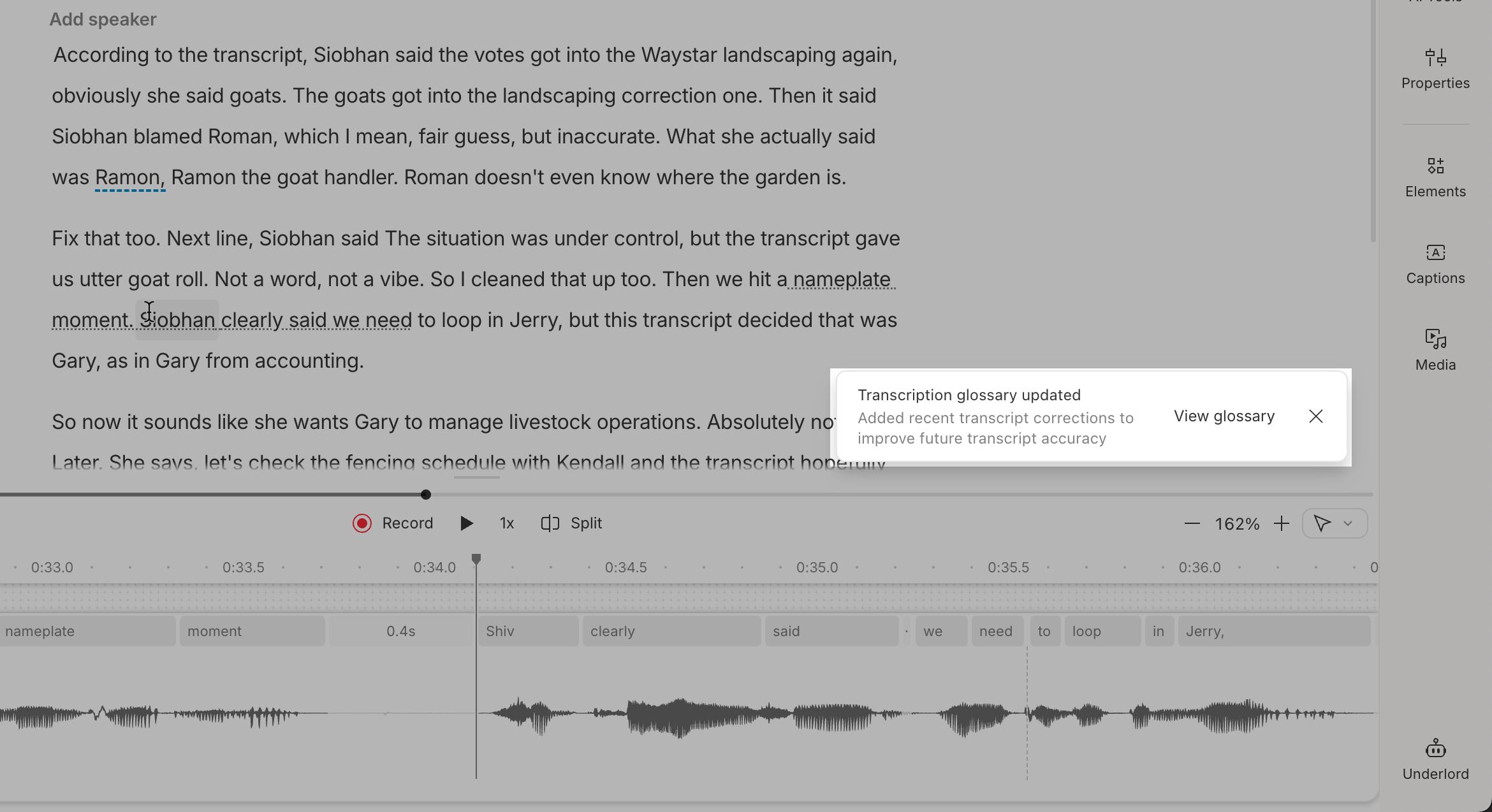
Descript learns from your corrections and automatically adds frequently corrected words to your glossary, so we won’t repeat the same mistakes. You can also add words to the glossary manually:
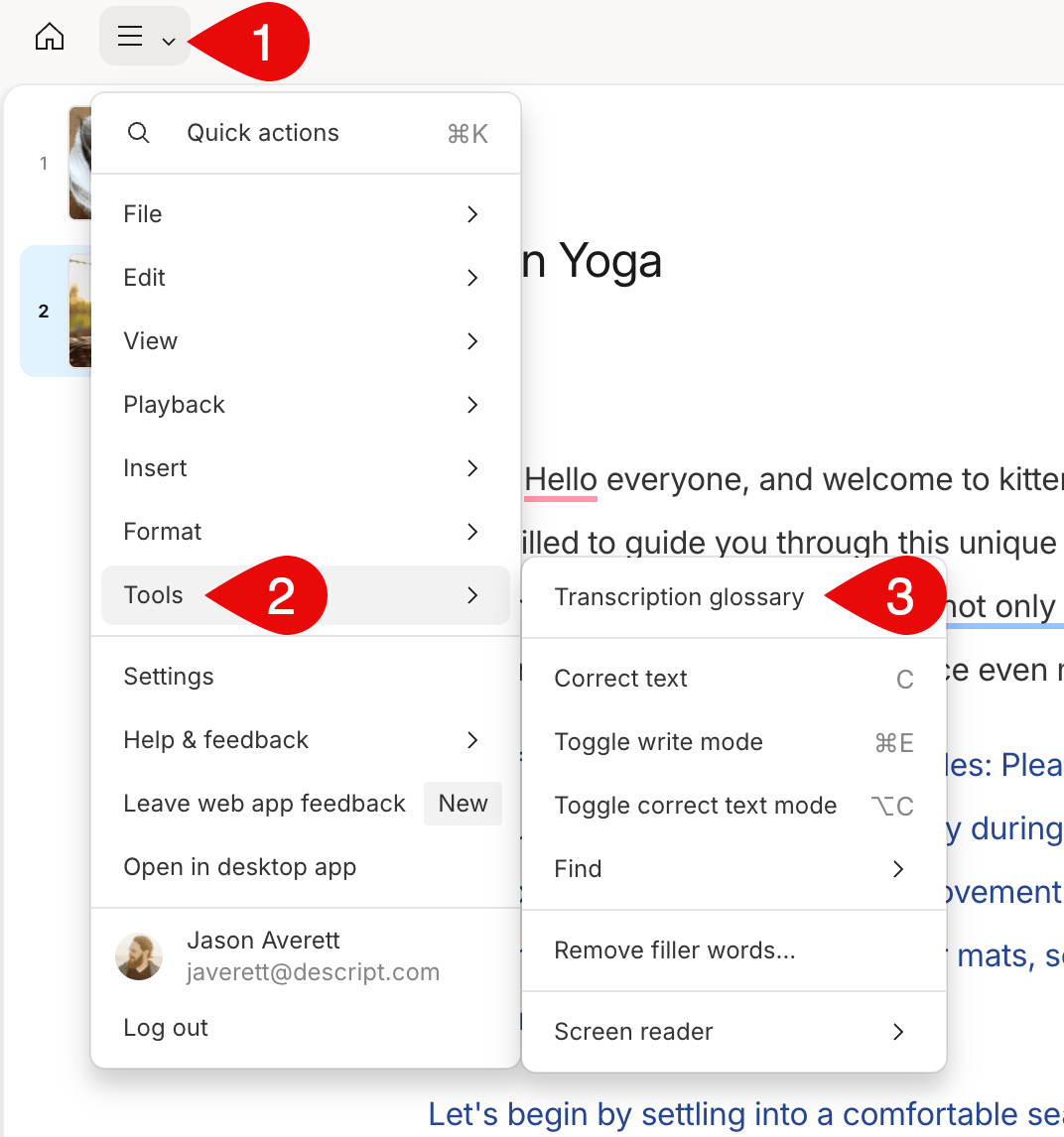
1. Open a [project](/getting-started/create-a-new-project) in Descript.
2. Click the **menu** in the top-left corner.
3. Select **Tools**, then choose **Transcription Glossary**.\\
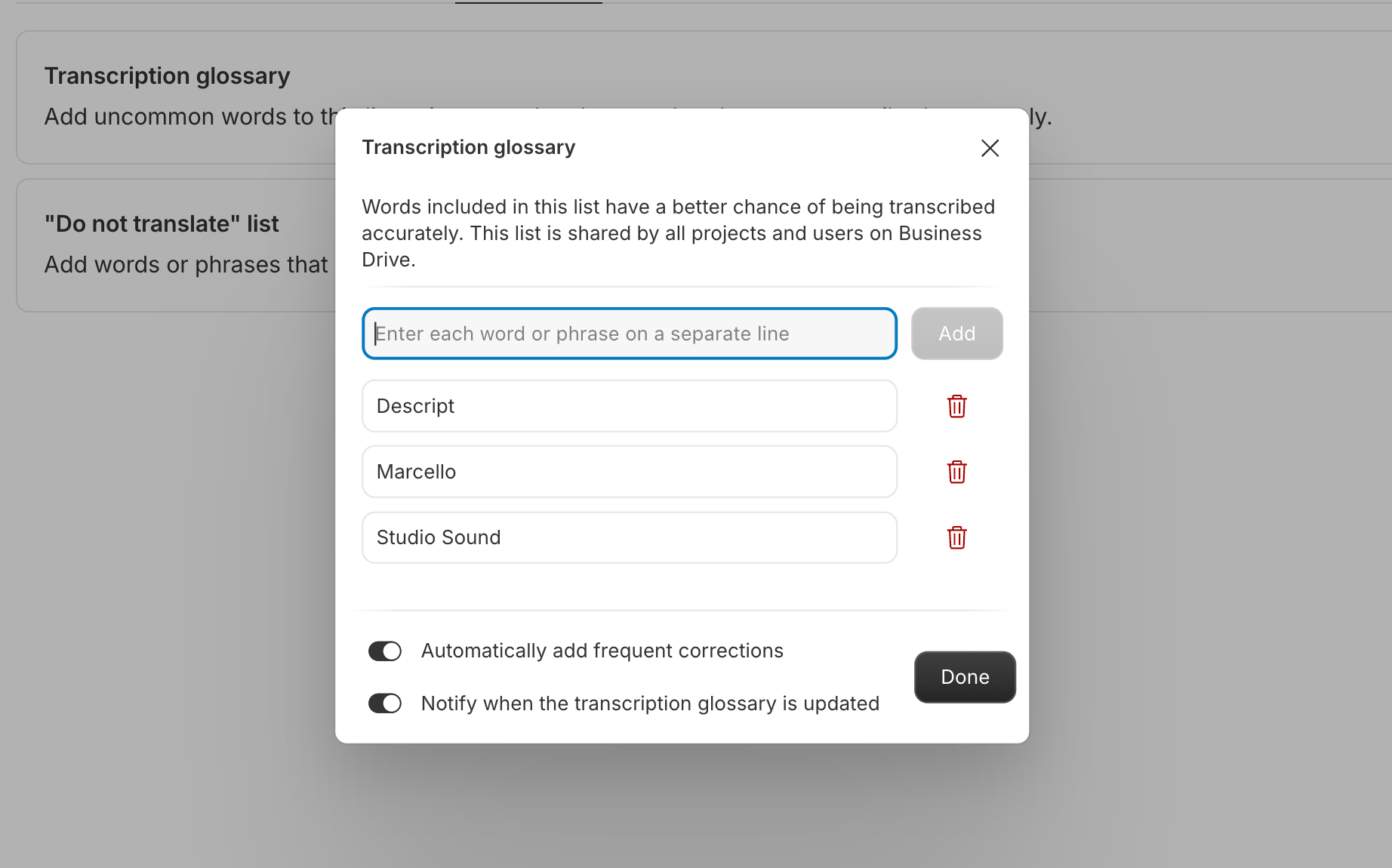
 4. Type each word, name, or phrase on its own line.
5. Click **Done** to save.\\
4. Type each word, name, or phrase on its own line.
5. Click **Done** to save.\\
 ## Automatic detection of frequently corrected words
Descript can automatically learn from your transcript corrections and add frequently corrected words to your glossary. When you correct the same word at least **3 times** across transcripts, Descript will add it to your glossary automatically.
Automatic detection is on by default. To toggle this feature:
1. Open the **Transcription Glossary** from the **Tools** menu.
2. Toggle on/off **Automatically add words you correct frequently**.
3. Optionally, toggle on/off **Notify me when words are added** to get notified when new terms are added to your glossary.
## Automatic detection of frequently corrected words
Descript can automatically learn from your transcript corrections and add frequently corrected words to your glossary. When you correct the same word at least **3 times** across transcripts, Descript will add it to your glossary automatically.
Automatic detection is on by default. To toggle this feature:
1. Open the **Transcription Glossary** from the **Tools** menu.
2. Toggle on/off **Automatically add words you correct frequently**.
3. Optionally, toggle on/off **Notify me when words are added** to get notified when new terms are added to your glossary.