> ## Documentation Index
> Fetch the complete documentation index at: https://help.descript.com/llms.txt
> Use this file to discover all available pages before exploring further.
# The Wordbar
> Adjust word boundaries in the wordbar to fix misaligned audio.
The wordbar tells you exactly what words a waveform represents, and it's for quickly adding or removing space between words.
## Adjusting word boundaries and alignment
Descript automatically aligns your transcript with your script audio so that your edits remove only the portion of audio corresponding with a given word. In the event that a word is improperly aligned, you can make adjustments to its start and end boundaries in the wordbar to assure your transcript, [captions](/visuals/text-layers) or [exported subtitles](/export-and-share/subtitles) are lined up correctly.
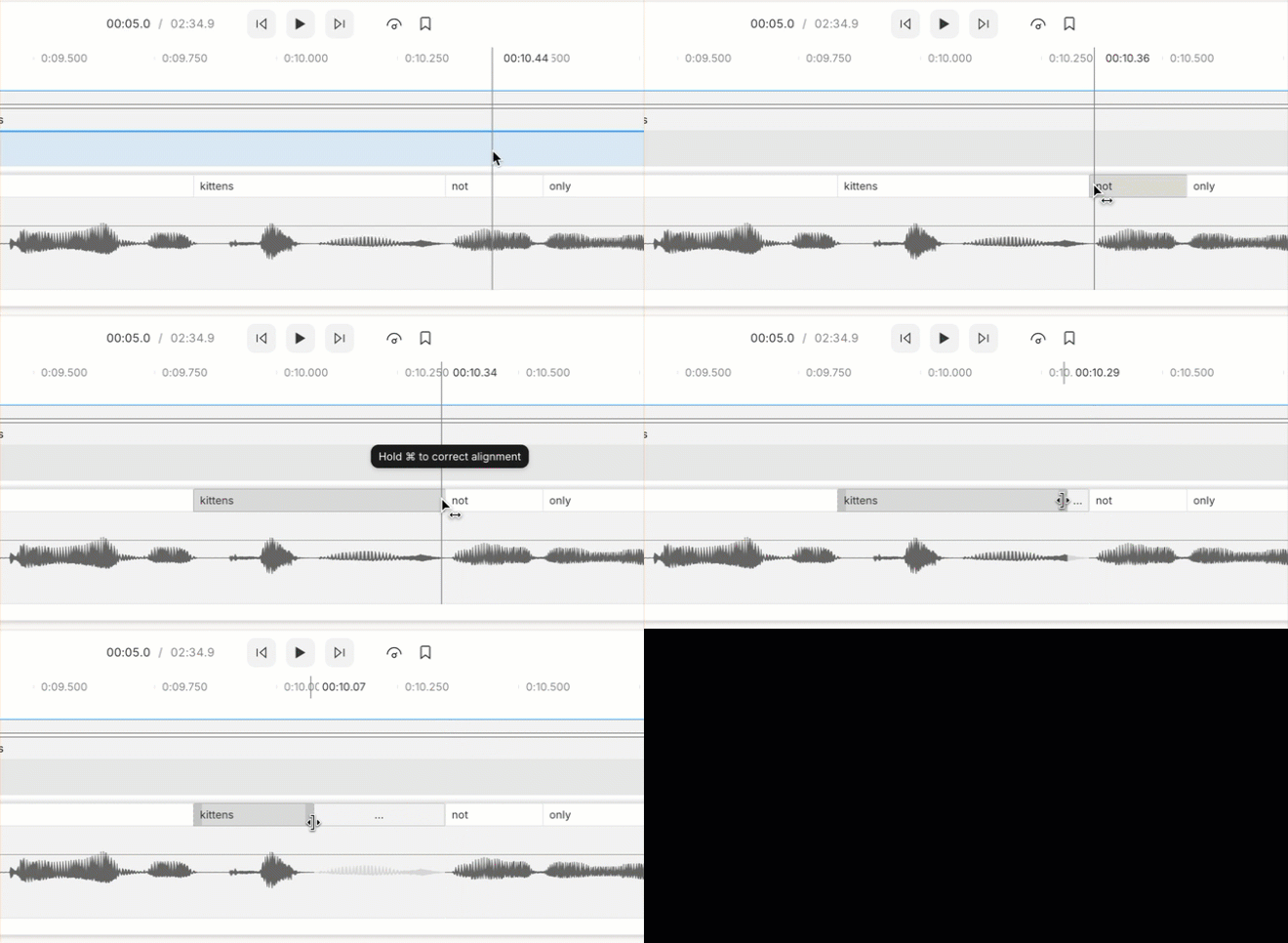
To adjust a word’s alignment:
1. Zoom in on the word in the [Timeline](/timeline/timeline-overview) until it has been ungrouped from other words around it.
2. Hover your cursor over a start or end word boundary.
3. Press and hold the `Command` (macOS) or `Control` (Windows) key; you will see the trim icon appear.
4. Click and drag the word boundary to the desired position above the waveform below.\\
 #### Word-level adjustment
Word boundary adjustments must be performed on a per-word basis. You may need to zoom in a little on the Timeline to get the trim tool to appear in tightly spaced words.
## Adjusting the timing of your script from the wordbar
Select and drag a word from the wordbar to adjust the timing of your script.
#### Word-level adjustment
Word boundary adjustments must be performed on a per-word basis. You may need to zoom in a little on the Timeline to get the trim tool to appear in tightly spaced words.
## Adjusting the timing of your script from the wordbar
Select and drag a word from the wordbar to adjust the timing of your script.
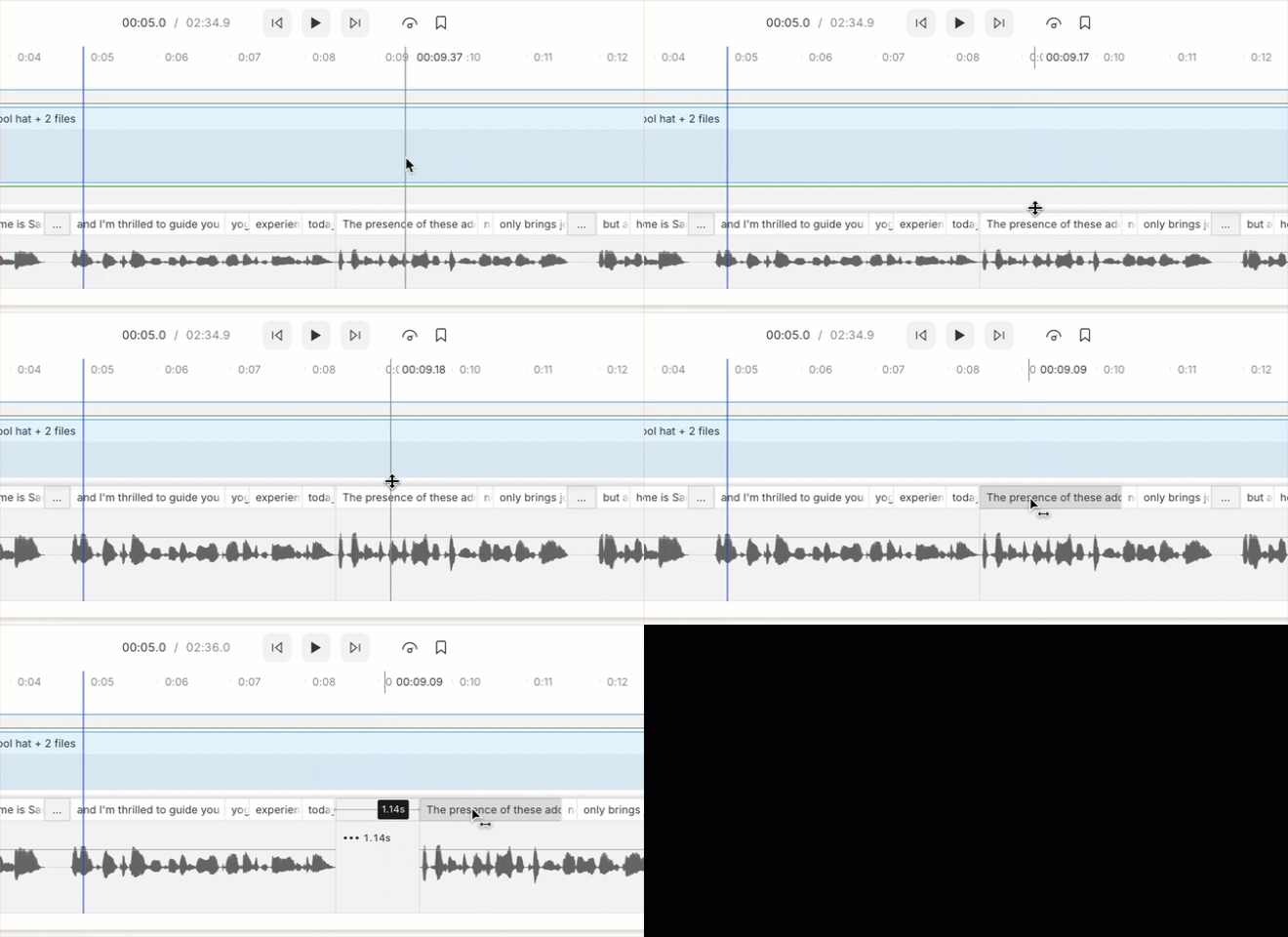 * **Dragging left** shortens word gaps and potentially trims script media.
* **Dragging right**will extend the word gap and do one of two things:
* Add a [gap clip](/timeline/using-gap-clips) if the script media is audio-only.
* Add a [freeze frame](/timeline/freeze-frames) if the script media contains video.
* **Dragging left** shortens word gaps and potentially trims script media.
* **Dragging right**will extend the word gap and do one of two things:
* Add a [gap clip](/timeline/using-gap-clips) if the script media is audio-only.
* Add a [freeze frame](/timeline/freeze-frames) if the script media contains video.