> ## Documentation Index
> Fetch the complete documentation index at: https://help.descript.com/llms.txt
> Use this file to discover all available pages before exploring further.
# Shorten Word Gaps
> Descript's Shorten word gaps feature helps to automatically tighten long pauses in your media.
Shorten word gaps removes the dead space between words automatically, so you don't have to trim each pause by hand on the timeline.
This article covers how to run the tool, adjust timing settings, review results, and explore advanced options.
**Usage note**
On current plans, this feature uses **AI Credits**. Learn more about [tracking your Media Minutes and AI Credits](/billing-payments-plans/track-and-understand-your-media-minutes-and-ai-credits).
Legacy and Sunset plans track usage differently. See our [Understanding your Legacy and Sunset plan](/billing-payments-plans/legacy-sunset) guide for details.
## Shorten word gaps
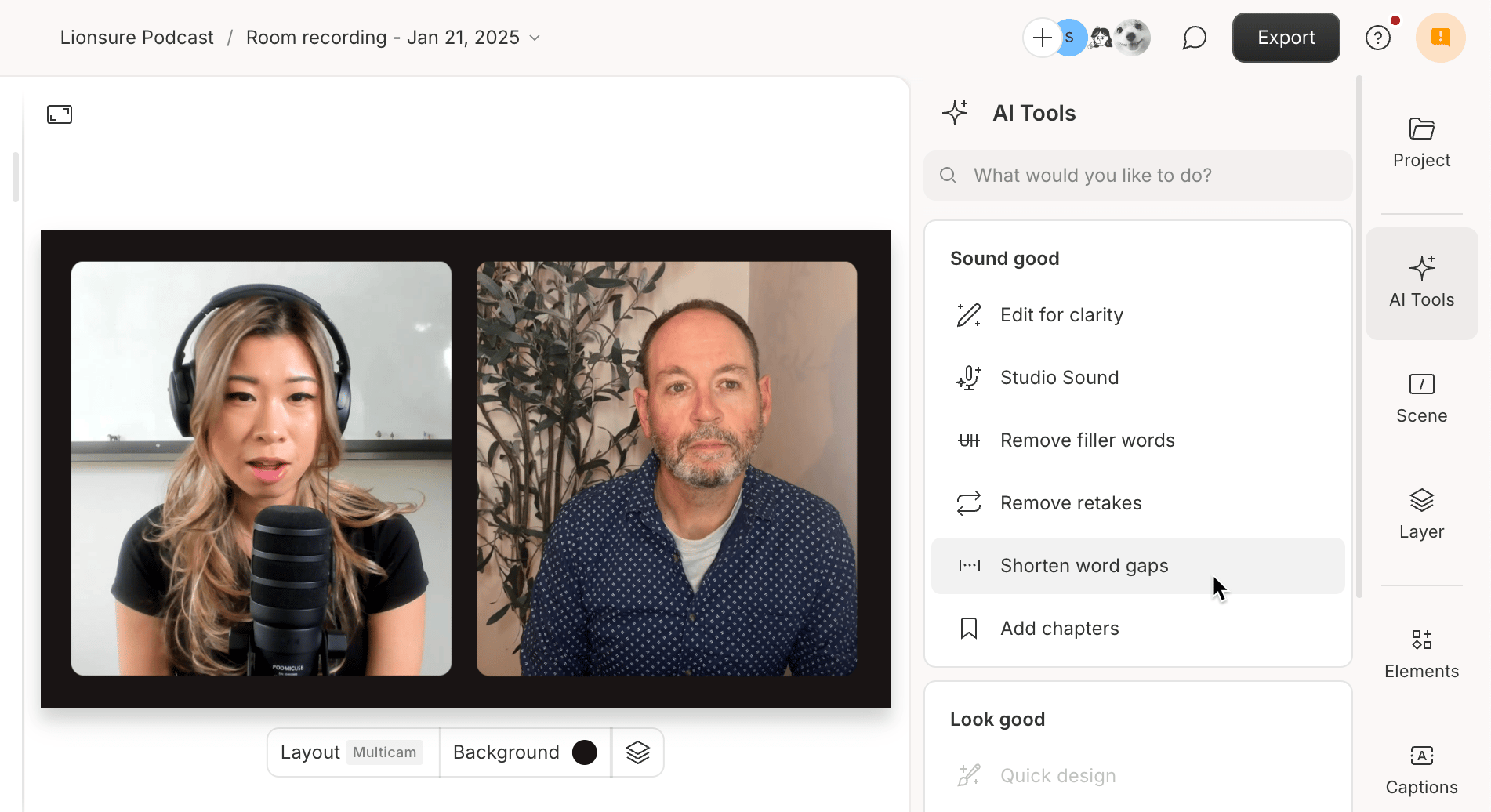
1. Open the [AI Tools panel](/descript-tour/ai-tools-overview) on the right-hand side of your screen and select **Shorten word gaps**.
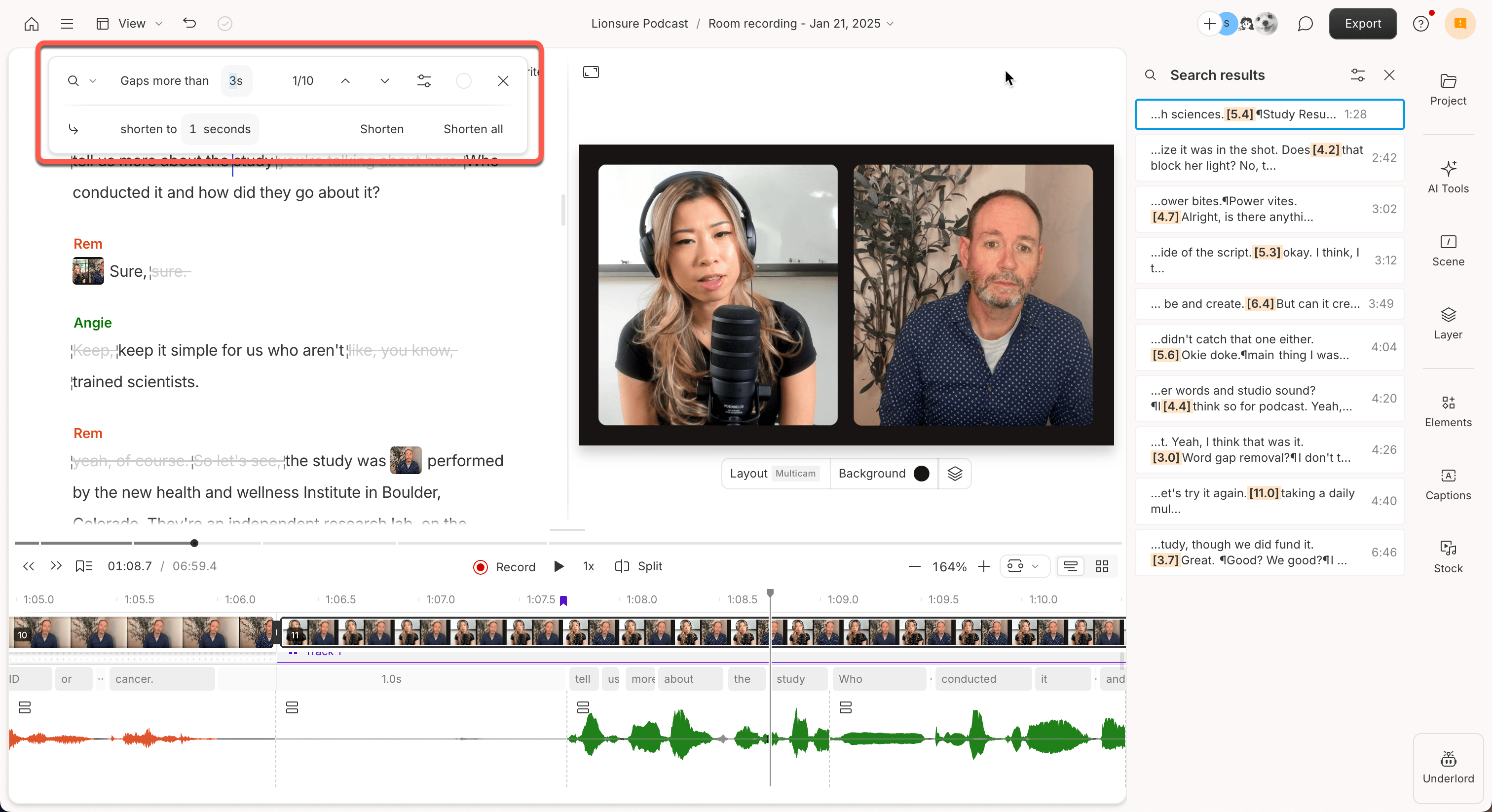
 2. Once the action starts, the filler words search menu will appear at the top of the script editor.
* Use the dropdown to select **more than** or **between**, and use the duration fields to define what qualifies as a gap.
* Use the second field to set a new target length (e.g. 200ms).
2. Once the action starts, the filler words search menu will appear at the top of the script editor.
* Use the dropdown to select **more than** or **between**, and use the duration fields to define what qualifies as a gap.
* Use the second field to set a new target length (e.g. 200ms).
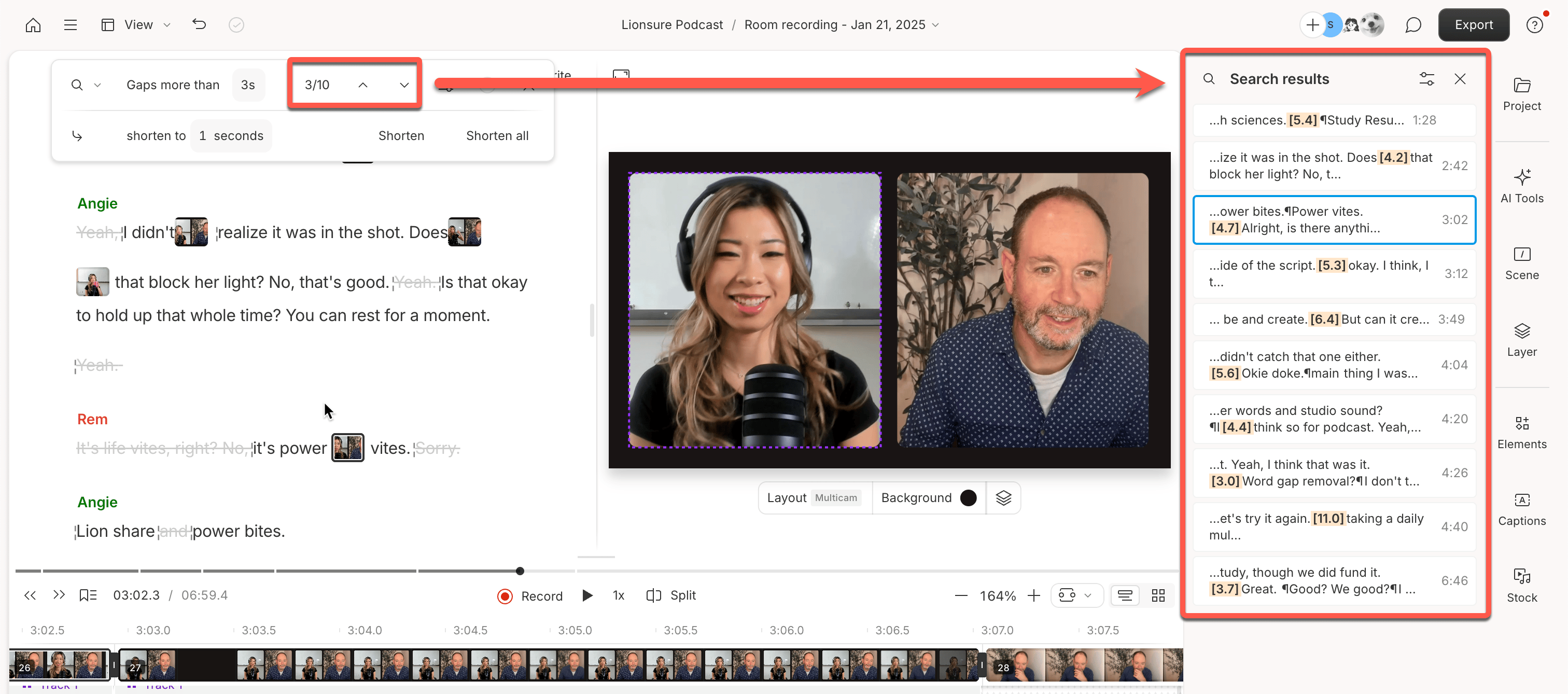
 3. Navigate through results using the search panel arrows, or click results in the [Properties panel](/descript-tour/properties-panel).
* **Click Shorten** to apply changes to the selected gap.
* **Click Shorten all** to apply changes to all gaps.
3. Navigate through results using the search panel arrows, or click results in the [Properties panel](/descript-tour/properties-panel).
* **Click Shorten** to apply changes to the selected gap.
* **Click Shorten all** to apply changes to all gaps.
 Want to adjust word gaps manually while editing? You can also [shorten them directly in the script editor](/script-editing/word-gaps) or use the [wordbar](/script-editing/the-wordbar).
## Advanced settings
You can customize the Shorten word gaps experience by clicking the
Want to adjust word gaps manually while editing? You can also [shorten them directly in the script editor](/script-editing/word-gaps) or use the [wordbar](/script-editing/the-wordbar).
## Advanced settings
You can customize the Shorten word gaps experience by clicking the  **Settings** icon and adjusting the following preferences:
* **Auto-advance** – Automatically move to the next result after shortening a gap.
* **Preview results** – Automatically play back the surrounding audio when a result is selected.
**Settings** icon and adjusting the following preferences:
* **Auto-advance** – Automatically move to the next result after shortening a gap.
* **Preview results** – Automatically play back the surrounding audio when a result is selected.