> ## Documentation Index
> Fetch the complete documentation index at: https://help.descript.com/llms.txt
> Use this file to discover all available pages before exploring further.
# Regenerate Overview
> Use Regenerate to heal jump cuts, smooth pacing, clean up audio, or change what a speaker said — all without re-recording.
export const Wistia = ({id, title = "Video", ratio = "16 / 9"}) =>
;
Regenerate uses AI to smooth, polish, or rewrite parts of a video without going through the trouble of re-recording. Use it to heal jump cuts, clean up awkward pacing, fix a distracting noise, or change what a speaker originally said.
Regenerate currently supports English audio and video only.
## Which Regenerate workflow do I need?
Regenerate has several applications. The right one depends on what you're trying to do.
* **Smooth or improve a section:** Heal jump cuts, smooth choppy edits, polish pacing, or clean up unwanted audio. The script stays the same. See [Use Regenerate to smooth or improve a section](/script-editing/fix-take).
* **Change what was said:** Said the wrong thing originally? Use Regenerate to replace words or phrases using an authorized [custom AI speaker](/ai-speech/custom-speaker). See [Use Regenerate to change what was said](/script-editing/change-meaning).
* **Smooth jump cuts AI tool:** Have Descript identify all the cuts in your composition and regenerate new audio and video to make each cut less obvious. See [Smooth jump cuts](/script-editing/smooth-jump-cuts).
## How Regenerate works
Make an edit or highlight a selection of your script, then click the **Regenerate** button. In video projects, Regenerate creates both **Audio & video** by default. Use the dropdown to switch to **Audio only**.
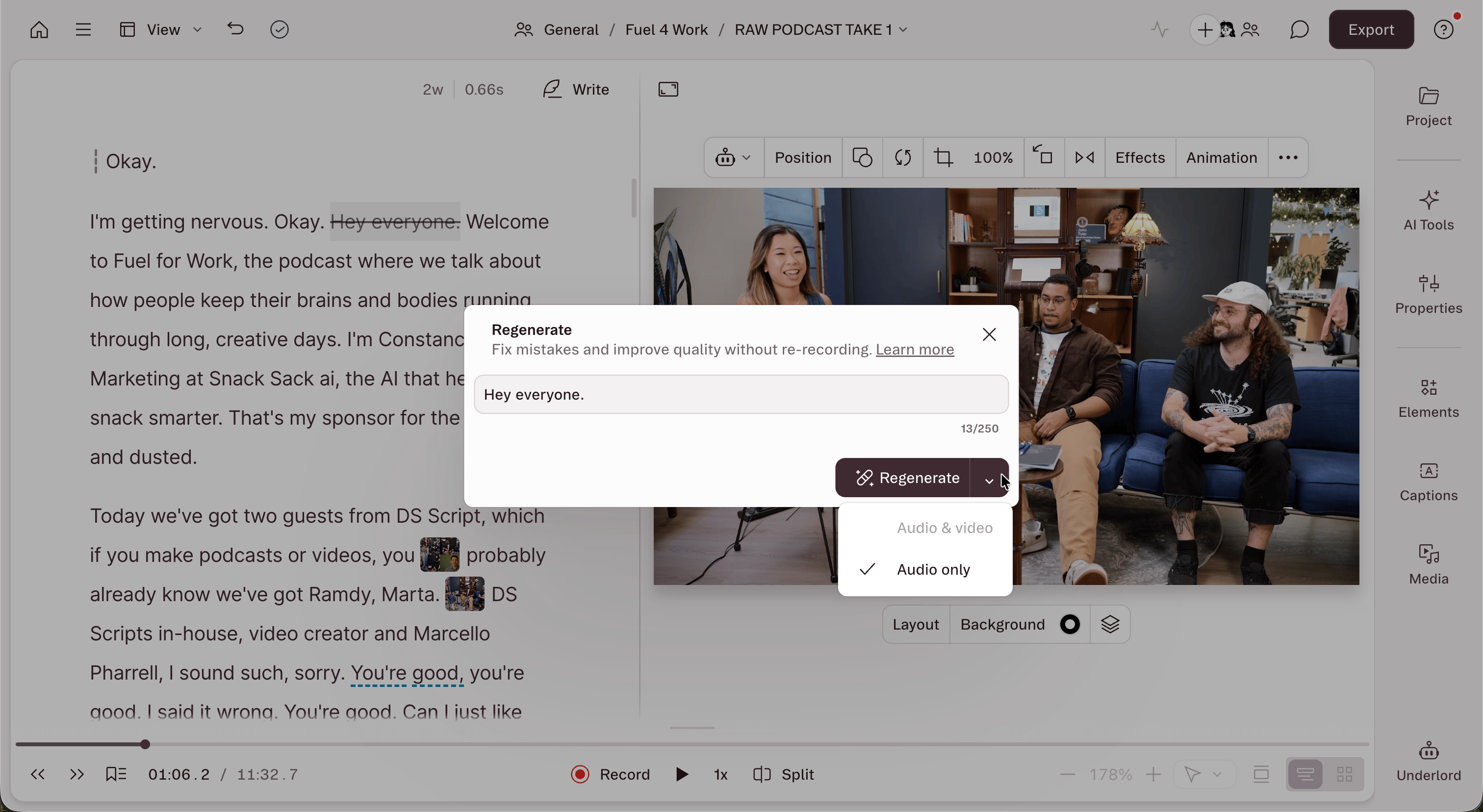 Some sections can only be regenerated as audio. [Sequences](/script-editing/multi-track-sequences-overview), B-roll, multi-speaker recordings, and shots where the speaker's face isn't clearly visible aren't supported for video regeneration.
Descript asks for consent the first time you regenerate video, since the process modifies a speaker's visual performance.
Some sections can only be regenerated as audio. [Sequences](/script-editing/multi-track-sequences-overview), B-roll, multi-speaker recordings, and shots where the speaker's face isn't clearly visible aren't supported for video regeneration.
Descript asks for consent the first time you regenerate video, since the process modifies a speaker's visual performance.