> ## Documentation Index
> Fetch the complete documentation index at: https://help.descript.com/llms.txt
> Use this file to discover all available pages before exploring further.
# Realign Words in a Transcript
> Re-sync a selected range of script text when the timing drifts out of alignment with the underlying audio.
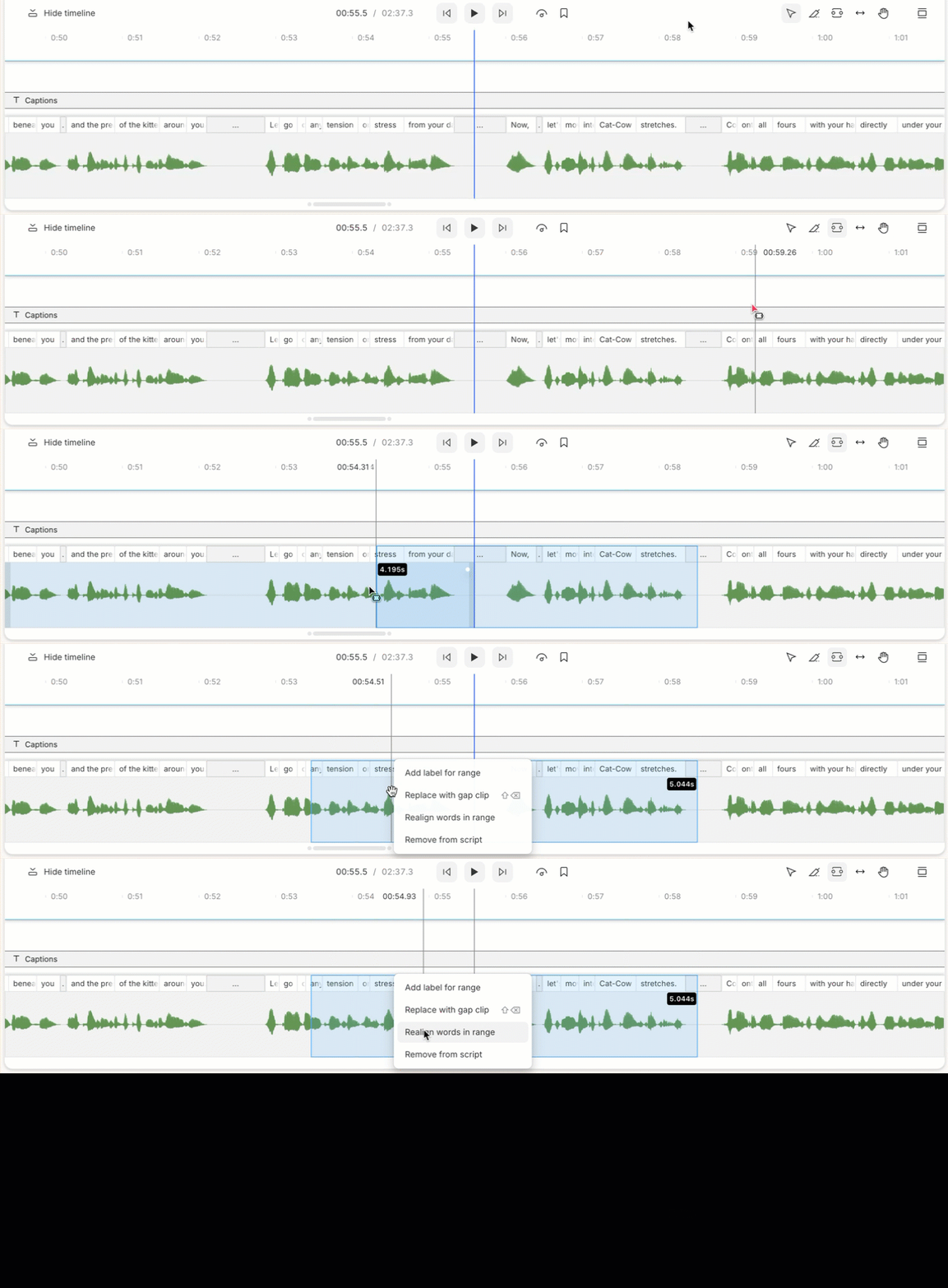
If a transcript stops lining up with the audio, with words landing early or late, realign a selected range to re-sync it to the media.
1. Select a range of script — by highlighting the text in the Script editor, or by using the  [Range tool](/timeline/timeline-tools) in the [Timeline](/timeline/timeline-overview).
2. From the Timeline, right-click on the selected range.
3. Select **Realign words in range**.\\
[Range tool](/timeline/timeline-tools) in the [Timeline](/timeline/timeline-overview).
2. From the Timeline, right-click on the selected range.
3. Select **Realign words in range**.\\
 **Manually correcting alignment**
If you need to make any further corrections to the transcript alignment, you can [manually adjust word boundaries](/script-editing/the-wordbar) with the wordbar.
**Manually correcting alignment**
If you need to make any further corrections to the transcript alignment, you can [manually adjust word boundaries](/script-editing/the-wordbar) with the wordbar.