> ## Documentation Index
> Fetch the complete documentation index at: https://help.descript.com/llms.txt
> Use this file to discover all available pages before exploring further.
# Markers and Chapters
> Add markers to break your script into sections and export them as chapters.
Organize your script into sections with markers. Markers work like bookmarks or headers — they appear in the timeline and can show up as chapters in your exported or published videos.
In this article, you’ll learn how to add, navigate, edit, and export markers.
## Add a marker
There are several ways to add a marker to the script:
1. Type `#` directly into your script.
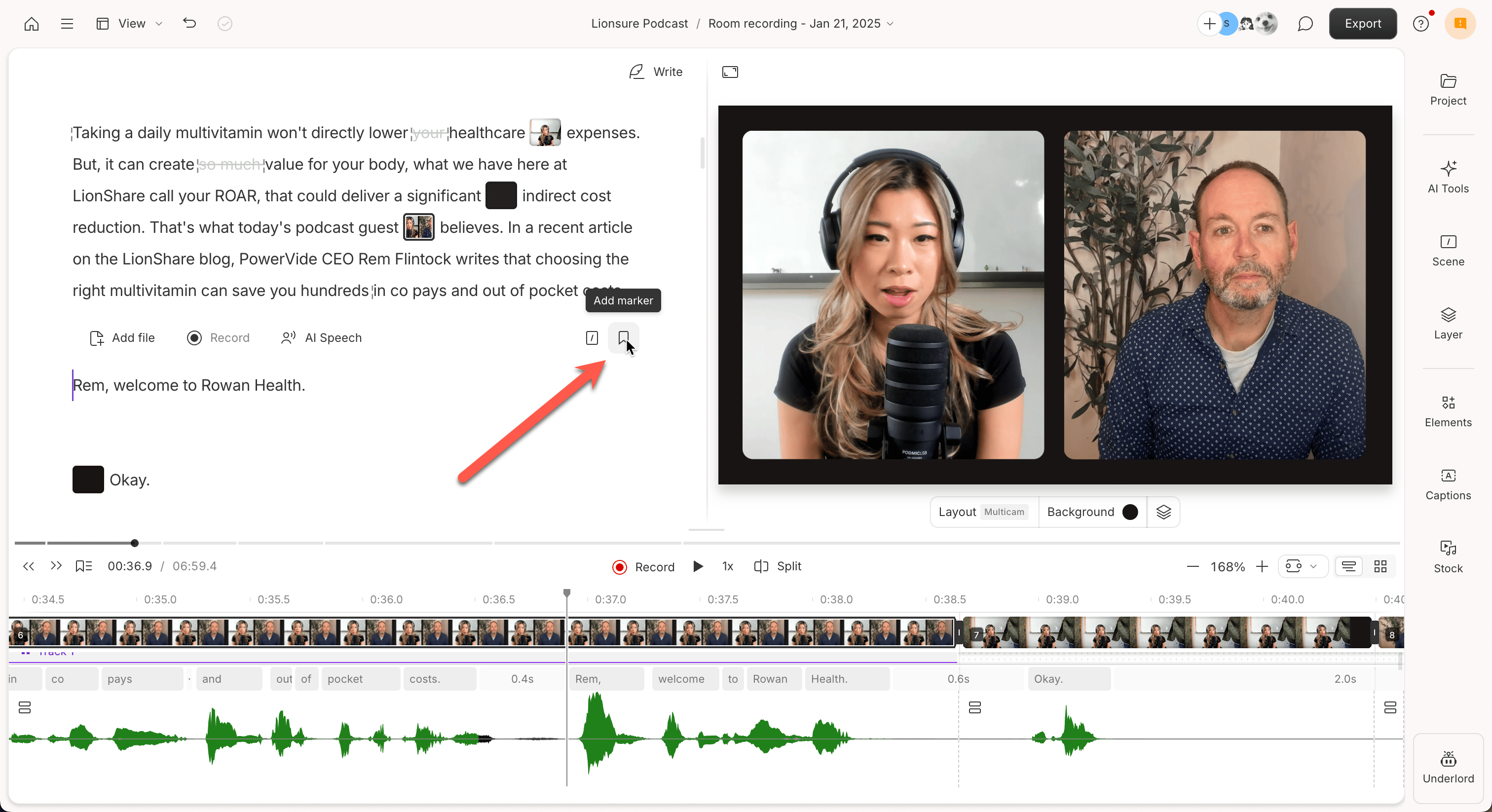
2. Click **Add marker** on a blank line in the script.\\
 3. Use the **Add Chapters** tool from the [AI Tools panel](/descript-tour/ai-tools-overview).
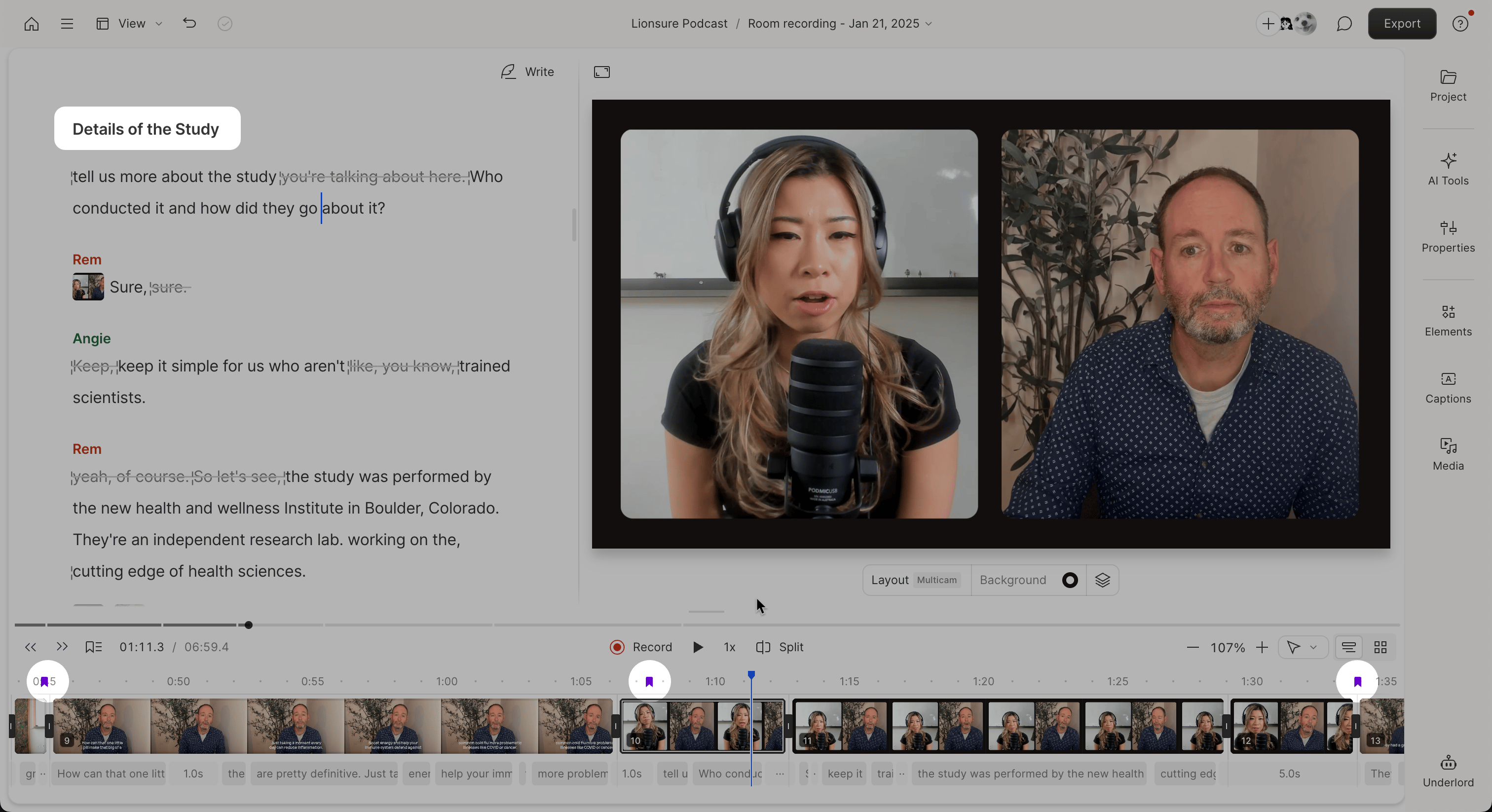
Markers appear in your script as section headers and as purple bookmarks in the timeline.
3. Use the **Add Chapters** tool from the [AI Tools panel](/descript-tour/ai-tools-overview).
Markers appear in your script as section headers and as purple bookmarks in the timeline.
 ## Navigate between markers
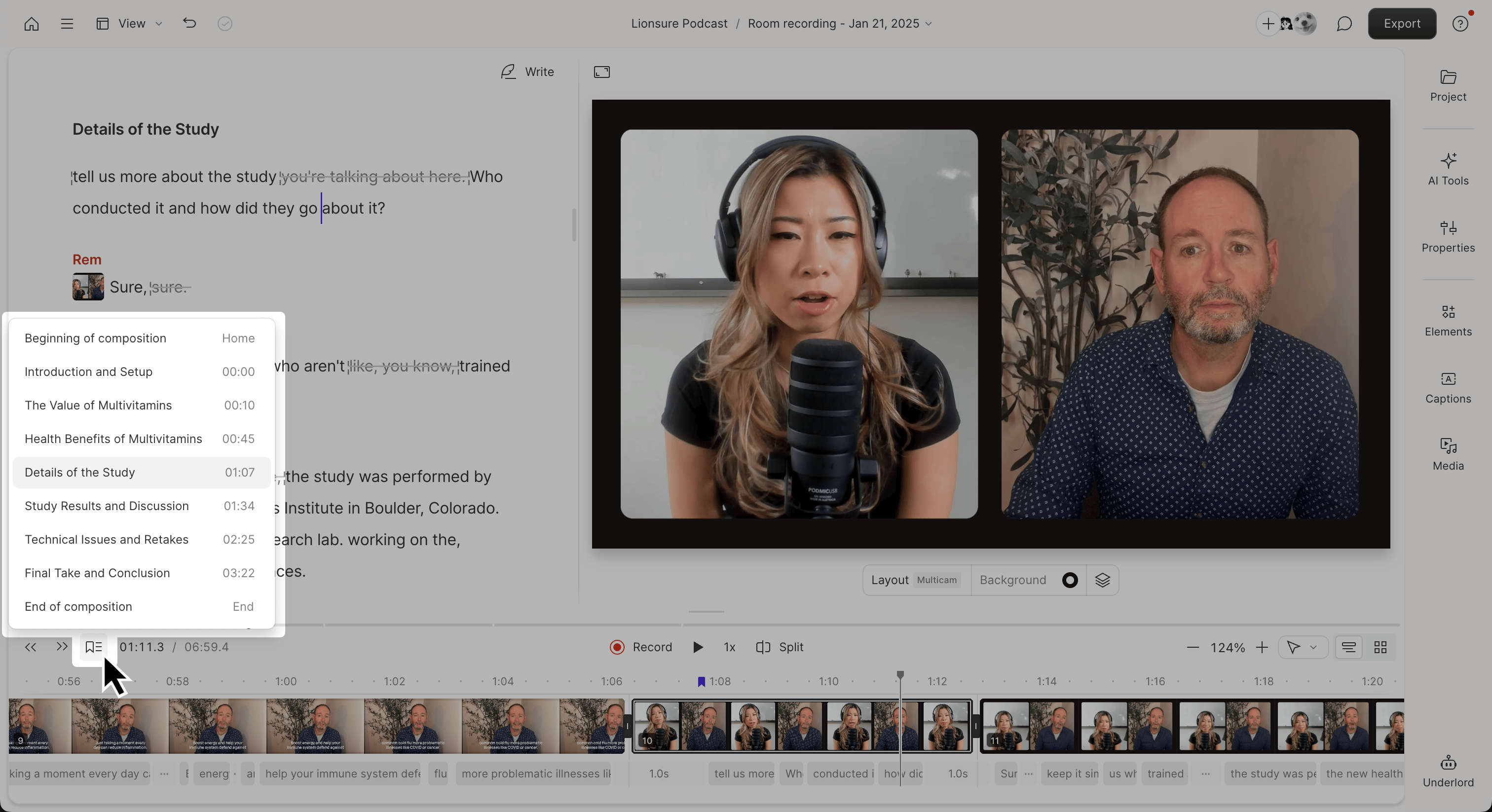
Click the marker icon next to the playback controls to view all markers in your script and jump between sections.
## Navigate between markers
Click the marker icon next to the playback controls to view all markers in your script and jump between sections.
 ## Edit markers
### Move a marker
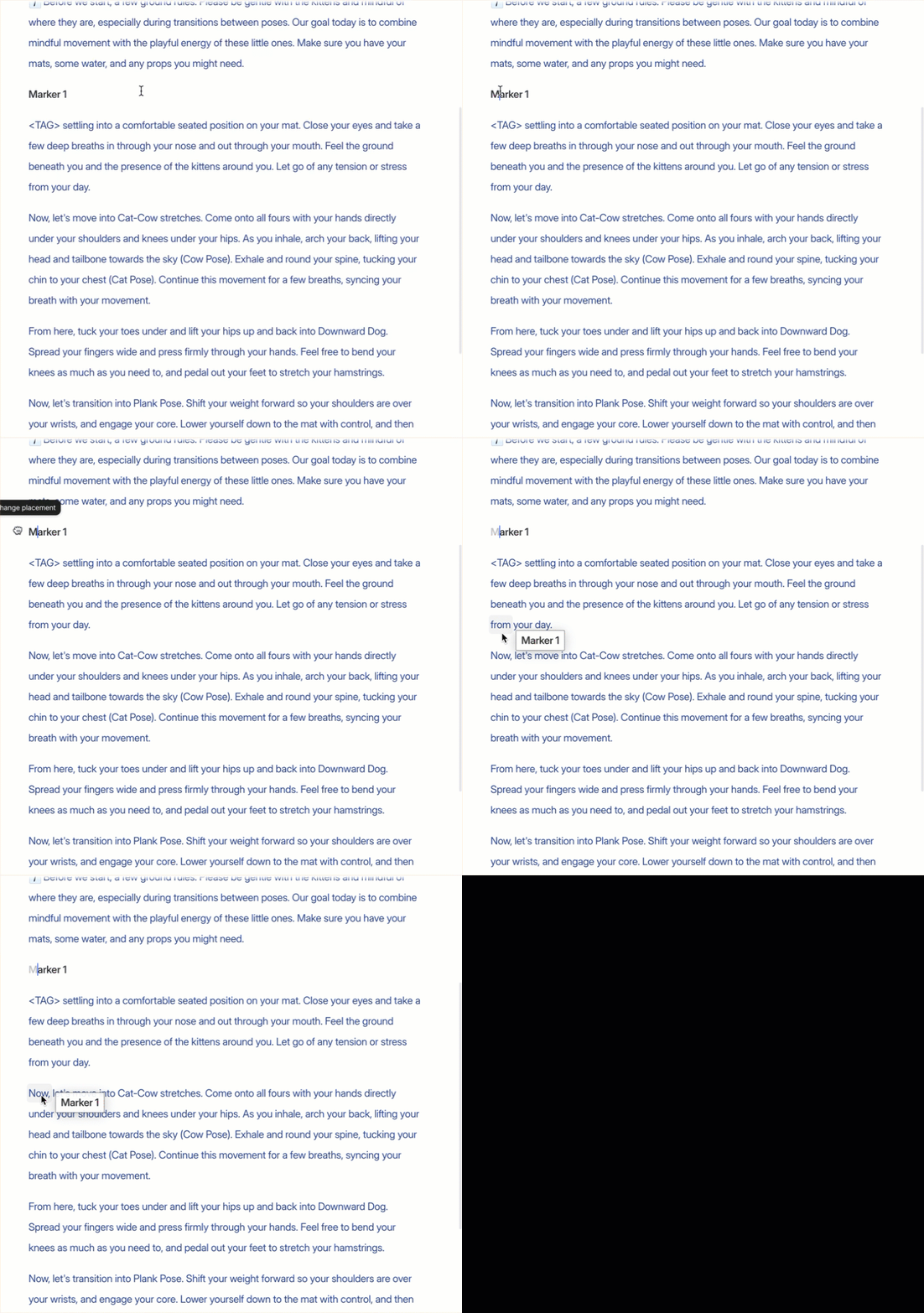
Hover over a marker until the **grabber** appears. Click and drag the marker to a new location. As you drag, the script highlights where the marker will land.
## Edit markers
### Move a marker
Hover over a marker until the **grabber** appears. Click and drag the marker to a new location. As you drag, the script highlights where the marker will land.
 ### Rename a marker
Click into the marker’s label and type a new name.
### Delete a marker
Select the marker in your script and press **Delete** on your keyboard.
## How markers appear in exports
### Do markers show up as chapters in my video?
Markers automatically appear as chapters in [Descript web links](/export-and-share/share-page).
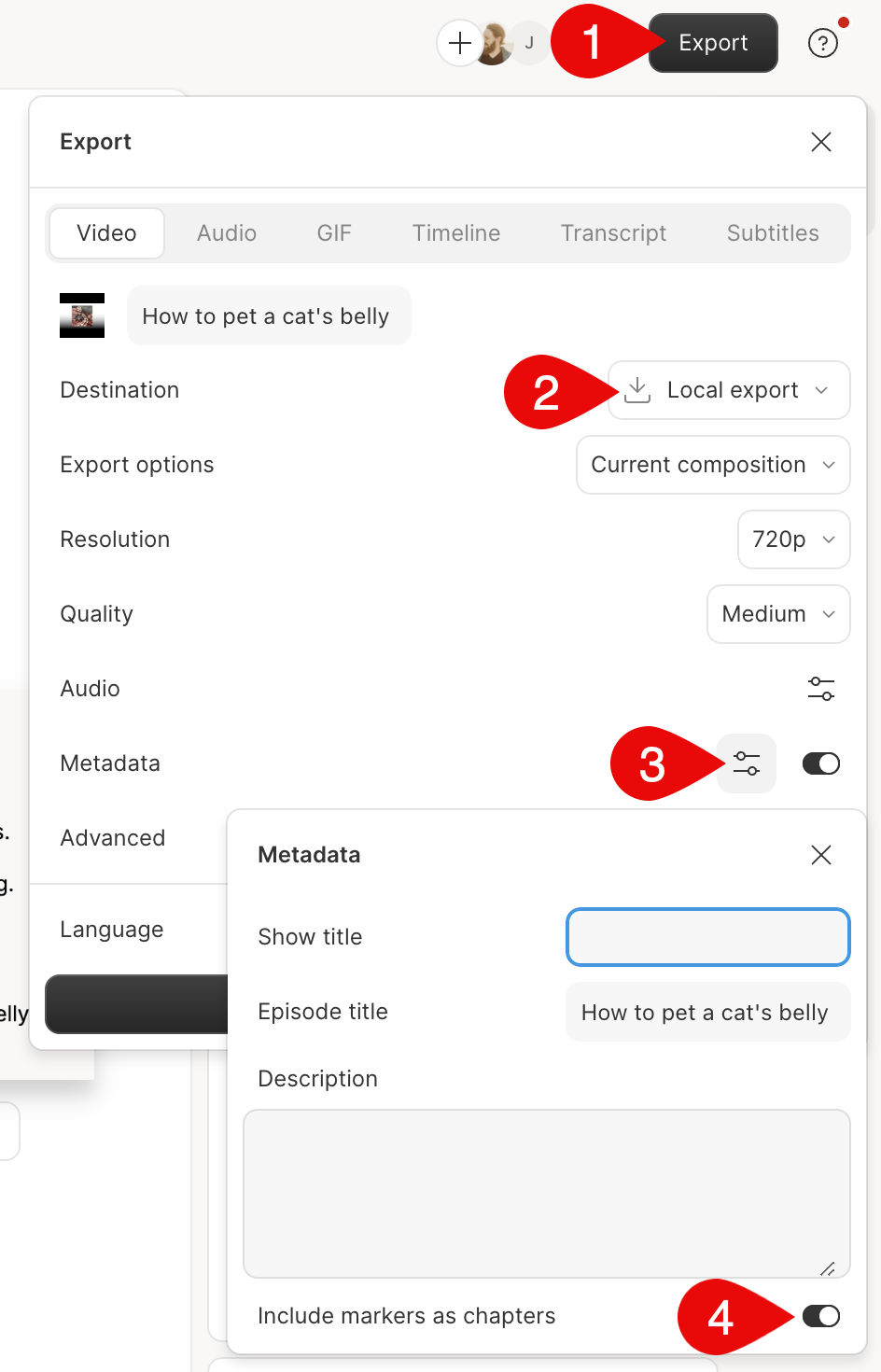
For [local exports](/export-and-share/video-gif), turn on **Include markers as chapters** in the Metadata settings. This works for MP4, MP3, and AAC files. Media players and podcast apps that support chapters will display them.
**Note:** YouTube doesn’t support chapter metadata from exported files. You’ll need to [add chapters manually in the video description](https://support.google.com/youtube/answer/9884579?hl=en). You can easily copy a formatted list of your chapters for this purpose by clicking the marker icon next to the playback controls and selecting **Copy chapters for YouTube**.
### Rename a marker
Click into the marker’s label and type a new name.
### Delete a marker
Select the marker in your script and press **Delete** on your keyboard.
## How markers appear in exports
### Do markers show up as chapters in my video?
Markers automatically appear as chapters in [Descript web links](/export-and-share/share-page).
For [local exports](/export-and-share/video-gif), turn on **Include markers as chapters** in the Metadata settings. This works for MP4, MP3, and AAC files. Media players and podcast apps that support chapters will display them.
**Note:** YouTube doesn’t support chapter metadata from exported files. You’ll need to [add chapters manually in the video description](https://support.google.com/youtube/answer/9884579?hl=en). You can easily copy a formatted list of your chapters for this purpose by clicking the marker icon next to the playback controls and selecting **Copy chapters for YouTube**.
 ### Can I export individual markers?
Yes. When [exporting locally](/export-and-share/video-gif), choose **Markers** as the export option to create a separate file for each marker.
### Do markers appear in transcript exports?
Yes. When [exporting to Word or HTML](/export-and-share/transcript), markers appear as section headers with timecodes if the option is enabled.
### Can I export individual markers?
Yes. When [exporting locally](/export-and-share/video-gif), choose **Markers** as the export option to create a separate file for each marker.
### Do markers appear in transcript exports?
Yes. When [exporting to Word or HTML](/export-and-share/transcript), markers appear as section headers with timecodes if the option is enabled.