> ## Documentation Index
> Fetch the complete documentation index at: https://help.descript.com/llms.txt
> Use this file to discover all available pages before exploring further.
# Highlight Text and Copy Highlights
> Mark quotes and clips with color-coded highlights, then copy them out.
Mark the key moments in your script with color-coded highlights: standout quotes, edits to revisit, clips worth repurposing. Optionally, pull them out with **Copy Highlights** to build a new composition from just the parts you flagged.
## Highlight text
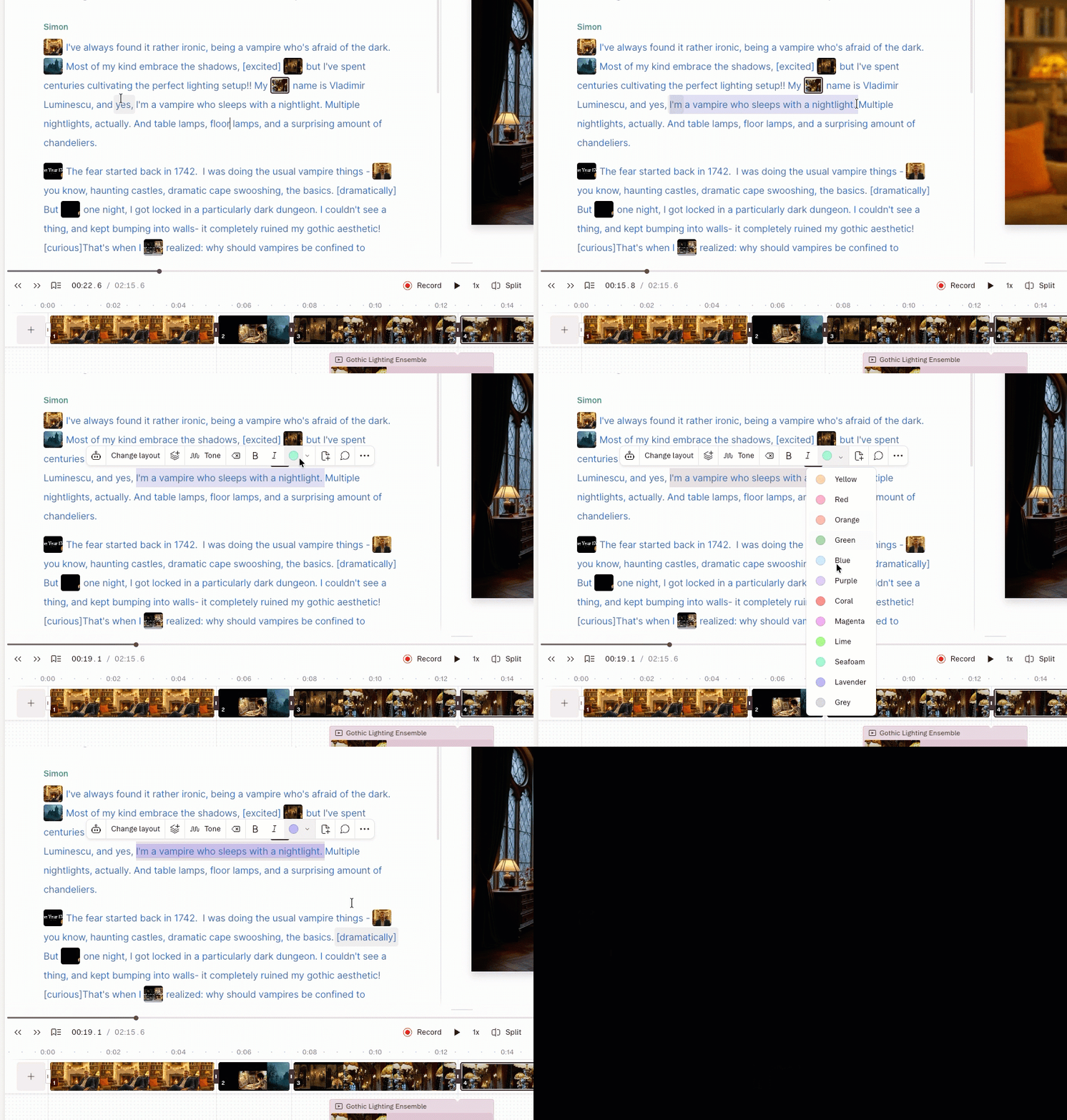
1. Select the text in your script you want to highlight.
2. Click the highlight color from the [selection toolbar](/descript-tour/selection-toolbar). Use the dropdown menu to choose a different color.\\
 ## Copy highlights into a new composition
After highlighting key moments in your composition, use the **Copy Highlights** action to collect and paste those sections into a new composition. This is a fast way to repurpose content—like building a social clip reel, podcast summary, or blog post.
1. Open the [action bar](/descript-tour/action-bar) with the keyboard shortcut:
* `Command + K` (Mac)
* `Ctrl + K` (Windows)
2. Type "Copy highlights" into the action bar, then select the **Copy highlights** option from the list.
3. Choose whether to copy highlights by a specific color or include all highlights. You may need to delete the phrase "copy highlights" from the action bar to view color-specific options.
4. Open an existing composition or [create a new one](/working-in-projects/overview).
5. Right-click in the script editor where you want the highlights to go, then select **Paste**.
## Clear highlights from your script
Remove highlights in two ways:
* Select the highlighted text, then press `Command + Shift + H` (Mac) or `Control + Shift + H` (Windows).
* Select the highlighted text, open the highlight color dropdown, and choose **Clear highlight**.\\
## Copy highlights into a new composition
After highlighting key moments in your composition, use the **Copy Highlights** action to collect and paste those sections into a new composition. This is a fast way to repurpose content—like building a social clip reel, podcast summary, or blog post.
1. Open the [action bar](/descript-tour/action-bar) with the keyboard shortcut:
* `Command + K` (Mac)
* `Ctrl + K` (Windows)
2. Type "Copy highlights" into the action bar, then select the **Copy highlights** option from the list.
3. Choose whether to copy highlights by a specific color or include all highlights. You may need to delete the phrase "copy highlights" from the action bar to view color-specific options.
4. Open an existing composition or [create a new one](/working-in-projects/overview).
5. Right-click in the script editor where you want the highlights to go, then select **Paste**.
## Clear highlights from your script
Remove highlights in two ways:
* Select the highlighted text, then press `Command + Shift + H` (Mac) or `Control + Shift + H` (Windows).
* Select the highlighted text, open the highlight color dropdown, and choose **Clear highlight**.\\