> ## Documentation Index
> Fetch the complete documentation index at: https://help.descript.com/llms.txt
> Use this file to discover all available pages before exploring further.
# Edit for Clarity
> The Edit for Clarity tool analyzes your script to clean up pacing, tighten delivery, and remove unnecessary or off-topic content.
Run Edit for Clarity when a script rambles, repeats itself, or wanders off topic. It trims and tightens automatically, and can optionally [regenerate the audio](/script-editing/change-meaning) with AI speech so the edits sound seamless.
## This article covers
* [How to use Edit for Clarity](#how-it-works)
* [What you'll see after applying edits](#what-you’ll-see)
* [Next steps after reviewing suggestions](#next-steps)
**Usage note**
On current plans, this feature uses **AI Credits**. Learn more about [tracking your Media Minutes and AI Credits](/billing-payments-plans/track-and-understand-your-media-minutes-and-ai-credits).
Legacy and Sunset plans track usage differently. See our [Understanding your Legacy and Sunset plan](/billing-payments-plans/legacy-sunset) guide for details.
## How it works
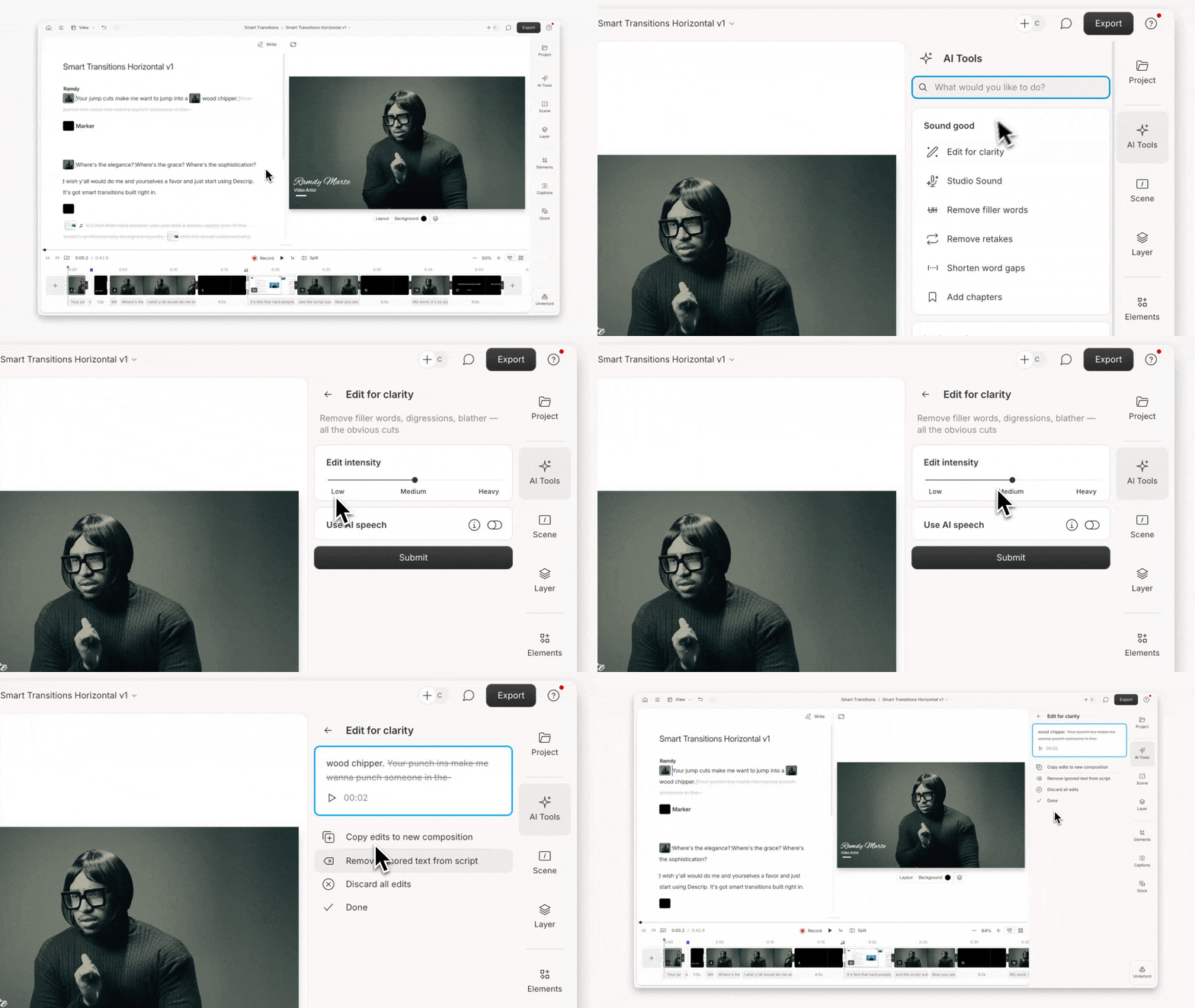
1. Open the **AI Tools** panel in the right sidebar.
2. Select **Edit for Clarity** from the **Sound Good** section.
3. Adjust the **Edit intensity** slider:
* **Low** – Light touch, minimal edits
* **Medium** – Balanced cleanup
* **Heavy** – More aggressive editing and trimming
4. Turn on **Use AI speech** to allow AI-generated voice clips to be inserted for smoother flow.
* Make sure your script has proper [speaker labels](/script-editing/speakers).
* Each speaker must have an [AI Speaker](/ai-speech/ai-speakers-overview) assigned—you’ll be prompted if not.
5. Click **Submit** to process the script and apply edits.
 ## What you’ll see
* Removed words or phrases appear as [ignored text](/script-editing/delete-vs-ignore) so you can review or restore them.
* AI-generated edits appear in blue and include regenerated audio using the selected AI Speaker.
## Next steps
After reviewing your edits, you can:
* **Copy edits to a new composition** – create a cleaned-up version without overwriting the original.
* **Remove ignored text** – accept the changes and delete crossed-out text.
* **Discard all edits** – undo all changes and revert to your original script.
* **Done** – close the Edit for Clarity panel.
## What you’ll see
* Removed words or phrases appear as [ignored text](/script-editing/delete-vs-ignore) so you can review or restore them.
* AI-generated edits appear in blue and include regenerated audio using the selected AI Speaker.
## Next steps
After reviewing your edits, you can:
* **Copy edits to a new composition** – create a cleaned-up version without overwriting the original.
* **Remove ignored text** – accept the changes and delete crossed-out text.
* **Discard all edits** – undo all changes and revert to your original script.
* **Done** – close the Edit for Clarity panel.