> ## Documentation Index
> Fetch the complete documentation index at: https://help.descript.com/llms.txt
> Use this file to discover all available pages before exploring further.
# Deleting vs Ignoring Script Text
> Choose between deleting or ignoring (strikethrough) parts of your script.
Use delete and ignore to remove content from your script while keeping your edits non-destructive and reversible.
**Before getting started**
Not familiar with script editing yet? Check out [editing your script like a doc](/script-editing/correct-your-transcript) first.
## How to delete script content
Deleting removes text and its associated media from view.
1. Highlight the section of script you want to remove.
2. Press `Delete` (macOS) or `Backspace` (Windows).
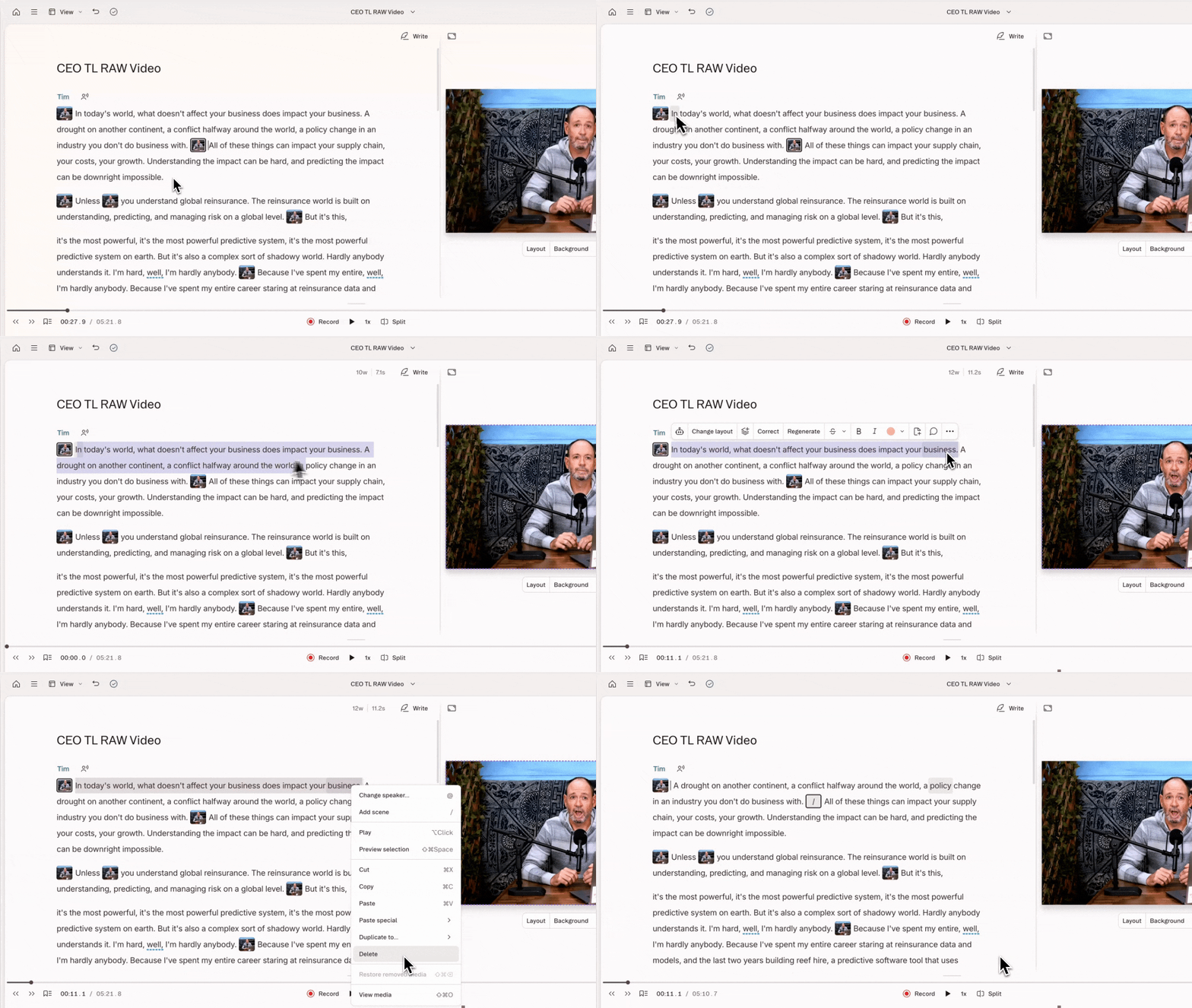 Deleted content won't appear in your playback, exports, or share pages — but it's not permanent. You can un-delete your content at any time via the [restore removed media action](/script-editing/restore-removed-media).
## How to ignore script content
Ignoring marks your script text with a strikethrough. Ignored text stays visible in your script, but won't play back. Use this when you want to track your edits visually, or think you might want to restore content later.
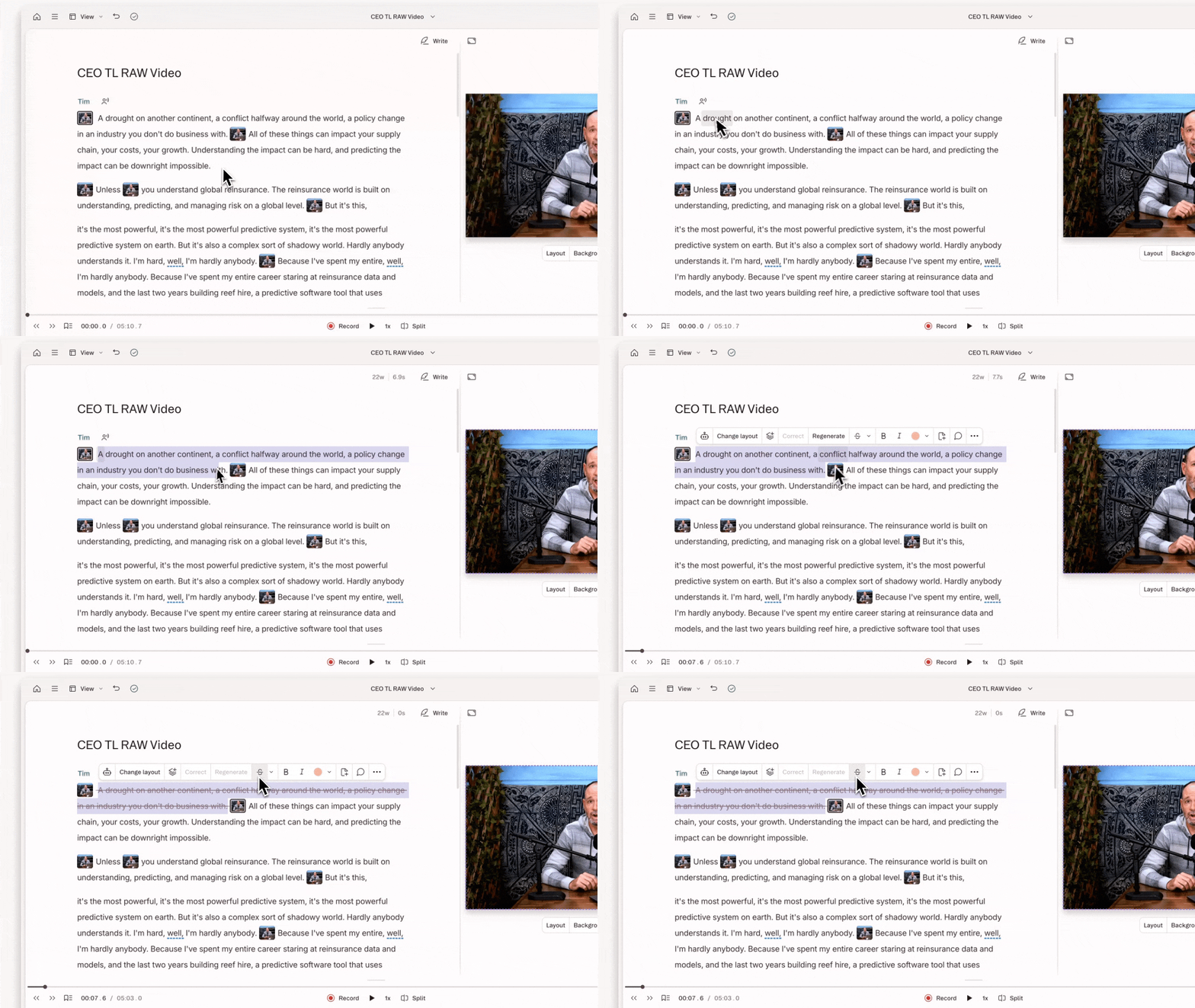
1. Highlight the section of script you want to ignore.
2. Press `Command + Delete` (macOS) or `Control + Backspace` (Windows). The text will appear with a strikethrough.
Deleted content won't appear in your playback, exports, or share pages — but it's not permanent. You can un-delete your content at any time via the [restore removed media action](/script-editing/restore-removed-media).
## How to ignore script content
Ignoring marks your script text with a strikethrough. Ignored text stays visible in your script, but won't play back. Use this when you want to track your edits visually, or think you might want to restore content later.
1. Highlight the section of script you want to ignore.
2. Press `Command + Delete` (macOS) or `Control + Backspace` (Windows). The text will appear with a strikethrough.
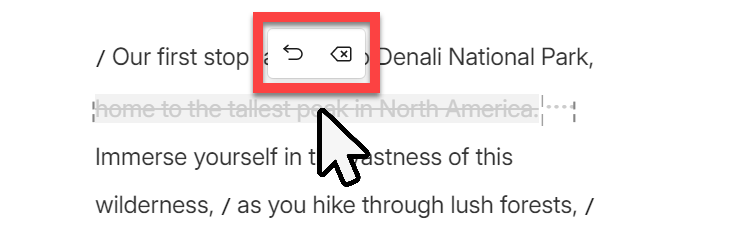
 To restore or delete ignored content, hover over the strikethrough text and choose **Restore** (to un-ignore the media) or **Delete** (to remove the media)**.**
 ## Export behavior
How you remove content affects what shows up when you export or share your project.
* **Deleted** content won't appear in an [exported text file](/export-and-share/transcript) or on the transcript of a Descript [share page](/export-and-share/share-page).
* **Ignored** text can be included in an exported transcription, but won't appear in subtitles or media exported to the Descript (web link) destination.
## Export behavior
How you remove content affects what shows up when you export or share your project.
* **Deleted** content won't appear in an [exported text file](/export-and-share/transcript) or on the transcript of a Descript [share page](/export-and-share/share-page).
* **Ignored** text can be included in an exported transcription, but won't appear in subtitles or media exported to the Descript (web link) destination.