> ## Documentation Index
> Fetch the complete documentation index at: https://help.descript.com/llms.txt
> Use this file to discover all available pages before exploring further.
# Create a Sequence
> Bundle camera angles, mics, and screen recordings into one sequence.
A sequence bundles several tracks into one unit you edit together from your script, so multi-source footage stays in sync as you cut.
This guide walks through several ways to create a sequence in Descript. If you’re new to sequences or unsure when to use them, start with our [sequence overview](/script-editing/multi-track-sequences-overview).
## Create a sequence when importing files
When you drag multiple files into your composition, Descript will prompt you to combine them into a sequence.
1. Drag your media files into the script panel of your composition.
2. When prompted, assign speaker labels to each file—Descript will apply them throughout the transcript.
3. Click **Combine into sequence**. If you choose **Keep separate**, Descript will add your files one after the other without creating a sequence.\\
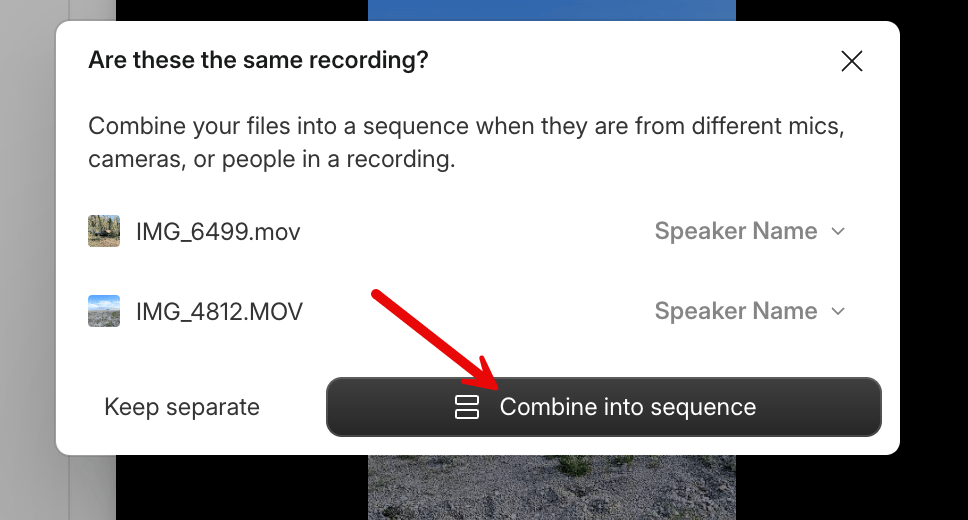 The sequence will appear in your script and timeline as a single item. You can now edit all tracks together from the script. [Learn more about editing your video from the transcript →](/getting-started/edit-like-a-doc)
**Need to re-align your sequence?** Use the Multi-Track Autosync button in the sequence editor. It aligns two or more audio-enabled tracks automatically. To make adjustments manually, use the [Sequence Editor](/script-editing/sequence-editor).
## Other ways to create a sequence
### **From existing project files**
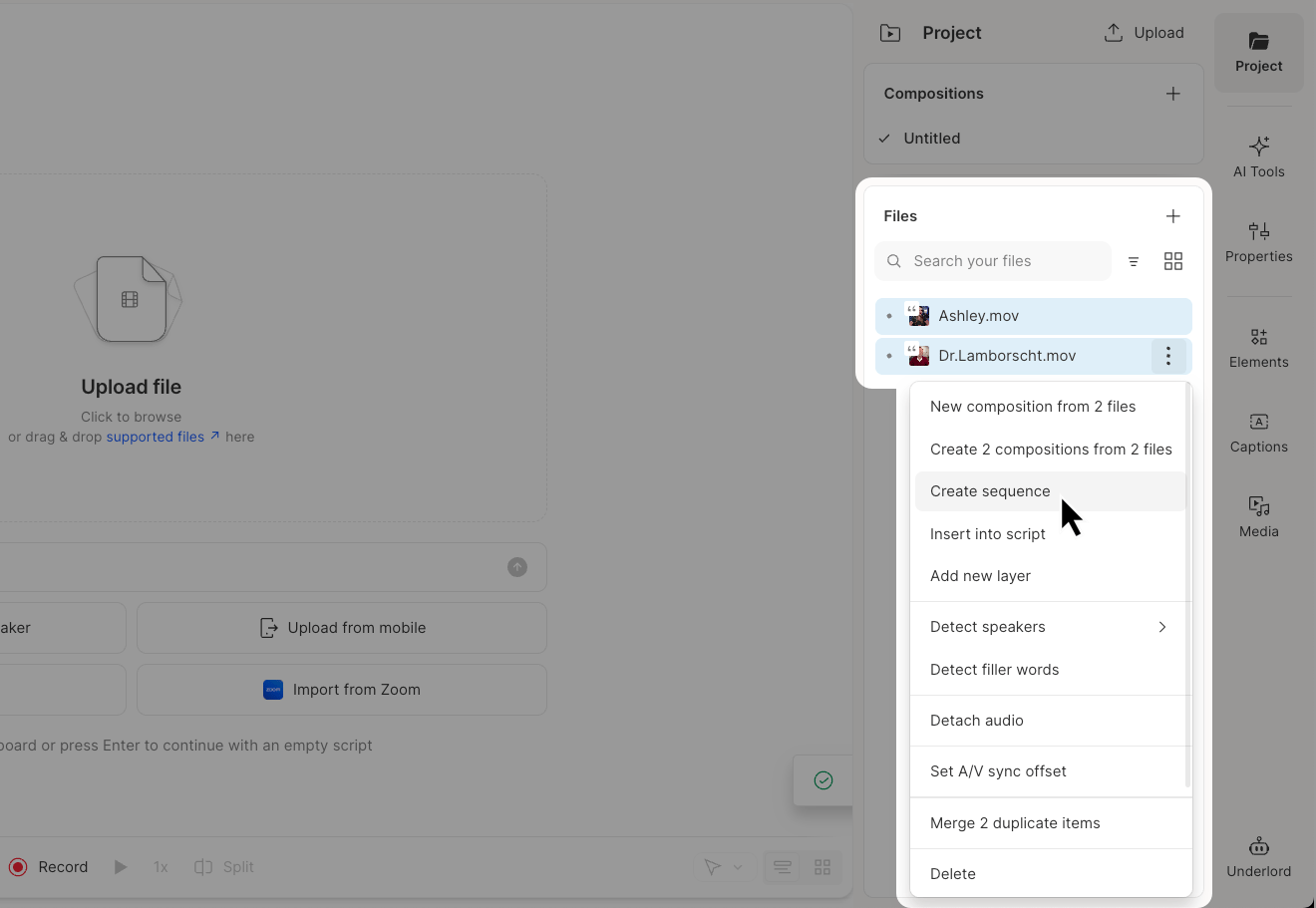
If your files are already in your project, select them in the **Project** panel, right-click, and choose **Create sequence**. Descript will bundle them and open the Sequence Editor so you can adjust alignment if needed.\\
The sequence will appear in your script and timeline as a single item. You can now edit all tracks together from the script. [Learn more about editing your video from the transcript →](/getting-started/edit-like-a-doc)
**Need to re-align your sequence?** Use the Multi-Track Autosync button in the sequence editor. It aligns two or more audio-enabled tracks automatically. To make adjustments manually, use the [Sequence Editor](/script-editing/sequence-editor).
## Other ways to create a sequence
### **From existing project files**
If your files are already in your project, select them in the **Project** panel, right-click, and choose **Create sequence**. Descript will bundle them and open the Sequence Editor so you can adjust alignment if needed.\\
 ### **Start with an empty sequence**
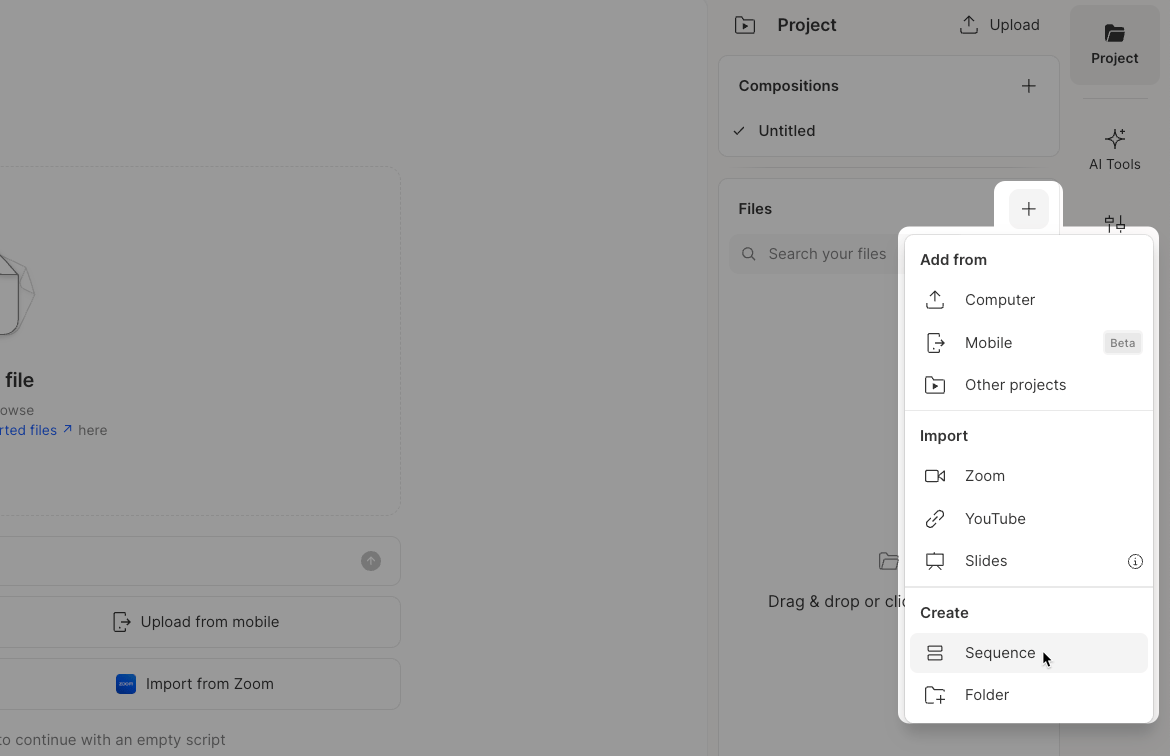
Click the three-dot menu (**···**) in the **Project** panel under **Files** and select **Create sequence**. The Sequence Editor will open where you can manually add files and build your sequence.\\
### **Start with an empty sequence**
Click the three-dot menu (**···**) in the **Project** panel under **Files** and select **Create sequence**. The Sequence Editor will open where you can manually add files and build your sequence.\\
 **Don't forget: Add your sequence to the script**
After you create a sequence, it’s stored in the **Sequences** folder in your **Project** panel — but it won’t appear in your script until you add it.
To add it, drag the sequence into the script or click **Insert into script**. If you can’t find your sequence, make sure the **Sequences** folder is expanded in the Project panel.
Until it’s added to the script, you won’t be able to edit the sequence or view its transcript.
[Learn how to add a file to the script →](/getting-started/add-a-file-to-the-script)
**Don't forget: Add your sequence to the script**
After you create a sequence, it’s stored in the **Sequences** folder in your **Project** panel — but it won’t appear in your script until you add it.
To add it, drag the sequence into the script or click **Insert into script**. If you can’t find your sequence, make sure the **Sequences** folder is expanded in the Project panel.
Until it’s added to the script, you won’t be able to edit the sequence or view its transcript.
[Learn how to add a file to the script →](/getting-started/add-a-file-to-the-script)