> ## Documentation Index
> Fetch the complete documentation index at: https://help.descript.com/llms.txt
> Use this file to discover all available pages before exploring further.
# Create Clips from Your Content
> Descript's Create clips AI tool turns long-form content into shorts.
**Create clips** uses AI to scan your composition and pull out short, self-contained cuts for social media, highlight reels, or teasers.
**Before you start**
You'll need an existing [composition](/working-in-projects/overview) with enough content to clip from. Your source composition must be at least as long as the clips you want to create, and very short compositions (under 1 minute) may not generate clips if there isn't enough to work with.
## How to create clips
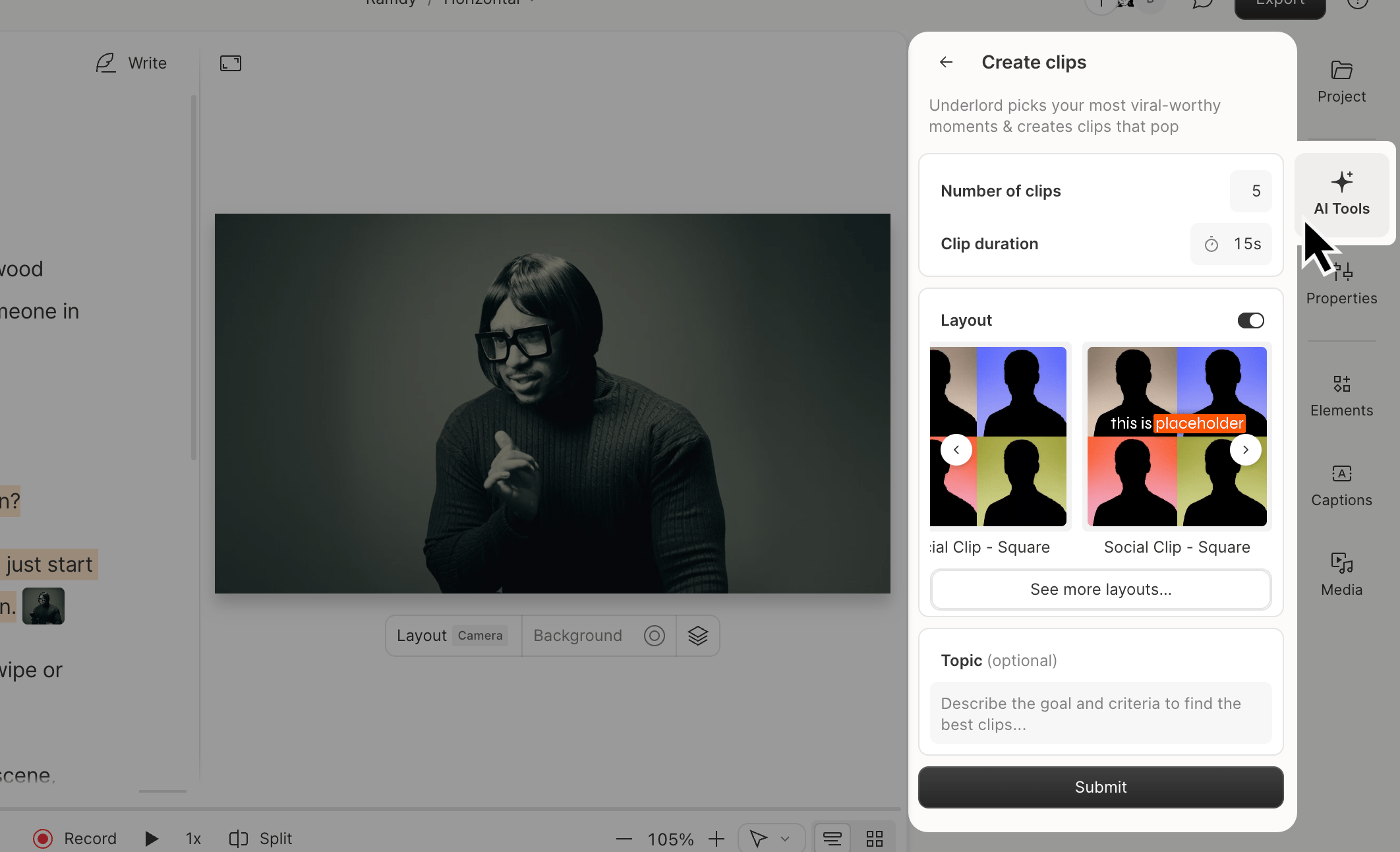
1. Open the **AI Tools** panel in the right-hand sidebar.
2. Scroll to the **Repurpose** section and select **Create clips**.
3. Set the **Number of clips** (1–20) and **Length** (10 seconds to 5 minutes).
4. *(Optional)* Choose a **Layout**. Scroll to view portrait (9:16) and square (1:1) presets, or select **See more layouts** to browse gallery or custom layout packs. [Learn more about layouts](/templates-and-presets/overview)
5. *(Optional)* Enter a topic, goal, or criteria to guide clip selection.
6. Click **Submit**. Descript generates new compositions based on the most engaging moments it identifies. Your clips appear in a **Clips from \[composition name]** folder in the project panel.
 ## Review and edit your clips
Open the **Clips from \[composition name]** folder to view your generated clips. Each clip is its own composition and can be edited.
**Ask Underlord to create clips**
You can also ask **Underlord** to create clips. Describe what you're looking for, and it handles the rest. [Learn more about Underlord](/getting-started/underlord-beta-your-ai-co-editor-in-descript)
## Review and edit your clips
Open the **Clips from \[composition name]** folder to view your generated clips. Each clip is its own composition and can be edited.
**Ask Underlord to create clips**
You can also ask **Underlord** to create clips. Describe what you're looking for, and it handles the rest. [Learn more about Underlord](/getting-started/underlord-beta-your-ai-co-editor-in-descript)