> ## Documentation Index
> Fetch the complete documentation index at: https://help.descript.com/llms.txt
> Use this file to discover all available pages before exploring further.
# How to Use the Screen Recorder in the Descript Desktop App
> The Screen Recorder is a lightweight recording tool available with Descript’s desktop app.
Grab a quick screen or camera capture without opening the full Descript editor. Launch the Screen Recorder from the desktop app, or install it as a standalone tool for even faster access.
**Usage note**
On current plans, this workflow uses **Media Minutes**. Minutes draw down whenever you upload or record media in Descript.
Legacy and Sunset plans track usage differently. See our [Understanding your Legacy and Sunset plan](/billing-payments-plans/legacy-sunset) guide for details.
## Access the Screen Recorder
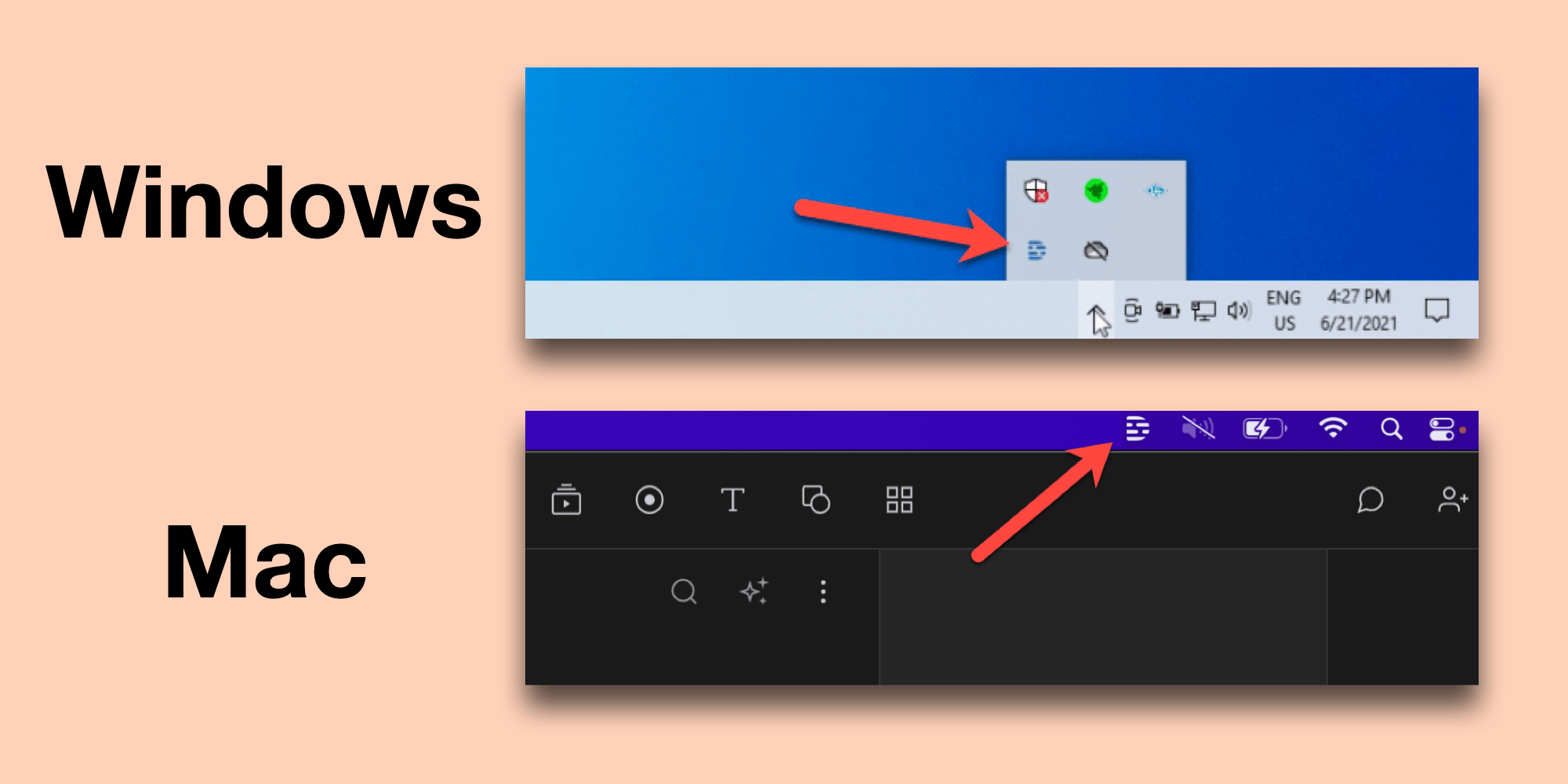
To access the Screen Recorder, select the  icon. For Windows users, this will be located in the notifications area at the bottom of your screen; for Mac users, you'll see this in the menu bar at the top of your screen on Mac.
 ## (Optional) Install the Screen Recorder shortcut directly to your device
The Descript Screen Recorder can be installed as a standalone app on your device so you can start a screen recording without opening the full Descript editor.
### To add the launcher:
1. Open the **Screen Recorder**.
2. Click **+ Add Shortcut to apps folder** at the bottom of the recorder dock. You can also install it from [App Settings](/account-and-app-settings/app-settings) under the General tab.
## (Optional) Install the Screen Recorder shortcut directly to your device
The Descript Screen Recorder can be installed as a standalone app on your device so you can start a screen recording without opening the full Descript editor.
### To add the launcher:
1. Open the **Screen Recorder**.
2. Click **+ Add Shortcut to apps folder** at the bottom of the recorder dock. You can also install it from [App Settings](/account-and-app-settings/app-settings) under the General tab.
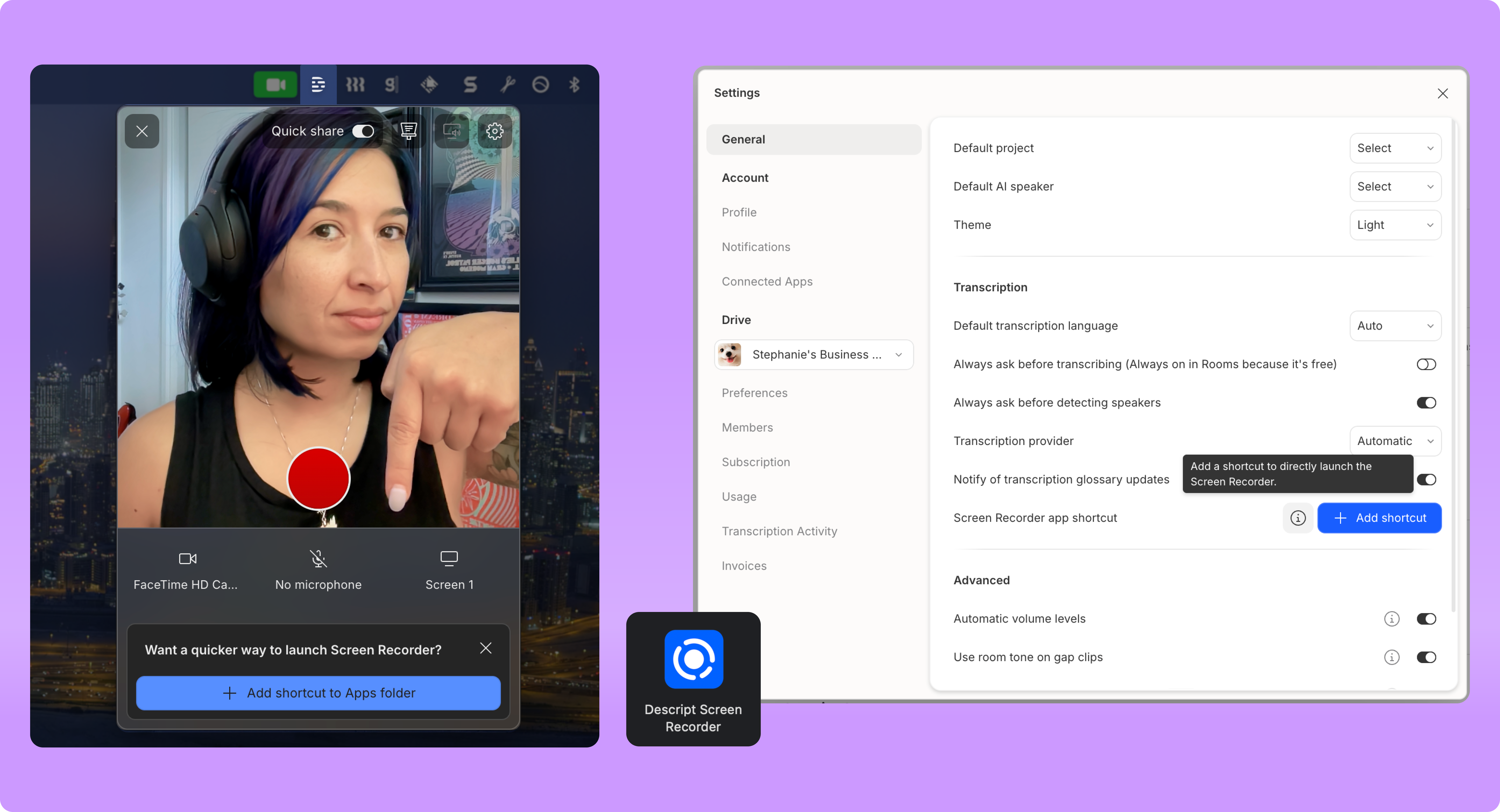 After clicking the button, navigate to your Applications folder, then add the shortcut to your desktop or dock for quicker access.
## Set up the Screen Recorder
### Configure your system permissions
For Descript to access the necessary hardware on macOS, you must grant access to the camera, microphone, and screen recording options in the Security & Privacy preferences on your device.
1. Click on the Descript icon in the menubar, then select the
After clicking the button, navigate to your Applications folder, then add the shortcut to your desktop or dock for quicker access.
## Set up the Screen Recorder
### Configure your system permissions
For Descript to access the necessary hardware on macOS, you must grant access to the camera, microphone, and screen recording options in the Security & Privacy preferences on your device.
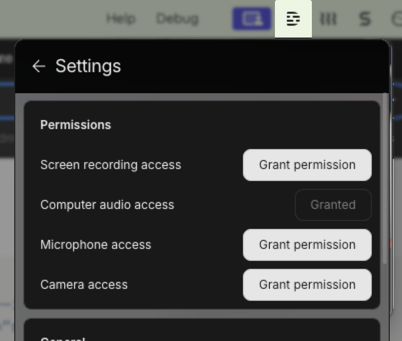
1. Click on the Descript icon in the menubar, then select the  **Settings** button in the top right corner of the Dock Window.
2. Under Permissions, click the **Grant permission** buttons for screen recording, computer audio, microphone, and camera.
3. This will open your system settings — enable access for Descript. Exact steps will depend on your device OS.
4. Once access is granted, you'll need to [quit Descript completely](/record/screen-recorder) and relaunch the application for the changes to take effect.
**Settings** button in the top right corner of the Dock Window.
2. Under Permissions, click the **Grant permission** buttons for screen recording, computer audio, microphone, and camera.
3. This will open your system settings — enable access for Descript. Exact steps will depend on your device OS.
4. Once access is granted, you'll need to [quit Descript completely](/record/screen-recorder) and relaunch the application for the changes to take effect.
 **"Recording stopped, please check your device settings and try again"
error**
If you see a message that your recording stopped or that Descript couldn't
capture system audio,
open
**System Settings > Privacy & Security > Microphone and Screen Recording**.
Make sure **Descript** is enabled for both
**Screen & System Audio Recording**
and **System Audio Only** at the bottom of the page. You
may need to use the **+**
option to add Descript to this list.
### Audio and video inputs
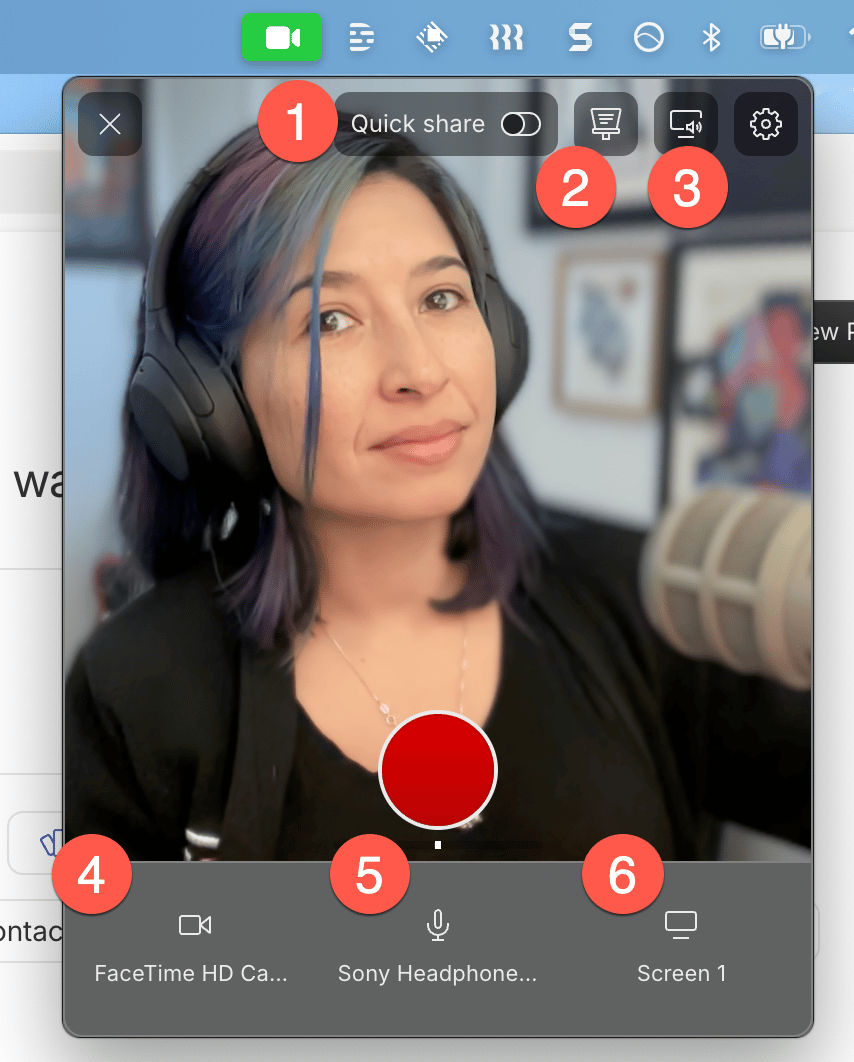
1. **Quick Share**: This setting controls where your recording goes and how it’s structured in Descript
* **When toggled on**: your recording is instantly published to a Descript share page once you stop recording. All inputs (camera, mic, screen) are combined into a single track for simple playback and export
* **When toggled off:** Your recording opens in the Descript editor as a project (not published automatically). Each input—screen, mic, camera—is added as its own track, giving you full editing flexibility
2. **Teleprompter**: Opens the teleprompter feature. [Learn more about how to use Descript's built-in teleprompter](/record/record-with-descript-s-built-in-teleprompter)
3. \*\*Computer audio:\*\*Record the sound coming from your system.
* Screen recording must be enabled to capture computer audio. You cannot record computer audio with only camera or microphone inputs.
* Mac users: Computer audio is supported on macOS 10.14 and higher.
4.
**"Recording stopped, please check your device settings and try again"
error**
If you see a message that your recording stopped or that Descript couldn't
capture system audio,
open
**System Settings > Privacy & Security > Microphone and Screen Recording**.
Make sure **Descript** is enabled for both
**Screen & System Audio Recording**
and **System Audio Only** at the bottom of the page. You
may need to use the **+**
option to add Descript to this list.
### Audio and video inputs
1. **Quick Share**: This setting controls where your recording goes and how it’s structured in Descript
* **When toggled on**: your recording is instantly published to a Descript share page once you stop recording. All inputs (camera, mic, screen) are combined into a single track for simple playback and export
* **When toggled off:** Your recording opens in the Descript editor as a project (not published automatically). Each input—screen, mic, camera—is added as its own track, giving you full editing flexibility
2. **Teleprompter**: Opens the teleprompter feature. [Learn more about how to use Descript's built-in teleprompter](/record/record-with-descript-s-built-in-teleprompter)
3. \*\*Computer audio:\*\*Record the sound coming from your system.
* Screen recording must be enabled to capture computer audio. You cannot record computer audio with only camera or microphone inputs.
* Mac users: Computer audio is supported on macOS 10.14 and higher.
4.  **Camera:** Record video from the selected video input device
5.
**Camera:** Record video from the selected video input device
5.  **Microphone:** Record audio directly from your microphone
6.
**Microphone:** Record audio directly from your microphone
6.  **Display screen**: Record an entire display, application window, or a specific region of your screen
 **Recording via Descript for Web?**
If you're using [Descript for Web](/getting-started/descript-for-web), you can still record computer audio using the Editor Recorder with a screen input—but it will only capture audio from the browser tab you're recording, not system-wide audio.
### Screen region recording
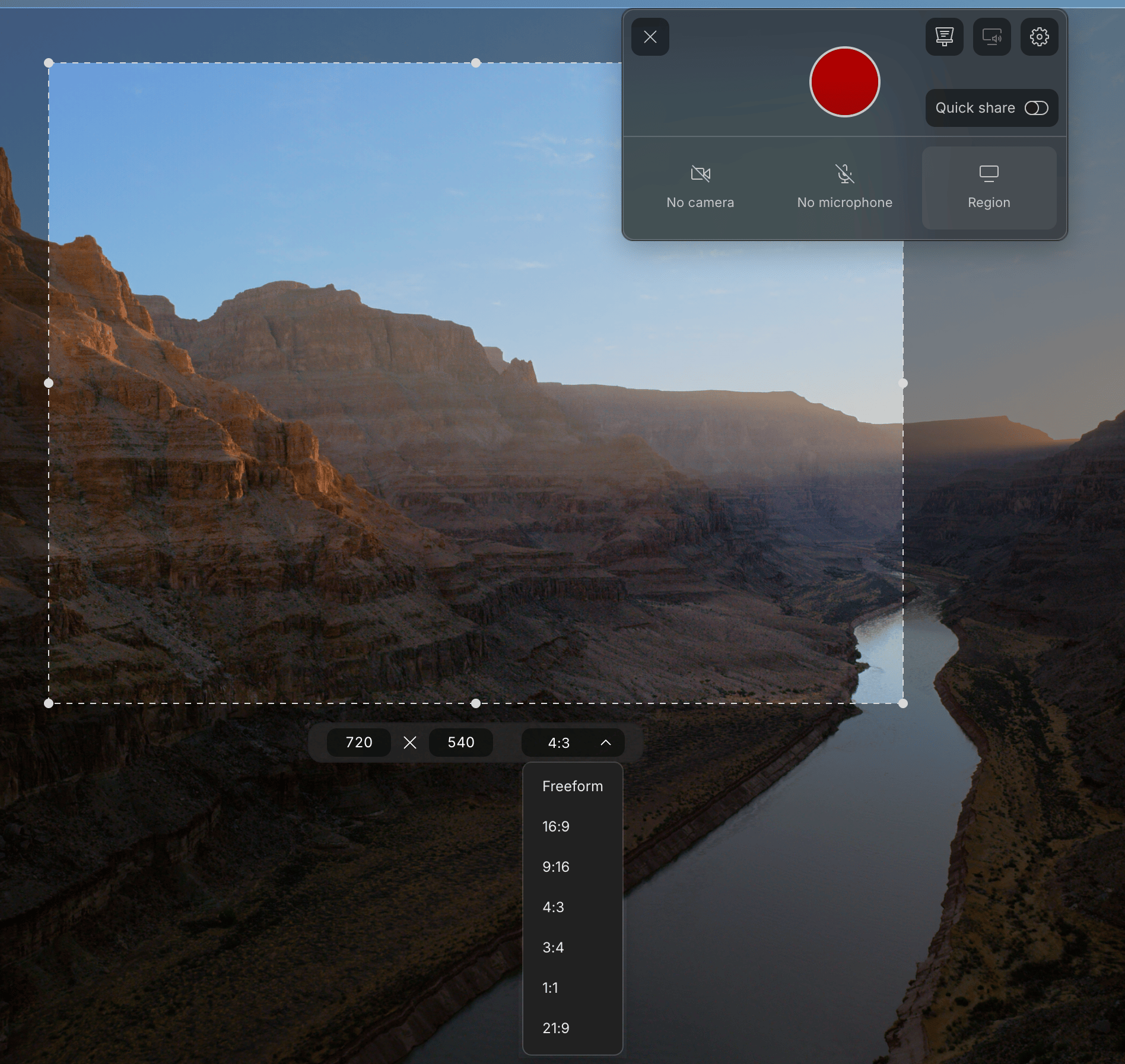
To record a specific region of your screen, click the screen input button at the bottom right-hand corner of the dock window. Select **Screen Region** from the dropdown menu.
Click and drag to select a region to record. Enter values in the height and width fields and/or use the dropdown menu to select from available aspect ratio presets.
**Recording via Descript for Web?**
If you're using [Descript for Web](/getting-started/descript-for-web), you can still record computer audio using the Editor Recorder with a screen input—but it will only capture audio from the browser tab you're recording, not system-wide audio.
### Screen region recording
To record a specific region of your screen, click the screen input button at the bottom right-hand corner of the dock window. Select **Screen Region** from the dropdown menu.
Click and drag to select a region to record. Enter values in the height and width fields and/or use the dropdown menu to select from available aspect ratio presets.
 ## Adjust the Screen Recorder Settings
Access these by clicking on the **Settings button** in the top-right corner of the Dock Window.
| Setting | Description |
| ------------------------------- | ------------------------------------------------------------------------------------------------------------------------------------------------------------------------------------------------------------------------------------------------------------------------------------------------------------------------------------------------ |
| Countdown | 3-second countdown before recording begins. |
| Camera resolution | Recording resolution is capped by your camera hardware. |
| Transcribe microphone | Automatically transcribes microphone audio. |
| Studio Sound | Apply Studio Sound to mic or computer audio after recording. |
| Open Screen Recorder | Default shortcut: `Shift + Command/Ctrl + 2` |
| Destination | Choose a destination drive for your recordings. They'll be stored in your [personal private workspace](https://help.descript.com/hc/en-us/articles/10248638387085) inside the **Recordings** folder. |
| Default publish privacy | Set visibility for shared recordings: Public, Link only, or Project-only. |
| After recording | When Quick Share is toggled on, choose what happens after recording: - **Open share page and copy link:** Opens the share page in your browser and copies the link. - **Copy link only:** Keeps you in the app and copies the link silently. You can update this behavior [in the recording setup](#during-the-recording) before you hit Record. |
| Display author on publish page | Show your name on the published share page. |
| Enable comments on publish page | Allow viewers to comment directly on the share page. |
| Camera shape | Adjust the camera frame shape with a slider (square to circular). |
| **System** | |
| ----------------- | ------------------------------------------------------------------------- |
| Run in background | The Screen Recorder stays available even when Descript is closed. |
| Launch at login | Start the Screen Recorder automatically when you log in to your computer. |
**Current recording limitations**
The Screen Recorder has a maximum duration limit of 4 hours on both Windows and macOS. Ensure to plan your recording sessions accordingly.
Also, Descript does not currently support 4K screen recordings from Windows.
## During the recording
### Camera recording
During recording, you'll be able to preview your camera feed via the Dock Window. This will remain on screen and you can continue to reposition and resize it while recording. For now, the Dock Window will be visible in your final recording–keep this is mind if recording your full screen.
Resizing the camera window will not change the resolution of the resulting video file–recording resolution is governed by your camera's maximum recording capability, as well as the "Default recording resolution" setting in your screen recorder settings.
## What to expect during recording
When you record, Descript uploads your content to the cloud in the background. A small notification in the bottom-right corner shows your upload progress.
## Adjust the Screen Recorder Settings
Access these by clicking on the **Settings button** in the top-right corner of the Dock Window.
| Setting | Description |
| ------------------------------- | ------------------------------------------------------------------------------------------------------------------------------------------------------------------------------------------------------------------------------------------------------------------------------------------------------------------------------------------------ |
| Countdown | 3-second countdown before recording begins. |
| Camera resolution | Recording resolution is capped by your camera hardware. |
| Transcribe microphone | Automatically transcribes microphone audio. |
| Studio Sound | Apply Studio Sound to mic or computer audio after recording. |
| Open Screen Recorder | Default shortcut: `Shift + Command/Ctrl + 2` |
| Destination | Choose a destination drive for your recordings. They'll be stored in your [personal private workspace](https://help.descript.com/hc/en-us/articles/10248638387085) inside the **Recordings** folder. |
| Default publish privacy | Set visibility for shared recordings: Public, Link only, or Project-only. |
| After recording | When Quick Share is toggled on, choose what happens after recording: - **Open share page and copy link:** Opens the share page in your browser and copies the link. - **Copy link only:** Keeps you in the app and copies the link silently. You can update this behavior [in the recording setup](#during-the-recording) before you hit Record. |
| Display author on publish page | Show your name on the published share page. |
| Enable comments on publish page | Allow viewers to comment directly on the share page. |
| Camera shape | Adjust the camera frame shape with a slider (square to circular). |
| **System** | |
| ----------------- | ------------------------------------------------------------------------- |
| Run in background | The Screen Recorder stays available even when Descript is closed. |
| Launch at login | Start the Screen Recorder automatically when you log in to your computer. |
**Current recording limitations**
The Screen Recorder has a maximum duration limit of 4 hours on both Windows and macOS. Ensure to plan your recording sessions accordingly.
Also, Descript does not currently support 4K screen recordings from Windows.
## During the recording
### Camera recording
During recording, you'll be able to preview your camera feed via the Dock Window. This will remain on screen and you can continue to reposition and resize it while recording. For now, the Dock Window will be visible in your final recording–keep this is mind if recording your full screen.
Resizing the camera window will not change the resolution of the resulting video file–recording resolution is governed by your camera's maximum recording capability, as well as the "Default recording resolution" setting in your screen recorder settings.
## What to expect during recording
When you record, Descript uploads your content to the cloud in the background. A small notification in the bottom-right corner shows your upload progress.
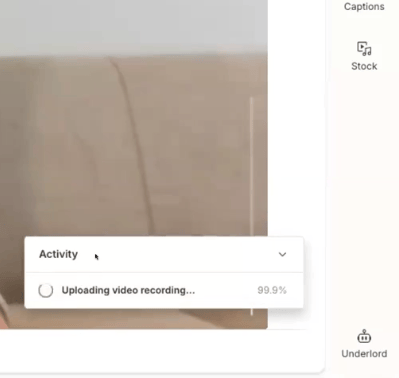 On a strong internet connection, the progress indicator usually stays near 99% during recording. On slower or unstable connections, it may pause or dip. If you consistently see a low percentage, it likely means your network is struggling. See our [network connection guide](/app-troubleshooting/how-to-resolve-network-connection-issues) for steps to improve your connection.
If a recording fails to upload, Descript will automatically try to recover it. Learn more in our guide on [how to recover a lost recording](/record/recover).
### The Dock Window
On a strong internet connection, the progress indicator usually stays near 99% during recording. On slower or unstable connections, it may pause or dip. If you consistently see a low percentage, it likely means your network is struggling. See our [network connection guide](/app-troubleshooting/how-to-resolve-network-connection-issues) for steps to improve your connection.
If a recording fails to upload, Descript will automatically try to recover it. Learn more in our guide on [how to recover a lost recording](/record/recover).
### The Dock Window
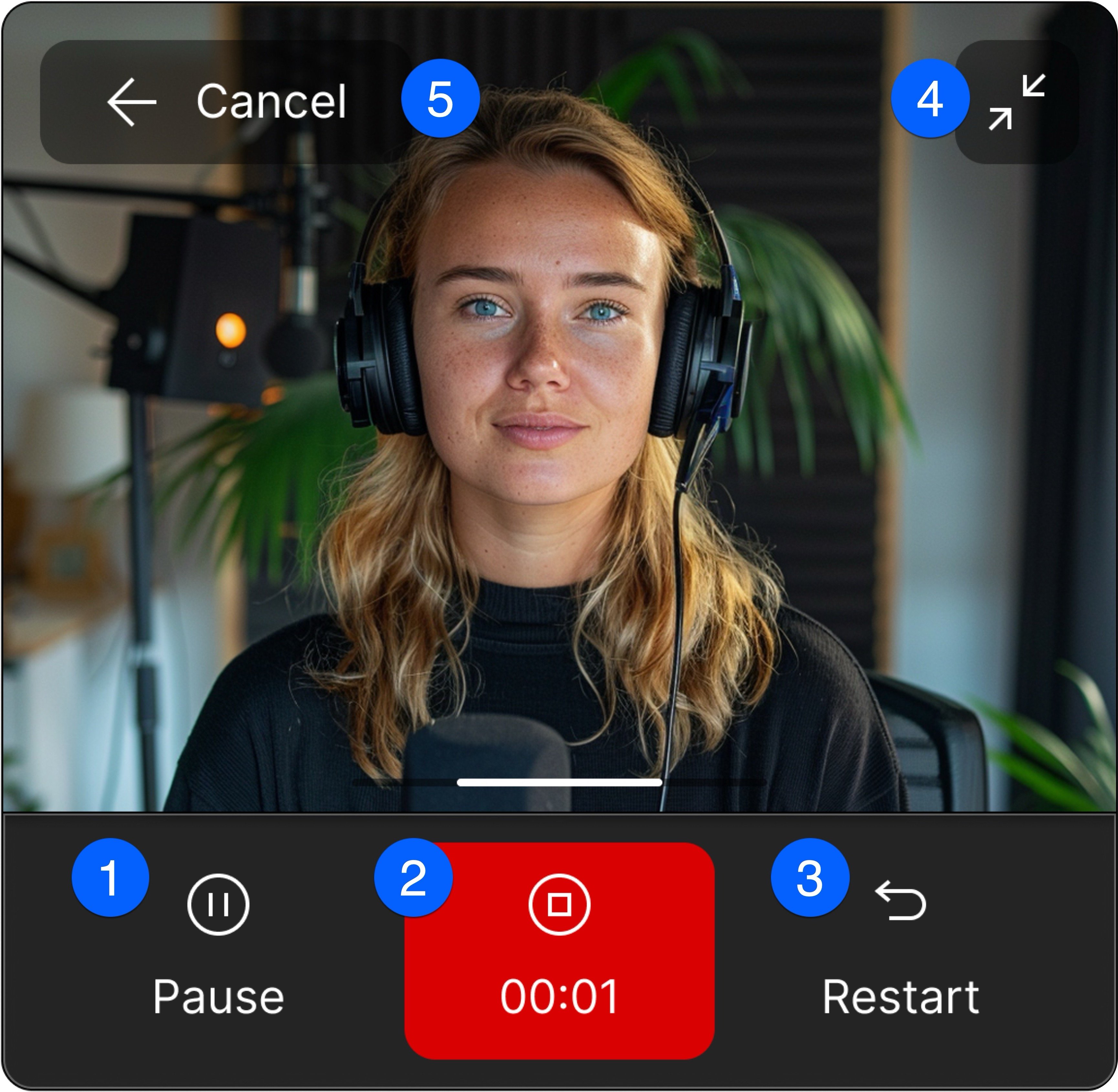 1. **
1. ** Pause /
  Resume buttons:** Temporarily pause the recording process without ending the entire recording session. Not currently supported for Windows.
2. **
Resume buttons:** Temporarily pause the recording process without ending the entire recording session. Not currently supported for Windows.
2. ** Stop button / Recording timer:** Stops the recording; displays the current duration of the recording session.
3. **Restart:** Restarts the recording from the beginning (deletes current progress).
4. **Minimize: M**inimizes/hides the camera in the Dock Window.
5. **Cancel**: Cancels and deletes the active recording.
## Close the Screen Recorder
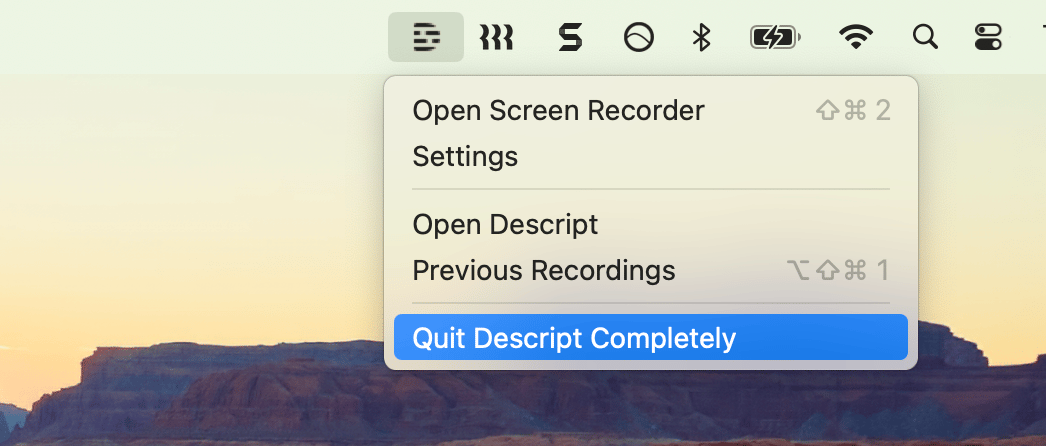
If you have **Run in background** enabled, you'll need to close Descript entirely to stop the Screen Recorder from running. Right-click the icon and select **Quit Descript completely**.
Stop button / Recording timer:** Stops the recording; displays the current duration of the recording session.
3. **Restart:** Restarts the recording from the beginning (deletes current progress).
4. **Minimize: M**inimizes/hides the camera in the Dock Window.
5. **Cancel**: Cancels and deletes the active recording.
## Close the Screen Recorder
If you have **Run in background** enabled, you'll need to close Descript entirely to stop the Screen Recorder from running. Right-click the icon and select **Quit Descript completely**.