> ## Documentation Index
> Fetch the complete documentation index at: https://help.descript.com/llms.txt
> Use this file to discover all available pages before exploring further.
# Recover and Replace Stalled Rooms Recordings
> If a Rooms recording fails to upload, Descript provides several ways to recover or replace the affected files so you can keep working.
A stalled or failed upload doesn't mean your recording is gone. When a Rooms file gets stuck, you have a few ways to recover or replace it and pick up where you left off.
This article covers how to:
* Recover a stalled or incomplete Rooms recording
* Start editing using a partial or cloud backup file
* Manually replace a partial file in your sequence with a recovered recording
* Understand the difference between high-quality and cloud backup files
Whether you’re seeing a “recording failed to upload” or "some of your recordings have stopped uploading" message, a partially uploaded file, or missing footage in your timeline, this guide will help you get your files back into your project and continue editing.
## What to do when a Rooms recording upload stalls
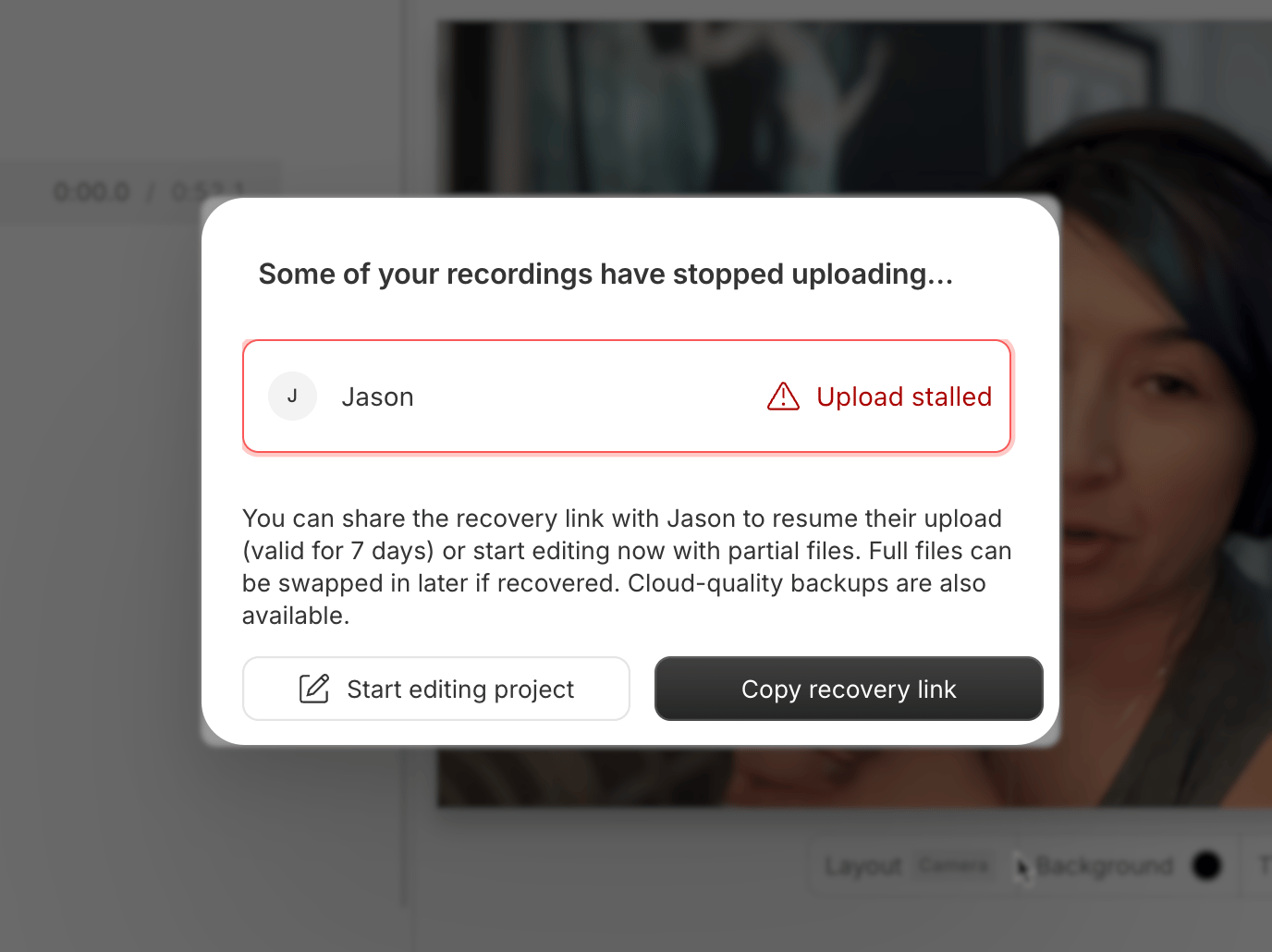
If Descript detects that one or more recordings from your Rooms session failed to upload, you’ll see a message letting you know the upload has stalled.
From here, you’ll have two options:
* **Start editing project** — Begin working with partial or cloud backup files right away. You can replace these later if a full-quality recording becomes available.
* **Copy recovery link** — Share [this recovery link](https://web.descript.com/room) with the participant whose upload stalled. They can also just rejoin the room. If they reopen Descript or the room within 7 days, the full-quality file may still be recovered.
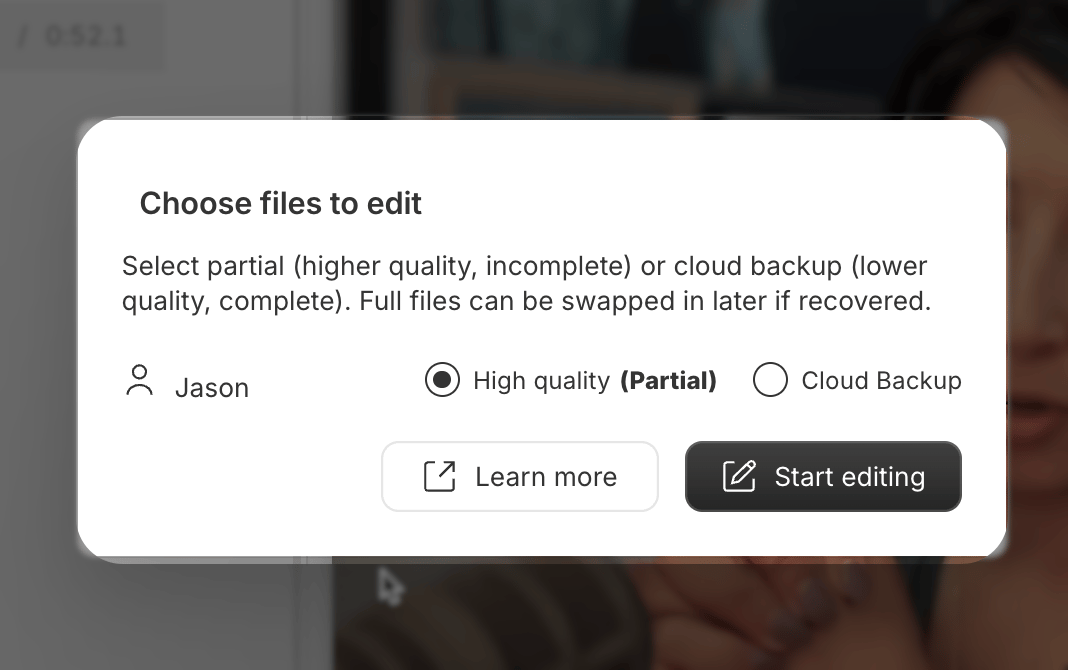
 You don’t need to wait for recovery to begin editing. After you click **Start editing project**, Descript will prompt you to choose between the higher-quality partial file and the lower-quality cloud backup (which is more likely to be complete). Either one will be added to a new sequence and automatically added to the script so you can start editing right away.
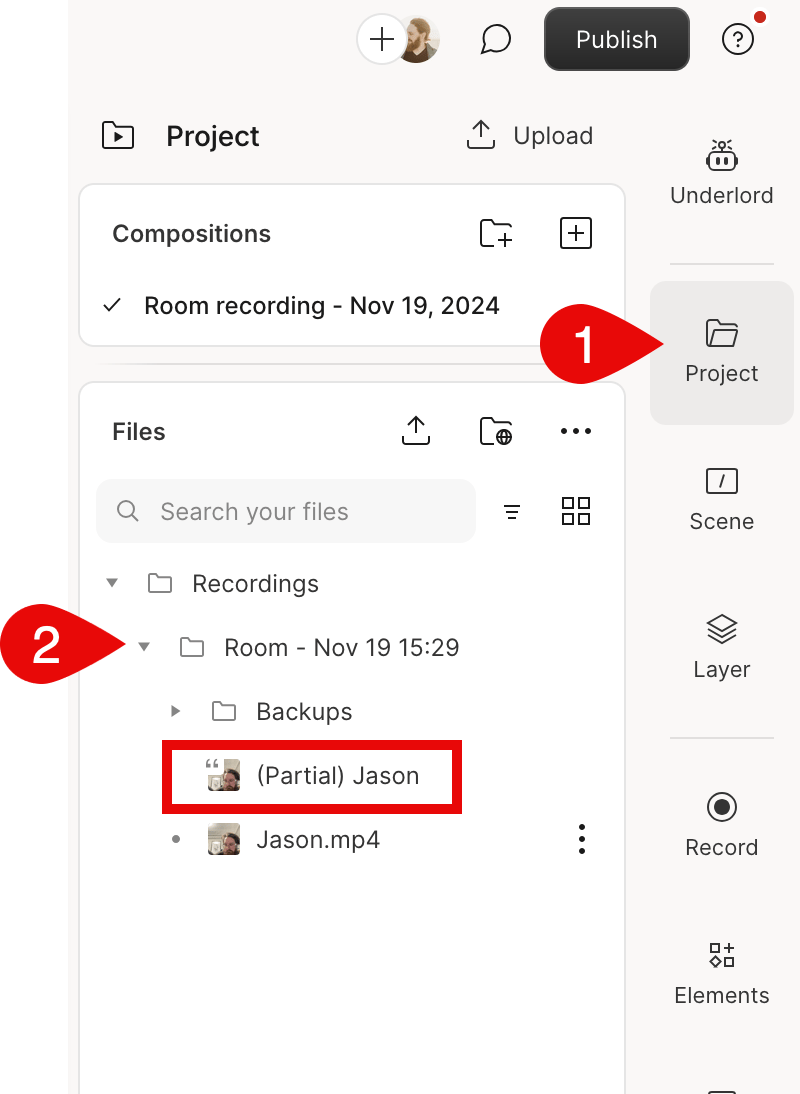
 Partial recordings appear in your project files with **(partial)** in the file name. These files are incomplete and usually shorter than the primary recording.
 ### Access the recovered file
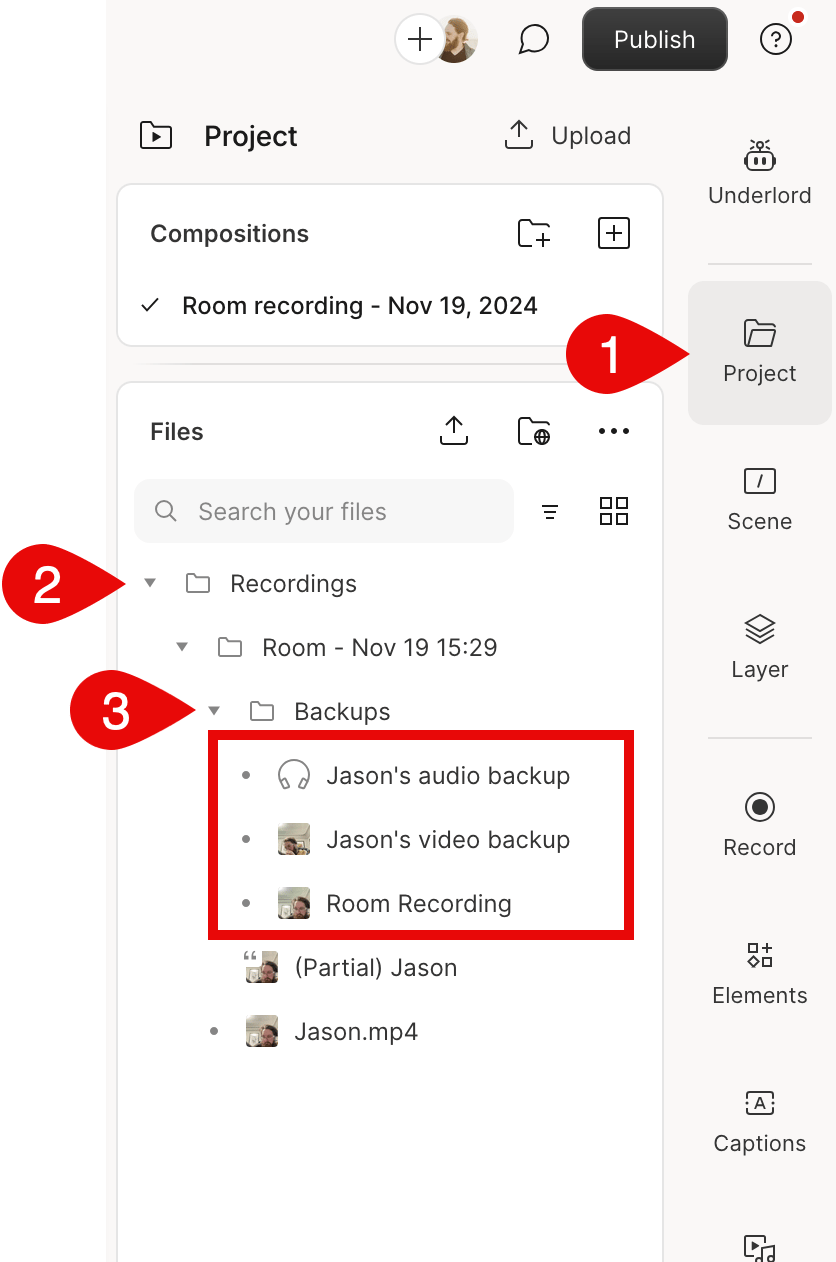
If a stalled upload is successfully recovered, the recovered file will be added to your project automatically and saved in the **Backups** folder.
Navigate to: **Files > Recordings > Room – (date and time) > Backups**
## Replace a partial recording with the recovered file
If you started editing with a partial or cloud backup file, and a high-quality recording becomes available later, you can replace the lower-quality file without losing your work.
The recovered file should match the full length of your session. It will be added to your project automatically, but you’ll need to manually replace the earlier file in your [sequence](/script-editing/sequence-editor).
**To replace a file:**
1. In the project panel, under the Files section, locate the [sequence](/script-editing/sequence-editor) that contains the partial file. From the file options menu, select **Edit sequence** to open the Sequence Editor.
2. In the Sequence Editor, click **Add media** in the top-right corner.
3. In the file picker, choose the recovered file from the **Recordings** folder. Then click **Add track**.
4. Remove the track with the partial file. It will usually be shorter than the recovered one. Select it and click **Delete track** in the right panel.
5. When you're done, click **Done** to close the Sequence Editor. If you don’t see the new file, check the [**Properties panel**](/descript-tour/properties-panel)and unhide it if needed.
After replacing the file, double-check the alignment — especially if you were working with a cloud backup. Timing may shift slightly depending on how the original file was synced.
## What if I can't recover the primary recordings?
If a recording can’t be recovered — for example, if a participant closed their browser before the upload started or didn’t rejoin the room or reopen Descript within 7 days — you may still have a fallback.
Descript creates backup recordings for each participant in a Rooms session. These are lower-quality (Zoom-like) files saved as separate audio and video tracks.
You can find them at: **Files > Recordings > Room – (date and time) > Backups**
To use a backup, add both the audio and video files to your sequence as separate tracks. While lower in quality, these files allow you to continue editing without starting over.
### Access the recovered file
If a stalled upload is successfully recovered, the recovered file will be added to your project automatically and saved in the **Backups** folder.
Navigate to: **Files > Recordings > Room – (date and time) > Backups**
## Replace a partial recording with the recovered file
If you started editing with a partial or cloud backup file, and a high-quality recording becomes available later, you can replace the lower-quality file without losing your work.
The recovered file should match the full length of your session. It will be added to your project automatically, but you’ll need to manually replace the earlier file in your [sequence](/script-editing/sequence-editor).
**To replace a file:**
1. In the project panel, under the Files section, locate the [sequence](/script-editing/sequence-editor) that contains the partial file. From the file options menu, select **Edit sequence** to open the Sequence Editor.
2. In the Sequence Editor, click **Add media** in the top-right corner.
3. In the file picker, choose the recovered file from the **Recordings** folder. Then click **Add track**.
4. Remove the track with the partial file. It will usually be shorter than the recovered one. Select it and click **Delete track** in the right panel.
5. When you're done, click **Done** to close the Sequence Editor. If you don’t see the new file, check the [**Properties panel**](/descript-tour/properties-panel)and unhide it if needed.
After replacing the file, double-check the alignment — especially if you were working with a cloud backup. Timing may shift slightly depending on how the original file was synced.
## What if I can't recover the primary recordings?
If a recording can’t be recovered — for example, if a participant closed their browser before the upload started or didn’t rejoin the room or reopen Descript within 7 days — you may still have a fallback.
Descript creates backup recordings for each participant in a Rooms session. These are lower-quality (Zoom-like) files saved as separate audio and video tracks.
You can find them at: **Files > Recordings > Room – (date and time) > Backups**
To use a backup, add both the audio and video files to your sequence as separate tracks. While lower in quality, these files allow you to continue editing without starting over.