> ## Documentation Index
> Fetch the complete documentation index at: https://help.descript.com/llms.txt
> Use this file to discover all available pages before exploring further.
# Use Push-to-talk in the Control Room
> Push-to-talk is a mic control available to Producers in the Control Room .
Push-to-talk lets a **Producer** cut in and talk to participants mid-session without appearing on camera or landing in the recording. It's available in the [Control Room](/record/control-room).
**Producer-only feature**
Push-to-talk is only available to Producers in the Control Room. [Learn more about roles in Descript Rooms](/record/roles)
## How push-to-talk works
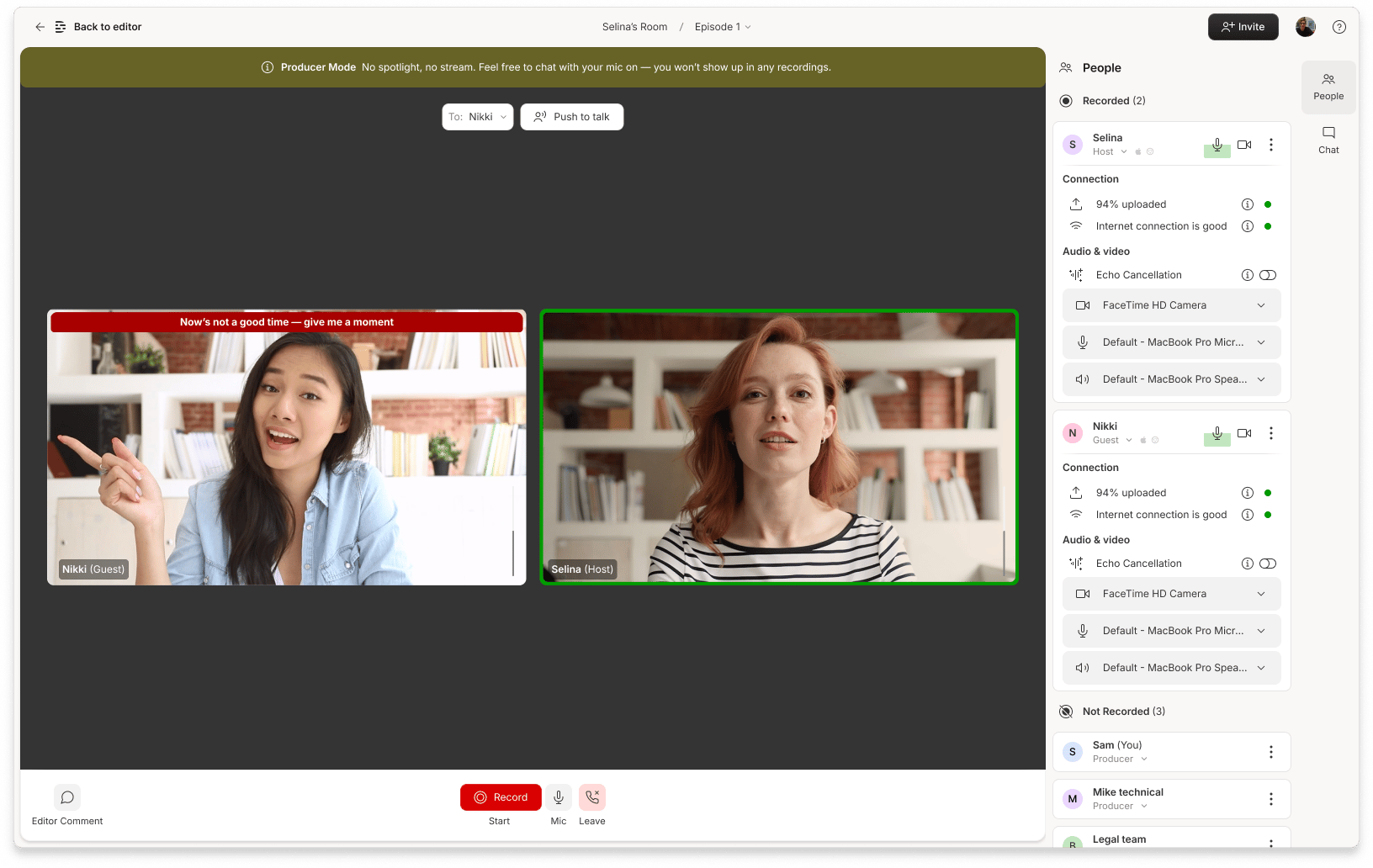
Producers can choose who hears them when they use push-to-talk:
* **Everyone** — Speak to all participants in the Recording Room
* **Specific participant** — Speak privately to one individual in the Recording Room
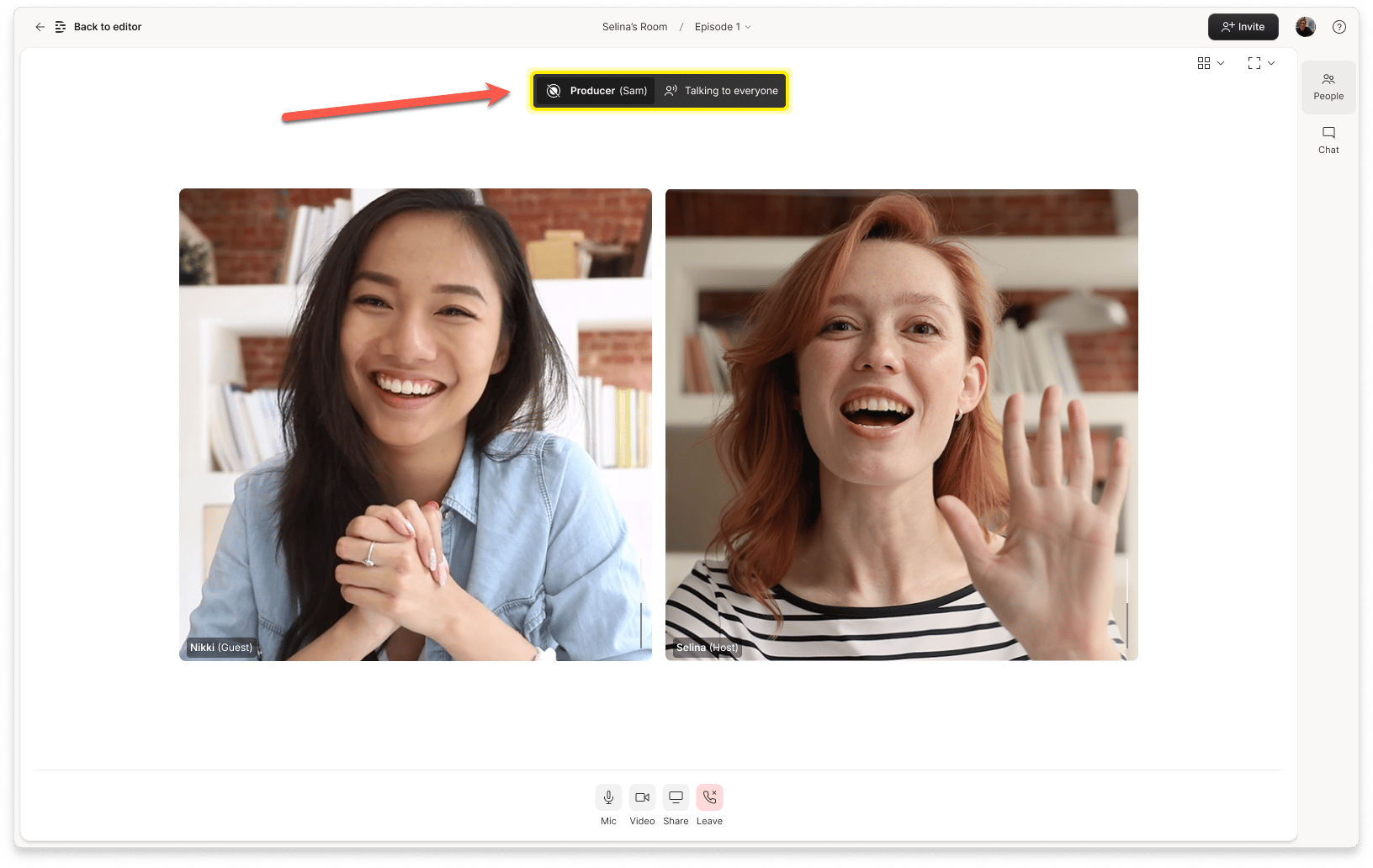
While push-to-talk is active, participants see a visual indicator that someone is speaking. When push-to-talk is turned off, the audio stops. Producers are never recorded, even while using push-to-talk.
 **Watch out for mic bleed and echo**
If a participant isn't wearing headphones and Echo Cancellation is turned off, their microphone may pick up audio from their speakers when a Producer uses push-to-talk. This can result in unintended audio being captured in the final recording.
To avoid echo and mic bleed, we recommend all participants wear headphones. If headphones aren't available, select **No** when prompted with *Are you wearing headphones?* before joining the Room. [Learn more about adjusting your settings](/record/room-settings)
## How to silence push-to-talk
When a Producer uses push-to-talk to speak to an individual, the participant can temporarily silence the incoming audio by clicking the red hand button on the right side of the talking notification.
**Watch out for mic bleed and echo**
If a participant isn't wearing headphones and Echo Cancellation is turned off, their microphone may pick up audio from their speakers when a Producer uses push-to-talk. This can result in unintended audio being captured in the final recording.
To avoid echo and mic bleed, we recommend all participants wear headphones. If headphones aren't available, select **No** when prompted with *Are you wearing headphones?* before joining the Room. [Learn more about adjusting your settings](/record/room-settings)
## How to silence push-to-talk
When a Producer uses push-to-talk to speak to an individual, the participant can temporarily silence the incoming audio by clicking the red hand button on the right side of the talking notification.
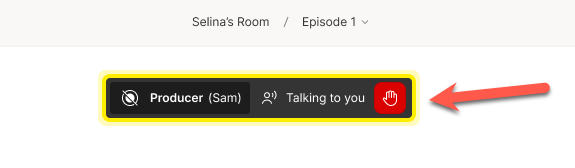 When a participant clicks the red hand to silence push-to-talk, the incoming audio immediately stops. The Producer can resume push-to-talk with that participant after a brief cooldown.
 **Push-to-talk vs. direct messages**
Push-to-talk is a live audio feature — it's not the same as sending a private chat message (DM). When a Producer uses push-to-talk, they're speaking to someone in real time, not sending a written message.
**Push-to-talk vs. direct messages**
Push-to-talk is a live audio feature — it's not the same as sending a private chat message (DM). When a Producer uses push-to-talk, they're speaking to someone in real time, not sending a written message.