> ## Documentation Index
> Fetch the complete documentation index at: https://help.descript.com/llms.txt
> Use this file to discover all available pages before exploring further.
# Create a Rooms Session and Invite Participants
> As a host, you control who joins your Room session and what they can do during recording.
Start a [Room](/record/rooms-overview) session on the spot with **Record with others**, then manage who joins and what they can do. To set one up for later, see [Schedule a Descript Rooms session](/record/schedule).
**Joining as a guest?**
This article covers steps for hosts. If you’re joining a Room as a guest, see our [Join a Descript Room](/record/guest-guide) guide for detailed setup instructions.
## Create and configure a Room
Create a Room from either the **Drive view,** from within a project, or if you're a member of multiple drives, from [web.descript.com/goto-room](https://web.descript.com/goto-room).
### Create a Room from the Drive view
Start a Room from your [Drive view](/descript-tour/drive-view). When you finish recording, all files are added to a new project for editing.
1. Click the **Record** button in the top-right corner.
2. Choose **Record with others**. A new window opens with setup options for your session. (To schedule a future session instead, select [Schedule for later.](/record/schedule))
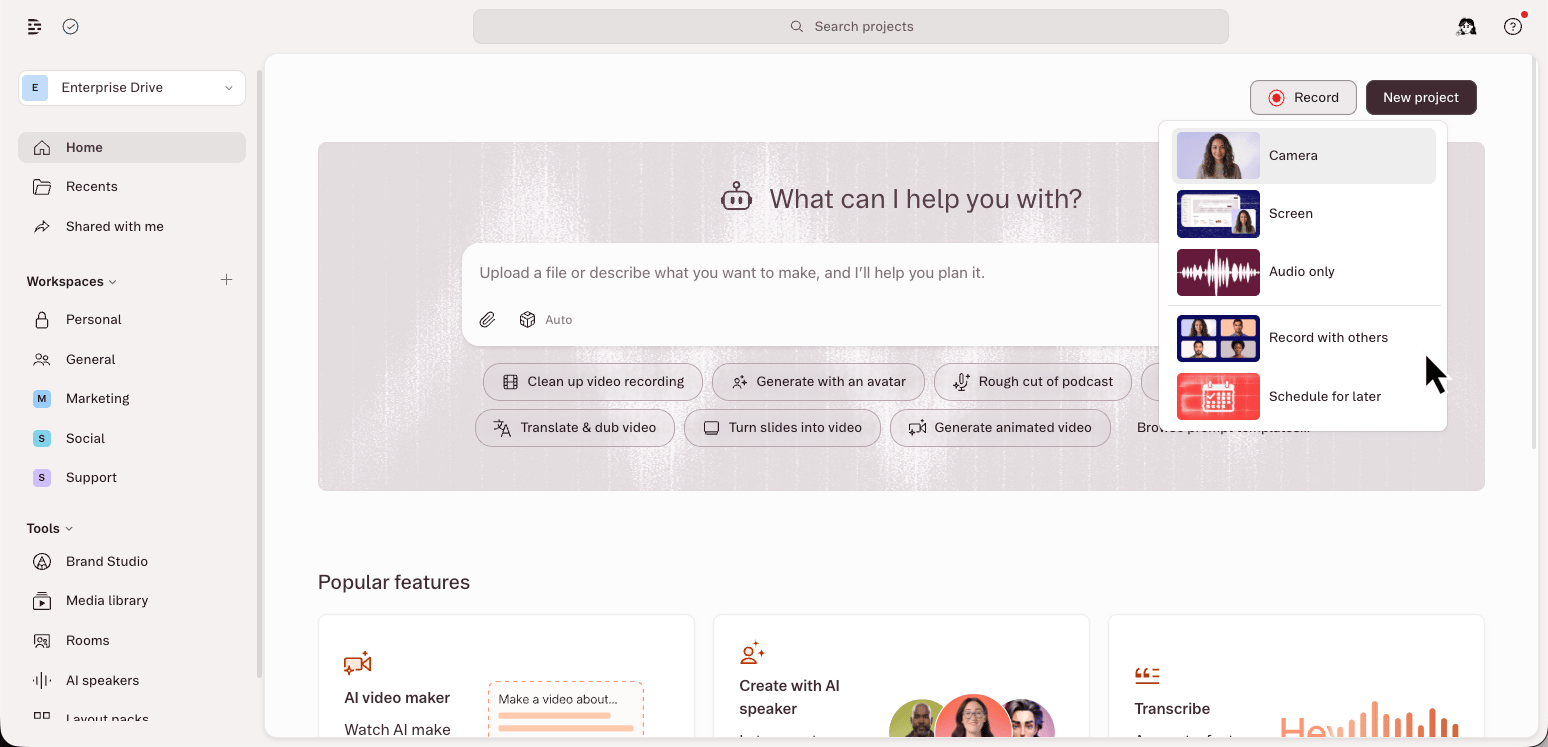 When you finish recording your Room session, all files are added to a new project in the drive automatically.
### Create a Room from a project
Starting a Room from within a project saves your recordings directly to that project.
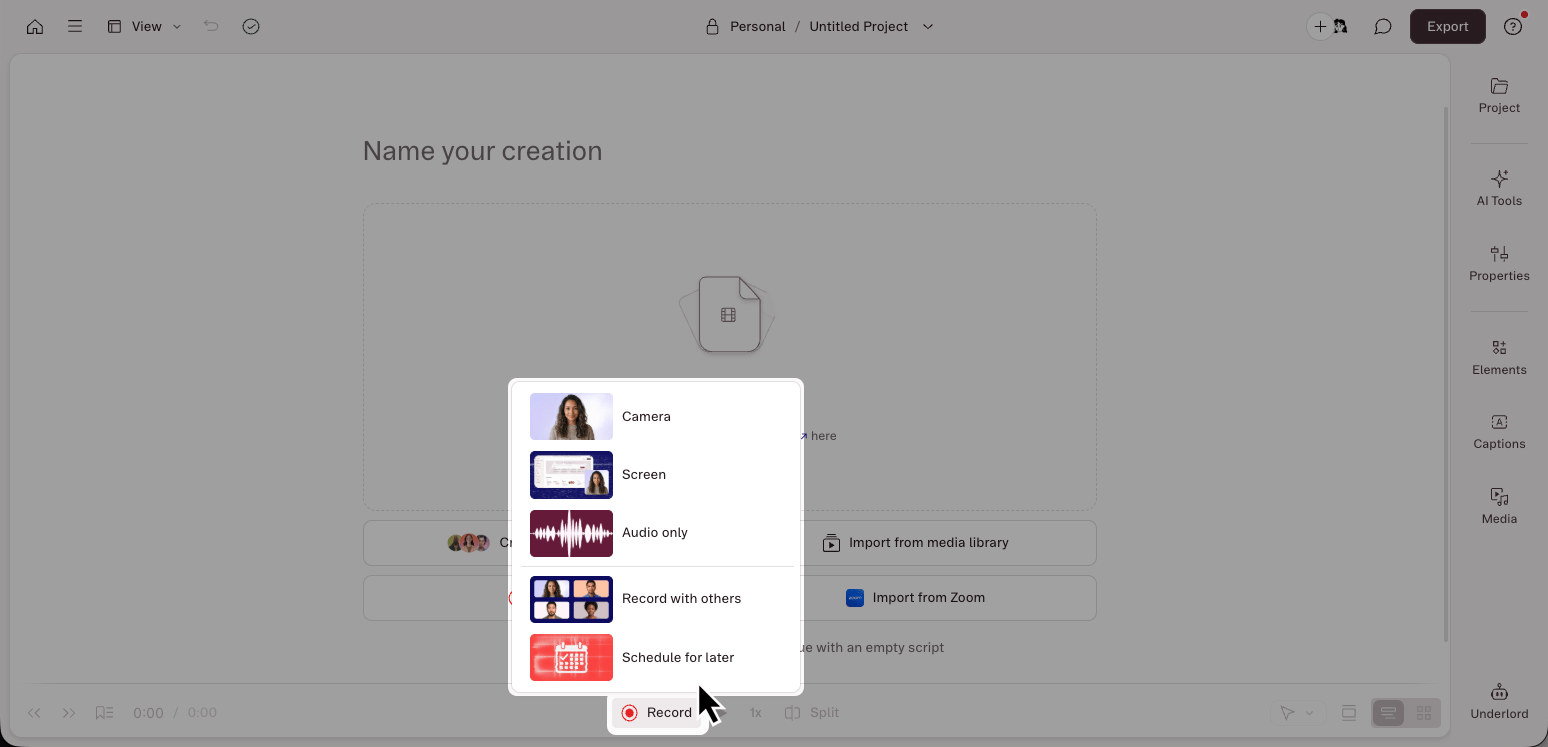
1. Click the **Record** button at the bottom of the window to open recording options.
2. Select **Record with others**. A new window opens with setup options for your session. (To schedule a future session instead, select [Schedule for later.](/record/schedule))
3. **Join** the Room to continue configuring your session.
When you finish recording your Room session, all files are added to a new project in the drive automatically.
### Create a Room from a project
Starting a Room from within a project saves your recordings directly to that project.
1. Click the **Record** button at the bottom of the window to open recording options.
2. Select **Record with others**. A new window opens with setup options for your session. (To schedule a future session instead, select [Schedule for later.](/record/schedule))
3. **Join** the Room to continue configuring your session.
 ### Directly from a URL
If you're a member of multiple Drives, you can navigate directly to [web.descript.com/goto-room](https://web.descript.com/goto-room) to select which Drive's Room to enter. You’ll be prompted to choose which Drive the Room session should belong to.
#### Adjust Room settings
Once you've joined your Room, configure your Rooms preferences. These settings will apply to all future sessions you host. [Learn more about all available Room settings](/record/room-settings).
**Rooms don’t save to folders**
Rooms are tied to Drives, not folders. Even if you create a Room while viewing a folder, recordings save to the Drive’s root or default location — not to the folder you were viewing.
## Invite participants and guests to your Rooms session
Once you’ve joined a Room as the first participant and owner, click the **Invite** button to share your Room link. By default, invite links assign participants the **Guest** role, but you can create invite links with pre-assigned roles so participants join with the correct permissions.
For creating calendar events with your Rooms link, see the [Schedule a Descript Rooms session with a calendar invite](/record/schedule) guide instead.
### Create an invite link
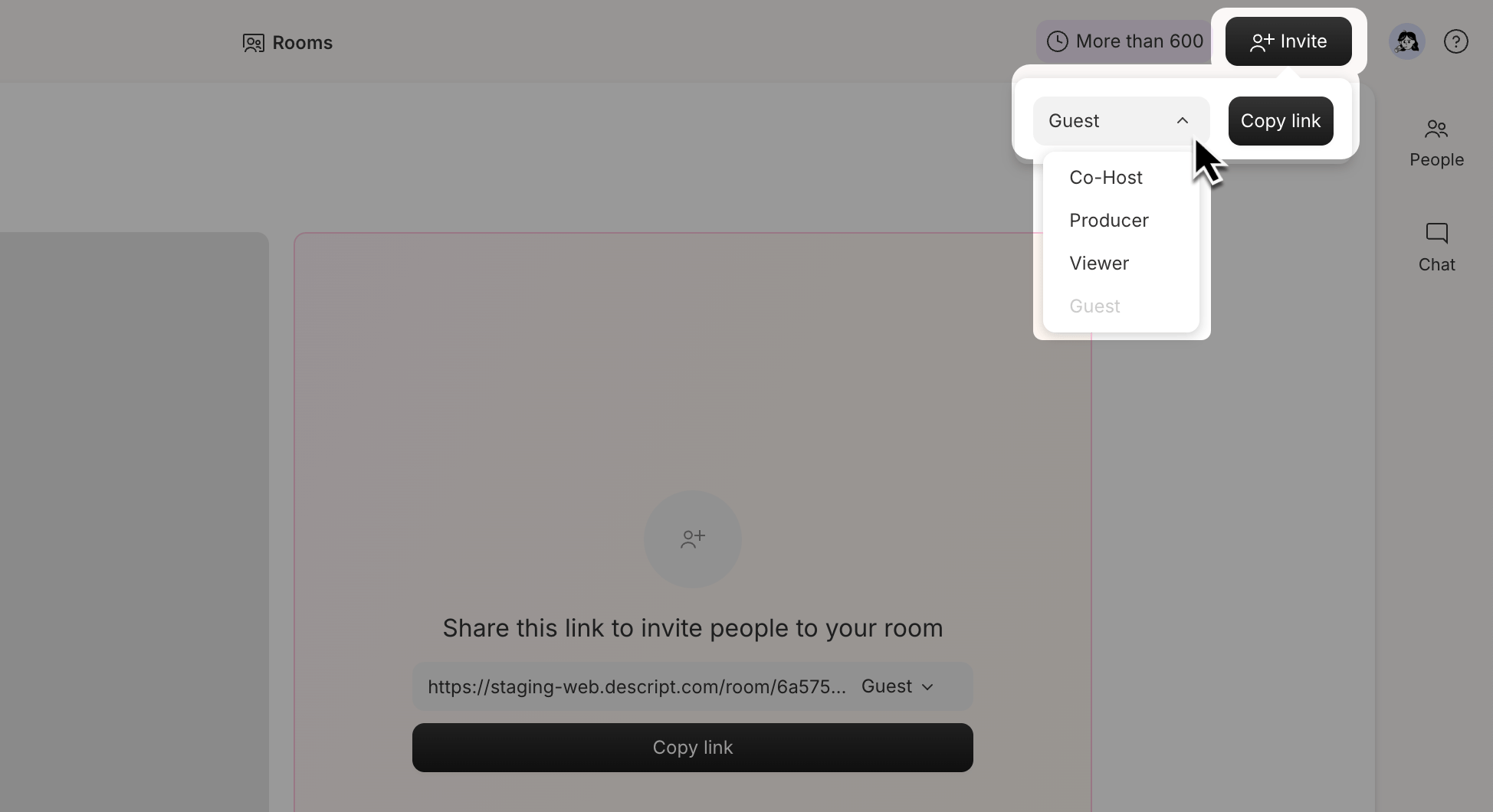
1. Click the **Invite** button in the top-right corner of the window.
2. Click the dropdown next to the Room link and select a role (available to paid plans):
* **Guest** — Recorded, no controls (default)
* **Co-host** — Recorded, shared control
* **Producer** — Not recorded, full control
* **Viewer** — Not recorded, no controls
3. Click **Copy** to copy the role-designated link.
4. Share the link with participants.
### Directly from a URL
If you're a member of multiple Drives, you can navigate directly to [web.descript.com/goto-room](https://web.descript.com/goto-room) to select which Drive's Room to enter. You’ll be prompted to choose which Drive the Room session should belong to.
#### Adjust Room settings
Once you've joined your Room, configure your Rooms preferences. These settings will apply to all future sessions you host. [Learn more about all available Room settings](/record/room-settings).
**Rooms don’t save to folders**
Rooms are tied to Drives, not folders. Even if you create a Room while viewing a folder, recordings save to the Drive’s root or default location — not to the folder you were viewing.
## Invite participants and guests to your Rooms session
Once you’ve joined a Room as the first participant and owner, click the **Invite** button to share your Room link. By default, invite links assign participants the **Guest** role, but you can create invite links with pre-assigned roles so participants join with the correct permissions.
For creating calendar events with your Rooms link, see the [Schedule a Descript Rooms session with a calendar invite](/record/schedule) guide instead.
### Create an invite link
1. Click the **Invite** button in the top-right corner of the window.
2. Click the dropdown next to the Room link and select a role (available to paid plans):
* **Guest** — Recorded, no controls (default)
* **Co-host** — Recorded, shared control
* **Producer** — Not recorded, full control
* **Viewer** — Not recorded, no controls
3. Click **Copy** to copy the role-designated link.
4. Share the link with participants.
 **How invite links assign roles**
When you share a role-specific link, participants automatically join with that role. Your Room's default role settings only apply when someone joins using a generic Room link without a pre-assigned role.
Role links are persistent, don't expire, and are unique to each Drive.
**Control Room and Viewer Room limits**
If a participant joins with a **Producer** or **Viewer** link but the Control Room or Viewer Room is full, they’ll join as a **Guest** instead.
## Approve join requests
Guests configure their equipment, mic, and speaker settings before clicking **Request to join**.
**How invite links assign roles**
When you share a role-specific link, participants automatically join with that role. Your Room's default role settings only apply when someone joins using a generic Room link without a pre-assigned role.
Role links are persistent, don't expire, and are unique to each Drive.
**Control Room and Viewer Room limits**
If a participant joins with a **Producer** or **Viewer** link but the Control Room or Viewer Room is full, they’ll join as a **Guest** instead.
## Approve join requests
Guests configure their equipment, mic, and speaker settings before clicking **Request to join**.
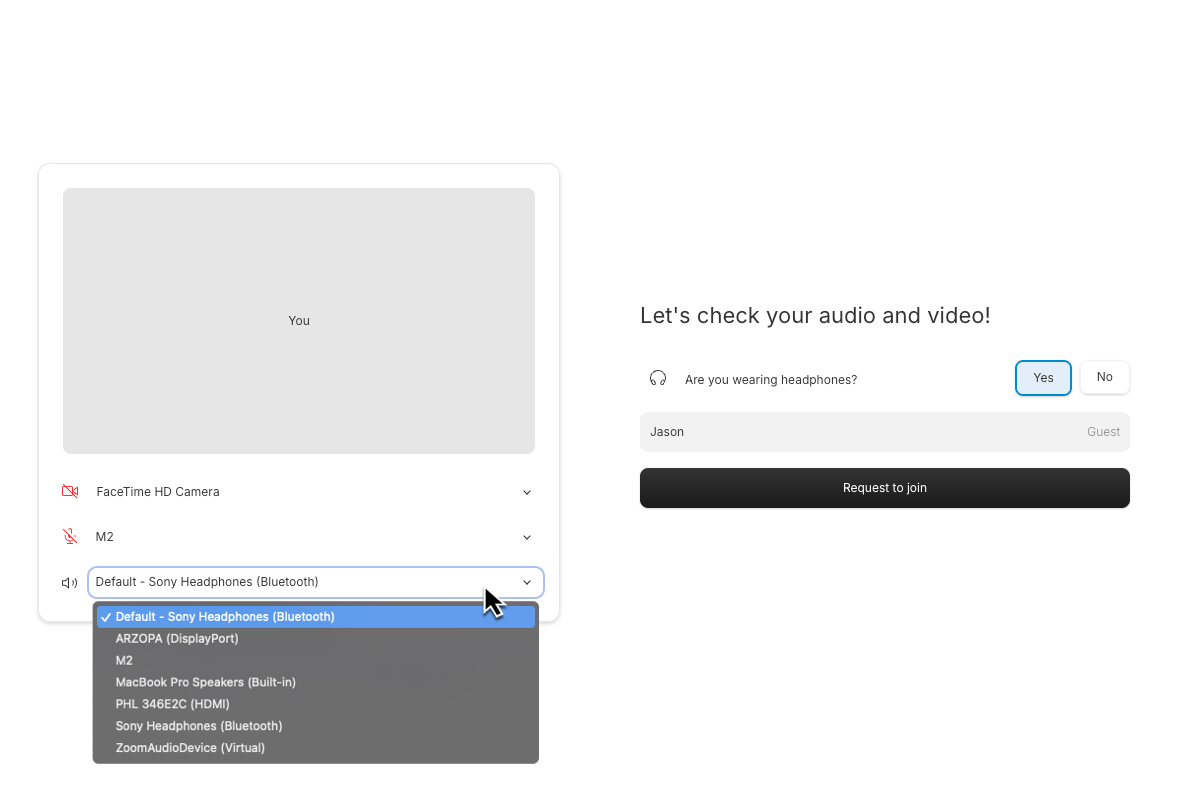 While waiting, participants see a hold screen until admitted. Hosts see a prompt to approve or deny requests.
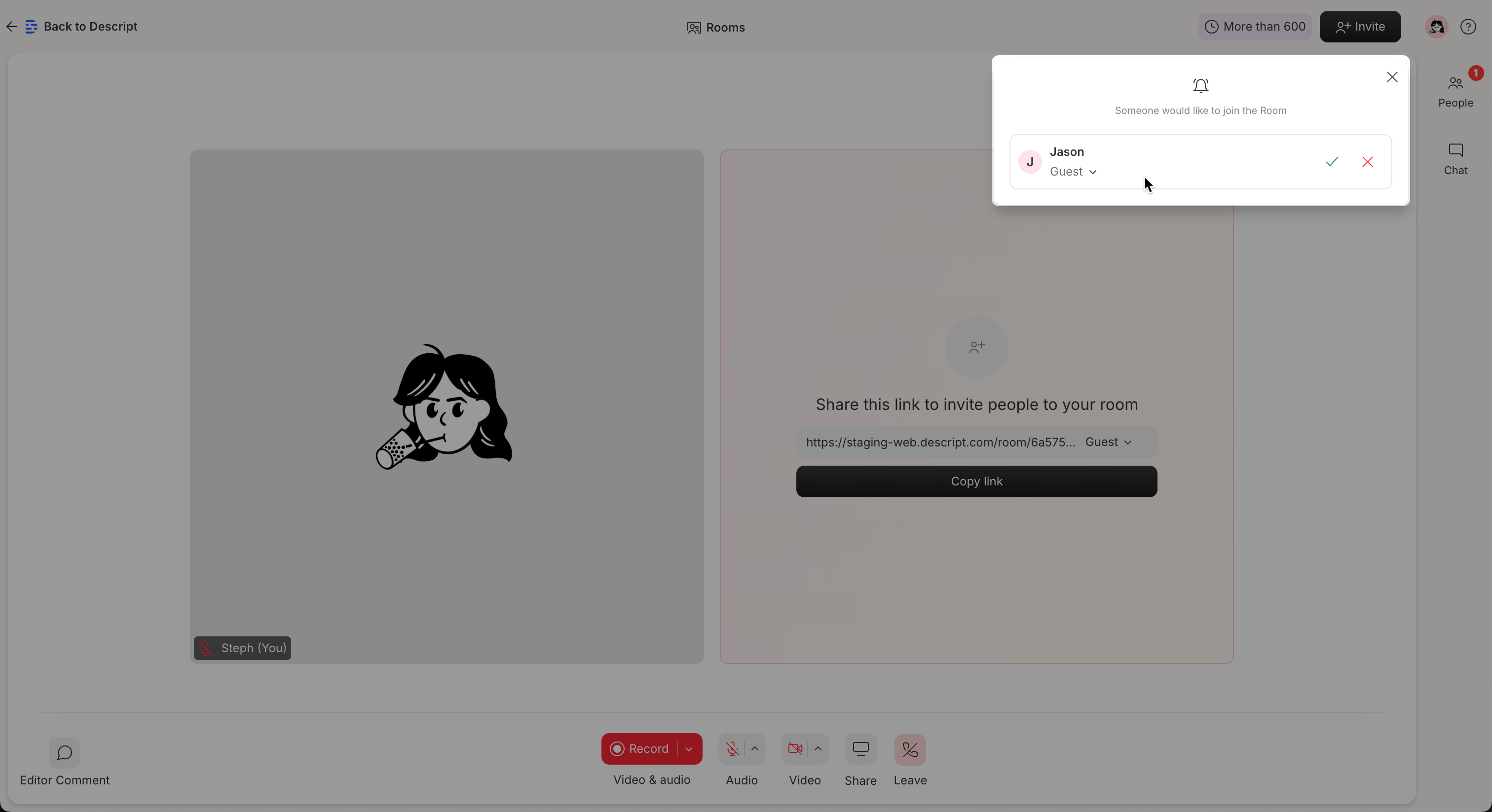 ### Change a participant’s role during approval
Hosts can change a participant's role before admitting them—even if they joined via a role-designated link.
On paid plans, **Co-hosts** and **Producers** can also change roles during approval. [Learn more about Roles in Descript Rooms.](/record/roles)
**Enable auto-approval**
To skip manual approval and admit guests automatically, enable **Auto-approval** for new participants under **Room Settings**.
### Change a participant’s role during approval
Hosts can change a participant's role before admitting them—even if they joined via a role-designated link.
On paid plans, **Co-hosts** and **Producers** can also change roles during approval. [Learn more about Roles in Descript Rooms.](/record/roles)
**Enable auto-approval**
To skip manual approval and admit guests automatically, enable **Auto-approval** for new participants under **Room Settings**.