> ## Documentation Index
> Fetch the complete documentation index at: https://help.descript.com/llms.txt
> Use this file to discover all available pages before exploring further.
# Join a Descript Room
> Steps for joining a Descript Room session, including how to set up and configure your camera and mic.
Got a Descript Room link? Before you join, you'll set up your camera and mic and get a feel for what to expect during and after the recording. [Learn more about Descript Rooms.](/record/rooms-overview)
**Hosting a Room?**
This guide is specific to non-host participants. For host-specific steps, see [Create a Room and invite participants](/record/host-guide) to learn about creating sessions and managing participants.
## Join a Descript Room
When you open a Room link, you'll see the pre-join screen where you can configure your equipment before entering.
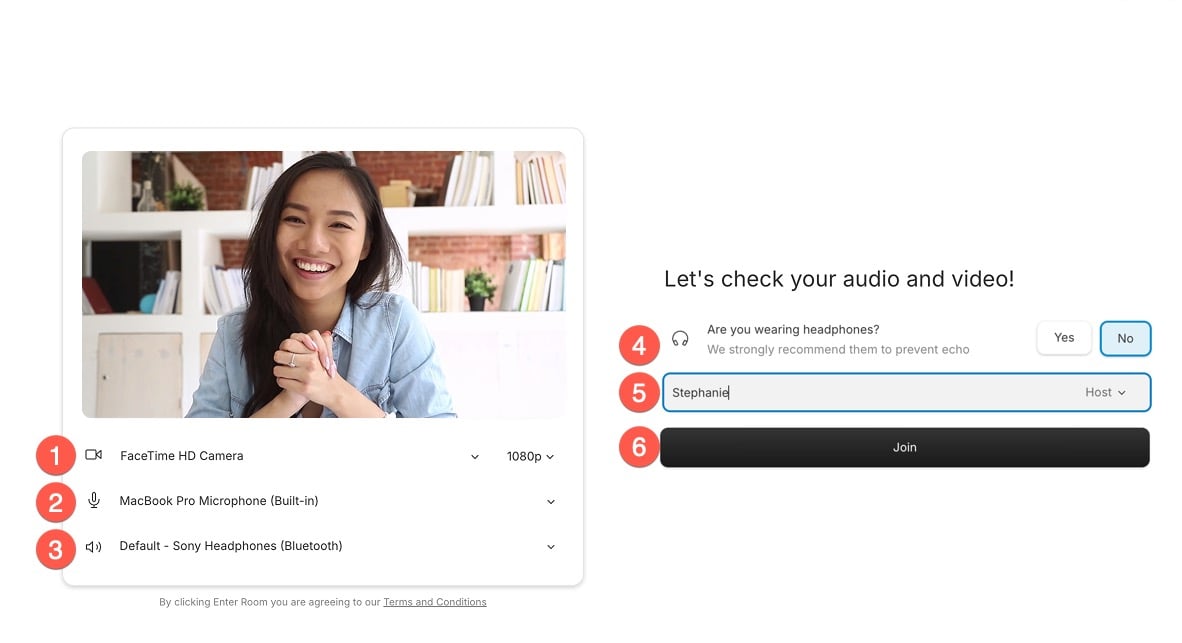 1. **Select your camera:** Choose your camera and resolution. Click the camera icon to join without video.
2. **Select your microphone:** Pick a mic for clear audio. Click the mic icon to join muted.
3. **Select your speakers:** Choose your output device (speakers or headphones).
4. **Headphones or speakers:** Let Descript know which you’re using. This controls echo cancellation.
* **Yes (headphones):** Echo cancellation disabled
* **No (speakers):** Echo cancellation enabled
5. **Enter your display name:** Descript uses this for speaker labels.
6. **Click Join:** Once ready, click **Join** to enter the Room.
If the host has enabled a waiting room, you'll see a hold screen until they admit you. Otherwise, you'll enter the Room immediately.
## Recording quality checklist
**Not supported on mobile**
Rooms isn't supported on mobile devices. If you bypass the mobile block, recordings may fail and we won't be able to troubleshoot or recover lost sessions. We strongly recommend connecting via desktop or laptop for all Rooms sessions.
### Check your device specs
Before connecting, confirm your device meets our [minimum requirements](/getting-started/descript-system-requirements).
### Use a supported browser
Use **Chrome**, **Edge**, **Arc**, **Firefox**, **Safari**, or **Opera** on desktop or laptop. Avoid mobile browsers.
### Test your internet connection
For best results, use a wired connection if possible. If using Wi-Fi, stay near your router and close unnecessary apps or tabs.
Test your speed at [fast.com](https://fast.com) (click “Show more info” to view upload speeds):
* **Minimum:** 10 Mbps upload/download
* **Recommended:** 20 Mbps upload/download
* **For 4K recording:** 30 Mbps upload minimum
**Tip:** If your connection is unstable, consider joining with your camera off to save bandwidth.
### Record in a quiet, well-lit space
Find a quiet, well-lit area with minimal background noise. If there’s unavoidable noise, enable **Background noise reduction** under **Settings > Audio**. [Learn more about Descript Room settings.](/record/room-settings)
### Wear headphones
We recommend wearing headphones during recording to prevent echo and audio feedback.\
Wired headphones are the best choice — they have minimal latency, won't disconnect, and support 48kHz recording quality.
Bluetooth headphones can work, with some important callouts: avoid using a Bluetooth headset as both your mic input and audio output at the same time (this forces the device into a lower-quality audio mode, which significantly reduces sound quality).
If you choose to use Bluetooth headphones, make sure your headphones are fully charged before your session.
### Use an external mic and camera (if available)
External equipment offers better quality than built-in hardware. Sit directly in front of the camera and speak clearly into the mic.
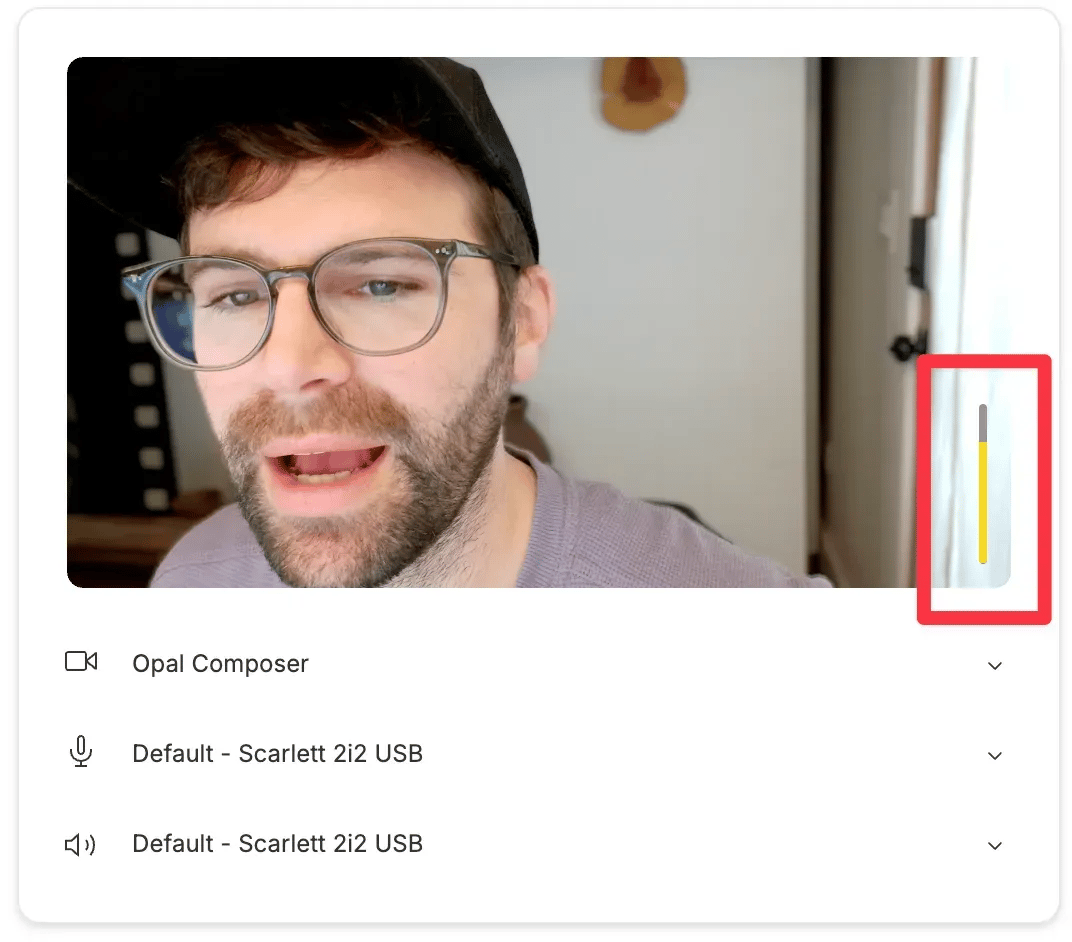
**Check your audio levels:** Watch the VU meter while speaking—your voice should reach about 75% (white area touching yellow, not red).
1. **Select your camera:** Choose your camera and resolution. Click the camera icon to join without video.
2. **Select your microphone:** Pick a mic for clear audio. Click the mic icon to join muted.
3. **Select your speakers:** Choose your output device (speakers or headphones).
4. **Headphones or speakers:** Let Descript know which you’re using. This controls echo cancellation.
* **Yes (headphones):** Echo cancellation disabled
* **No (speakers):** Echo cancellation enabled
5. **Enter your display name:** Descript uses this for speaker labels.
6. **Click Join:** Once ready, click **Join** to enter the Room.
If the host has enabled a waiting room, you'll see a hold screen until they admit you. Otherwise, you'll enter the Room immediately.
## Recording quality checklist
**Not supported on mobile**
Rooms isn't supported on mobile devices. If you bypass the mobile block, recordings may fail and we won't be able to troubleshoot or recover lost sessions. We strongly recommend connecting via desktop or laptop for all Rooms sessions.
### Check your device specs
Before connecting, confirm your device meets our [minimum requirements](/getting-started/descript-system-requirements).
### Use a supported browser
Use **Chrome**, **Edge**, **Arc**, **Firefox**, **Safari**, or **Opera** on desktop or laptop. Avoid mobile browsers.
### Test your internet connection
For best results, use a wired connection if possible. If using Wi-Fi, stay near your router and close unnecessary apps or tabs.
Test your speed at [fast.com](https://fast.com) (click “Show more info” to view upload speeds):
* **Minimum:** 10 Mbps upload/download
* **Recommended:** 20 Mbps upload/download
* **For 4K recording:** 30 Mbps upload minimum
**Tip:** If your connection is unstable, consider joining with your camera off to save bandwidth.
### Record in a quiet, well-lit space
Find a quiet, well-lit area with minimal background noise. If there’s unavoidable noise, enable **Background noise reduction** under **Settings > Audio**. [Learn more about Descript Room settings.](/record/room-settings)
### Wear headphones
We recommend wearing headphones during recording to prevent echo and audio feedback.\
Wired headphones are the best choice — they have minimal latency, won't disconnect, and support 48kHz recording quality.
Bluetooth headphones can work, with some important callouts: avoid using a Bluetooth headset as both your mic input and audio output at the same time (this forces the device into a lower-quality audio mode, which significantly reduces sound quality).
If you choose to use Bluetooth headphones, make sure your headphones are fully charged before your session.
### Use an external mic and camera (if available)
External equipment offers better quality than built-in hardware. Sit directly in front of the camera and speak clearly into the mic.
**Check your audio levels:** Watch the VU meter while speaking—your voice should reach about 75% (white area touching yellow, not red).
 ## During your session
### Check your network health
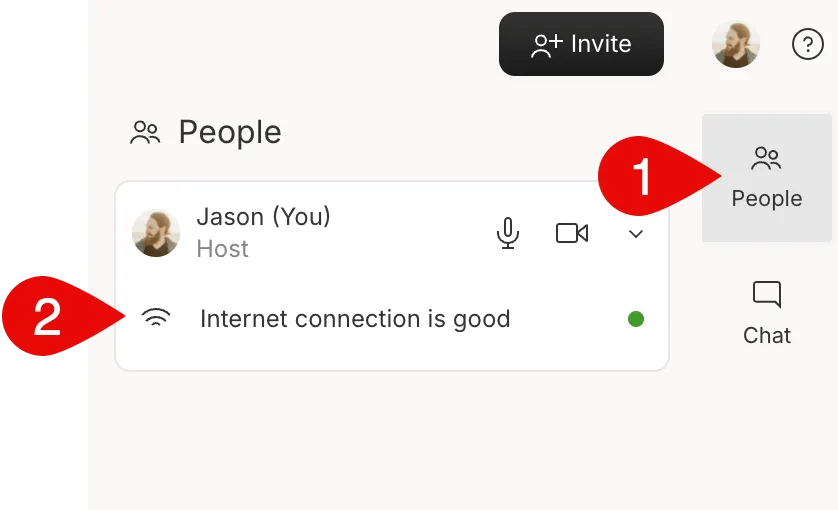
Open the **People** tab to see your network status. Green means your connection is stable.
## During your session
### Check your network health
Open the **People** tab to see your network status. Green means your connection is stable.
 ### Adjust settings if needed
Click your profile icon in the upper right to access audio, video, and general settings. [Learn more about Descript Room settings.](/record/room-settings)
### Pin a participant
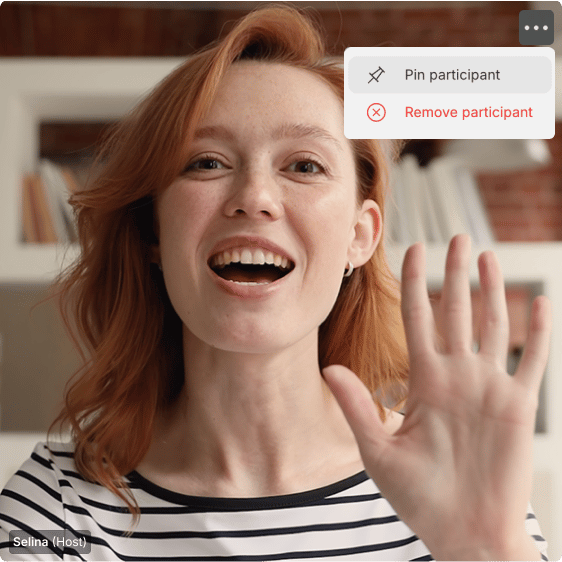
You can pin any participant to keep them displayed prominently in your view. When you pin someone, they'll stay on your main screen regardless of who is speaking. This works with both Gallery view (grid layout) and Speaker view (active speaker layout).
**To pin a participant:** Click the 3-dot menu on their video tile, then select **Pin**. You can also access this option from the **People** sidebar.
### Adjust settings if needed
Click your profile icon in the upper right to access audio, video, and general settings. [Learn more about Descript Room settings.](/record/room-settings)
### Pin a participant
You can pin any participant to keep them displayed prominently in your view. When you pin someone, they'll stay on your main screen regardless of who is speaking. This works with both Gallery view (grid layout) and Speaker view (active speaker layout).
**To pin a participant:** Click the 3-dot menu on their video tile, then select **Pin**. You can also access this option from the **People** sidebar.
 ## After recording ends
### Wait for your upload to complete
After recording ends, wait until the upload confirmation appears before closing the tab.
You can leave the call once recording stops, but on the next screen, wait until uploads finish. If something goes wrong, visit the Descript Rooms recovery link: [web.descript.com/recovery](https://web.descript.com/recovery).
##
## After recording ends
### Wait for your upload to complete
After recording ends, wait until the upload confirmation appears before closing the tab.
You can leave the call once recording stops, but on the next screen, wait until uploads finish. If something goes wrong, visit the Descript Rooms recovery link: [web.descript.com/recovery](https://web.descript.com/recovery).
##