> ## Documentation Index
> Fetch the complete documentation index at: https://help.descript.com/llms.txt
> Use this file to discover all available pages before exploring further.
# Async recordings
> Request guest content for testimonials, customer stories, hiring interviews, speaker intros, and field updates without scheduling overhead.
export const Wistia = ({id, title = "Video", ratio = "16 / 9"}) =>
;
Async recordings are available on **Enterprise** plans only. This feature is gradually rolling out; check back soon if you don't see it just yet.
## Create an async recording link
You must be [a drive-level editor](/team-management/invite) or [admin](/team-management/drive-admins) to create an async recording link.
1. Open or [create](/getting-started/create-a-new-project) a Descript project.
2. In the recording options, select **Invite to record async**.
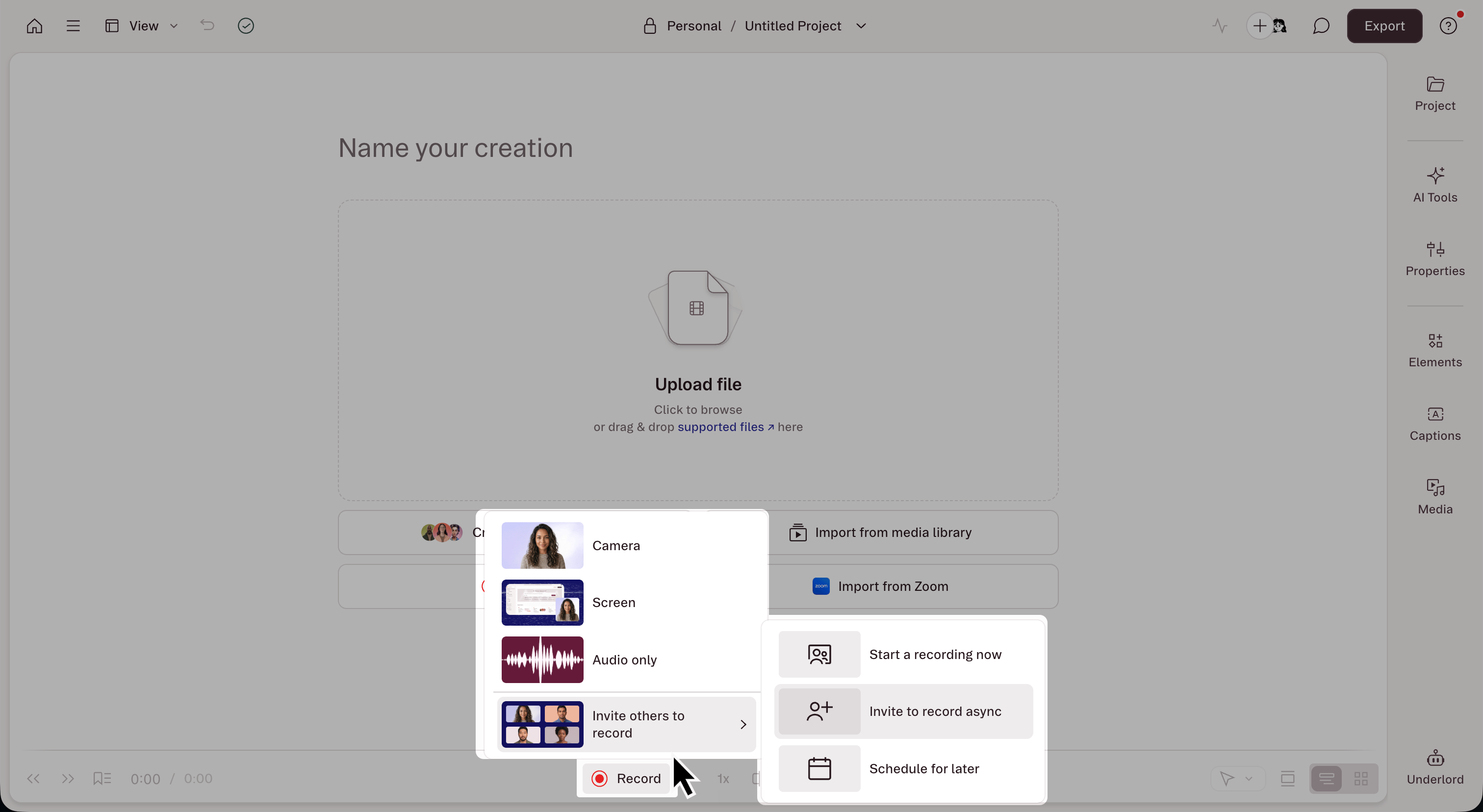 3. Add a **Title** for the link.
4. Optionally add a [teleprompter](/record/record-with-descript-s-built-in-teleprompter) script. This will appear on screen as instructions during the guest's recording session.
5. Set a **Link expiration** date and time. After that date the link stops accepting new submissions.
6. Click **Create link**, then copy and share it with your contributors.
## Async session links
Created links can be retrieved from the [Project Access](/working-in-projects/access) menu near the top-right corner of the editor window.
3. Add a **Title** for the link.
4. Optionally add a [teleprompter](/record/record-with-descript-s-built-in-teleprompter) script. This will appear on screen as instructions during the guest's recording session.
5. Set a **Link expiration** date and time. After that date the link stops accepting new submissions.
6. Click **Create link**, then copy and share it with your contributors.
## Async session links
Created links can be retrieved from the [Project Access](/working-in-projects/access) menu near the top-right corner of the editor window.
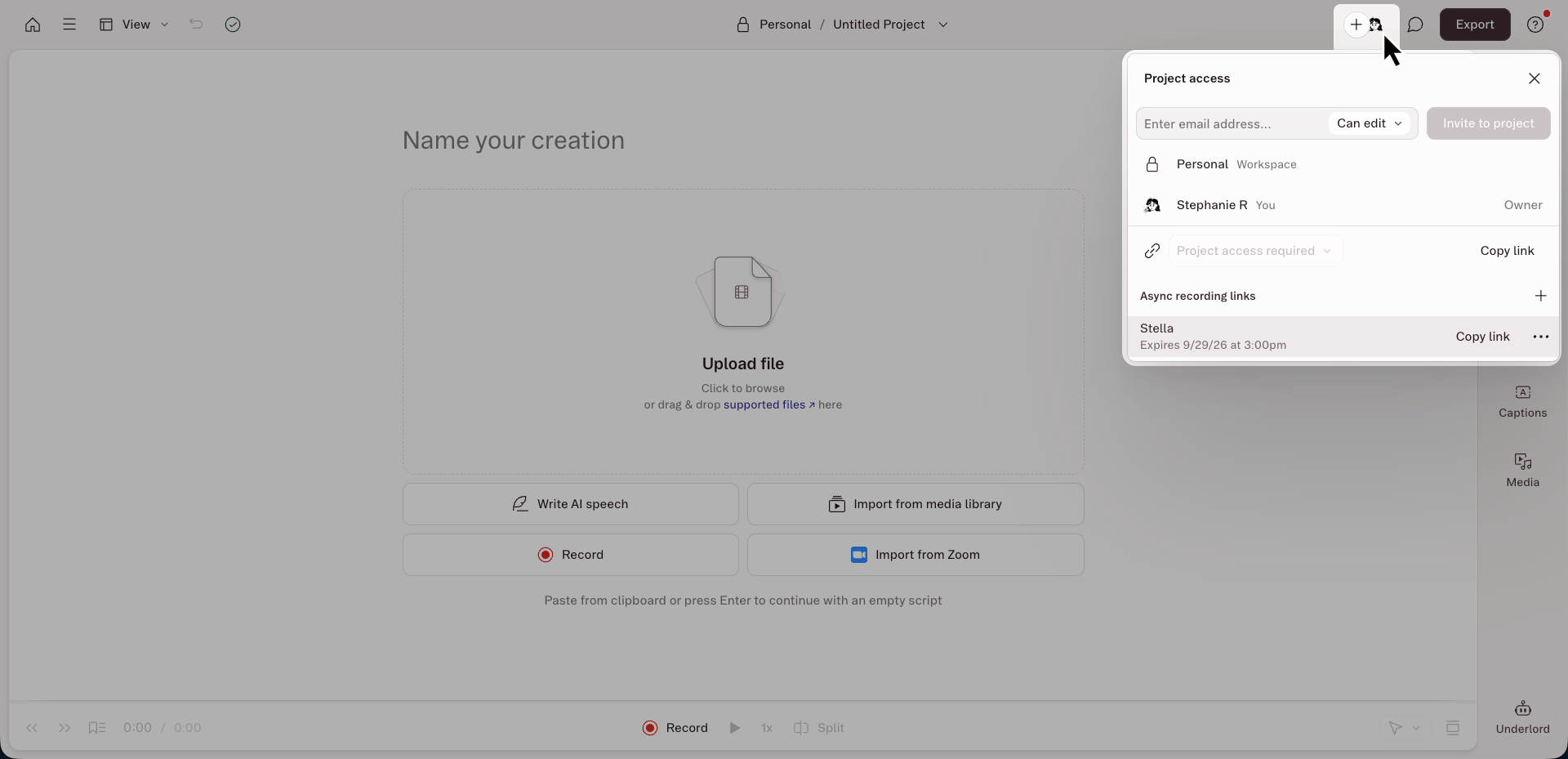 You can create multiple async recording links for the same project, each one with its own title, instructions and expiration date.
Additionally, guest sessions are isolated even if started from the same session link, meaning two guests recording at the same time from the same invite link won't see or hear each other.
## Guest experience
When guests open the link, they'll enter their name on the welcome screen, complete a device check, then see any notes you've left in the teleprompter.
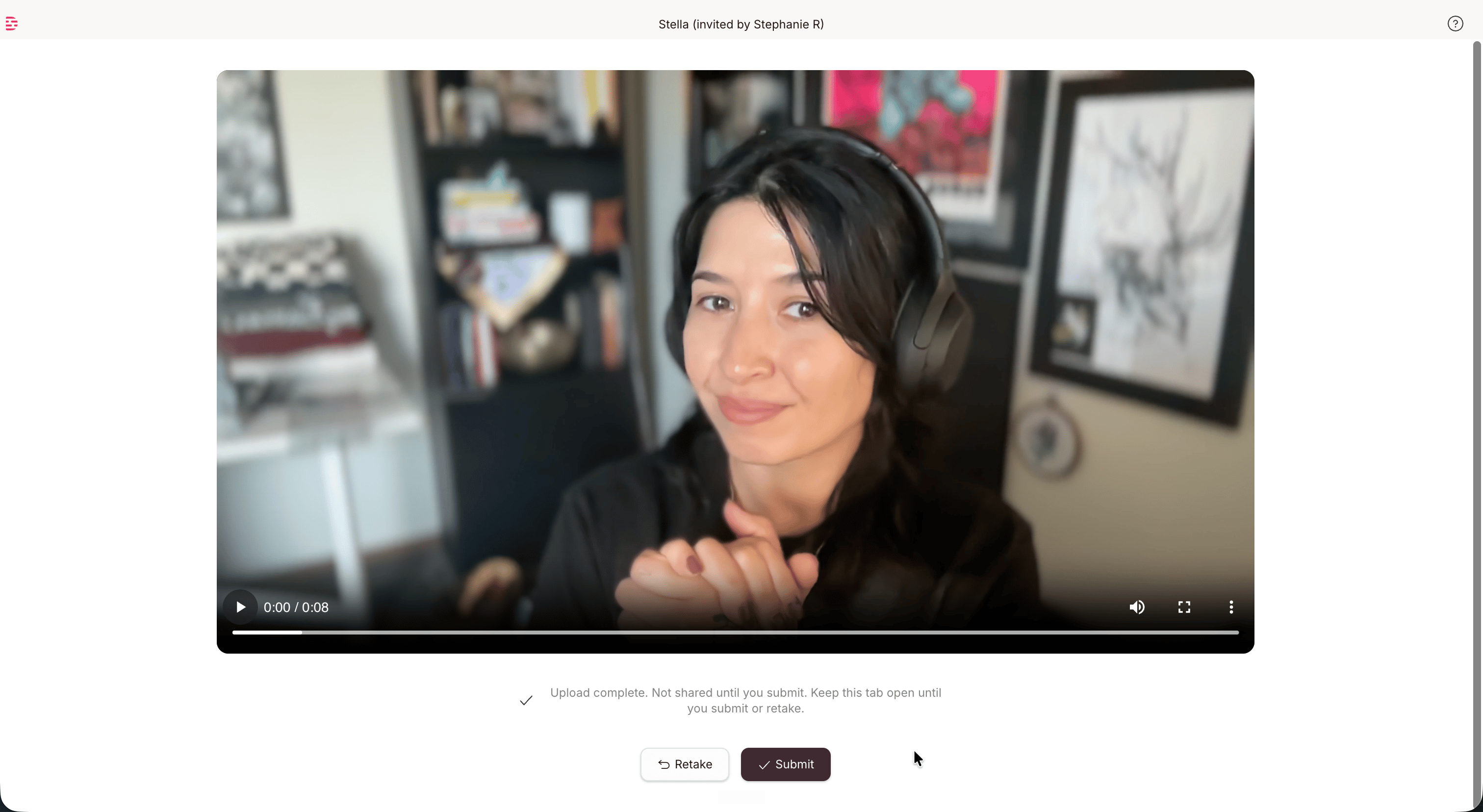
After recording, guests can playback, review, and either submit or re-record the take. Each async session will result in a single take. The submitted take is uploaded directly to the host project. Guests cannot see the Descript project, other guests, or any other content.
You can create multiple async recording links for the same project, each one with its own title, instructions and expiration date.
Additionally, guest sessions are isolated even if started from the same session link, meaning two guests recording at the same time from the same invite link won't see or hear each other.
## Guest experience
When guests open the link, they'll enter their name on the welcome screen, complete a device check, then see any notes you've left in the teleprompter.
After recording, guests can playback, review, and either submit or re-record the take. Each async session will result in a single take. The submitted take is uploaded directly to the host project. Guests cannot see the Descript project, other guests, or any other content.
 ## Find submitted recordings
Recordings appear in [**Project Files**](/working-in-projects/project-file-management) inside the host project. Descript organizes them into a folder named after the async link's title. Within that folder, each guest's submission gets its own subfolder labeled with their high quality recording, as well as individual audio and video backups.
## Related topics
- [Get started with Descript Rooms](/record/rooms-overview.md)
- [Call the API directly](/api-and-mcp/other-endpoints.md)
- [Recording environment](/squadcast/recording-environment.md)
- [Rooms: Recording checklist](/record/recording-checklist.md)
- [Delete a recording session](/squadcast/delete-session.md)
## Find submitted recordings
Recordings appear in [**Project Files**](/working-in-projects/project-file-management) inside the host project. Descript organizes them into a folder named after the async link's title. Within that folder, each guest's submission gets its own subfolder labeled with their high quality recording, as well as individual audio and video backups.
## Related topics
- [Get started with Descript Rooms](/record/rooms-overview.md)
- [Call the API directly](/api-and-mcp/other-endpoints.md)
- [Recording environment](/squadcast/recording-environment.md)
- [Rooms: Recording checklist](/record/recording-checklist.md)
- [Delete a recording session](/squadcast/delete-session.md)