

Roles in Descript Rooms are separate from your Drive membership.
Room Roles at a Glance
Host and Co-host
Each Editor on a Drive has their own Room. The Editor who launches a Room becomes the Room owner and is automatically assigned the Host role. Hosts are the owner of a Room session. They appear in the Recording Room, are recorded, and have full control over the session. For scheduled Rooms, owners can allow Drive members or project viewers to act as the host and record without the owner present. Co-hosts have the same permissions as the Host, but they don’t own the Room or the resulting project. The Co-host role is available on all paid plans.Host and Co-host abilities:
- Start and stop recording
- Assign roles to other participants
- Monitor participant connection and upload status
- View and adjust AV inputs (Host tools)
- Leave Editor Comments during the session. Learn more about leaving comments during a live Room session.
Producer
The Producer role is available on all paid plans. Producers remain completely offscreen in the Control Room. They are not recorded or visible during the session, even when using push-to-talk. Their audio is heard live only by selected participants and never included in the final recording.Producer abilities:
- Access the Control Room (exclusive to Producers)
- Monitor participant connection and upload status
- View and adjust AV inputs of other participants
- Assign and change participant roles
- Use push-to-talk to speak to Recording Room participants. Learn more about push-to-talk.
- Leave Editor Comments during the session. Learn more about leaving comments.
Viewer
The Viewer role is available on paid plans. Viewers join the session in a dedicated space called the Viewer Room. It’s separate from the on-stage Recording Room and the backstage Control Room where Producers collaborate. Viewers are not seen, heard, or recorded—but they are listed in the Not Recorded group of the People tab, so all participants know who’s present. Viewers count toward the Control Room participant limit, even though they don’t interact with Producers or manage technical settings.Guest
Guests are on-stage participants with limited permissions.- Join via invite link (no Drive membership required)
- Appear on stage and are recorded
- Can participate in public chat and send DMs to other participants
Assigning Roles
Hosts, Co-hosts, and Producers can assign roles before a participant joins the Room or anytime before recording begins.Roles can’t be changed during a recordingTo change someone’s role, stop the recording, update their role, then start a new session.
Room owners:
The Editor who creates the Room (the Room owner) is assigned the Host role by default. If they prefer, they can choose to enter the Room as a Producer.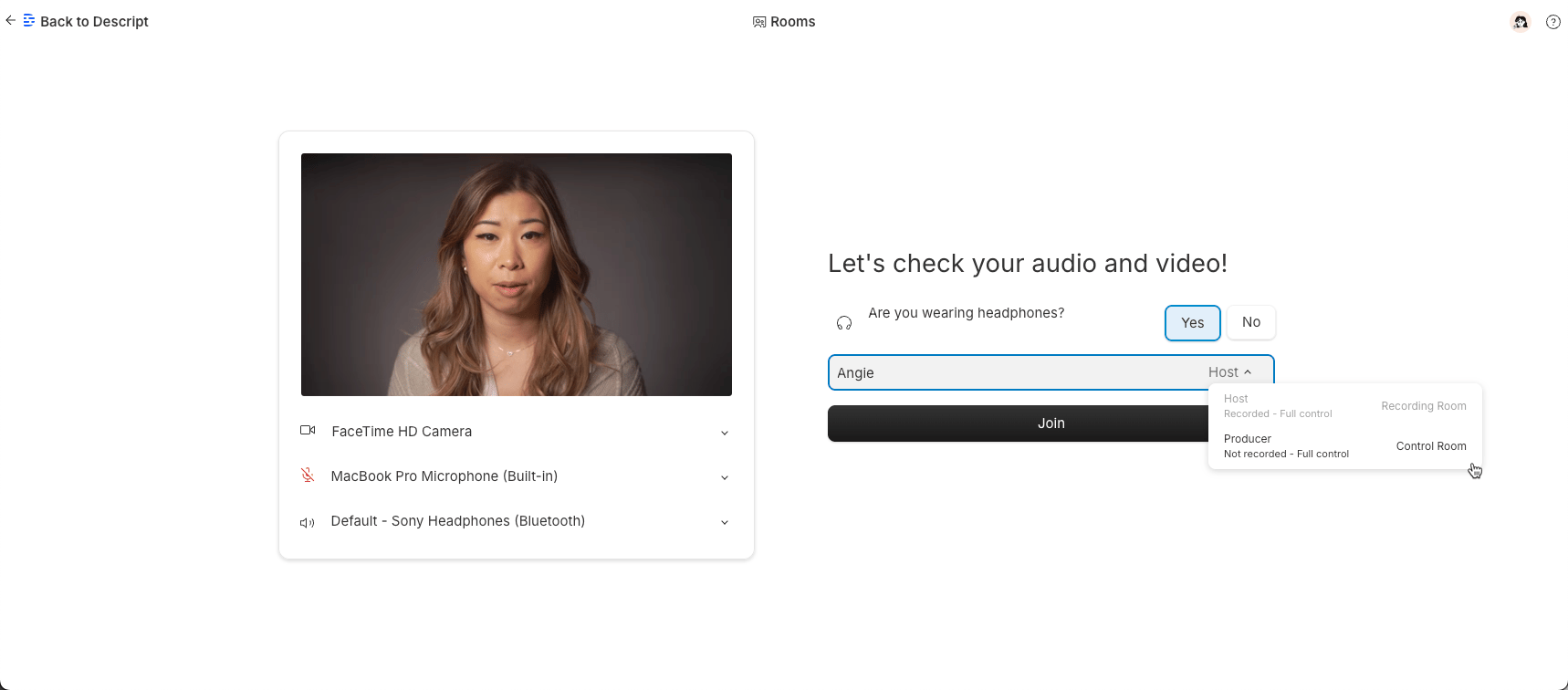
Select your role before entering the Room. Click the image to view at full size.
When participants request to join:
- Hosts, Co-hosts, and Producers receive a notification
- Use the dropdown next to their name to assign a role before admitting them
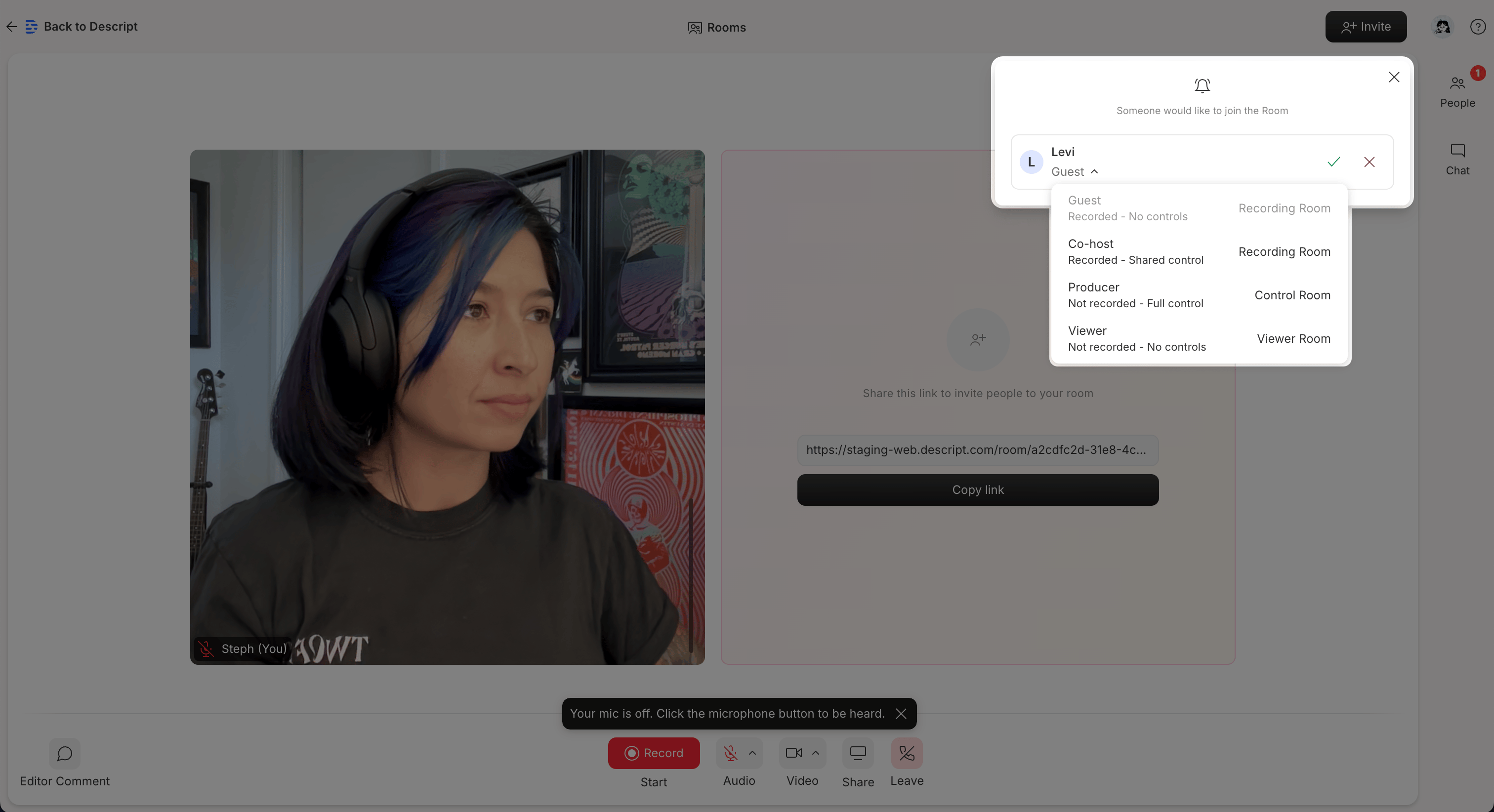
Assign a role before admitting a participant to the Room. Click the image to view at full size.
To change a participant’s role after they’ve joined:
- Open the People tab in the sidebar
- Click the dropdown next to the participant’s name
- Select the new role from the list
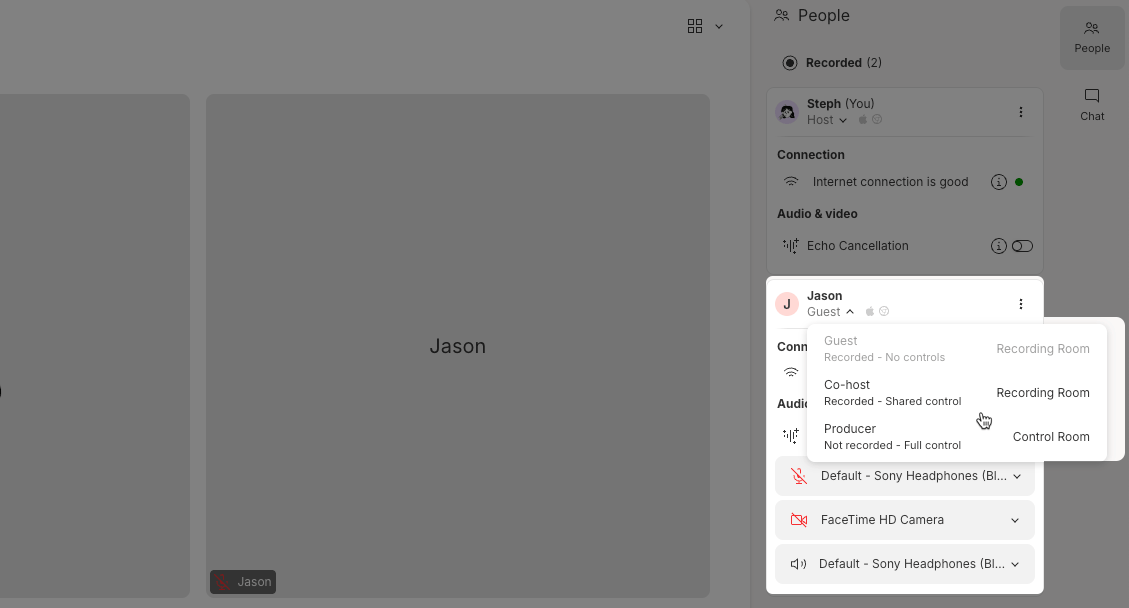
Change a participant’s role from the People tab. Click the image to view at full size.