> ## Documentation Index
> Fetch the complete documentation index at: https://help.descript.com/llms.txt
> Use this file to discover all available pages before exploring further.
# Underlord (Beta): Your AI Co-editor in Descript
> Underlord is Descript’s AI co-editor built specifically for video editing.
**How Underlord uses AI credits**
Each prompt uses credits for Underlord's reasoning (the "agent brain"). When Underlord runs a tool or applies an effect on your behalf you'll be charged for both the agent brain *and* the tool itself.
Underlord is also non-deterministic: the same prompt can cost different amounts on different runs. All of these costs show up under "Underlord" in your [Usage tab](https://web.descript.com/view/settings/account?active=usage). For the full picture, see [Track and understand your media minutes and AI credits](/billing-payments-plans/track-and-understand-your-media-minutes-and-ai-credits).
## How do I open / where is Underlord?
Open any project, click the Underlord icon in the right-hand sidebar, and start chatting with Underlord.
## Choose your model
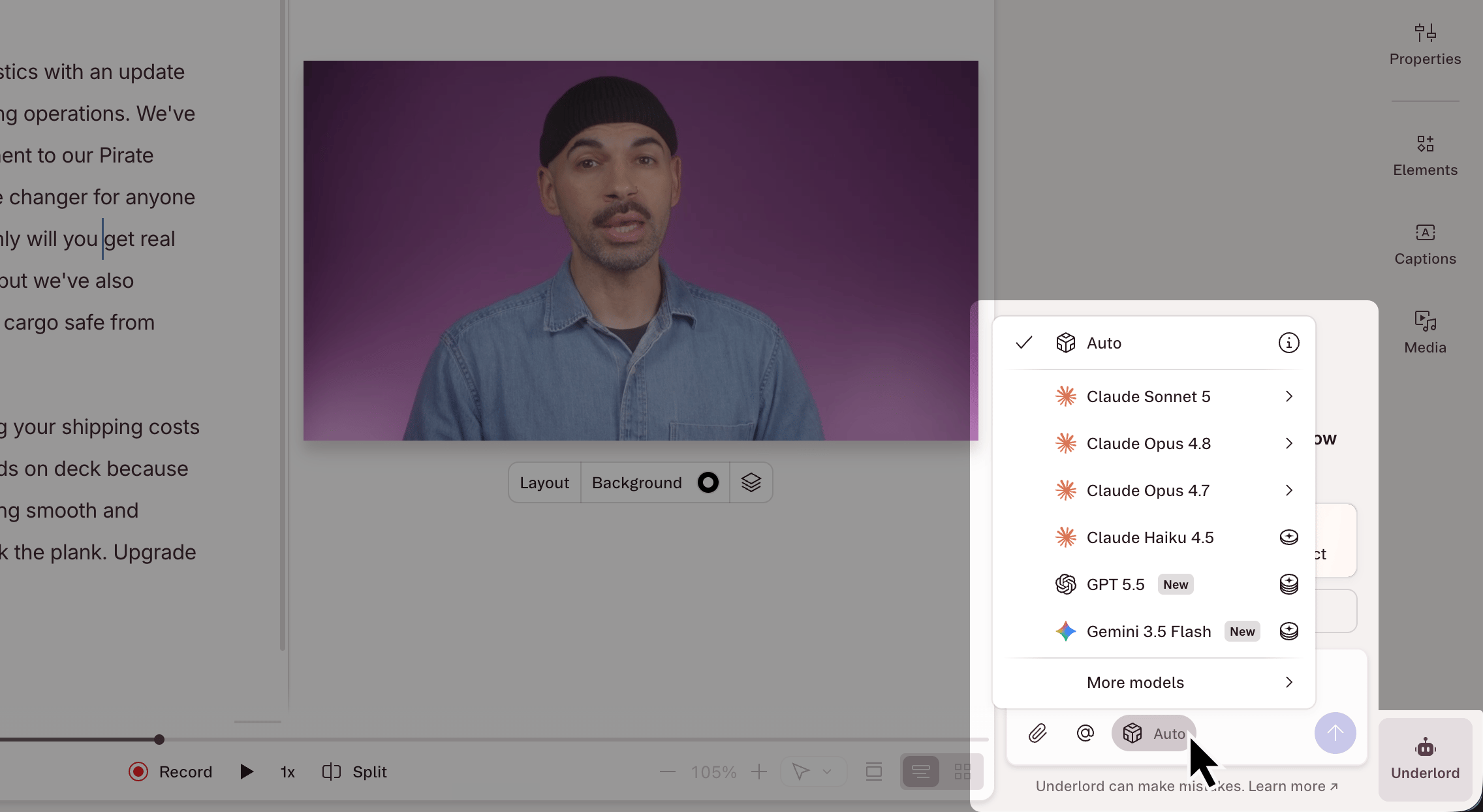
Choose which model powers Underlord by clicking the model selector (the cube icon) near the bottom of the Underlord chat window. Premium models are available on paid plans.
 ### Available models
Auto (Descript's choice)
### Available models
Auto (Descript's choice)
Claude Fable 5
Claude Haiku 4.5
Claude Sonnet 5 / Sonnet 4.6 / 4.5 and 4.6 Thinking
Claude Opus 5 + Thinking / Opus 4.8 / 4.7 / 4.6
GPT 5.4 / 5.4 Thinking
GPT 5.5
Gemini 3.1 Pro
Gemini 3.5 Flash
## What can Underlord do?
Ask Underlord to help with nearly any editing goal. While we provide a few examples below, the possibilities are endless, and we encourage exploration. If you don’t see it here—try it anyway, and see what happens.
| What Underlord can do | Example prompts |
| ---------------------------- | ------------------------------------------------------------------------------------------------------------------------------------------------------------------------------------------------------------------------------------------------------------------------------------------------------------------------------------------------------------------------------------------------------------------------------------------- |
| **Captions** | - Add viral, social media-style captions to my video. Emphasize the active spoken word in my brand color yellow #ffd02b. - Add captions for all the clips. - Update this clip so the captions follow this format: Manrope font, 100pt, extra bold, centered white text with a 30pt black shadow. Active word in yellow with a 10pt black outline. Future words in transparent white. Semi-transparent black background behind the playhead. |
| **Clips** | - Can you split this into 5 clips that are max 1 minute long? - Find me clips for social media that are between 60–90 seconds long and reformat them for vertical aspect ratio. |
| **Animations & Transitions** | - Add a left to right pan animation to the image layer. - Add zooms to moments of emphasis. - Add a simple fade-out effect to the end of this video. - Fade out the clip at the end. - Add zoom cuts every 3 to 6 seconds. - Apply animated callouts to important words in the scene. |
| **Translate** | - Translate the subtitles to Japanese. - Translate this video from Spanish to English with captions. |
| **Sound Effects & Music** | - Apply reverb on the script track with 30% damping. - Apply Studio Sound with 70% intensity. - Lower audio on other layers to make my speech stand out. |
| **Slides to Video** | - Summarize the key points from these slides and make a 1-minute video. - Take this document and this PDF of slides and turn it into a video about my company strategy, using the slides as b-roll. - Use the text on each slide as the script for TTS, and turn it into a narrated video. Use an avatar and generated media to help tell the story. |
**Looking for AI Tool buttons?**
Tools like Remove Filler Words, Shorten Word Gaps, and Edit for Clarity are now part of the AI tools panel. You can still use them manually — or ask Underlord to take care of them for you as part of a prompt. [Learn more about manually applying AI tools](/descript-tour/ai-tools-overview).
## How to leave feedback
Underlord is still in [beta](/app-troubleshooting/beta), and we’re actively improving it. Try bold prompts, mix tasks together, and find out just how capable your new co-editor is.
Try it out and let us know how it’s going. Click the thumbs up or thumbs down icon in the action bar below Underlord's response, and drop us a note with your thoughts.
 ## What to expect when working with Underlord
Descript’s AI features, including Underlord, are powered by large language models that can do remarkable things, but they’re still learning and sometimes get things wrong.
These tools are designed to be helpful, fast, and flexible, but they don’t always know when they’re out of their depth. At times, Underlord might overpromise, make incorrect assumptions, or follow you into workflows it's not equipped to complete. That can be frustrating, especially when you’re on a deadline or expecting hands-off results. We understand.
We’re actively working to improve both the AI’s honesty and its humility. This means adding better safeguards so the agent doesn’t agree to do things it can’t actually deliver, and making it more transparent about its current limitations.
In the meantime, Underlord works best when treated like a fast, talented collaborator who still needs clear instructions, context, and regular check-ins. For example, it can’t make edits in the background while you’re recording—it needs your narration or script in place first. And when you ask it to do something complex, it helps to check its work and give feedback as you go. [Point Underlord at specific scenes, layers, or script passages](/ai-assistant/prompting#add-context-to-an-underlord-prompt) to give it the context it needs.
AI isn't magic, but it is a powerful creative partner when used thoughtfully. As we continue improving Underlord, your experiences—good and bad—help shape its future. If you run into issues or have suggestions, we’d love to hear from you. Thanks for building with us.
## What to expect when working with Underlord
Descript’s AI features, including Underlord, are powered by large language models that can do remarkable things, but they’re still learning and sometimes get things wrong.
These tools are designed to be helpful, fast, and flexible, but they don’t always know when they’re out of their depth. At times, Underlord might overpromise, make incorrect assumptions, or follow you into workflows it's not equipped to complete. That can be frustrating, especially when you’re on a deadline or expecting hands-off results. We understand.
We’re actively working to improve both the AI’s honesty and its humility. This means adding better safeguards so the agent doesn’t agree to do things it can’t actually deliver, and making it more transparent about its current limitations.
In the meantime, Underlord works best when treated like a fast, talented collaborator who still needs clear instructions, context, and regular check-ins. For example, it can’t make edits in the background while you’re recording—it needs your narration or script in place first. And when you ask it to do something complex, it helps to check its work and give feedback as you go. [Point Underlord at specific scenes, layers, or script passages](/ai-assistant/prompting#add-context-to-an-underlord-prompt) to give it the context it needs.
AI isn't magic, but it is a powerful creative partner when used thoughtfully. As we continue improving Underlord, your experiences—good and bad—help shape its future. If you run into issues or have suggestions, we’d love to hear from you. Thanks for building with us.