> ## Documentation Index
> Fetch the complete documentation index at: https://help.descript.com/llms.txt
> Use this file to discover all available pages before exploring further.
# Scenes Overview
> Use scenes in Descript to control when visuals appear in your project.
A scene is a segment of your video with its own visuals: its layout, footage, and layers. Dividing a project into scenes is how you structure and pace what viewers see.
Scenes work alongside your script and audio, letting you fine-tune pacing, layout, and transitions as you edit.
**Keep learning with videos**
Explore more educational videos and workflows in Learn [Learn Descript](https://web.descript.com/learn-descript?utm_source=hcarticles).
**Working on audio-only content?**
Scenes are only available in video compositions. If your project doesn’t include visuals, you won’t see any scenes in the script or timeline.
## Where scenes appear in the editor
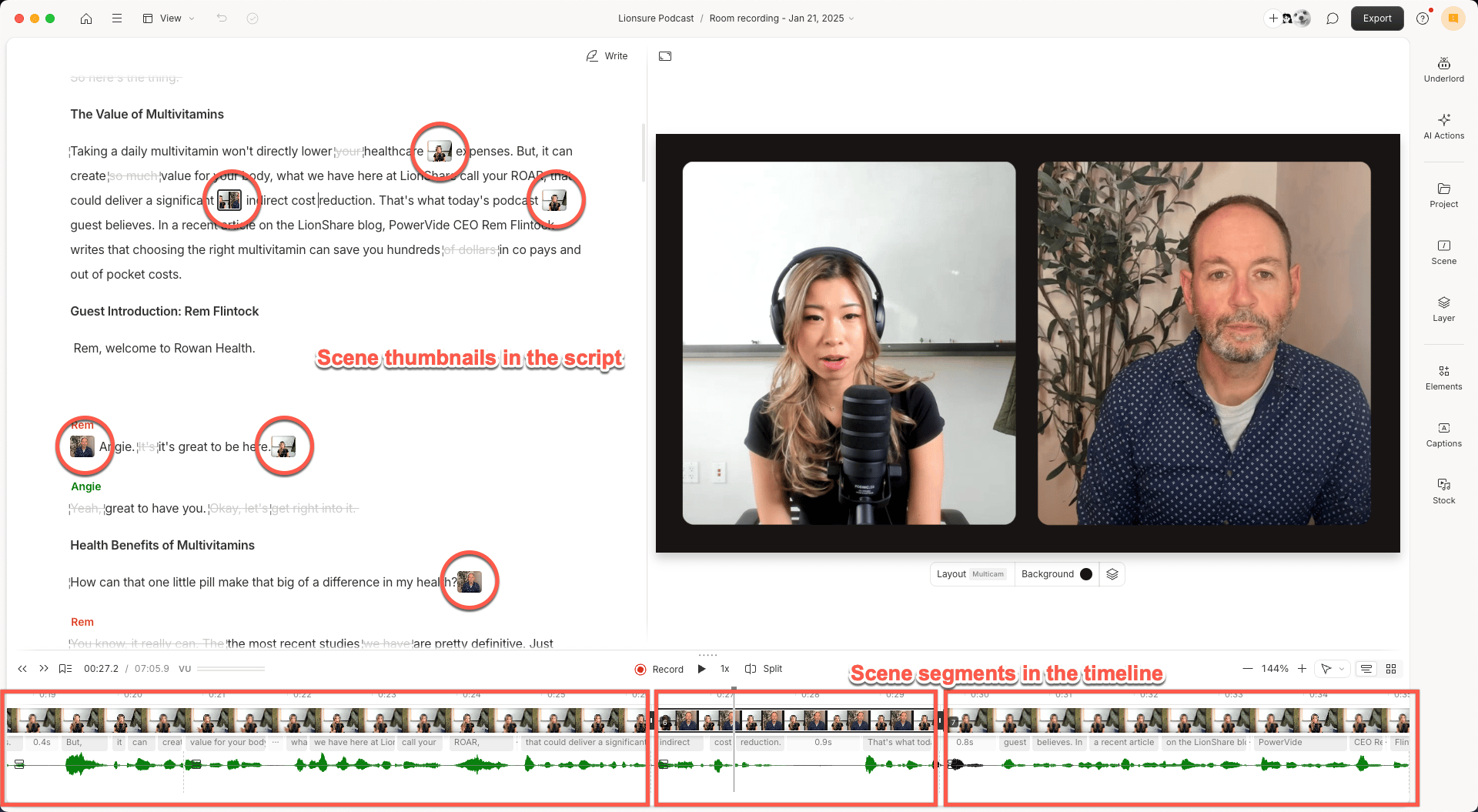
Scenes are represented in two places in the editor:
* **Script panel:** Thumbnails indicate where each new scene begins.
* **Timeline:** Scenes appear as segments that contain their own layers. In storyboard view, scenes are represented visually with tiles.
Each scene includes its own visual layers — like video clips, titles, images, and b-roll — giving you flexibility to change what viewers see from one moment to the next.
 ## Add a scene
You can add a new scene by:
* Typing `/` in the script panel to insert a scene boundary. [Learn more about scene boundaries.](/visuals/boundaries)
* Right-clicking in the script and selecting **Add scene** from the context menu.
* Clicking **Split** in the timeline toolbar. [Learn more about using the Split button.](/timeline/split-button)
## What’s next?
Now that you understand how layouts work, explore these guides to help you design, apply, and manage them effectively:
* [Add, move, or delete a scene boundary](/visuals/boundaries) — control where scenes begin and end.
* [Adjust scene properties](/visuals/properties) — change background color or gradient, apply effects, or add transitions.
* [Reorder scenes](/visuals/reorder) — reorganize your content by dragging scenes in the script.
* [Extend layers across multiple scenes](/visuals/scenes-layers) — make visuals persist across cuts.
* [Apply transitions between scenes](https://help.descript.com/hc/en-us/articles/10255974053773) — polish the flow from one scene to the next.
* [Create and apply a layout](/templates-and-presets/overview) — build a reusable visual style for your scenes.
## Add a scene
You can add a new scene by:
* Typing `/` in the script panel to insert a scene boundary. [Learn more about scene boundaries.](/visuals/boundaries)
* Right-clicking in the script and selecting **Add scene** from the context menu.
* Clicking **Split** in the timeline toolbar. [Learn more about using the Split button.](/timeline/split-button)
## What’s next?
Now that you understand how layouts work, explore these guides to help you design, apply, and manage them effectively:
* [Add, move, or delete a scene boundary](/visuals/boundaries) — control where scenes begin and end.
* [Adjust scene properties](/visuals/properties) — change background color or gradient, apply effects, or add transitions.
* [Reorder scenes](/visuals/reorder) — reorganize your content by dragging scenes in the script.
* [Extend layers across multiple scenes](/visuals/scenes-layers) — make visuals persist across cuts.
* [Apply transitions between scenes](https://help.descript.com/hc/en-us/articles/10255974053773) — polish the flow from one scene to the next.
* [Create and apply a layout](/templates-and-presets/overview) — build a reusable visual style for your scenes.