> ## Documentation Index
> Fetch the complete documentation index at: https://help.descript.com/llms.txt
> Use this file to discover all available pages before exploring further.
# Download and Install Descript
> The Descript desktop app is available for download on macOS and Windows devices.
Descript's desktop app runs on macOS and Windows. Download and install it to record and edit outside the browser.
Once installed, Descript keeps itself up to date. The app checks for updates while running and downloads them in the background. The next time you open Descript, the update applies automatically. No manual action required, so the latest features, improvements, and security fixes are always in place.
We also have a web version at [web.descript.com](https://web.descript.com/), where you can create and collaborate from your web browser. [Learn more about Descript for Web](/getting-started/descript-for-web).
## Install the app
1. [Download the Descript installer for Mac](https://www.descript.com/download/mac). Note, clicking this link will immediately begin the download process.
2. Once the .zip file finishes downloading, click to unpack it.
3. Drag the extracted Descript application to your **Applications** folder.
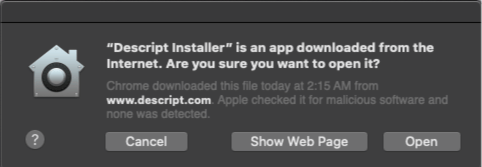
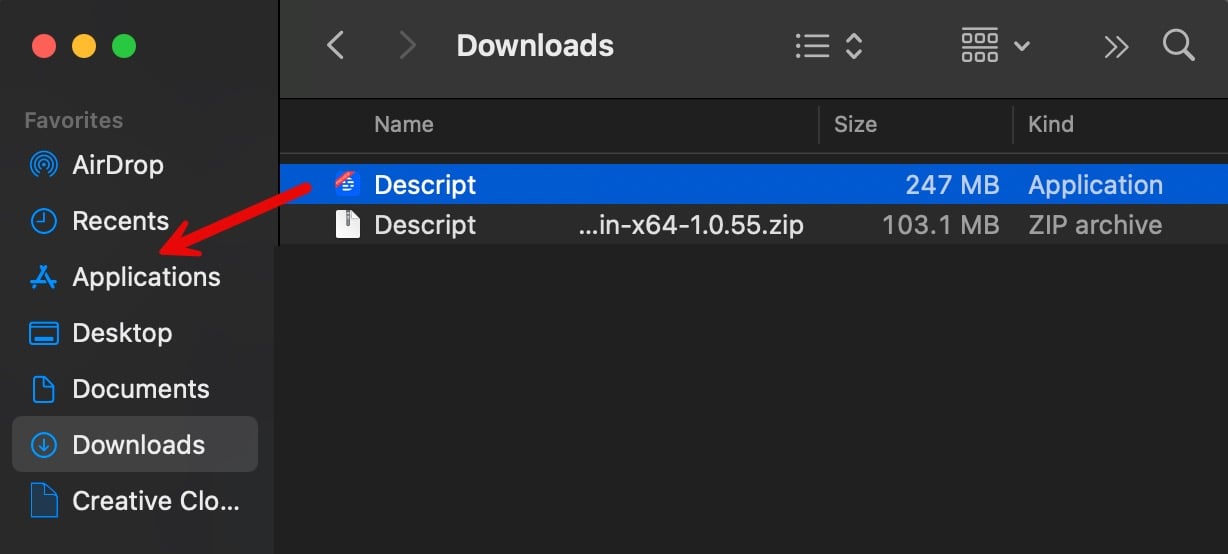 4. Double-click the app to launch. If prompted to confirm opening the file, click **Open**.
 5. Once open, [**sign in** or **create an account**](/getting-started/create-account) to start using Descript.
1. [Download the Descript installer for Windows](https://www.descript.com/download/windows). Note, clicking this link will immediately begin the download process.
2. Once the .zip file finishes downloading, click to unpack it, then double-click the installer to launch and begin installation.
**Don't interrupt the installer** Installation can take anywhere from a few seconds to a few hours depending on your internet speed. If it looks like the installer has stalled partway through, leave it alone until the download finishes.
3. Once the download is complete, [**sign in** or **create an account**](/getting-started/create-account) to start using Descript.
## Why does Descript launch when I start my computer?
By default, Descript opens automatically when you sign in to your computer — this keeps the menu bar (Mac) or taskbar (Windows) [Screen Recorder](/record/screen-recorder) available whenever you need it.
To turn it off, open the Screen Recorder and disable **Launch at login** in its settings.
### Disable Launch at login on macOS
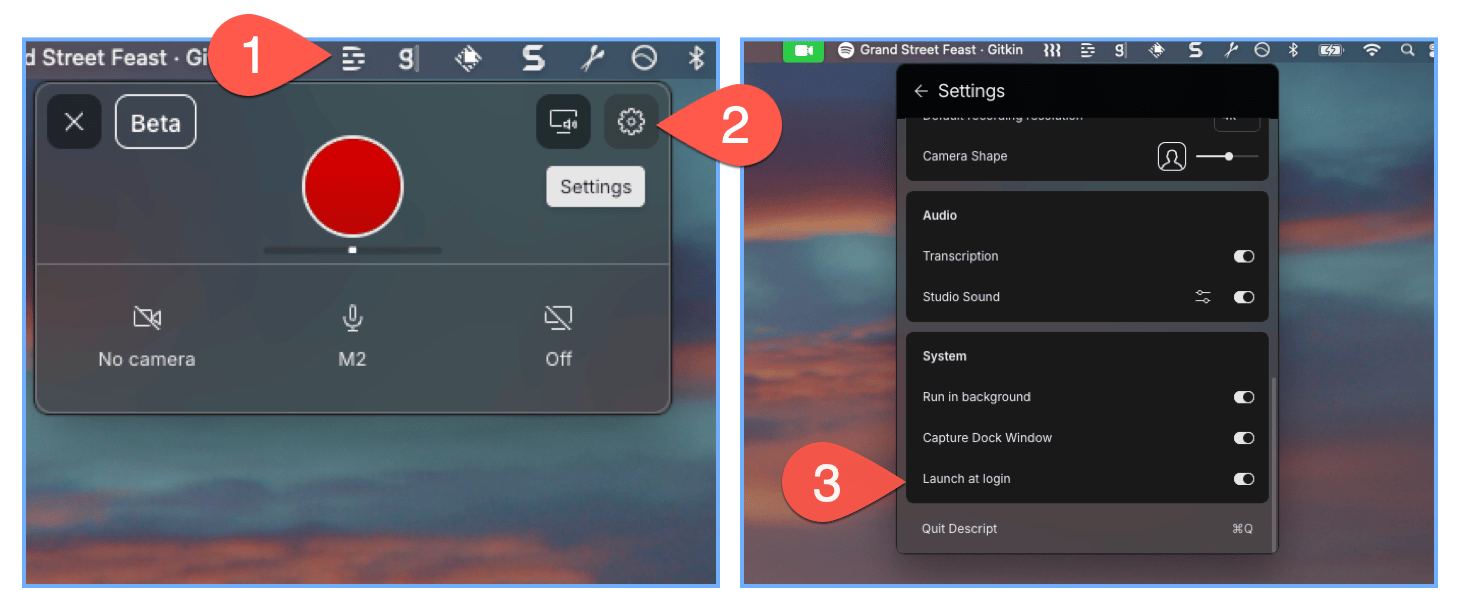
1. Click the Descript icon in your menu bar.
2. Select **Settings**.
3. Turn off **Launch at login**.
5. Once open, [**sign in** or **create an account**](/getting-started/create-account) to start using Descript.
1. [Download the Descript installer for Windows](https://www.descript.com/download/windows). Note, clicking this link will immediately begin the download process.
2. Once the .zip file finishes downloading, click to unpack it, then double-click the installer to launch and begin installation.
**Don't interrupt the installer** Installation can take anywhere from a few seconds to a few hours depending on your internet speed. If it looks like the installer has stalled partway through, leave it alone until the download finishes.
3. Once the download is complete, [**sign in** or **create an account**](/getting-started/create-account) to start using Descript.
## Why does Descript launch when I start my computer?
By default, Descript opens automatically when you sign in to your computer — this keeps the menu bar (Mac) or taskbar (Windows) [Screen Recorder](/record/screen-recorder) available whenever you need it.
To turn it off, open the Screen Recorder and disable **Launch at login** in its settings.
### Disable Launch at login on macOS
1. Click the Descript icon in your menu bar.
2. Select **Settings**.
3. Turn off **Launch at login**.
 ### Disable Launch at login on Windows
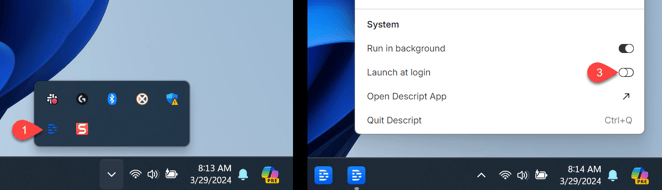
1. Click the Descript icon in your taskbar. You may need to click the arrow to **Show hidden icons**.
2. Select **Settings**.
3. Turn off **Launch at login**.
### Disable Launch at login on Windows
1. Click the Descript icon in your taskbar. You may need to click the arrow to **Show hidden icons**.
2. Select **Settings**.
3. Turn off **Launch at login**.