> ## Documentation Index
> Fetch the complete documentation index at: https://help.descript.com/llms.txt
> Use this file to discover all available pages before exploring further.
# Get Started with Descript
> An overview workflow guide through recording, editing, and sharing in Descript.
Descript is your all-in-one editor for video and audio. Bring in your media, edit it like text, add polish with AI, and share it anywhere. This guide is a quick tour of the core workflows, with links to deeper articles if you want more detail.
**Keep learning with videos**
Watch more getting started tutorials and feature walkthroughs in [Learn Descript.](https://web.descript.com/learn-descript?utm_source=hcarticles)
## Step 1: Bring your media, or your idea
You can start a project in a few different ways.
* **Record**: Use [Descript’s built-in recorders](/record/editor-recorder-overview), or record a remote session with others in [Rooms](/record/rooms-overview).
* [**Import**](/getting-started/import-overview): Drag in existing audio or video files.
* **Generate**: No recording? Use **AI Speakers** to [create text-to-speech audio](/ai-speech/tts). Type your script, pick a voice, and Descript generates the voiceover.
* **Starting from scratch**: In [the Home tab](/descript-tour/drive-view), you can either chat with Underlord or [select a template](/templates-and-presets/underlord-templates) to quickly create your first clip.
All media is [automatically transcribed](/script-editing/automatic-transcription), so you can edit it as text.
## Step 2: Edit your content like a doc
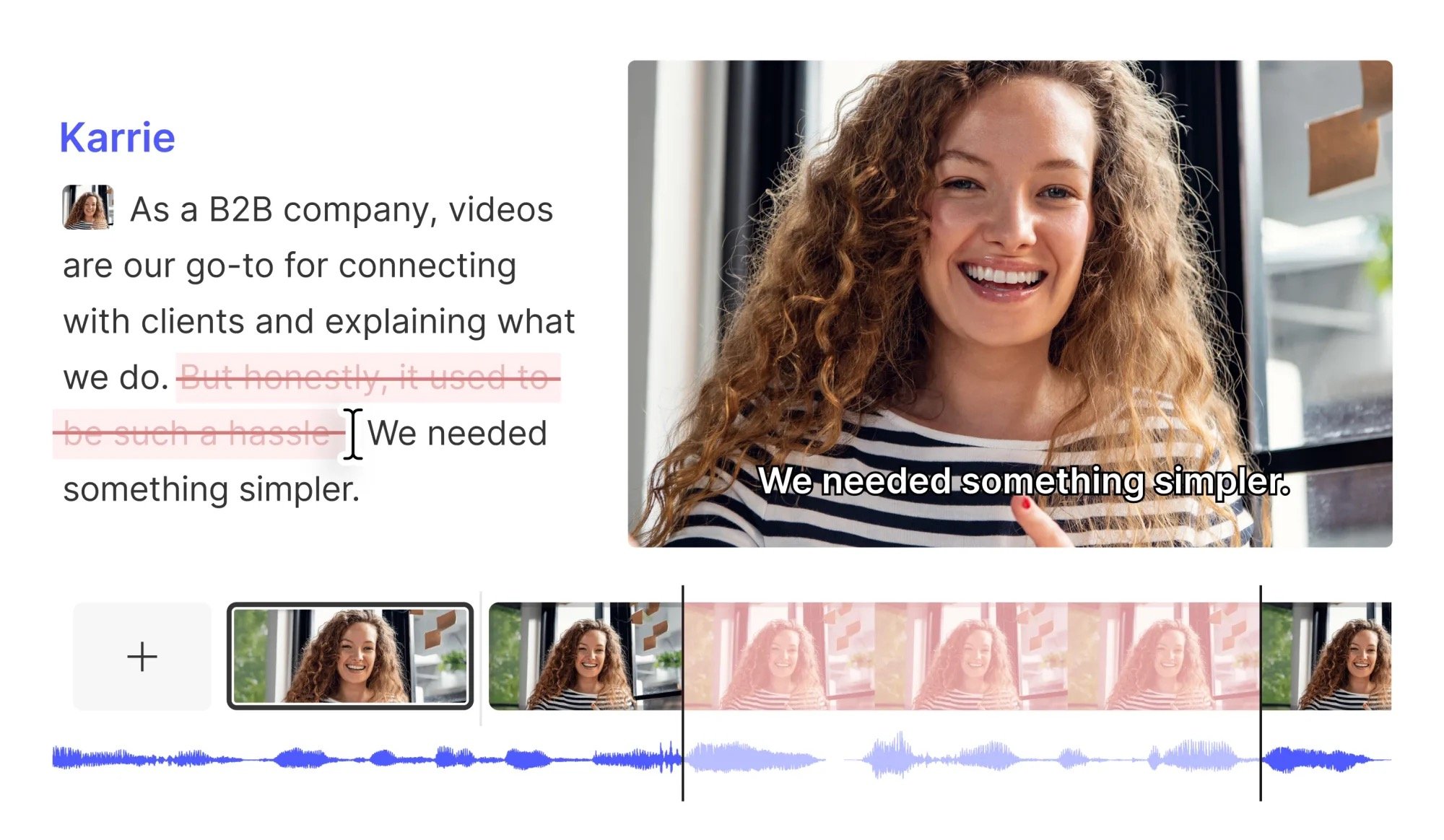
Editing in Descript [feels like editing a document](/getting-started/edit-like-a-doc). Delete, move, and copy or paste content just as you would in a word processor. Descript automatically updates your media to match.
* Delete words or sentences from the transcript, and the media edits automatically.
* Cut, copy, and paste text to rearrange audio or video.
**Tip: Regenerate**
Need to fix a line or smooth out awkward phrasing? Use [**Regenerate**](/script-editing/regenerate-overview) to re-create part of your narration directly from the script — no re-recording required.
## Step 3: Build your scenes and apply layouts
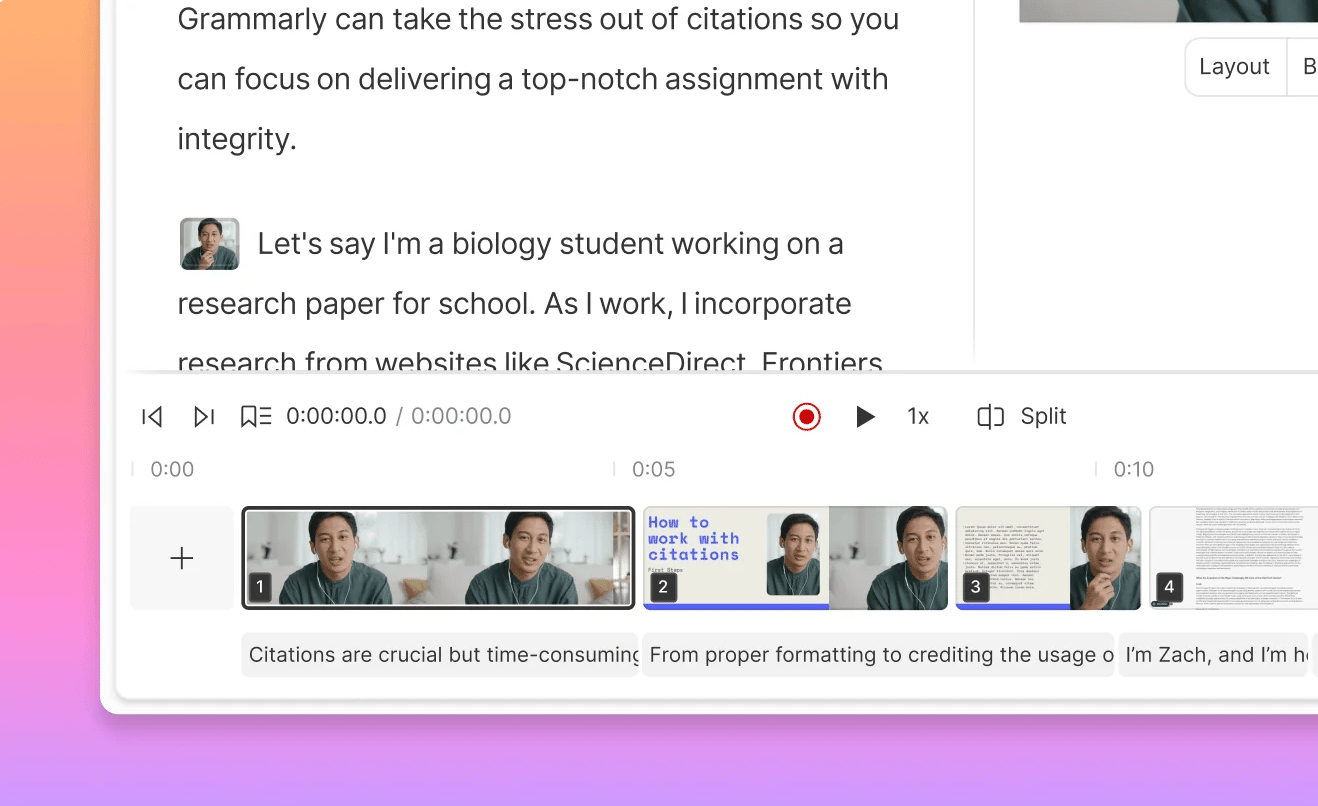
Scenes and layouts give your project structure and style. Use scenes to organize content, then apply layouts to control how it looks.
* [**Scenes**](/getting-started/scenes): Break your project into sections. Add a new scene whenever you want the visuals to change.
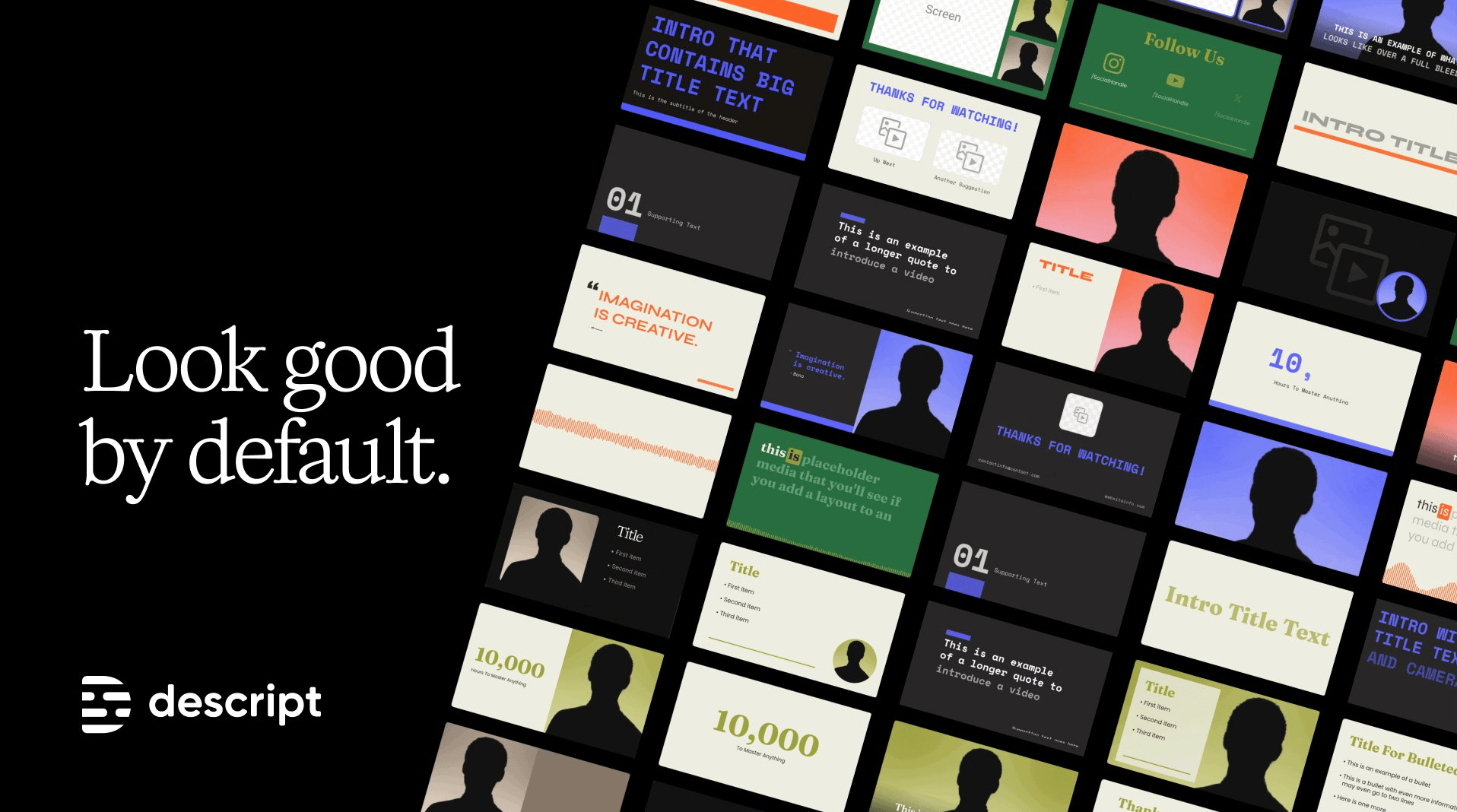
* [**Layouts**](/templates-and-presets/overview): Control how each scene looks with ready-made layout packs for common set ups: split-screen speaker views, picture-in-picture explainers, title cards, outros, and more. [Smart transitions](/effects-animations-transitions/smart-transitions) are applied by default to keep your video flowing.
* **Elements and stock media**: [Add shapes, text, and other elements](/visuals/working-with-layers-and-clips-overview), then layer in music, sound effects, or footage from Descript’s [robust stock media library](/descript-tour/media-panel).
* **Captions**: Choose a style from [the Captions panel](/visuals/captions) in the sidebar, and (optionally) customize it to match your video.
## Step 4: Edit in the timeline
For more precise control beyond text editing, use the [timeline](/timeline/timeline-overview).
* **Adjust pacing with [the wordbar](/script-editing/the-wordbar)**: Drag directly in the wordbar to fine-tune pacing.
* [**Expand layers across scenes**](/visuals/scenes-layers): Let visuals like background music, b-roll, or lower thirds continue seamlessly over multiple scenes.
## Step 5: Polish your project with AI
Use Descript's suite of AI tools to clean up, enhance, and repurpose your content with just a few clicks. Here are just a few of the powerful AI tools available in Descript:
* [**Underlord**](/getting-started/underlord-beta-your-ai-co-editor-in-descript): Chat with our AI co-editor to repurpose, refine, or generate new content. You can also start with [templates for one-click Underlord workflows](/templates-and-presets/underlord-templates).
* [**Studio Sound**](/effects-animations-transitions/studio-sound): Improve audio quality by removing background noise and enhancing clarity.
* [**Eye Contact**](/effects-animations-transitions/eye-contact): Adjust your gaze so it looks like you’re speaking directly to the camera.
* [**Create clips**](/descript-tour/repurpose-tools): Automatically generate shorter, snack-sized videos from your full project.
These are just a few of the AI tools available. Check out [the AI Tools panel](/descript-tour/ai-tools-overview) and [Underlord](/getting-started/underlord-beta-your-ai-co-editor-in-descript) articles to discover more ways AI can streamline your creative process.
## Step 6: Collaborate, share, and export
When you’re ready to share your project, Descript makes it easy to publish, collect feedback, and export anywhere you need
* [**Local export**](/export-and-share/video-gif): Save a copy to your device in formats like MP4, MP3, WAV, GIF, and more.
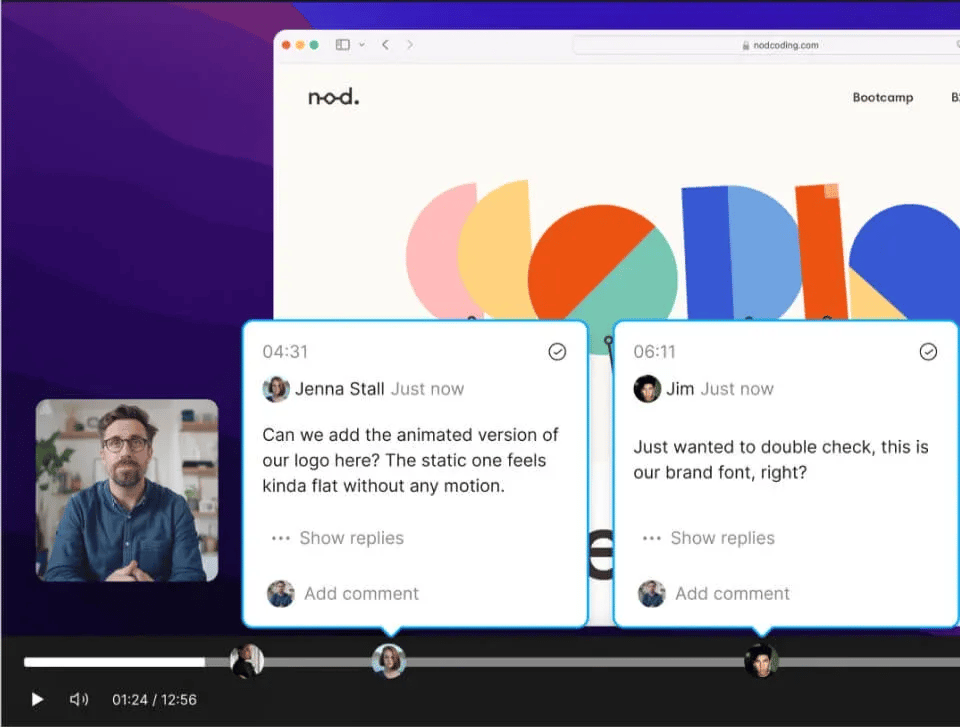
* [**Publish link**](/export-and-share/share-page): Share a hosted version of your project. Viewers can leave timestamped comments directly on the video, so you can collect feedback without switching tools.
* **Integrations**: Export straight to platforms like [HubSpot](/export-and-share/hubspot), [YouTube](/export-and-share/youtube) and [many more](/export-and-share/export-and-publishing-overview).
* [**Comments**](/export-and-share/share-page-settings): Collaborators can leave timestamped comments making it easy to review and resolve feedback in context.
 ## Step 4: Edit in the timeline
For more precise control beyond text editing, use the [timeline](/timeline/timeline-overview).
* **Adjust pacing with [the wordbar](/script-editing/the-wordbar)**: Drag directly in the wordbar to fine-tune pacing.
* [**Expand layers across scenes**](/visuals/scenes-layers): Let visuals like background music, b-roll, or lower thirds continue seamlessly over multiple scenes.
## Step 4: Edit in the timeline
For more precise control beyond text editing, use the [timeline](/timeline/timeline-overview).
* **Adjust pacing with [the wordbar](/script-editing/the-wordbar)**: Drag directly in the wordbar to fine-tune pacing.
* [**Expand layers across scenes**](/visuals/scenes-layers): Let visuals like background music, b-roll, or lower thirds continue seamlessly over multiple scenes.
 ## Step 5: Polish your project with AI
Use Descript's suite of AI tools to clean up, enhance, and repurpose your content with just a few clicks. Here are just a few of the powerful AI tools available in Descript:
* [**Underlord**](/getting-started/underlord-beta-your-ai-co-editor-in-descript): Chat with our AI co-editor to repurpose, refine, or generate new content. You can also start with [templates for one-click Underlord workflows](/templates-and-presets/underlord-templates).
* [**Studio Sound**](/effects-animations-transitions/studio-sound): Improve audio quality by removing background noise and enhancing clarity.
* [**Eye Contact**](/effects-animations-transitions/eye-contact): Adjust your gaze so it looks like you’re speaking directly to the camera.
* [**Create clips**](/descript-tour/repurpose-tools): Automatically generate shorter, snack-sized videos from your full project.
These are just a few of the AI tools available. Check out [the AI Tools panel](/descript-tour/ai-tools-overview) and [Underlord](/getting-started/underlord-beta-your-ai-co-editor-in-descript) articles to discover more ways AI can streamline your creative process.
## Step 6: Collaborate, share, and export
When you’re ready to share your project, Descript makes it easy to publish, collect feedback, and export anywhere you need
* [**Local export**](/export-and-share/video-gif): Save a copy to your device in formats like MP4, MP3, WAV, GIF, and more.
* [**Publish link**](/export-and-share/share-page): Share a hosted version of your project. Viewers can leave timestamped comments directly on the video, so you can collect feedback without switching tools.
* **Integrations**: Export straight to platforms like [HubSpot](/export-and-share/hubspot), [YouTube](/export-and-share/youtube) and [many more](/export-and-share/export-and-publishing-overview).
* [**Comments**](/export-and-share/share-page-settings): Collaborators can leave timestamped comments making it easy to review and resolve feedback in context.
## Step 5: Polish your project with AI
Use Descript's suite of AI tools to clean up, enhance, and repurpose your content with just a few clicks. Here are just a few of the powerful AI tools available in Descript:
* [**Underlord**](/getting-started/underlord-beta-your-ai-co-editor-in-descript): Chat with our AI co-editor to repurpose, refine, or generate new content. You can also start with [templates for one-click Underlord workflows](/templates-and-presets/underlord-templates).
* [**Studio Sound**](/effects-animations-transitions/studio-sound): Improve audio quality by removing background noise and enhancing clarity.
* [**Eye Contact**](/effects-animations-transitions/eye-contact): Adjust your gaze so it looks like you’re speaking directly to the camera.
* [**Create clips**](/descript-tour/repurpose-tools): Automatically generate shorter, snack-sized videos from your full project.
These are just a few of the AI tools available. Check out [the AI Tools panel](/descript-tour/ai-tools-overview) and [Underlord](/getting-started/underlord-beta-your-ai-co-editor-in-descript) articles to discover more ways AI can streamline your creative process.
## Step 6: Collaborate, share, and export
When you’re ready to share your project, Descript makes it easy to publish, collect feedback, and export anywhere you need
* [**Local export**](/export-and-share/video-gif): Save a copy to your device in formats like MP4, MP3, WAV, GIF, and more.
* [**Publish link**](/export-and-share/share-page): Share a hosted version of your project. Viewers can leave timestamped comments directly on the video, so you can collect feedback without switching tools.
* **Integrations**: Export straight to platforms like [HubSpot](/export-and-share/hubspot), [YouTube](/export-and-share/youtube) and [many more](/export-and-share/export-and-publishing-overview).
* [**Comments**](/export-and-share/share-page-settings): Collaborators can leave timestamped comments making it easy to review and resolve feedback in context.