> ## Documentation Index
> Fetch the complete documentation index at: https://help.descript.com/llms.txt
> Use this file to discover all available pages before exploring further.
# Edit Like a Doc
> In Descript, you edit your content simply by editing your script.
Edit audio and video the way you’d edit a doc: change the transcript, and Descript updates the underlying media automatically—no timeline required.
## How script-based editing works
When you add a file to your script, Descript transcribes it and displays the text in the script editor. This transcript isn't just a reference — it’s directly linked to your media. Delete a word from the transcript, and that word disappears from your audio or video. Cut and paste a sentence, and the media moves with it.
That means you can edit audio and video using the same actions you’d use in a word processor.
## Delete and move content
### To delete content:
1. Select the text you want to remove.
2. Press **Delete** or **Backspace**.
The selected content is removed from both your transcript and your media.
**Need to bring back deleted content?**
Editing in Descript is non-destructive. Even after you delete something, the media is still there — just hidden from your composition.
To restore it, right-click the edit boundary and select **Restore removed media**. [Learn more about restoring removed media →](/script-editing/restore-removed-media)
### To move content:
1. Select the text you want to move.
2. Press **⌘X** (Mac) or **Ctrl+X** (Windows) to cut.
3. Click where you want to place it.
4. Press **⌘V** (Mac) or **Ctrl+V** (Windows) to paste.
The media moves with the text. You can also use **⌘C**/**Ctrl+C** to copy and duplicate content instead.
### Other tools for editing media
Descript has some other tools for more specific use cases. There's some nuance here, and the "right" tool to use will depend on your personal goals:
* **Remove from transcript:** Keeps the audio or video but hides the text from your script, captions, and exported transcripts. Right-click the text and choose **Remove from transcript**.
* **Ignore:** Crosses out the text but keeps it visible in the script. Use this when you want to mark edits without deleting them. [Learn more about deleting vs. ignoring](https://help.descript.com/hc/en-us/articles/\[insert-id]).
* **Correct your transcript:** Fix typos, incorrect words, and speaker labels. [See how to correct your transcript](/script-editing/correct-your-transcript).
* **Need to adjust word timing or alignment?** Use the wordbar at the bottom of the script editor. You can fine-tune when words start and end, which is helpful for captions or fixing sync issues. [Learn more about t](/script-editing/the-wordbar)[he wordbar.](/script-editing/the-wordbar)
## How to add inline notes
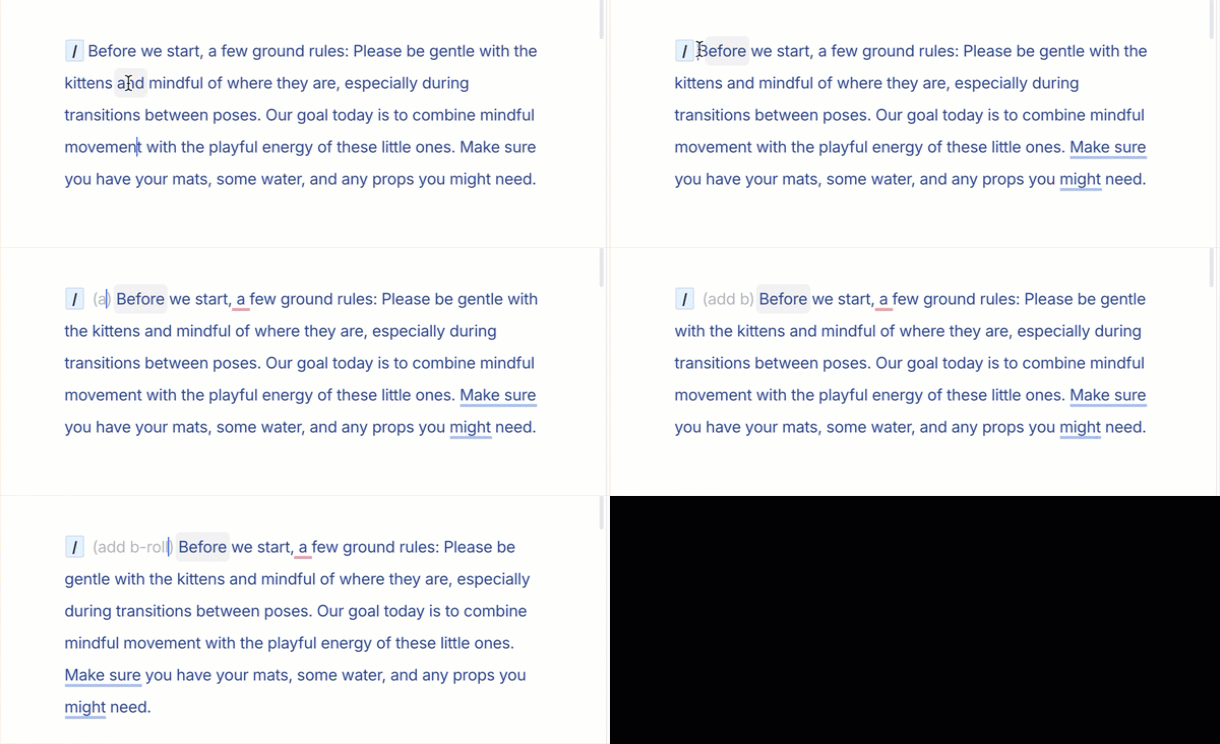
Inline notes let you annotate non-speech content like “\[cough]” or “\[laughter]” without affecting your transcript’s alignment with the media. They’re included in exported transcripts but won’t appear in the wordbar.
### To add an inline note:
1. Type an opening parenthesis **(** in your script.
2. Type your note.
3. Close with a closing parenthesis **)**.
You can also add a note on a blank line by clicking **...** → **Add inline note**.
 **Inline notes vs comments**
Inline notes are typically used for annotating transcripts. To collaborate or leave feedback for teammates, consider using **comments** instead.
## Tools to speed up your editing
Once you’ve learned the basics, these tools can help you edit more efficiently:
* [**Correct your transcript**](/script-editing/correct-your-transcript) — Fix typos, mislabels, and incorrect words.
* [**Filler words**](/script-editing/filler-words) — Automatically remove “um,” “uh,” and other fillers in bulk.
* [**Shorten word gaps**](/script-editing/shorten-word-gaps) — Reduce long pauses across your entire script.
* [**Selection toolbar**](/descript-tour/selection-toolbar) — Format text, adjust timing, and apply effects with quick actions.
**Inline notes vs comments**
Inline notes are typically used for annotating transcripts. To collaborate or leave feedback for teammates, consider using **comments** instead.
## Tools to speed up your editing
Once you’ve learned the basics, these tools can help you edit more efficiently:
* [**Correct your transcript**](/script-editing/correct-your-transcript) — Fix typos, mislabels, and incorrect words.
* [**Filler words**](/script-editing/filler-words) — Automatically remove “um,” “uh,” and other fillers in bulk.
* [**Shorten word gaps**](/script-editing/shorten-word-gaps) — Reduce long pauses across your entire script.
* [**Selection toolbar**](/descript-tour/selection-toolbar) — Format text, adjust timing, and apply effects with quick actions.