> ## Documentation Index
> Fetch the complete documentation index at: https://help.descript.com/llms.txt
> Use this file to discover all available pages before exploring further.
# Add a File to the Script
> Add a file to your Descript script to transcribe and edit it as text.
Descript works a little differently from most video editors. Instead of building your story only on a timeline, it also gives you a script—a text-based view of your media that lets you edit like you’re working in a doc.
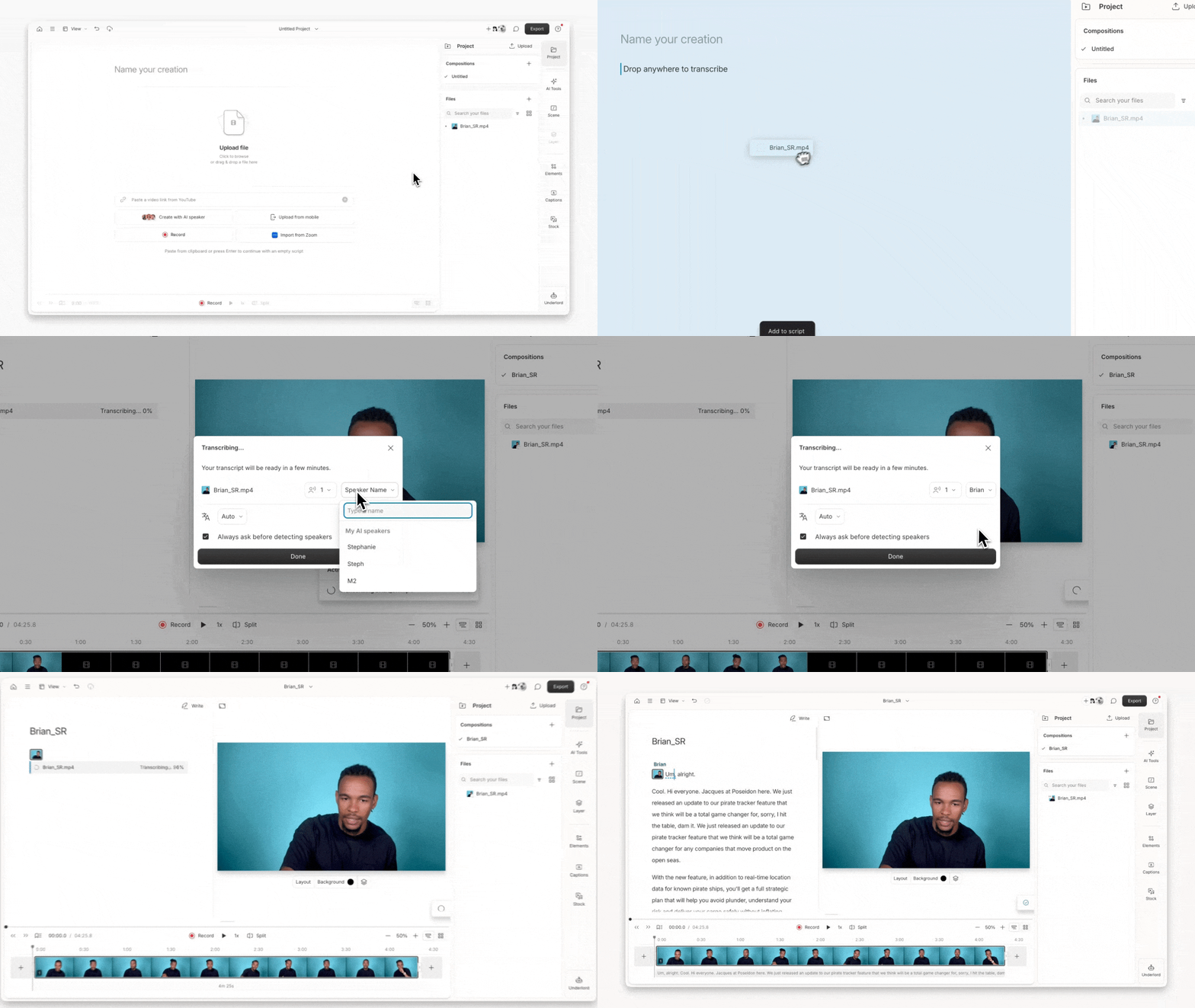
When you add a file to the script, Descript transcribes the spoken audio and aligns each word in the transcript with your media. This connection between your media and the script is what allows you to edit your content just like a text document: delete a sentence, and Descript cuts the audio and video too.
## This article covers:
* [How to add media to the script](#add-a-file-to-the-script)
* [What the script is and why it matters](#why-the-script-matters)
* [What to do if your transcript isn’t showing up](/getting-started/add-a-file-to-the-script)
**Need help uploading or editing?**
Haven’t uploaded your file yet? [Learn how to upload media to your project →](https://help.descript.com/hc/en-us/articles/10165766313357)
Ready to start editing your transcript? [Learn how to edit like a doc →](/getting-started/edit-like-a-doc)
## Add a file to the script
From the **Project** panel in the right-hand sidebar, locate the file you want to add in the **Files** section. Click and drag it into the script editor.
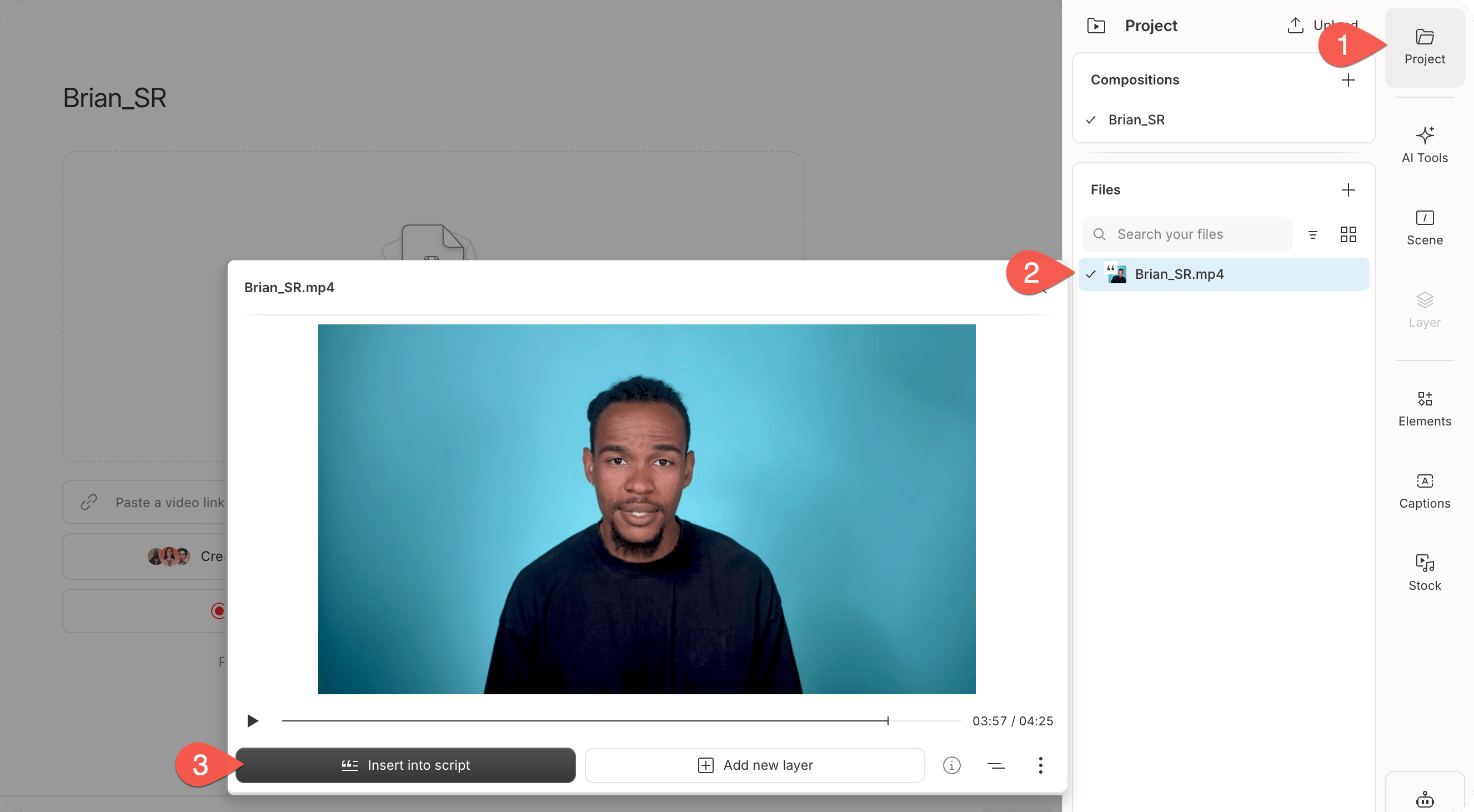
 You can also select the file from the **Files** list and click the **Insert into script** button in the file preview window.
 ## Why the script matters
The script panel is a core part of the Descript editor. When you add a media file to the script, Descript automatically:
* Transcribes the spoken audio
* Aligns the transcript with the underlying media
* Enables you to edit your video by editing text
## Still not seeing a transcript?
Check that you've added your file to the script—not just as a layer. Only script media is transcribed.
If the issue persists, check that transcription was enabled or try re-transcribing the file. [Learn how to transcribe or re-transcribe a file →](/script-editing/automatic-transcription)
## What can I do once it’s transcribed?
Once your file is added to the script, you can edit it like a doc—cutting, rearranging, or correcting the text. [Learn how to edit your script like a doc →](/getting-started/edit-like-a-doc)
## Why the script matters
The script panel is a core part of the Descript editor. When you add a media file to the script, Descript automatically:
* Transcribes the spoken audio
* Aligns the transcript with the underlying media
* Enables you to edit your video by editing text
## Still not seeing a transcript?
Check that you've added your file to the script—not just as a layer. Only script media is transcribed.
If the issue persists, check that transcription was enabled or try re-transcribing the file. [Learn how to transcribe or re-transcribe a file →](/script-editing/automatic-transcription)
## What can I do once it’s transcribed?
Once your file is added to the script, you can edit it like a doc—cutting, rearranging, or correcting the text. [Learn how to edit your script like a doc →](/getting-started/edit-like-a-doc)