> ## Documentation Index
> Fetch the complete documentation index at: https://help.descript.com/llms.txt
> Use this file to discover all available pages before exploring further.
# Avatars Overview
> Add an animated on-screen presenter with avatars in Descript.
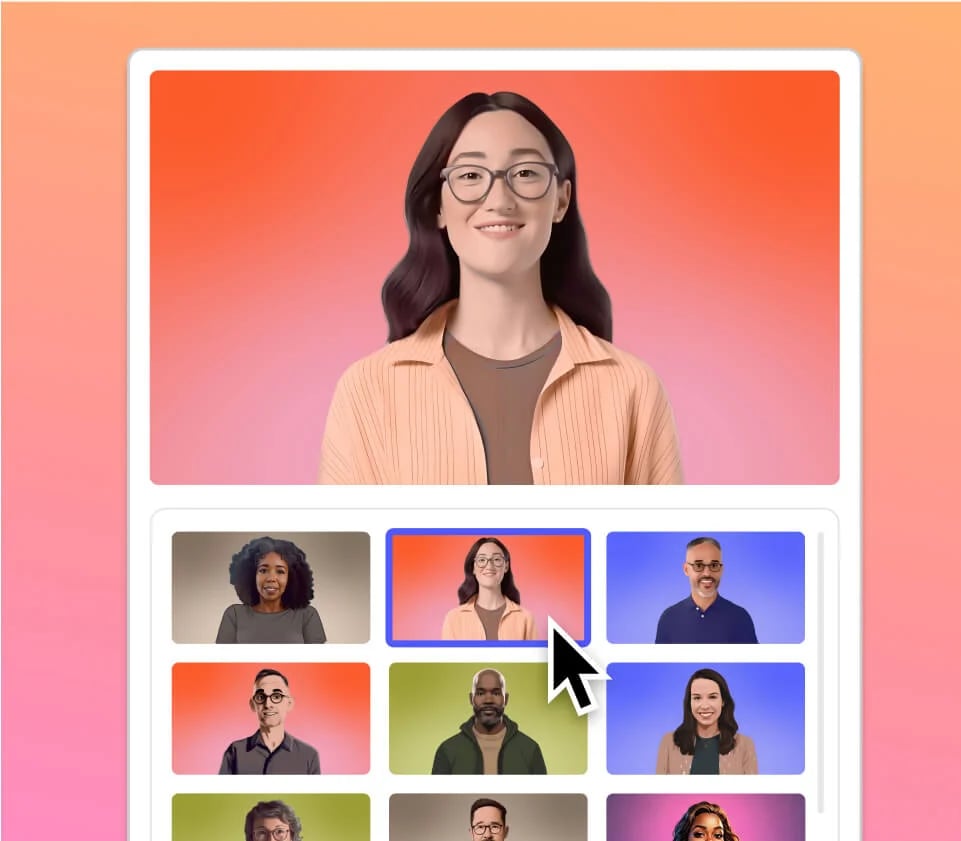
An avatar is an AI presenter that speaks your script on camera, so you don't have to. Give one a [stock voice](/ai-speech/stock-voices) or a [clone of your own](/ai-speech/custom-speaker), assign it to a speaker, and Descript animates it delivering your lines.
Use a pre-made avatar from the Descript gallery or create your own by uploading a photo, generating an avatar image from a text prompt, or combining both. [Learn how to create a custom avatar](/generative-media/custom-avatars).
Avatars work with both [text-to-speech (TTS)](/ai-speech/tts) and your own recorded content. Each speaker in the composition can have one avatar assigned at a time, which applies consistently across the entire project.
**Usage note**
On current plans, this feature uses **AI Credits**. Learn more about [tracking your Media Minutes and AI Credits](/billing-payments-plans/track-and-understand-your-media-minutes-and-ai-credits).
Legacy and Sunset plans track usage differently. See our [Understanding your Legacy and Sunset plan](/billing-payments-plans/legacy-sunset) guide for details.
## How to use avatars in your project
The workflow depends on the type of audio you’re using:
* Write a script and generate audio with text-to-speech
* Record your own voice directly in Descript
* Import pre-recorded audio, like a podcast or screen recording
For step-by-step instructions, see [How to use avatars in Descript](/generative-media/workflows).
## Manage avatars in a project
Once assigned, an avatar follows its speaker anywhere that speaker appears in your composition. You can:
* Update or remove avatars by clicking the speaker label and choosing **Update speaker’s avatar**
* Resize, reposition, and crop the avatar in the [Scene panel](/visuals/layer-properties)
* Use avatars with visual effects like [Green Screen](/effects-animations-transitions/green-screen)
* Regenerate the avatar at any time (Note: changes to the script or speaker label require re-generation)
 ## Tips for using avatars
* Generate after you’ve finalized your script and speaker labels
* Use [Replace media](/visuals/replace-media) to swap a camera layer for an avatar
* If an avatar isn’t visible, confirm it’s above other visuals in the layer stack; see [layer order](/visuals/layer-visibility)
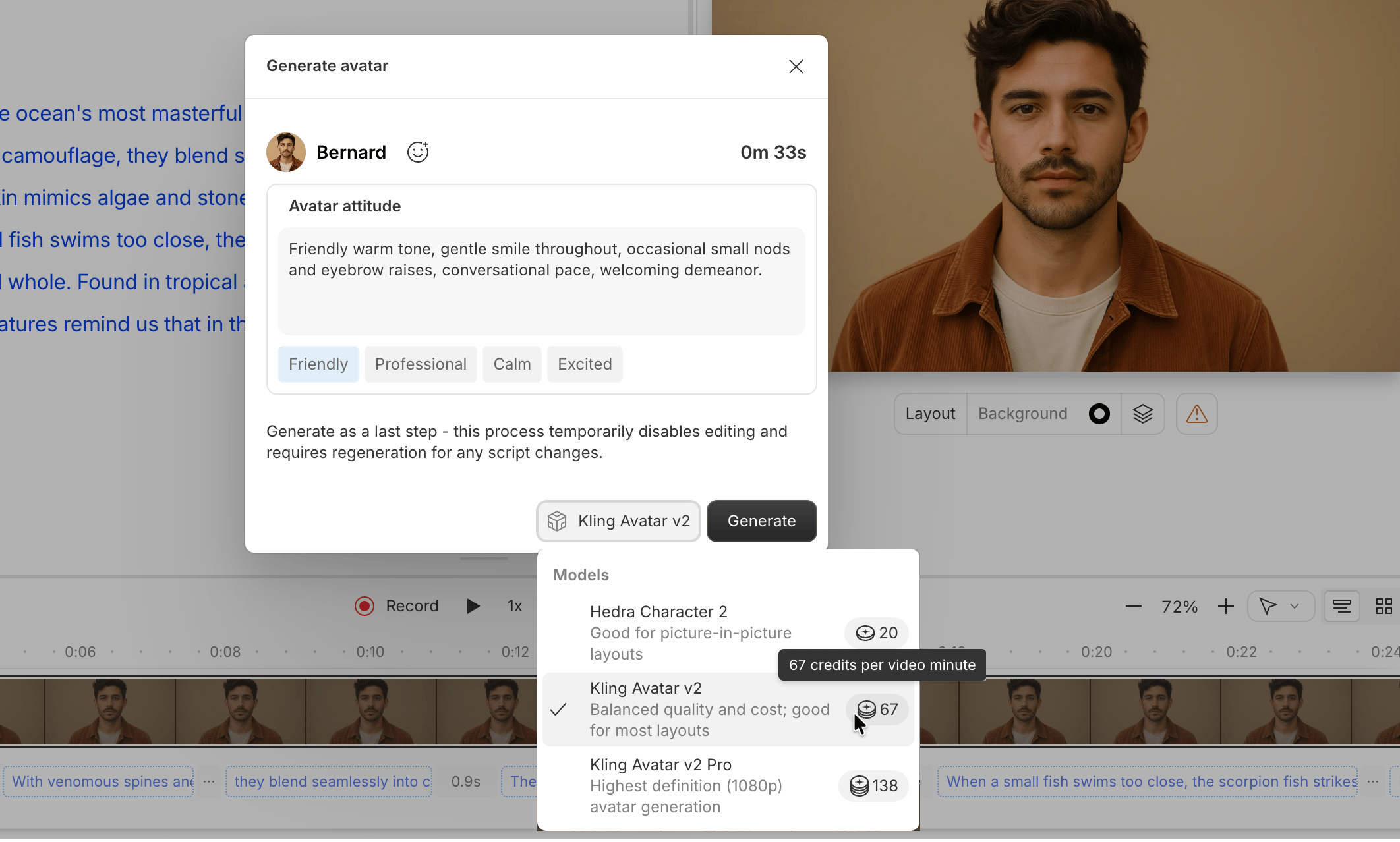
* Use the attitude prompt to adjust your avatar's tone and expression. Shorter prompts tend to work best. Focusing on facial expression or posture can be helpful (e.g., 'warm smile, steady eye contact' or 'professional and calm'). To reduce hand gestures, consider avoiding energy words like 'enthusiastic,' 'animated,' or 'dynamic.'
* Generated avatar images are saved to your Project Files in the `AI Assets > Generated Avatar Images` folder, allowing you to reuse them later.
## Tips for using avatars
* Generate after you’ve finalized your script and speaker labels
* Use [Replace media](/visuals/replace-media) to swap a camera layer for an avatar
* If an avatar isn’t visible, confirm it’s above other visuals in the layer stack; see [layer order](/visuals/layer-visibility)
* Use the attitude prompt to adjust your avatar's tone and expression. Shorter prompts tend to work best. Focusing on facial expression or posture can be helpful (e.g., 'warm smile, steady eye contact' or 'professional and calm'). To reduce hand gestures, consider avoiding energy words like 'enthusiastic,' 'animated,' or 'dynamic.'
* Generated avatar images are saved to your Project Files in the `AI Assets > Generated Avatar Images` folder, allowing you to reuse them later.
 ## Avatar generation models
Choose between two available avatar generation models. AI credit cost differs per model. [Read more about AI credits](/billing-payments-plans/track-and-understand-your-media-minutes-and-ai-credits).
| Model | Overview | Provider | Model release date |
| ----------------------- | --------------------------------------------------------------------------------------------------------------------------------------------------------- | ------------------- | ------------------ |
| **Kling Avatar v2** | Balanced 720p avatar model for everyday use. Good mix of realism, motion, and stability for most production work. Supports additional attitude prompting. | Kling AI (Kuaishou) | December 2025 |
| **Kling Avatar v2 Pro** | High-fidelity 1080p avatar model. Strong model for photorealism and expressive motion. Supports additional attitude prompting. | Kling AI (Kuaishou) | December 2025 |
## Known limitations with AI avatar models
Avatar models may occasionally produce visual anomalies. Some things you might notice:
* **Background movement:** Complex backgrounds may be animated along with the avatar. To avoid this, try using a simple solid-color background.
* **Hand artifacts:** Hands may appear in awkward positions, make mismatched gestures, or move unnaturally.
* **Facial behavior during silence:** Avatars may show subtle head swaying, lip puckering, or other micro-movements when not speaking
* **Attitude prompts:** Prompts may be applied to each segment of your composition. For example, "starts out skeptical, but ends up smiling by the end" will make your avatar skeptical at the beginning of each paragraph and smiling at the end of each paragraph.
**What you can try:** While there’s no guaranteed fix, these adjustments may help reduce visible artifacts:
* Try a different avatar
* Test a different avatar model in the model picker
* Minimize long pauses between speech
## Avatar generation models
Choose between two available avatar generation models. AI credit cost differs per model. [Read more about AI credits](/billing-payments-plans/track-and-understand-your-media-minutes-and-ai-credits).
| Model | Overview | Provider | Model release date |
| ----------------------- | --------------------------------------------------------------------------------------------------------------------------------------------------------- | ------------------- | ------------------ |
| **Kling Avatar v2** | Balanced 720p avatar model for everyday use. Good mix of realism, motion, and stability for most production work. Supports additional attitude prompting. | Kling AI (Kuaishou) | December 2025 |
| **Kling Avatar v2 Pro** | High-fidelity 1080p avatar model. Strong model for photorealism and expressive motion. Supports additional attitude prompting. | Kling AI (Kuaishou) | December 2025 |
## Known limitations with AI avatar models
Avatar models may occasionally produce visual anomalies. Some things you might notice:
* **Background movement:** Complex backgrounds may be animated along with the avatar. To avoid this, try using a simple solid-color background.
* **Hand artifacts:** Hands may appear in awkward positions, make mismatched gestures, or move unnaturally.
* **Facial behavior during silence:** Avatars may show subtle head swaying, lip puckering, or other micro-movements when not speaking
* **Attitude prompts:** Prompts may be applied to each segment of your composition. For example, "starts out skeptical, but ends up smiling by the end" will make your avatar skeptical at the beginning of each paragraph and smiling at the end of each paragraph.
**What you can try:** While there’s no guaranteed fix, these adjustments may help reduce visible artifacts:
* Try a different avatar
* Test a different avatar model in the model picker
* Minimize long pauses between speech