> ## Documentation Index
> Fetch the complete documentation index at: https://help.descript.com/llms.txt
> Use this file to discover all available pages before exploring further.
# Extend Video with AI
> Extend video generates additional frames for clips that are too short.
Use Extend video when a clip ends a beat too soon and you need more footage without reshooting or slowing playback. It works on generated clips, recorded media, and imported footage alike.
**Usage note**
This feature uses AI Credits on current plans. [Learn more about tracking your Media Minutes and AI Credits](/billing-payments-plans/track-and-understand-your-media-minutes-and-ai-credits).
Legacy and Sunset plans track usage differently. See our [Understanding your Legacy and Sunset plan](/billing-payments-plans/legacy-sunset) guide for details.
## Before getting started
* This article covers how to extend an existing clip by generating more content with AI. For more on creating AI videos from scratch, see [Generate AI video](/generative-media/generate-media).
* Looking to create transitions between clips? Use the [Last frame](/generative-media/last-frame) feature instead; it's designed for morphing between a starting and ending frame.
## How to extend video
**Extend video** uses the last keyframe of your selected clip as the starting point for generating your new AI clip. The extension continues from that final frame, so what’s visible in that last moment matters most.
1. **Select** the video clip you want to extend in the **Scene Editor**.
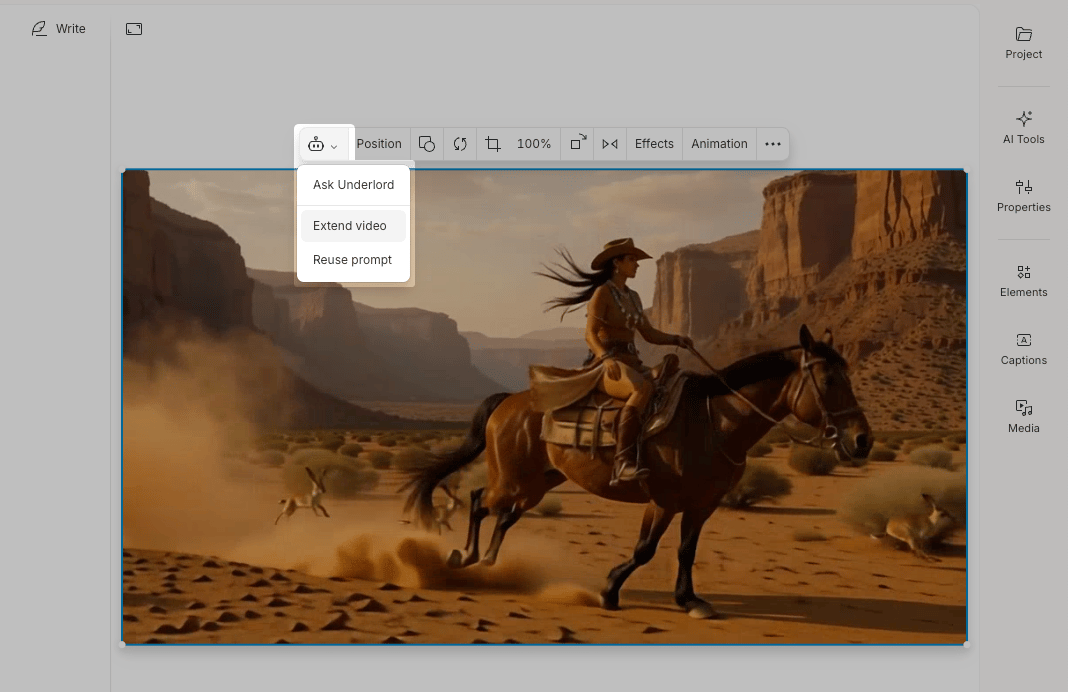
2. **Click** the **Underlord** tab in the hover toolbar, then select **Extend video**.\\
 3. The **Generate a video** pane will open in the right-hand sidebar. Write a prompt describing what should happen in the extension.\\
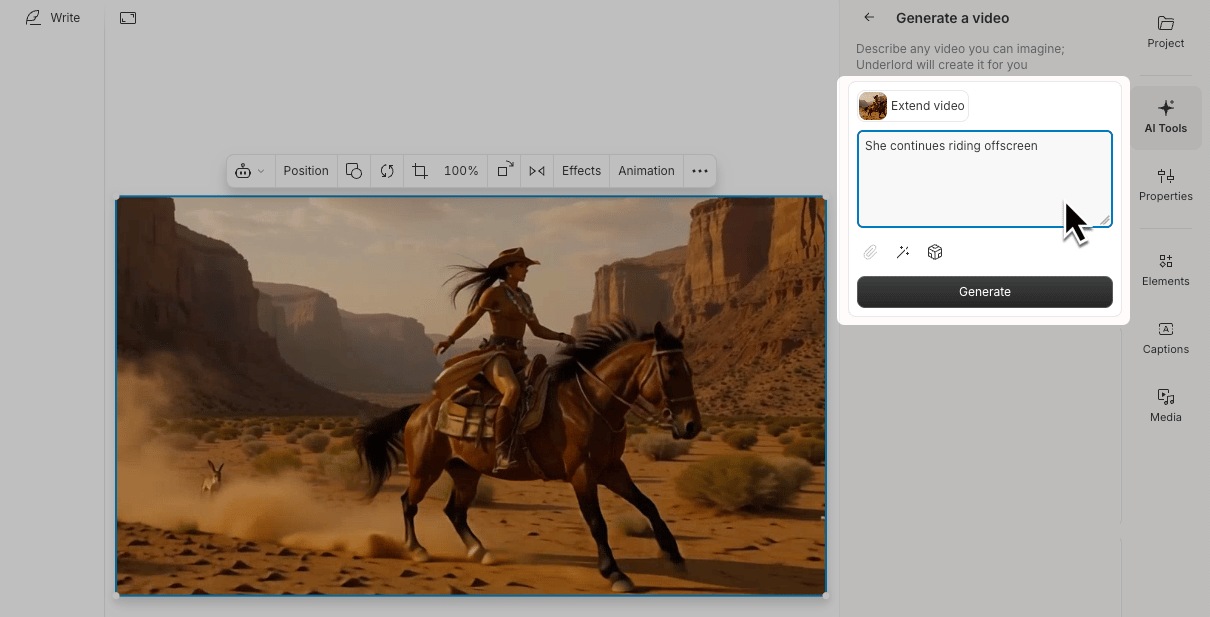 4. Optionally, click the cube icon to configure advanced settings. Different models offer different controls—see our [Generative image and video models](/generative-media/models) guide for full details on available models.
5. Click **Generate**. Descript will create the extension clip.
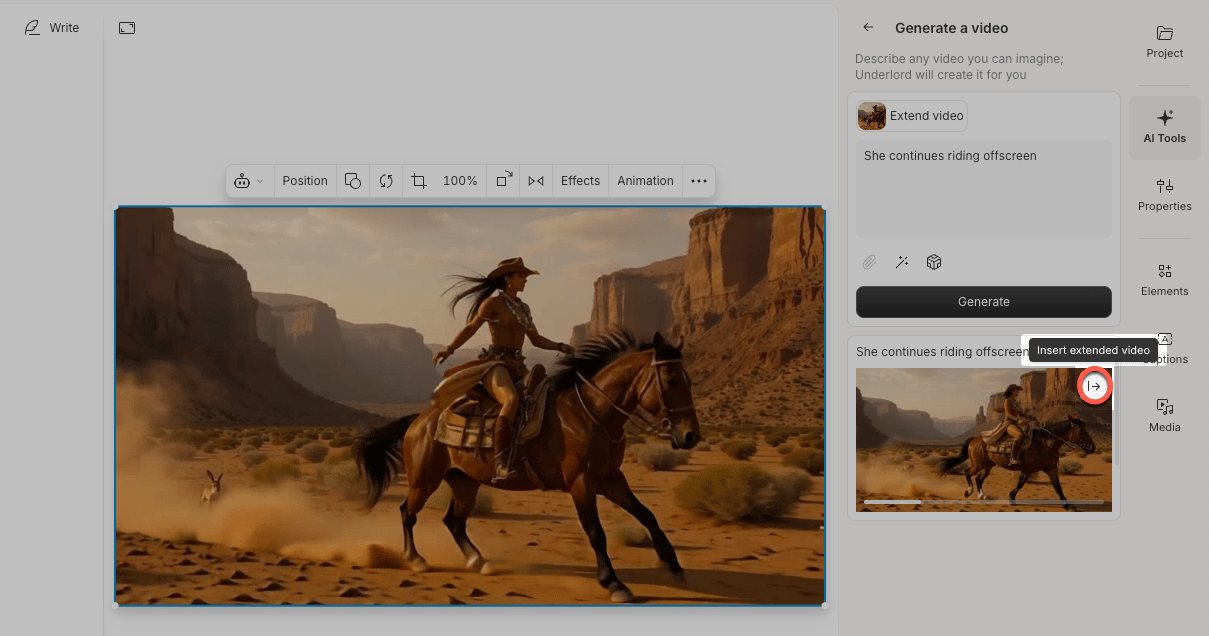
6. Once your extension has been created, preview the clip in the sidebar. Click the button to insert the extension clip into your composition.\\
4. Optionally, click the cube icon to configure advanced settings. Different models offer different controls—see our [Generative image and video models](/generative-media/models) guide for full details on available models.
5. Click **Generate**. Descript will create the extension clip.
6. Once your extension has been created, preview the clip in the sidebar. Click the button to insert the extension clip into your composition.\\
 **How scenes affect extensions**
If you have [scenes](/getting-started/scenes) in your project, the extension will automatically fill the remaining time in the current scene (up to the model's maximum clip duration). If there's no scene boundary, the extension length is determined by your selected model's duration parameter.
**Extending an already extended video**
To extend an extension, re-select the clip in the scene editor and repeat the steps above.
## Tips for better results
* **Predictable motion works best.** Extend video analyzes your clip’s motion and predicts what comes next. Choose clips with smooth, steady movement—like a person walking or a camera panning. Avoid abrupt cuts or mid-action endings.
* **Write clear, specific prompts.** Match your clip’s mood and pacing. Be specific about motion: *“camera slowly zooms out”* works better than *“zooms out”*. See our [prompting guide](/ai-assistant/prompting) for tips and best practices.
* **Keep extensions short.** Shorter extensions often produce better results. You may need to generate multiple times to get a result that works.
**How scenes affect extensions**
If you have [scenes](/getting-started/scenes) in your project, the extension will automatically fill the remaining time in the current scene (up to the model's maximum clip duration). If there's no scene boundary, the extension length is determined by your selected model's duration parameter.
**Extending an already extended video**
To extend an extension, re-select the clip in the scene editor and repeat the steps above.
## Tips for better results
* **Predictable motion works best.** Extend video analyzes your clip’s motion and predicts what comes next. Choose clips with smooth, steady movement—like a person walking or a camera panning. Avoid abrupt cuts or mid-action endings.
* **Write clear, specific prompts.** Match your clip’s mood and pacing. Be specific about motion: *“camera slowly zooms out”* works better than *“zooms out”*. See our [prompting guide](/ai-assistant/prompting) for tips and best practices.
* **Keep extensions short.** Shorter extensions often produce better results. You may need to generate multiple times to get a result that works.