> ## Documentation Index
> Fetch the complete documentation index at: https://help.descript.com/llms.txt
> Use this file to discover all available pages before exploring further.
# Correcting Misspelled Captions After Uploading to YouTube
> Replace YouTube's auto-captions with your Descript transcript.
You may notice that after uploading your completed video to YouTube your video contains captions that differ from your Descript captions. YouTube has a feature that automatically generates captions for videos and makes them available to viewers if not removed or replaced.
## Removing YouTube Automatic Captions
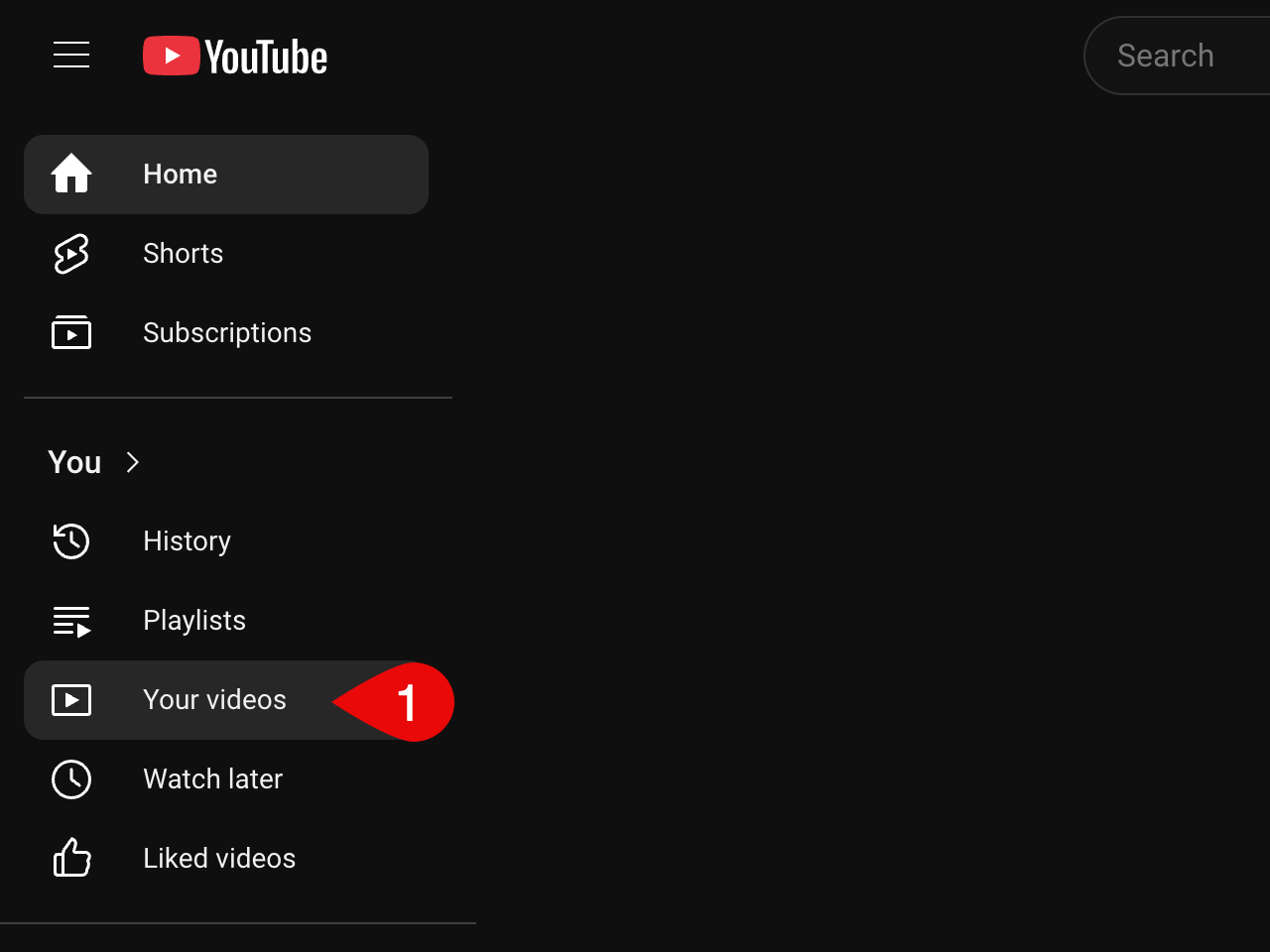
Navigate to YouTube and click on **Your videos** in the left-hand sidebar.
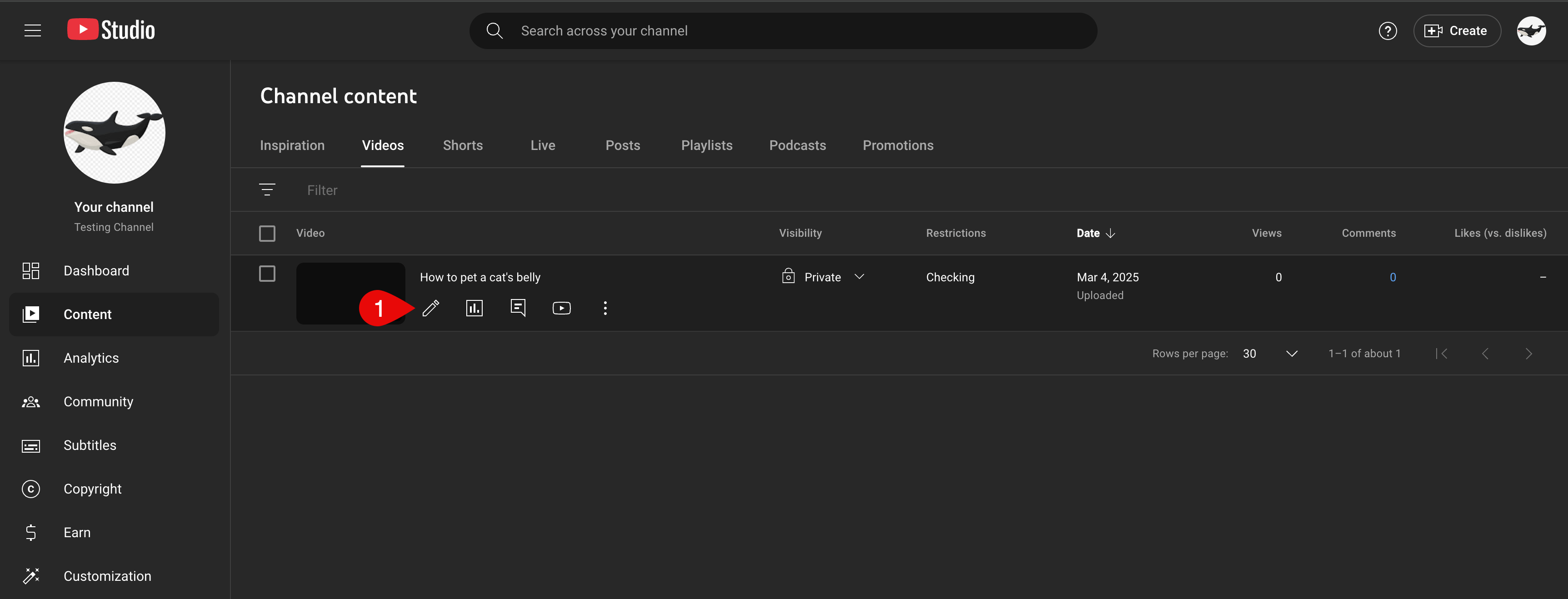
 On the Channel content page, mouse over your video then select the **Details** button.
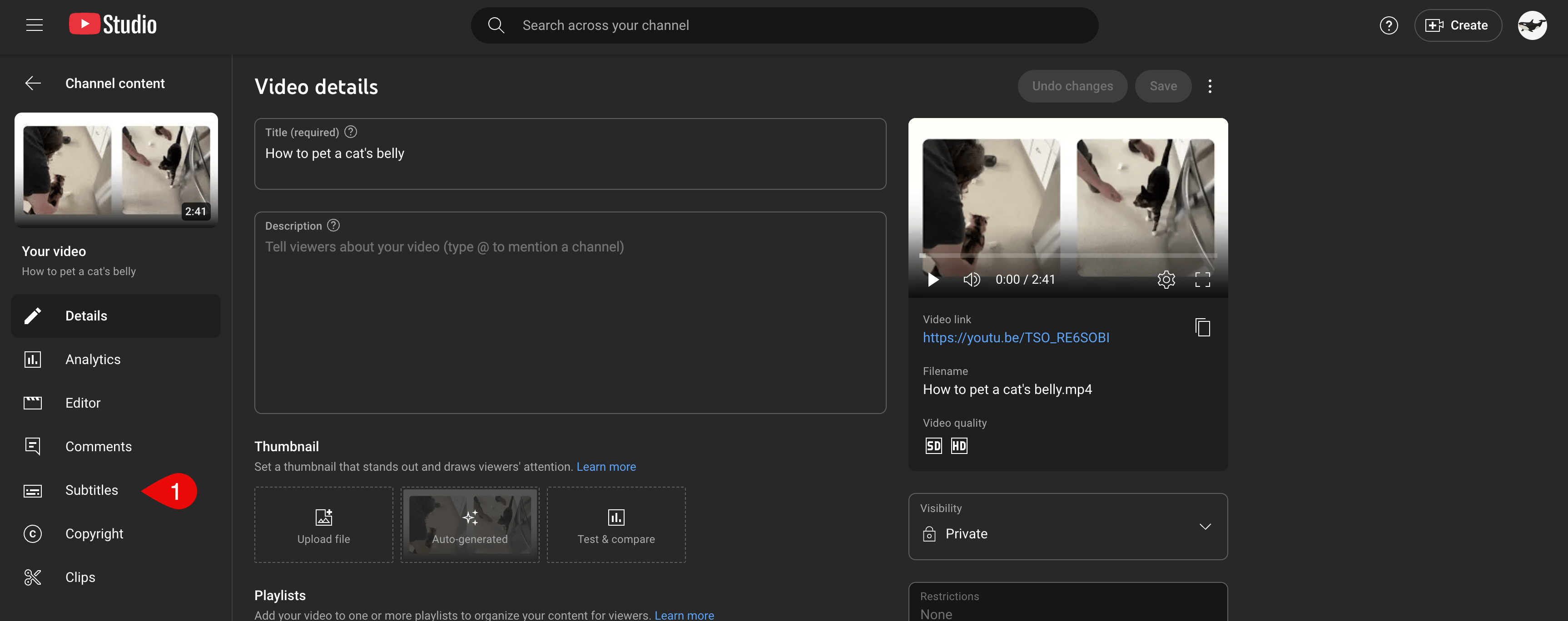
 On the Video details page, click the **Subtitles** menu in the left-hand sidebar.
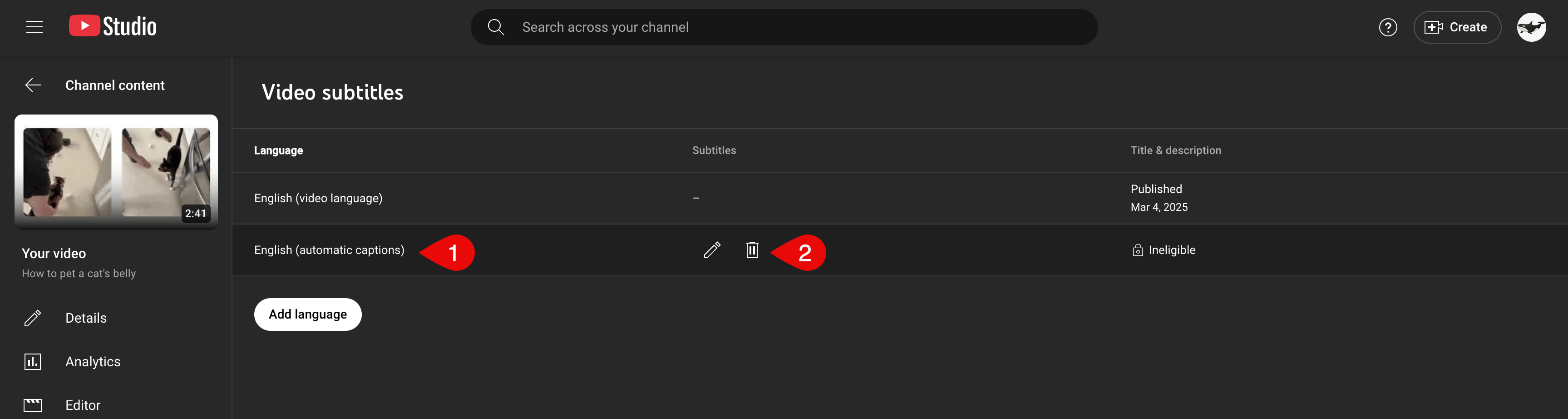
 Once the captions have finished processing, they will appear as an "English (Automatic)" subtitle.
 **Note**
They may not be visible for some time after the upload has finished processing, depending upon the length of your video.
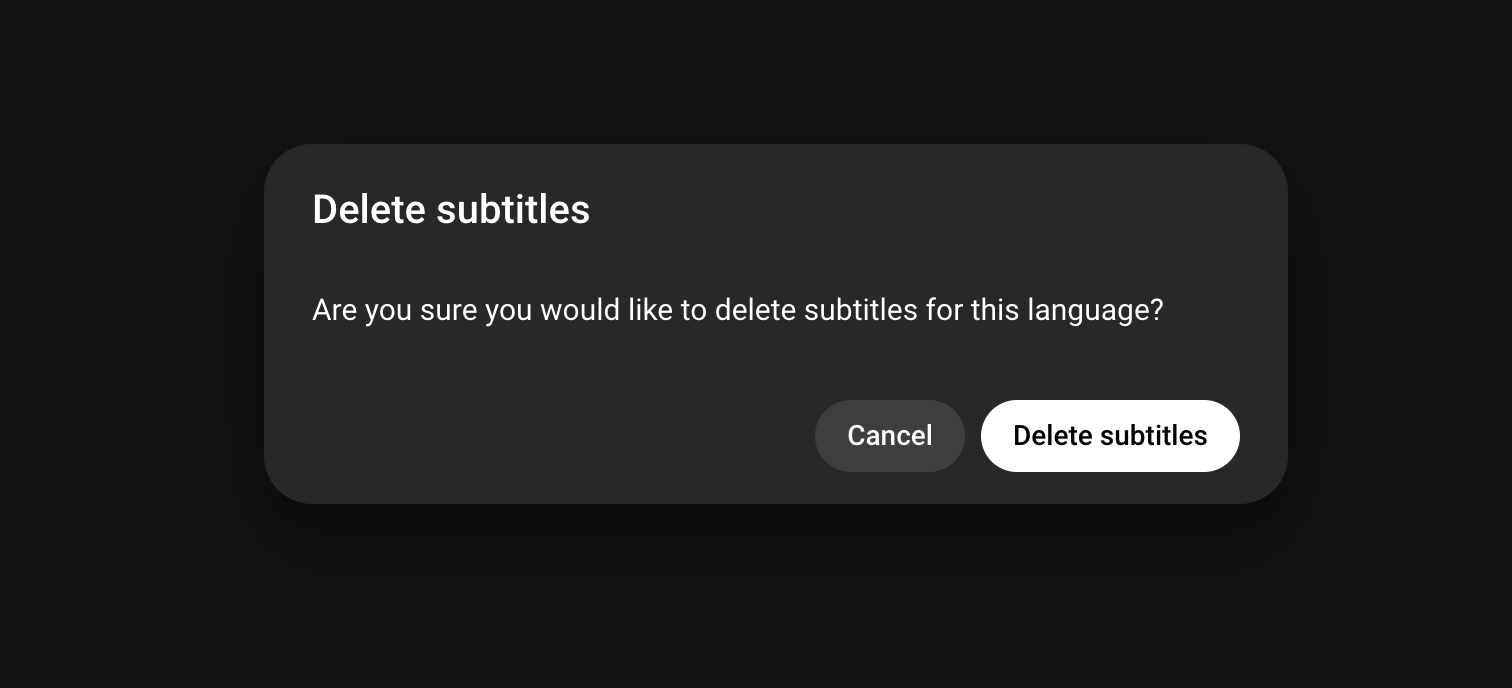
Click on the **Options** button to the right of the subtitle line and select **Delete**. When prompted, confirm your selection by pressing **Delete Captions**.
**Note**
They may not be visible for some time after the upload has finished processing, depending upon the length of your video.
Click on the **Options** button to the right of the subtitle line and select **Delete**. When prompted, confirm your selection by pressing **Delete Captions**.
 Once complete, you can then add your own Descript-corrected subtitles. See: [Adding subtitles to YouTube videos](/export-and-share/youtube-add-subtitles)