> ## Documentation Index
> Fetch the complete documentation index at: https://help.descript.com/llms.txt
> Use this file to discover all available pages before exploring further.
# Adding Subtitles to YouTube Videos
> Upload your Descript transcript to YouTube as an SRT or VTT file.
Export your corrected transcript from Descript and upload it to YouTube as a subtitle file, so viewers get accurate captions instead of YouTube's auto-generated ones.
## Getting Started
YouTube automatically generates captions for uploaded videos, but they may not be as accurate as your Descript-corrected transcript. Check out our help center article [Why do my videos have misspelled captions after uploading to YouTube?](/export-and-share/youtube-correct-captions) to learn how to remove YouTube automatic captions from your video.
Once you've finished editing your video and making all of the corrections to the transcript, check out our article on [Exporting subtitles](/export-and-share/subtitles) to see how you can generate a .VTT or .SRT subtitle file for use with YouTube. Alterniatively, you can use your own .SRT file if you already have one.
## Adding subtitles to YouTube
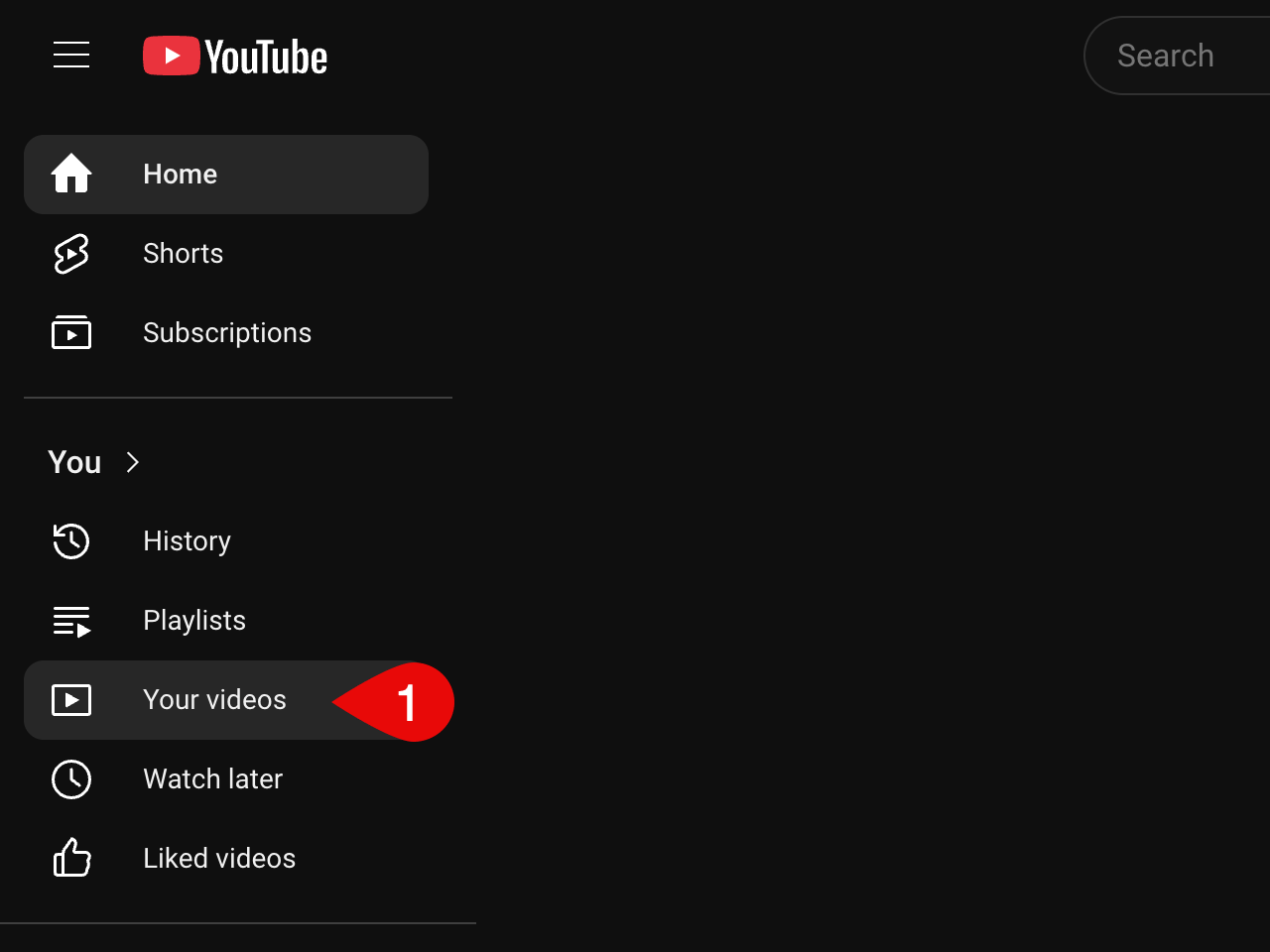
Now that you've generated your subtitle file, navigate to YouTube and click on **Your videos** in the left-hand sidebar.
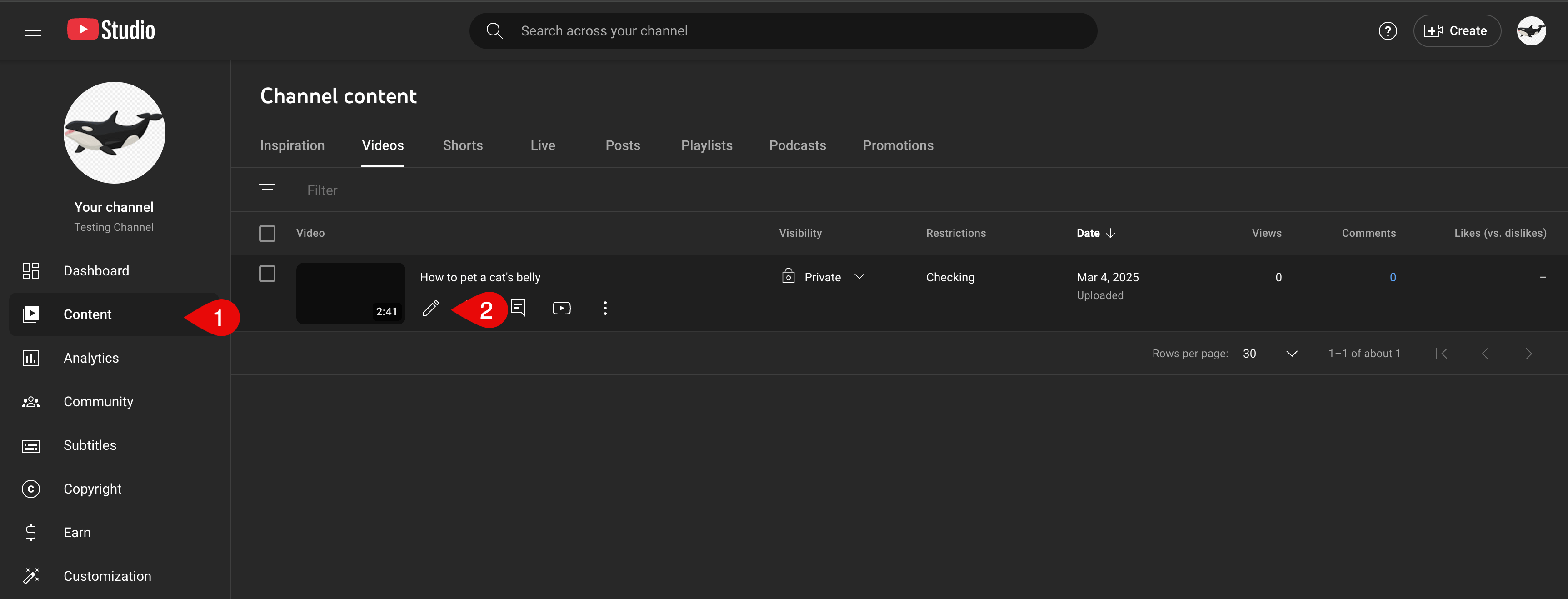
 On the Channel content page, mouse over your video then select the **Details** button.
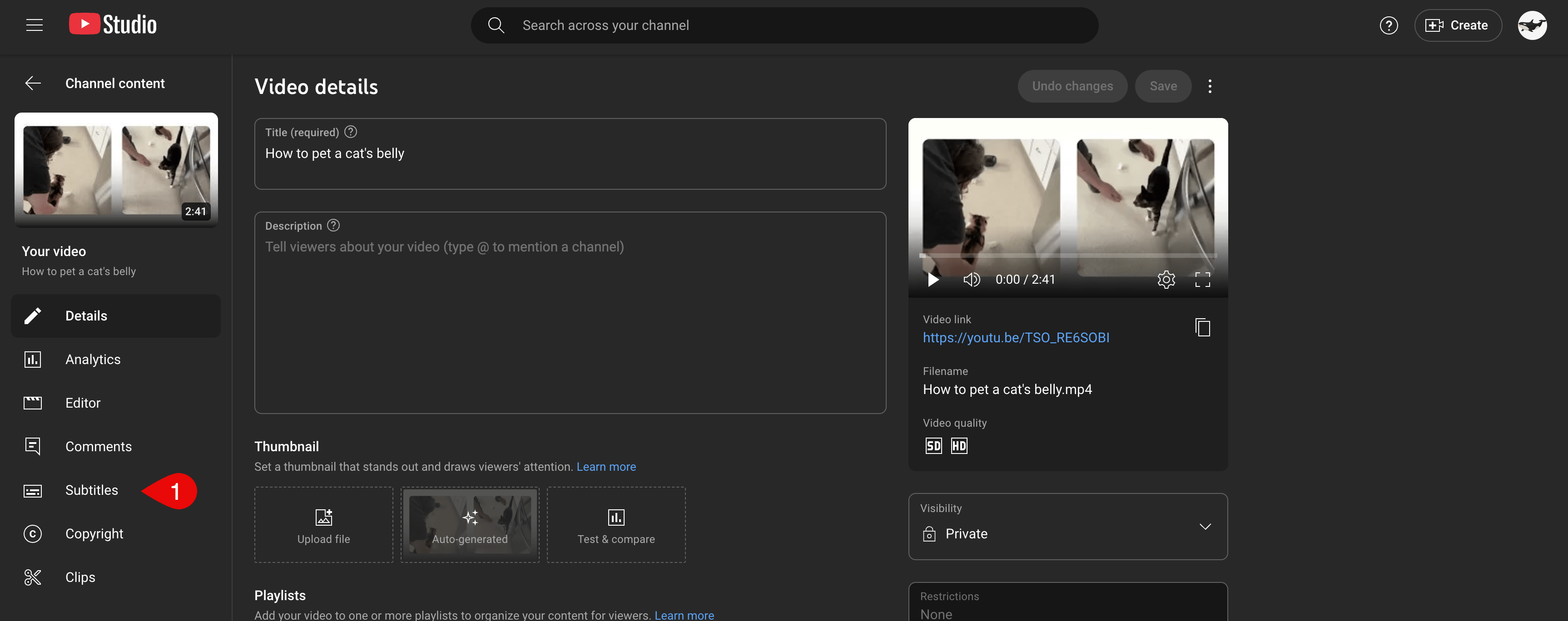
 On the Video details page, click the **Subtitles** menu in the left-hand sidebar.
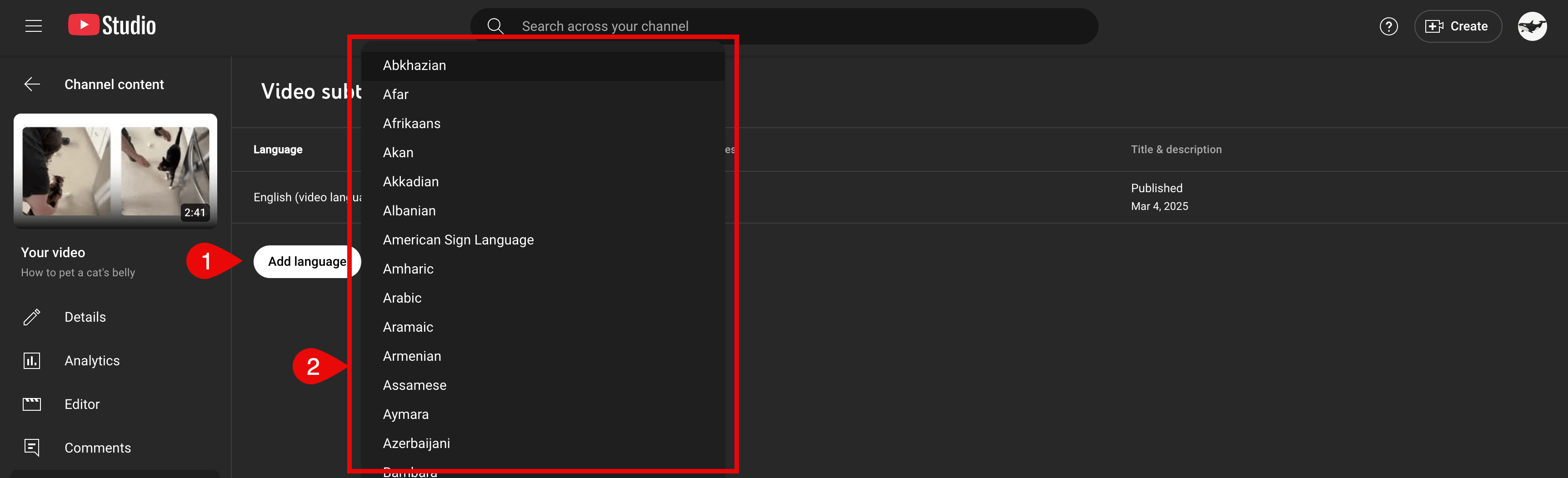
 If no default language is selected for your channel, click the **Add Language** button and select the appropriate language for your subtitles.
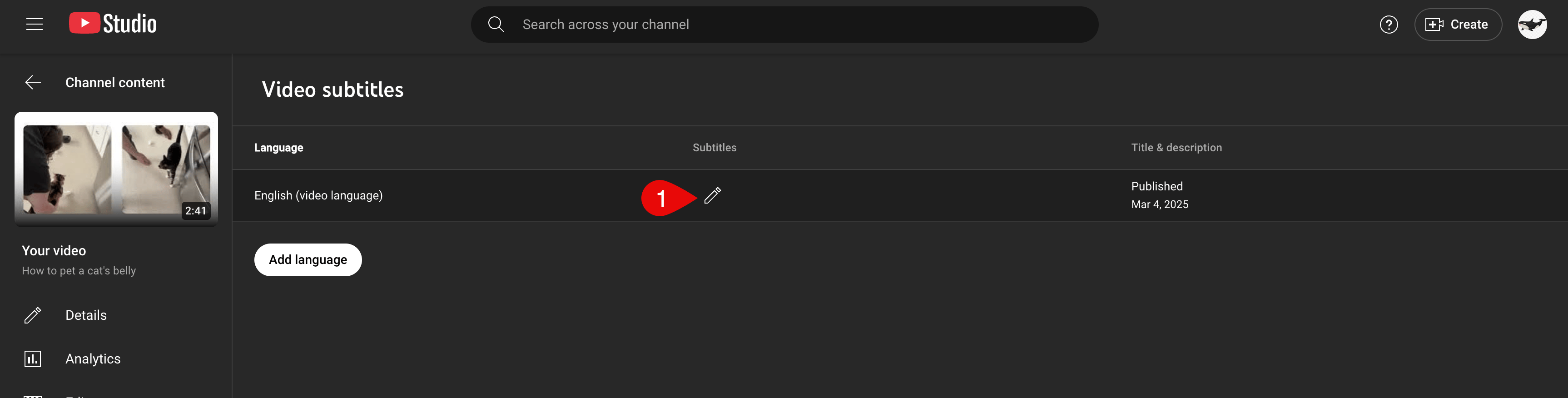
 Click on the **pencil icon** to the right of your new subtitle language to open up the subtitle editor.
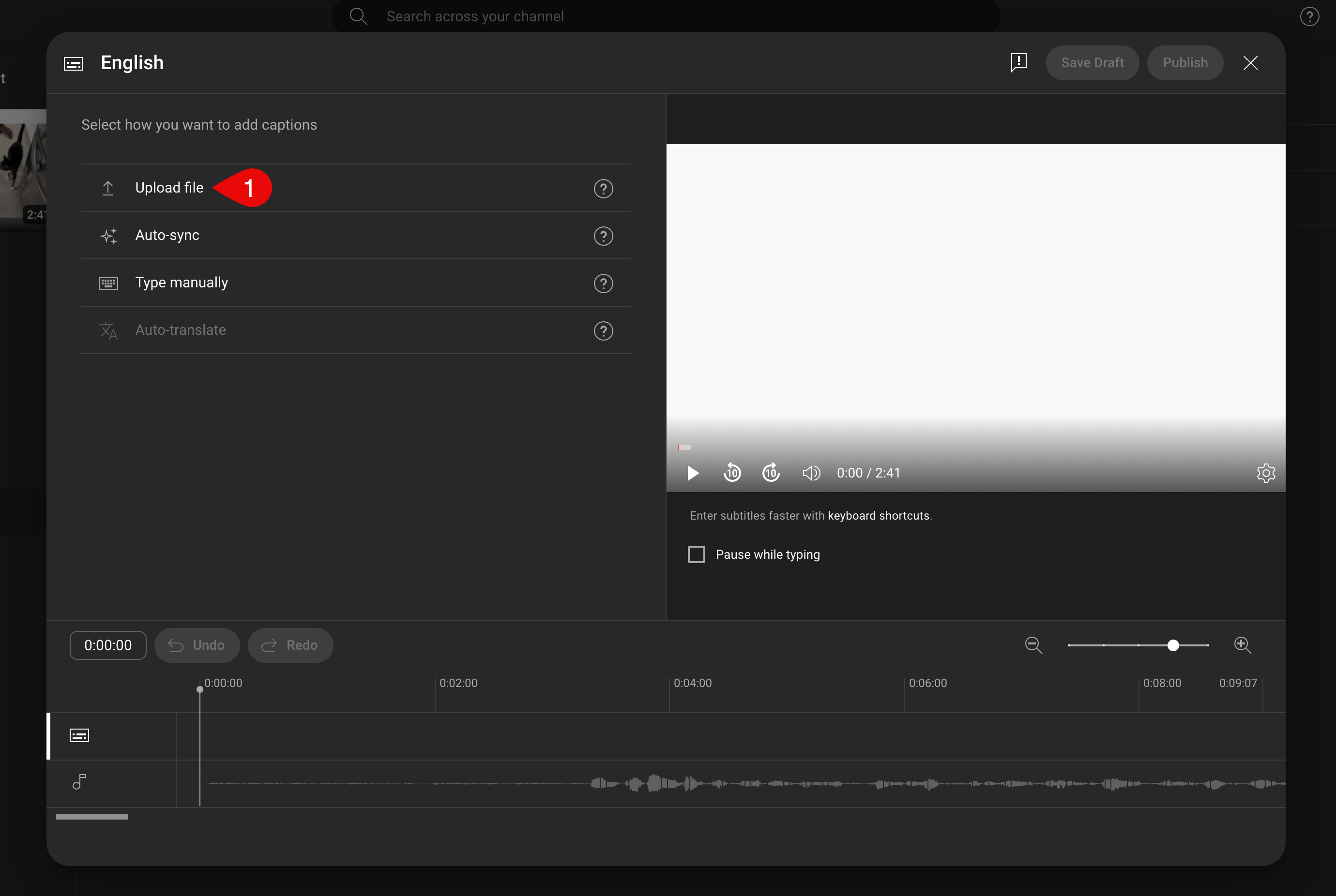
 Click the **Upload file** button and then select the subtitle file on your computer, then click **Open**.
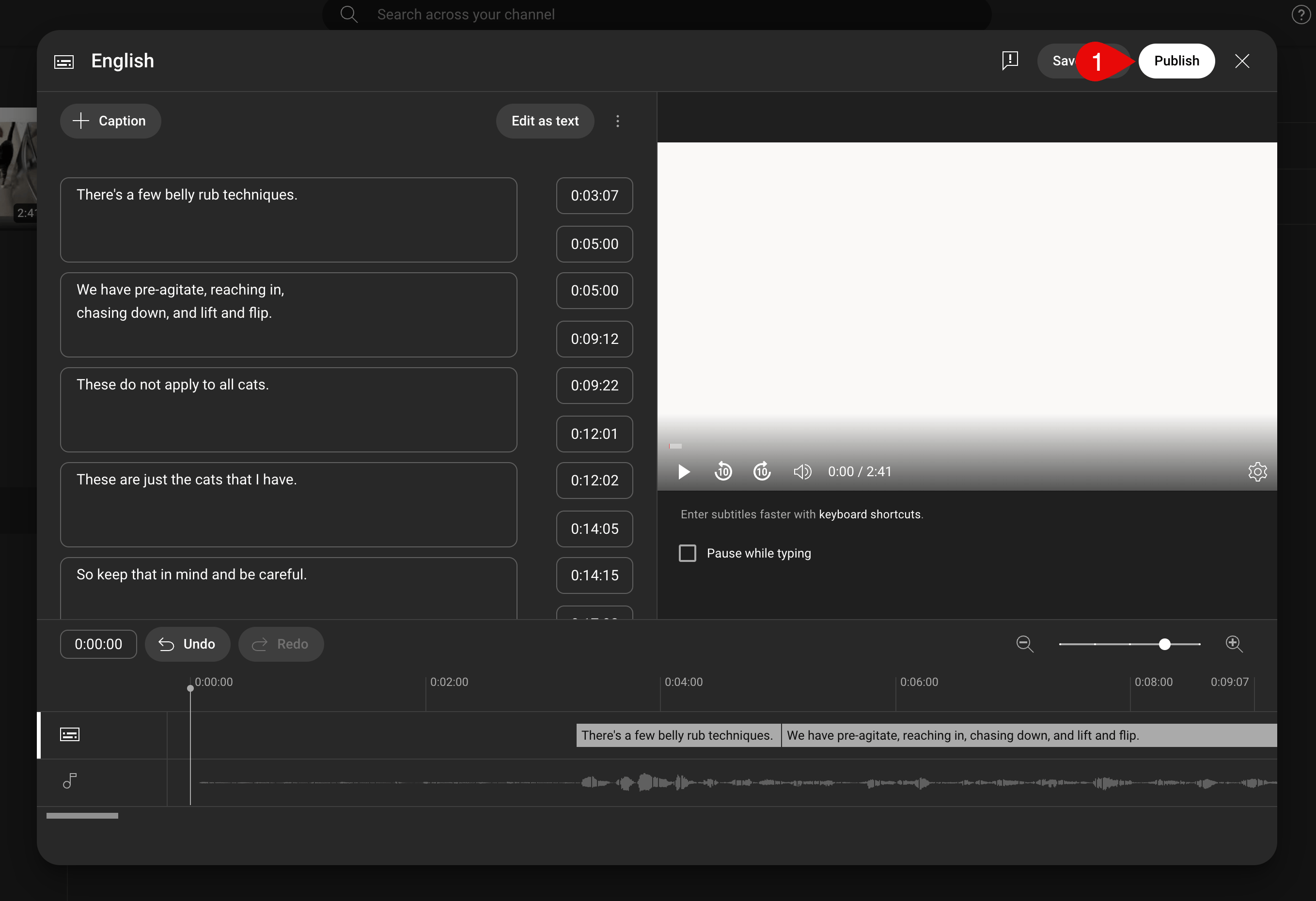
 At this point, you have the option of reviewing your subtitle text and timings to make any necessary adjustments. The following YouTube article provides a little more detail on how this can be done: [Edit or Remove Captions](https://support.google.com/youtube/answer/2734705). Once complete, you may click **Publish** to finalize your changes.
 At that point, you're all set! Your videos will now have great subtitles available for your viewers which they can access by clicking the **CC** button at the bottom of the video pane.
