> ## Documentation Index
> Fetch the complete documentation index at: https://help.descript.com/llms.txt
> Use this file to discover all available pages before exploring further.
# View, Share, and Manage a Published Share Page
> Manage a published Descript share page: adjust access and settings, download the file, or unpublish it.
You manage a published [web link](/export-and-share/share-page) right on the share page, and most settings update live.
## Adjust share page settings
You can update most settings directly on the share page. The one exception: changing resolution requires a full re-export.
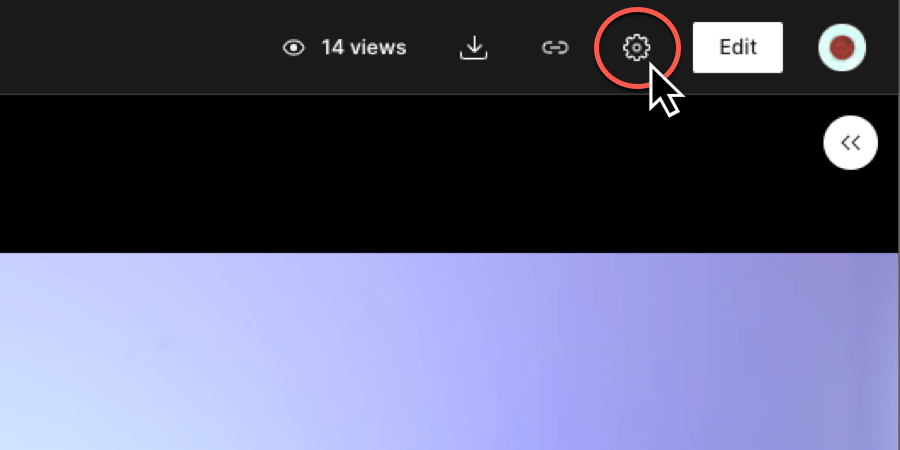
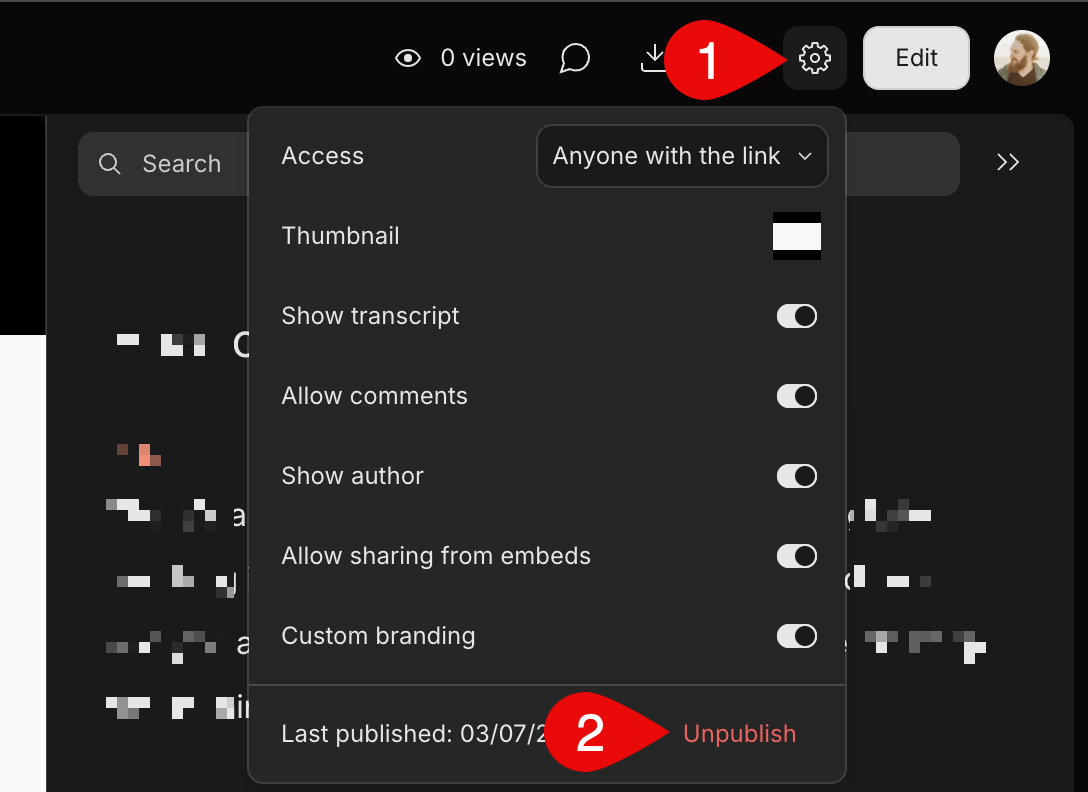
Select the **Settings** icon (gear) in the top right of the share page to open the settings panel.
 | Setting | What it does |
| ----------------------------- | --------------------------------------------------------------------- |
| **Access** | Controls who can view the page. You can change this after publishing. |
| **Show transcript** | Displays the transcript on the share page. |
| **Allow comments** | Lets viewers comment on the share page. |
| **Show author** | Shows the project owner's name on the page. |
| **Allow sharing from embeds** | Adds a share button to embedded video or audio players. |
| **Custom branding** | Shows or hides the drive icon on the page. |
**Drive owners can change the default privacy setting**
Drive owners can [change the default publish privacy setting](/export-and-share/share-page) in their Drive settings.
## Unpublish the page
**Note, comments won't be saved after unpublishing.** Any comments added directly on the share page won't be saved after you unpublish.
1. Open the share page.
2. Click the **Settings** icon (gear) in the top right.
3. Click **Unpublish** at the bottom of the menu.\\
| Setting | What it does |
| ----------------------------- | --------------------------------------------------------------------- |
| **Access** | Controls who can view the page. You can change this after publishing. |
| **Show transcript** | Displays the transcript on the share page. |
| **Allow comments** | Lets viewers comment on the share page. |
| **Show author** | Shows the project owner's name on the page. |
| **Allow sharing from embeds** | Adds a share button to embedded video or audio players. |
| **Custom branding** | Shows or hides the drive icon on the page. |
**Drive owners can change the default privacy setting**
Drive owners can [change the default publish privacy setting](/export-and-share/share-page) in their Drive settings.
## Unpublish the page
**Note, comments won't be saved after unpublishing.** Any comments added directly on the share page won't be saved after you unpublish.
1. Open the share page.
2. Click the **Settings** icon (gear) in the top right.
3. Click **Unpublish** at the bottom of the menu.\\
 ## Download your content
Downloading from a published share page is up to 10x faster than exporting locally.
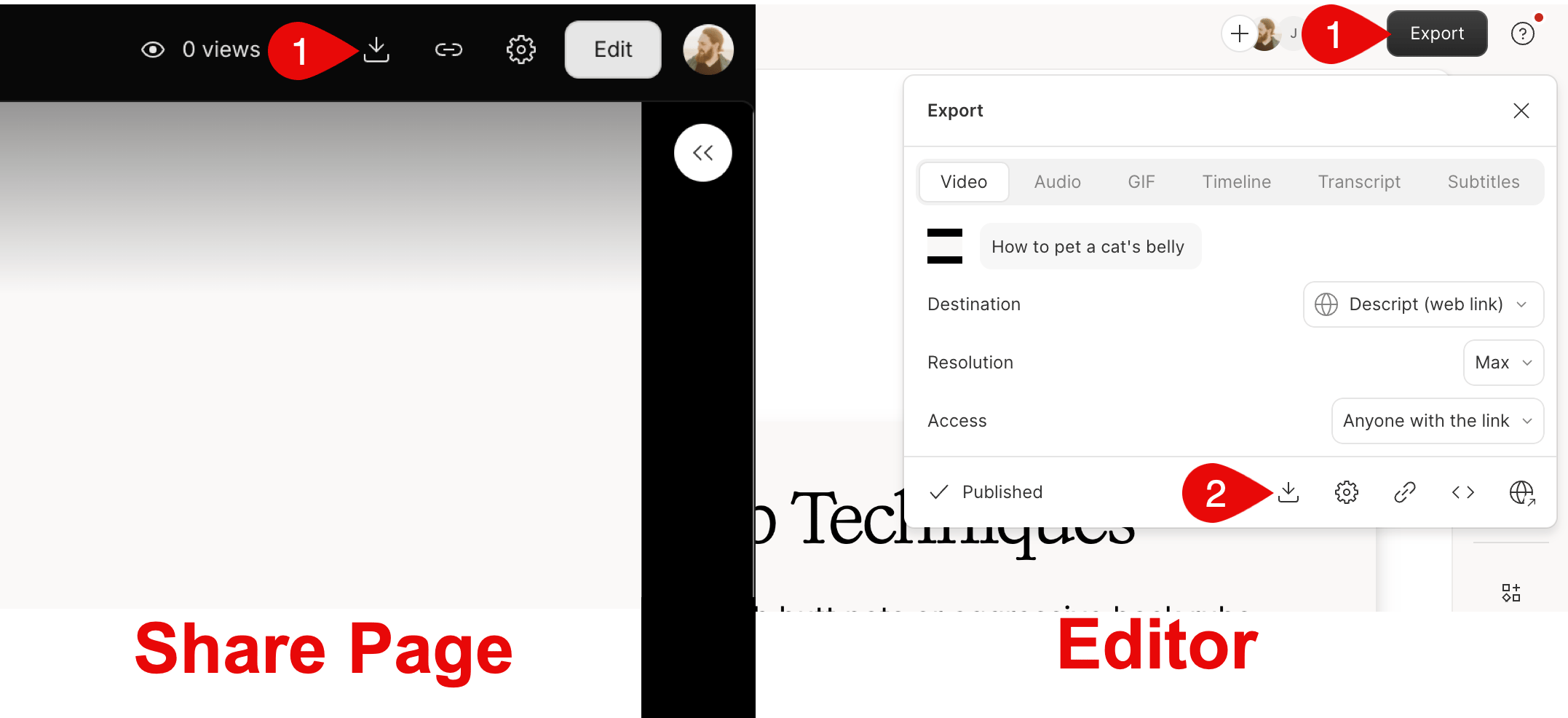
Click **Download** at the top of the share page. You can also access this from the **Publish** panel in Descript. [Learn more about downloading a published page](/export-and-share/export-and-publishing-overview).
## Download your content
Downloading from a published share page is up to 10x faster than exporting locally.
Click **Download** at the top of the share page. You can also access this from the **Publish** panel in Descript. [Learn more about downloading a published page](/export-and-share/export-and-publishing-overview).
 ## How to copy a link or embed code
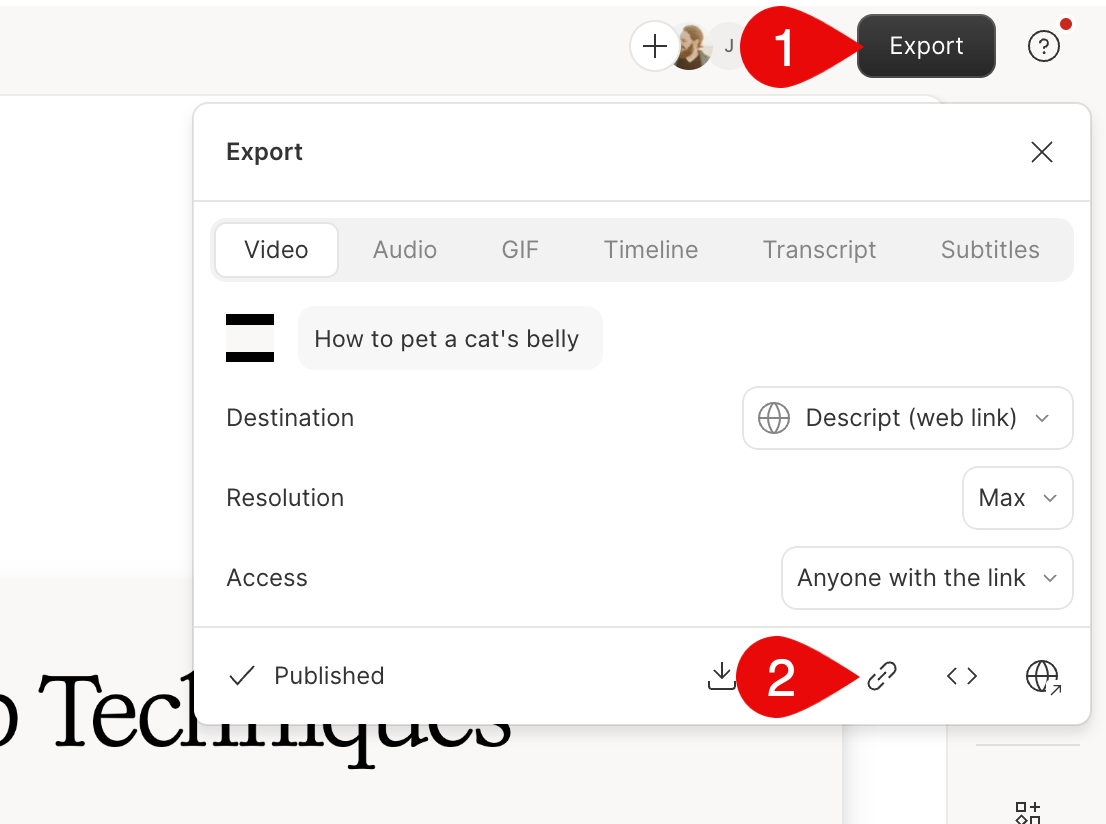
**From the Descript editor:** Click **Export**, then click the paperclip icon to **Copy link**.
## How to copy a link or embed code
**From the Descript editor:** Click **Export**, then click the paperclip icon to **Copy link**.
 **From the share page:**
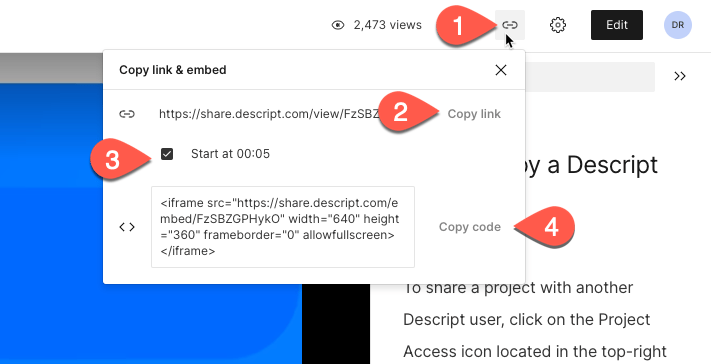
1. Click the link icon at the top of the share page.
2. Click **Copy link** to copy the URL to your clipboard.
To start the link at a specific point in the recording, drag the playhead to that spot and check **Start at \[time]** — the URL will update automatically.
**To embed the video on a website:** Click **Copy code** to copy the HTML embed code, then paste it into your site.
**From the share page:**
1. Click the link icon at the top of the share page.
2. Click **Copy link** to copy the URL to your clipboard.
To start the link at a specific point in the recording, drag the playhead to that spot and check **Start at \[time]** — the URL will update automatically.
**To embed the video on a website:** Click **Copy code** to copy the HTML embed code, then paste it into your site.
 ### View embedded videos with access controls
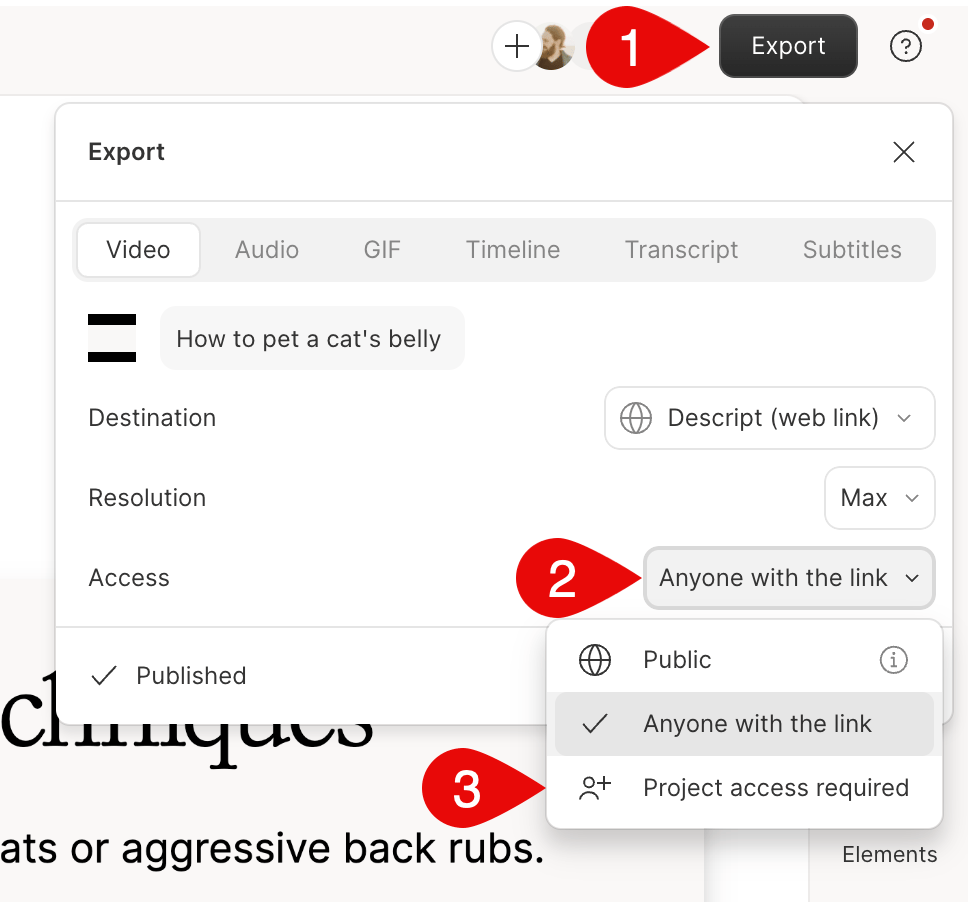
If you've set access to **Project Access Required** or **Drive Access Required** (enterprise plans only), viewers will need to log in to watch the video. The login experience varies by platform:
* **In a web app using Chrome:** Viewers are prompted to log in directly on the page — no redirect needed.
* **On other platforms (like Slack):** Viewers are redirected to Descript's login page. Once logged in, they can view the video.
### View embedded videos with access controls
If you've set access to **Project Access Required** or **Drive Access Required** (enterprise plans only), viewers will need to log in to watch the video. The login experience varies by platform:
* **In a web app using Chrome:** Viewers are prompted to log in directly on the page — no redirect needed.
* **On other platforms (like Slack):** Viewers are redirected to Descript's login page. Once logged in, they can view the video.
 ## Track page views
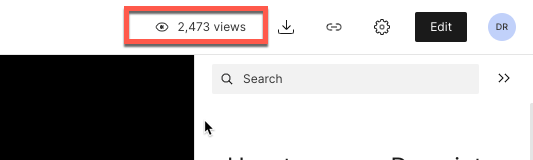
If you created the share page, you can see the total view count in the **Page views** icon in the top right corner of the page.
## Track page views
If you created the share page, you can see the total view count in the **Page views** icon in the top right corner of the page.
 ## Comment on a share page
Comments on the share page are separate from [comments inside a composition](/collaboration/project-comments).
1. Click the spot in the video or audio where you want to comment. Or, if **Show transcript** is enabled, highlight a section of the transcript.
2. Click **Show comments** on the page.
3. Click **Add a comment**.
4. Type your comment and click **Send**.
**Keyboard shortcut:** Press `Shift + Cmd + M` (Mac) or `Shift + Ctrl + M` (Windows) to add a comment at the current playhead position or at a highlighted transcript region.
## Open the project from the share page
If you have access to the project, click **Edit** at the top of the share page to open it in Descript.
**Not seeing the Edit button?**
Make sure you're signed in. Click the **⋮** menu in the top right and select **Sign in**.
## Comment on a share page
Comments on the share page are separate from [comments inside a composition](/collaboration/project-comments).
1. Click the spot in the video or audio where you want to comment. Or, if **Show transcript** is enabled, highlight a section of the transcript.
2. Click **Show comments** on the page.
3. Click **Add a comment**.
4. Type your comment and click **Send**.
**Keyboard shortcut:** Press `Shift + Cmd + M` (Mac) or `Shift + Ctrl + M` (Windows) to add a comment at the current playhead position or at a highlighted transcript region.
## Open the project from the share page
If you have access to the project, click **Edit** at the top of the share page to open it in Descript.
**Not seeing the Edit button?**
Make sure you're signed in. Click the **⋮** menu in the top right and select **Sign in**.