> ## Documentation Index
> Fetch the complete documentation index at: https://help.descript.com/llms.txt
> Use this file to discover all available pages before exploring further.
# Export Your Content to Podcast.co
> Publish a finished episode from Descript to Podcast.co
1. Click **Export** at the top-right corner of your editor. Then, select **Podcast.co** from the list of destination options.\\
 At this point, Descript will also export an unlisted share page of your content.
2. You will then be redirected to a web browser to sign into your Podcast.co account (or create a new account if you have not yet signed up).
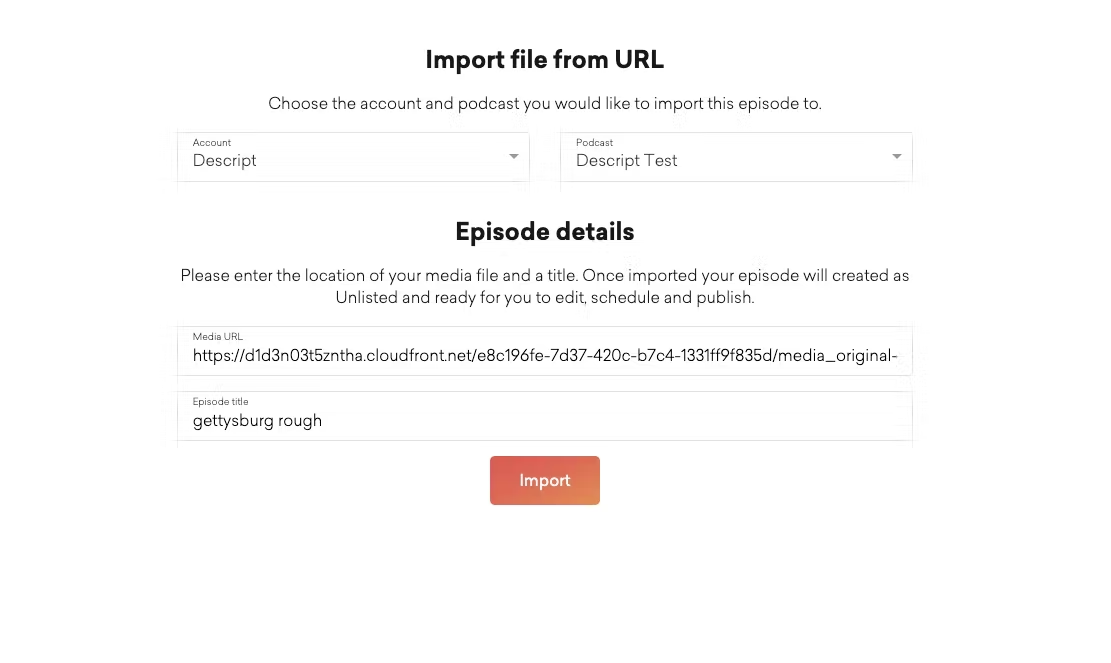
3. After logging in, you will be prompted to import your video to Podcast.co.
[
At this point, Descript will also export an unlisted share page of your content.
2. You will then be redirected to a web browser to sign into your Podcast.co account (or create a new account if you have not yet signed up).
3. After logging in, you will be prompted to import your video to Podcast.co.
[ ](/images/external/descript-10322789680909-0ac59d316e.avif)
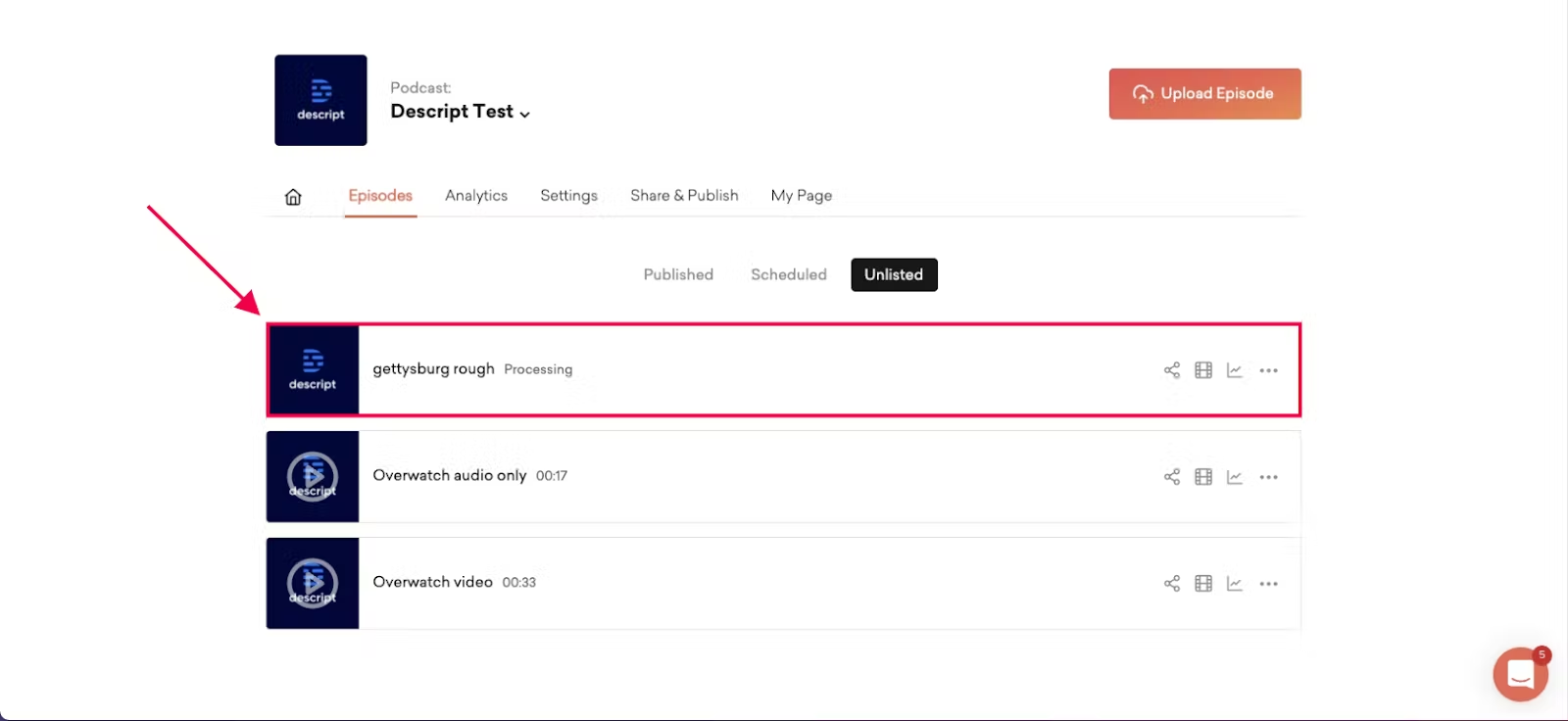
4. Once complete, your video will be ready and available for use on Podcast.co.
[
](/images/external/descript-10322789680909-0ac59d316e.avif)
4. Once complete, your video will be ready and available for use on Podcast.co.
[ ](/images/external/descript-10322782129549-751983f052.avif)