> ## Documentation Index
> Fetch the complete documentation index at: https://help.descript.com/llms.txt
> Use this file to discover all available pages before exploring further.
# Exporting Captivate Episodes
> Publish a finished episode from Descript directly to Captivate.
**Before you export:** Captivate only accepts audio content. If you want to export a video composition, switch it to an [audio-only composition](/working-in-projects/audio).
## Export to Captivate in Descript
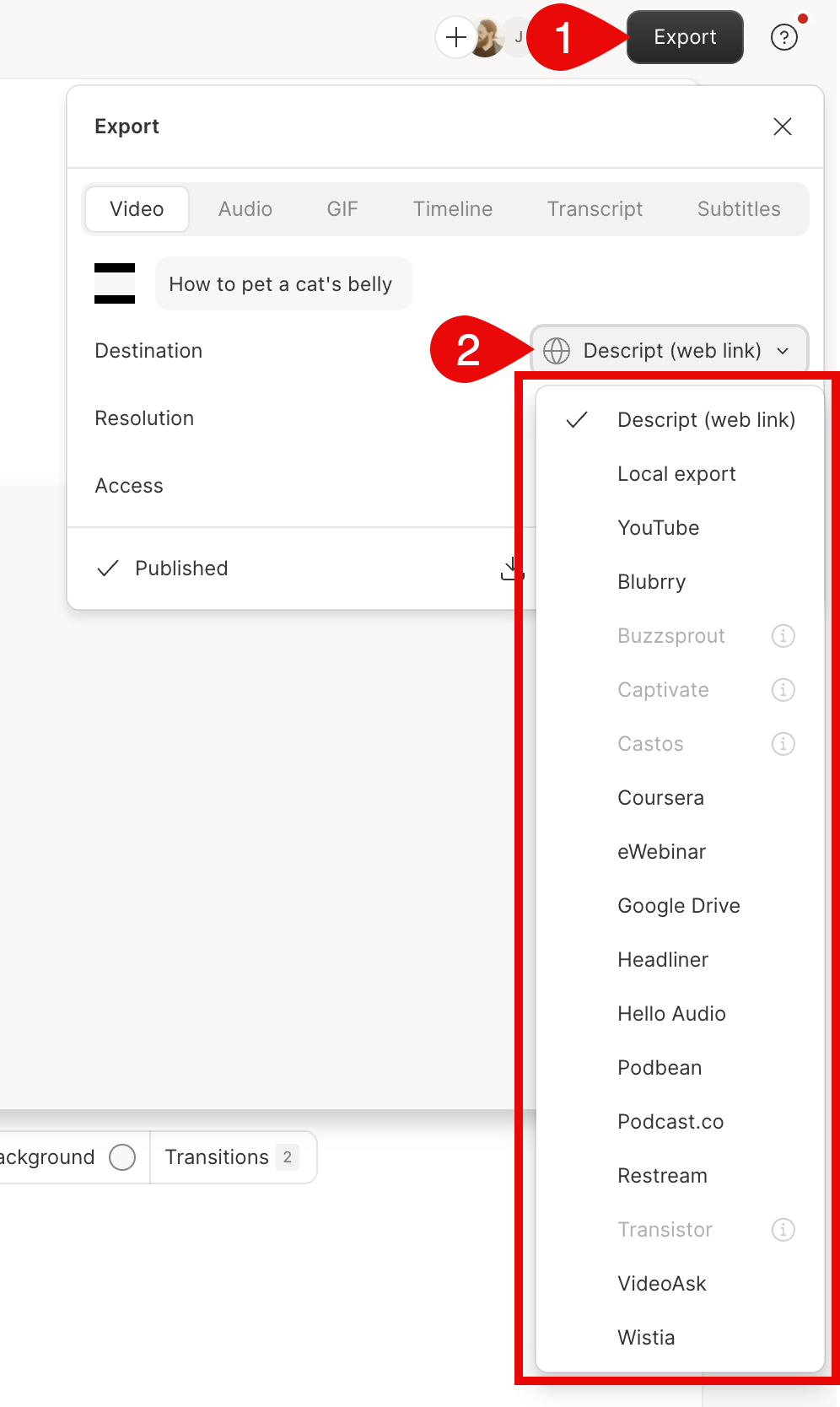
1. Click **Export** at the top-right corner of your editor.
2. Select **Captivate** from the list in the options for **Destination**.
3. Select **Export** at the bottom of the exporting window. At this point, Descript will also export an unlisted web page of your content. You can learn[more about share pages](/export-and-share/share-page).
 ## Upload your content to Captivate
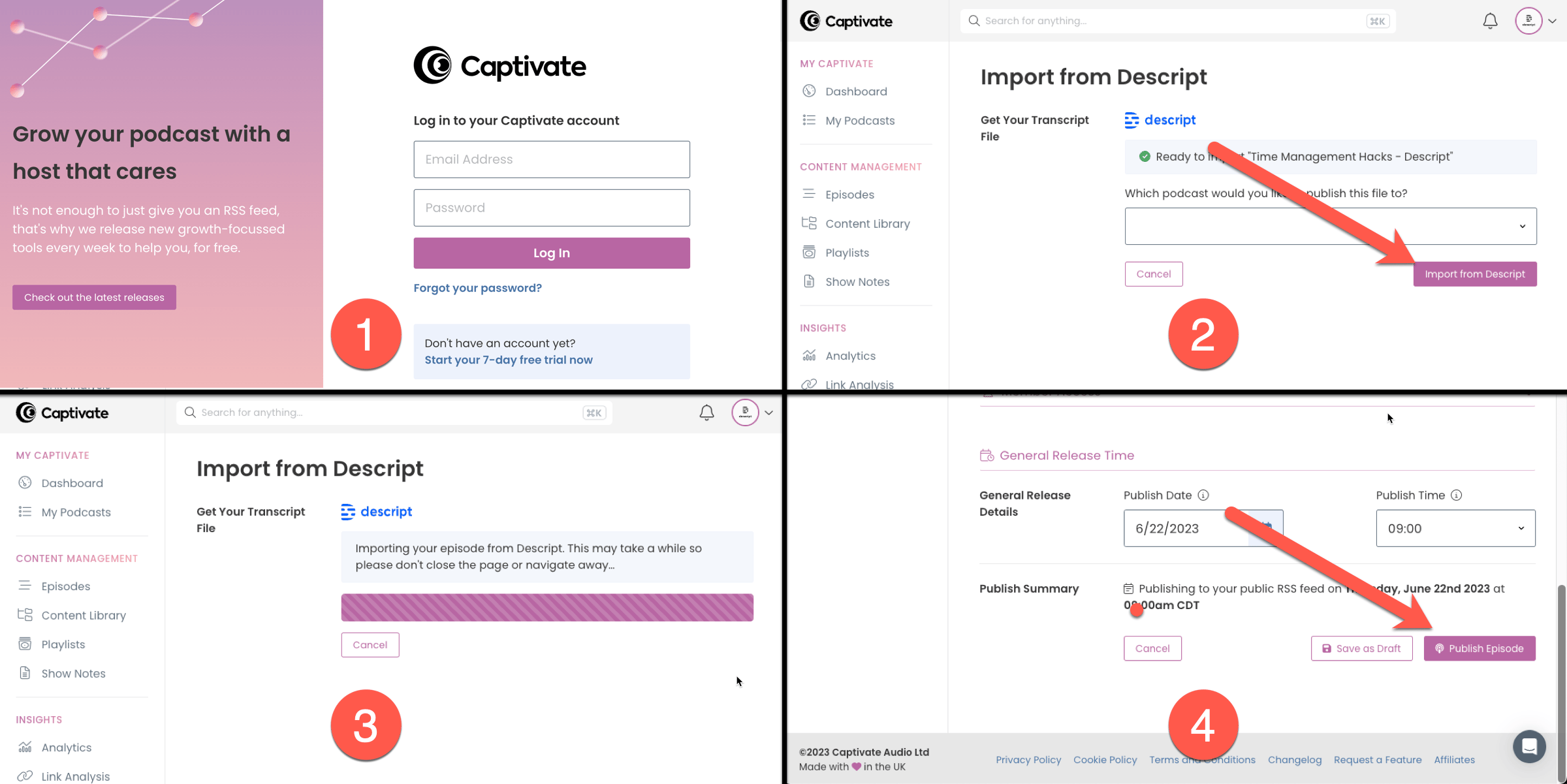
1. After exporting to Captivate in Descript, you will be redirected to your web browser to finish uploading your content to Captivate.
2. **Sign in** to your Captivate account or **sign up** for a new account. At that point, you'll see that the file is processing.
3. When the file finishes processing, you can select which podcast you'd like to publish your file to and click **Import from Descript.**
4. Once your podcast is uploaded, add episode notes and artwork and set a publish date and time. After completing those, click the **Publish Episode** button to publish your podcast.
## Upload your content to Captivate
1. After exporting to Captivate in Descript, you will be redirected to your web browser to finish uploading your content to Captivate.
2. **Sign in** to your Captivate account or **sign up** for a new account. At that point, you'll see that the file is processing.
3. When the file finishes processing, you can select which podcast you'd like to publish your file to and click **Import from Descript.**
4. Once your podcast is uploaded, add episode notes and artwork and set a publish date and time. After completing those, click the **Publish Episode** button to publish your podcast.
 ## Error: "This file has an unreadable or unsupported mime-type" when uploading to Captivate
Some users may see the following error when uploading a Descript export to Captivate:
> "This file has an unreadable or unsupported mime-type."
**Cause**
This error has been traced to the inclusion of **Metadata** during the local export process. When Metadata (such as show title, episode title, description, or artwork) is included in the export file, Captivate may fail to read it properly.
**Workaround**
While we work with Captivate on a permanent fix, you can try the following steps:
1. In Descript, go to **Export** and choose your desired audio settings.
2. Locate the **Metadata** section in the export panel.
3. Turn off Metadata, or deselect any fields you have filled in (show title, episode title, description, artwork, markers).
4. Export the file again and re-upload it to Captivate.
Once Metadata is excluded, the file should upload successfully.
If you have already disabled metadata and still encounter this error, unfortunately, there is no current workaround. Our team is aware of the issue and is working on a solution.
## Error: "This file has an unreadable or unsupported mime-type" when uploading to Captivate
Some users may see the following error when uploading a Descript export to Captivate:
> "This file has an unreadable or unsupported mime-type."
**Cause**
This error has been traced to the inclusion of **Metadata** during the local export process. When Metadata (such as show title, episode title, description, or artwork) is included in the export file, Captivate may fail to read it properly.
**Workaround**
While we work with Captivate on a permanent fix, you can try the following steps:
1. In Descript, go to **Export** and choose your desired audio settings.
2. Locate the **Metadata** section in the export panel.
3. Turn off Metadata, or deselect any fields you have filled in (show title, episode title, description, artwork, markers).
4. Export the file again and re-upload it to Captivate.
Once Metadata is excluded, the file should upload successfully.
If you have already disabled metadata and still encounter this error, unfortunately, there is no current workaround. Our team is aware of the issue and is working on a solution.