> ## Documentation Index
> Fetch the complete documentation index at: https://help.descript.com/llms.txt
> Use this file to discover all available pages before exploring further.
# Adjust Volume and Pan Audio
> Lower music, mute clips, and shift audio left or right per layer, across a sequence, or for the whole composition.
Volume and panning control how loud each audio element is and where it sits in the stereo field. Set them per layer, across a [sequence](/script-editing/multi-track-sequences-overview), or for the whole composition.
**Adjust audio across your whole composition**
To set volume or panning for all audio in your composition, click the composition title at the top of the Script editor.\
[Learn more about composition audio properties](/effects-animations-transitions/composition-audio-properties).
## Adjust volume for script tracks and layers
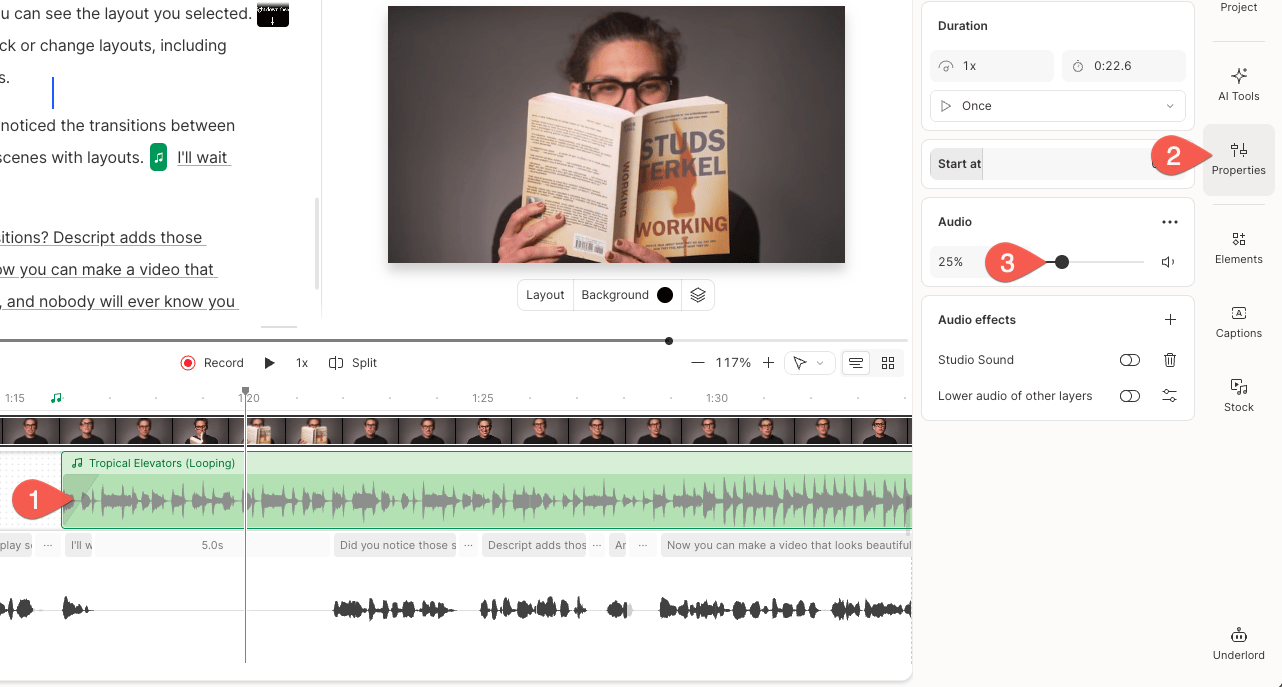
1. Select part of the script, or click a script track, audio layer, or video layer in the [Timeline](/timeline/timeline-overview).
2. In the right-hand sidebar, locate the **Audio** slider in the **Properties** panel.
3. Adjust the volume using the slider or enter a specific value in the volume field.
 ### Mute a clip or selection
To mute your selection, click the
### Mute a clip or selection
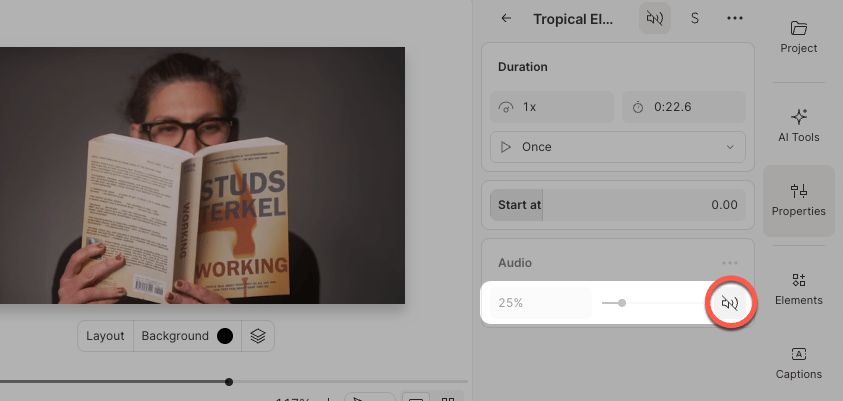
To mute your selection, click the  **Mute** button next to the volume slider in the Properties panel.
 ## Pan audio left or right
1. Select part of your script, or choose an audio or video layer in the [Timeline](/timeline/timeline-overview).
2. In the Properties panel, click the
## Pan audio left or right
1. Select part of your script, or choose an audio or video layer in the [Timeline](/timeline/timeline-overview).
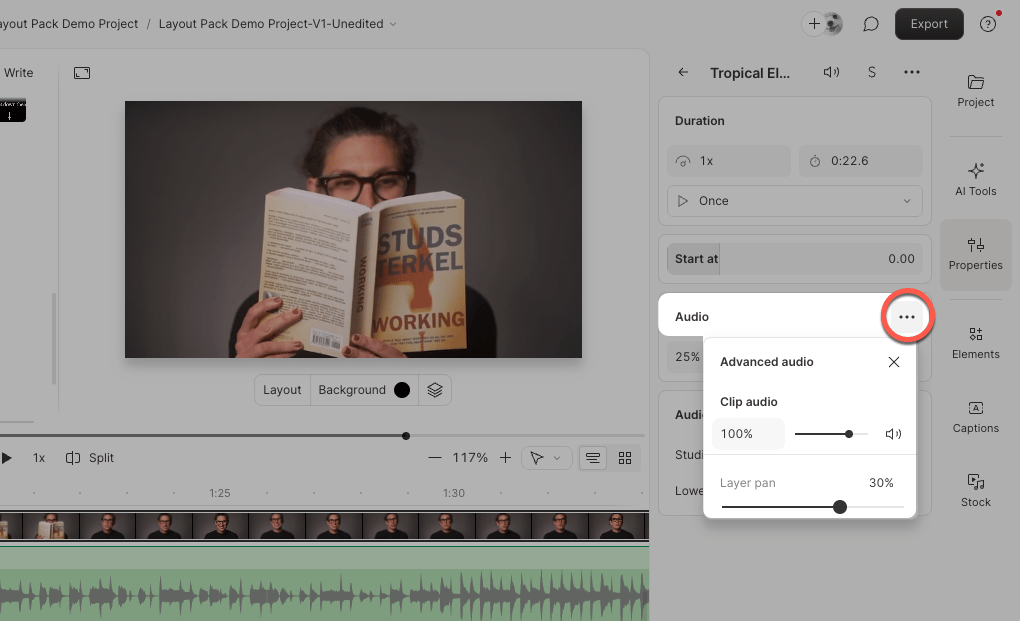
2. In the Properties panel, click the  **Ellipsis** button in the Audio section to open advanced audio settings.
3. Use the slider to pan audio left or right, or enter a pan value manually.
**Ellipsis** button in the Audio section to open advanced audio settings.
3. Use the slider to pan audio left or right, or enter a pan value manually.
 ## Adjust volume and panning in sequences
You can adjust volume and panning for individual tracks inside a sequence using the [Sequence editor](/script-editing/sequence-editor).
1. Select a sequence in the Timeline.
2. Press `Shift + Command + O` (Mac) or `Shift + Ctrl + O` (Windows) to open the Sequence editor.
3. Select the track you want to adjust, then use the Properties panel to modify volume or pan settings.
## Adjust volume and panning in sequences
You can adjust volume and panning for individual tracks inside a sequence using the [Sequence editor](/script-editing/sequence-editor).
1. Select a sequence in the Timeline.
2. Press `Shift + Command + O` (Mac) or `Shift + Ctrl + O` (Windows) to open the Sequence editor.
3. Select the track you want to adjust, then use the Properties panel to modify volume or pan settings.