> ## Documentation Index
> Fetch the complete documentation index at: https://help.descript.com/llms.txt
> Use this file to discover all available pages before exploring further.
# Studio Sound
> Studio Sound is an AI-powered audio effect that enhances spoken voice by reducing background noise, echo, and other distractions.
Turn on Studio Sound when a recording sounds noisy, echoey, or like it was captured on a laptop mic. Descript's AI cleans up the voice so a rough take sounds far closer to a studio recording.
Studio Sound requires an internet connection and is applied at the file level — once enabled, it affects every instance of that file across your project.
**Usage note**
On current plans, this feature uses **AI Credits**. Learn more about [tracking your Media Minutes and AI Credits](/billing-payments-plans/track-and-understand-your-media-minutes-and-ai-credits).
Legacy and Sunset plans track usage differently. See our [Understanding your Legacy and Sunset plan](/billing-payments-plans/legacy-sunset) guide for details.
## How to apply Studio Sound
Apply Studio Sound from the **Properties** panel in any [composition](/working-in-projects/overview) or [sequence](/script-editing/multi-track-sequences-overview).
 ### Apply Studio Sound to your script
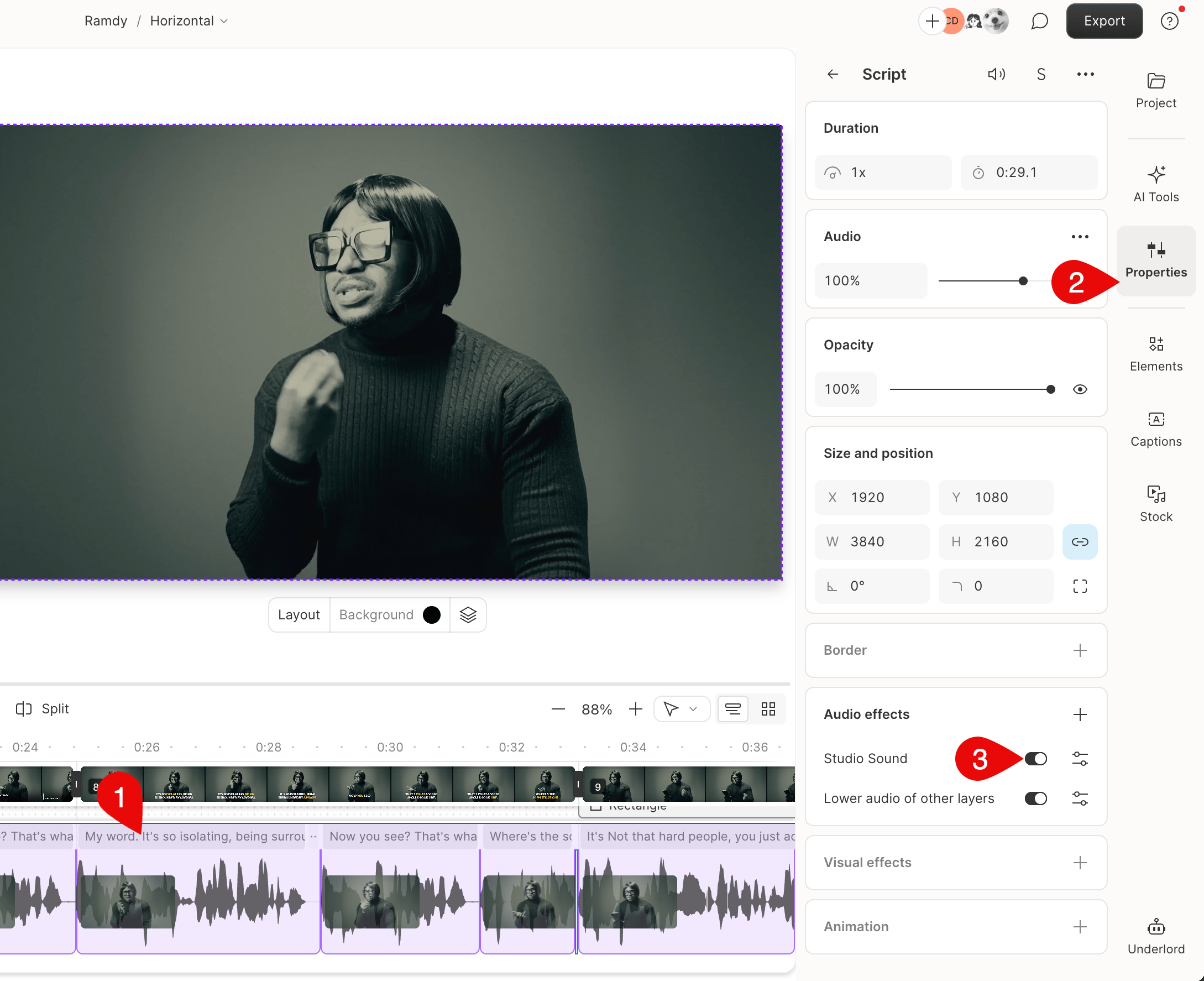
1. Select your script layer.
2. Open the **Properties** panel in the right-hand sidebar.
3. In the **Audio Effects** section, toggle on **Studio Sound**.
### Apply Studio Sound to a multitrack sequence
1. Open your sequence in the [Sequence Editor](/script-editing/sequence-editor).
2. Select the track to enhance, then enable **Studio Sound** in the Properties panel.
### Apply Studio Sound to part of a file
To enhance only part of a file:
1. Duplicate the audio section you want to enhance into a new [composition](/working-in-projects/overview).
2. Use [**Flatten tracks**](/add-and-manage-media/flatten-tracks) to turn it into a new project file.
3. Apply **Studio Sound** to the new file and replace the section in your original project.
**Use during recording**
You can also enable Studio Sound [while recording in the main editor](/working-in-projects/project-settings) or with the [Screen Recorder](/record/screen-recorder).
## Adjust Studio Sound intensity
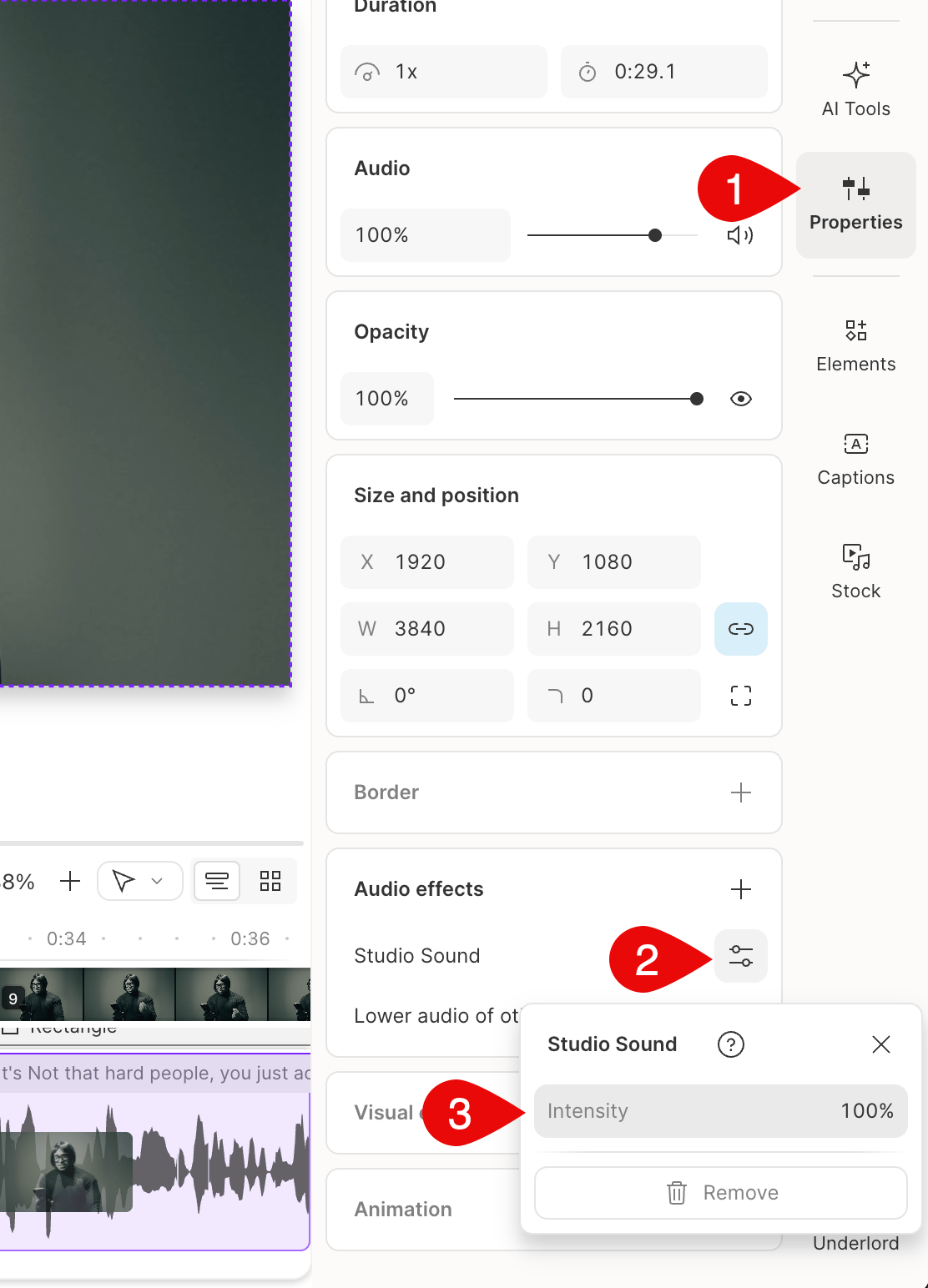
Use the **Intensity** slider to control how much enhancement is applied to the file.
### Apply Studio Sound to your script
1. Select your script layer.
2. Open the **Properties** panel in the right-hand sidebar.
3. In the **Audio Effects** section, toggle on **Studio Sound**.
### Apply Studio Sound to a multitrack sequence
1. Open your sequence in the [Sequence Editor](/script-editing/sequence-editor).
2. Select the track to enhance, then enable **Studio Sound** in the Properties panel.
### Apply Studio Sound to part of a file
To enhance only part of a file:
1. Duplicate the audio section you want to enhance into a new [composition](/working-in-projects/overview).
2. Use [**Flatten tracks**](/add-and-manage-media/flatten-tracks) to turn it into a new project file.
3. Apply **Studio Sound** to the new file and replace the section in your original project.
**Use during recording**
You can also enable Studio Sound [while recording in the main editor](/working-in-projects/project-settings) or with the [Screen Recorder](/record/screen-recorder).
## Adjust Studio Sound intensity
Use the **Intensity** slider to control how much enhancement is applied to the file.
 ## Troubleshooting Studio Sound
Running into issues with Studio Sound? Here are fixes for the most common
problems.
This is expected. Studio Sound only works on recorded audio,
not AI-generated speech. To apply Studio Sound to an AI voice
clip, first
[convert it to an editable audio layer](/ai-speech/covert-to-audio).
1. Wait a few minutes, then re-apply Studio Sound. This is usually
a temporary issue.
2. If the error persists,
[check the status page](http://status.descript.com/)
for any ongoing issues affecting Studio Sound.
3. If everything is operational,
[try replacing the file](/add-and-manage-media/replace-file),
then re-apply Studio Sound.
Studio Sound is an audio-only effect — it cannot remove or change
video, hide tracks, or delete media from your project.
If your audio waveform appears flat or silent after enabling
Studio Sound, the recording likely has very loud background noise.
Studio Sound may not be able to separate the speech from the
noise, resulting in a silent waveform. To fix this, reduce the
**Intensity** slider in the **Properties**
panel or disable Studio Sound for that file.
If a video track or other media appears missing, check whether
a track is set to **Solo** in the timeline or hidden
in the **Layer list** in the Properties panel.
A known bug in Chrome (on macOS and Windows) can cause file encoding
issues that result in echo or audio drift after exporting. Use
Descript's
[Repair audio drift](/add-and-manage-media/repair-audio-drift)
feature to fix this.
Very large files (6+ hours or several GB) may be slow to process.
For best results, split long recordings into shorter segments
and apply Studio Sound individually.
## Troubleshooting Studio Sound
Running into issues with Studio Sound? Here are fixes for the most common
problems.
This is expected. Studio Sound only works on recorded audio,
not AI-generated speech. To apply Studio Sound to an AI voice
clip, first
[convert it to an editable audio layer](/ai-speech/covert-to-audio).
1. Wait a few minutes, then re-apply Studio Sound. This is usually
a temporary issue.
2. If the error persists,
[check the status page](http://status.descript.com/)
for any ongoing issues affecting Studio Sound.
3. If everything is operational,
[try replacing the file](/add-and-manage-media/replace-file),
then re-apply Studio Sound.
Studio Sound is an audio-only effect — it cannot remove or change
video, hide tracks, or delete media from your project.
If your audio waveform appears flat or silent after enabling
Studio Sound, the recording likely has very loud background noise.
Studio Sound may not be able to separate the speech from the
noise, resulting in a silent waveform. To fix this, reduce the
**Intensity** slider in the **Properties**
panel or disable Studio Sound for that file.
If a video track or other media appears missing, check whether
a track is set to **Solo** in the timeline or hidden
in the **Layer list** in the Properties panel.
A known bug in Chrome (on macOS and Windows) can cause file encoding
issues that result in echo or audio drift after exporting. Use
Descript's
[Repair audio drift](/add-and-manage-media/repair-audio-drift)
feature to fix this.
Very large files (6+ hours or several GB) may be slow to process.
For best results, split long recordings into shorter segments
and apply Studio Sound individually.