> ## Documentation Index
> Fetch the complete documentation index at: https://help.descript.com/llms.txt
> Use this file to discover all available pages before exploring further.
# Smart Transitions
> Adjust, replace, or turn off the Smart Transitions Descript adds between scenes.
When you add a new scene, Descript automatically applies a Smart Transition between it and the previous scene. Smart Transitions smooth out scene changes by rearranging, zooming, and fading visual elements in your composition.
This guide is specific to Smart Transitions. For other transition types — including wipes, fades, and cross-zoom — see the [Transitions](/effects-animations-transitions/transitions) article.
## How to adjust Smart Transition settings
Once a transition is applied, you can control how it behaves in the Properties panel.
1. Open the **Properties** panel in the sidebar.
2. Navigate to the **Transitions** section.
3. Click the settings (sliders) icon for the transition you want to adjust.
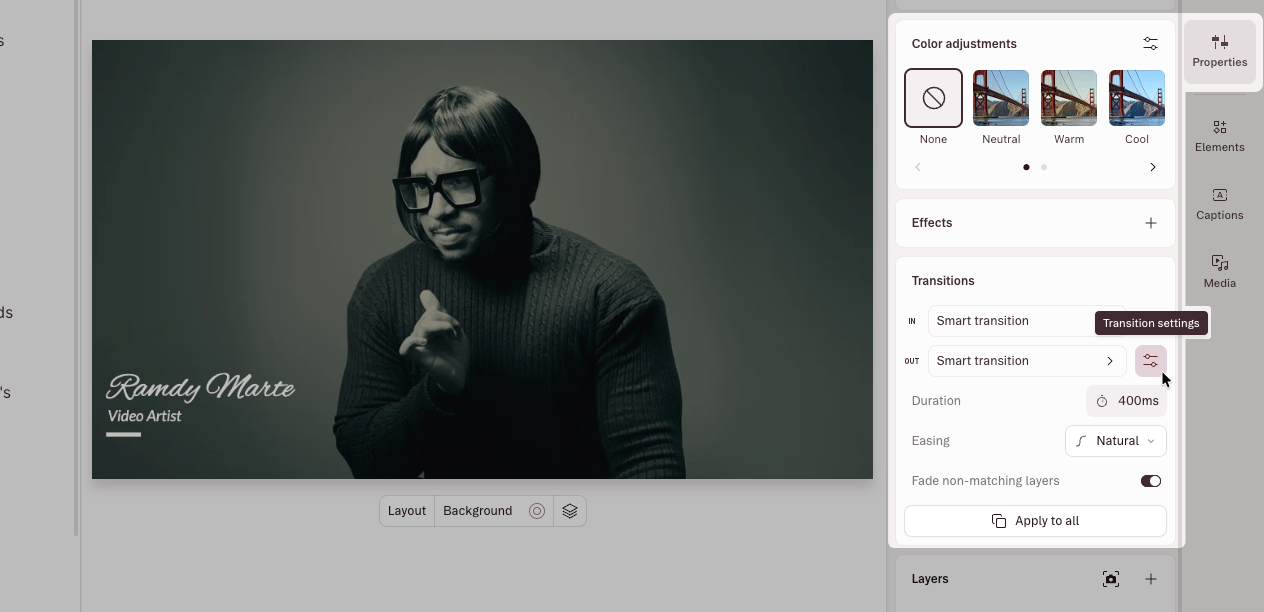 * **Duration:** Adjust how long the transition takes to complete. A shorter duration creates quick cuts; a longer duration creates more gradual transitions.
* **Easing:** Choose how the transition progresses over time.
* **Add Fades:** Control whether Descript adds fades between layers. By default, this is set to **On**, which applies fades between non-contiguous layers (for example, two separate clips) but not to clips that cross a scene boundary. Set to **Off** to remove fades across the transition entirely.
## Change a Smart Transition to a different transition type
To change the transition between scenes, click the transition row in the **Transitions** section to open the visual grid, and select one of the other presets.
## Turn Smart Transitions on or off
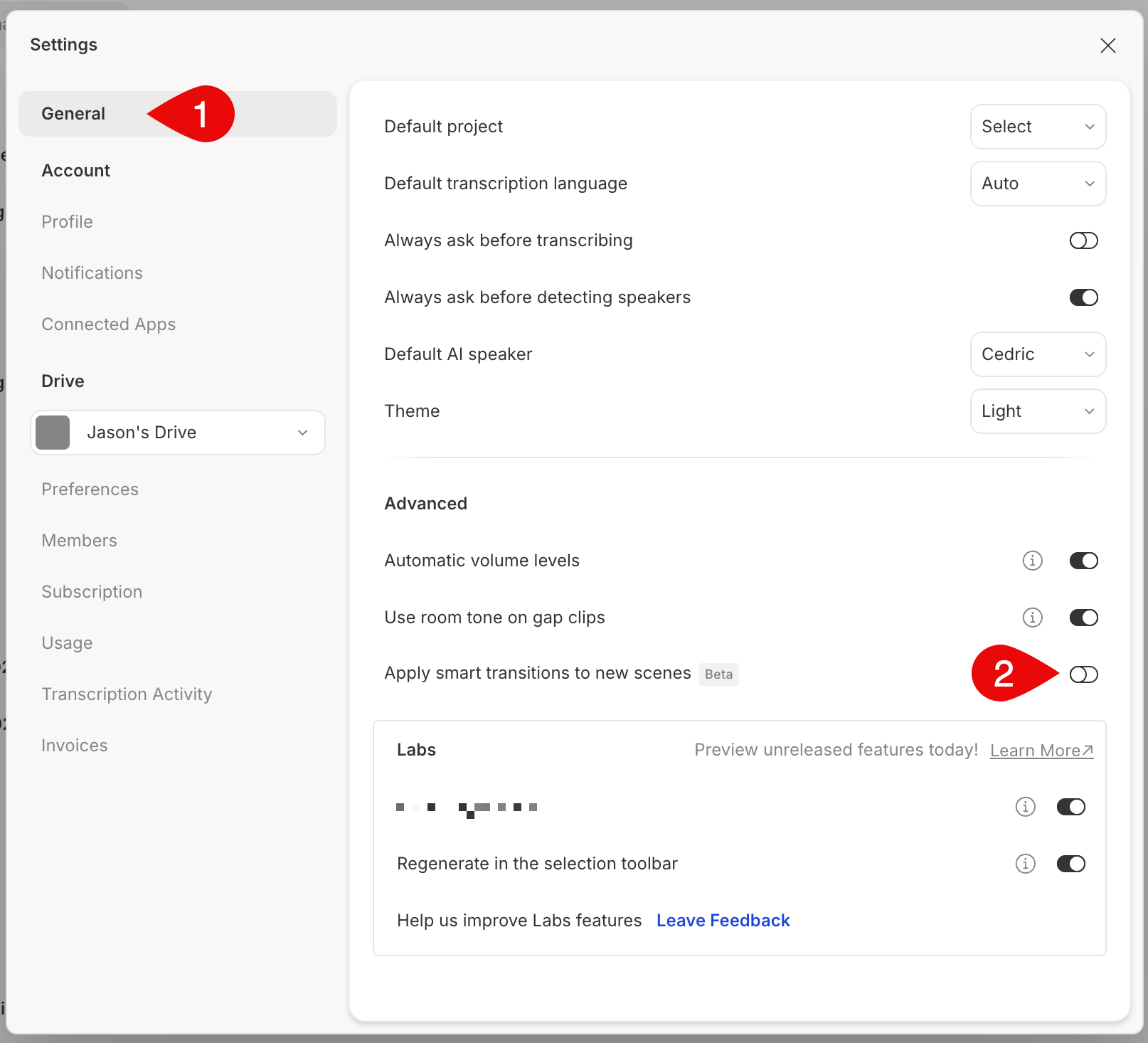
By default, Smart Transitions are enabled for all new scenes. You can turn this off in [**App Settings**](/account-and-app-settings/app-settings). This won't affect existing scenes—only new ones you create.
1. Click your profile photo in the top-right corner, then select **Settings**.
2. Click **App Settings**.
3. Toggle **Smart Transitions** on or off.
* **Duration:** Adjust how long the transition takes to complete. A shorter duration creates quick cuts; a longer duration creates more gradual transitions.
* **Easing:** Choose how the transition progresses over time.
* **Add Fades:** Control whether Descript adds fades between layers. By default, this is set to **On**, which applies fades between non-contiguous layers (for example, two separate clips) but not to clips that cross a scene boundary. Set to **Off** to remove fades across the transition entirely.
## Change a Smart Transition to a different transition type
To change the transition between scenes, click the transition row in the **Transitions** section to open the visual grid, and select one of the other presets.
## Turn Smart Transitions on or off
By default, Smart Transitions are enabled for all new scenes. You can turn this off in [**App Settings**](/account-and-app-settings/app-settings). This won't affect existing scenes—only new ones you create.
1. Click your profile photo in the top-right corner, then select **Settings**.
2. Click **App Settings**.
3. Toggle **Smart Transitions** on or off.