> ## Documentation Index
> Fetch the complete documentation index at: https://help.descript.com/llms.txt
> Use this file to discover all available pages before exploring further.
# Room Tone
> Fill silences and gap clips with an AI-matched background noise profile so edits blend into your recording.
Recordings made outside of professional-grade recording studios may contain varying degrees of background noise or sounds, such as:
* An air conditioner in the background.
* Line-level fuzz from your recording interface.
* Your neighbor's baby is screaming (again).
Room tone uses artificial intelligence to recognize the background sound in a speech recording, then creates a similar noise profile. When room tone is enabled, a noise profile is created for every file in your project or [composition](/working-in-projects/overview) (see details below), and added to each [gap clip](/timeline/using-gap-clips) that sits adjacent to those files. This helps smoothly cover up any abrupt silences, making them blend seamlessly with your recording's background noise.
## Preparing your file
Room tone analyzes the first 30 seconds of a media file for non-speech audio to create a sound profile. To ensure the best results, we recommend the following:
* Recording at least 15 seconds of silence before speaking so that room tone can create an accurate profile.
* If you're importing a pre-recorded file, make sure your recording does not contain music during the first 30 seconds of the track.
## Applying and adjusting room tone to a clip
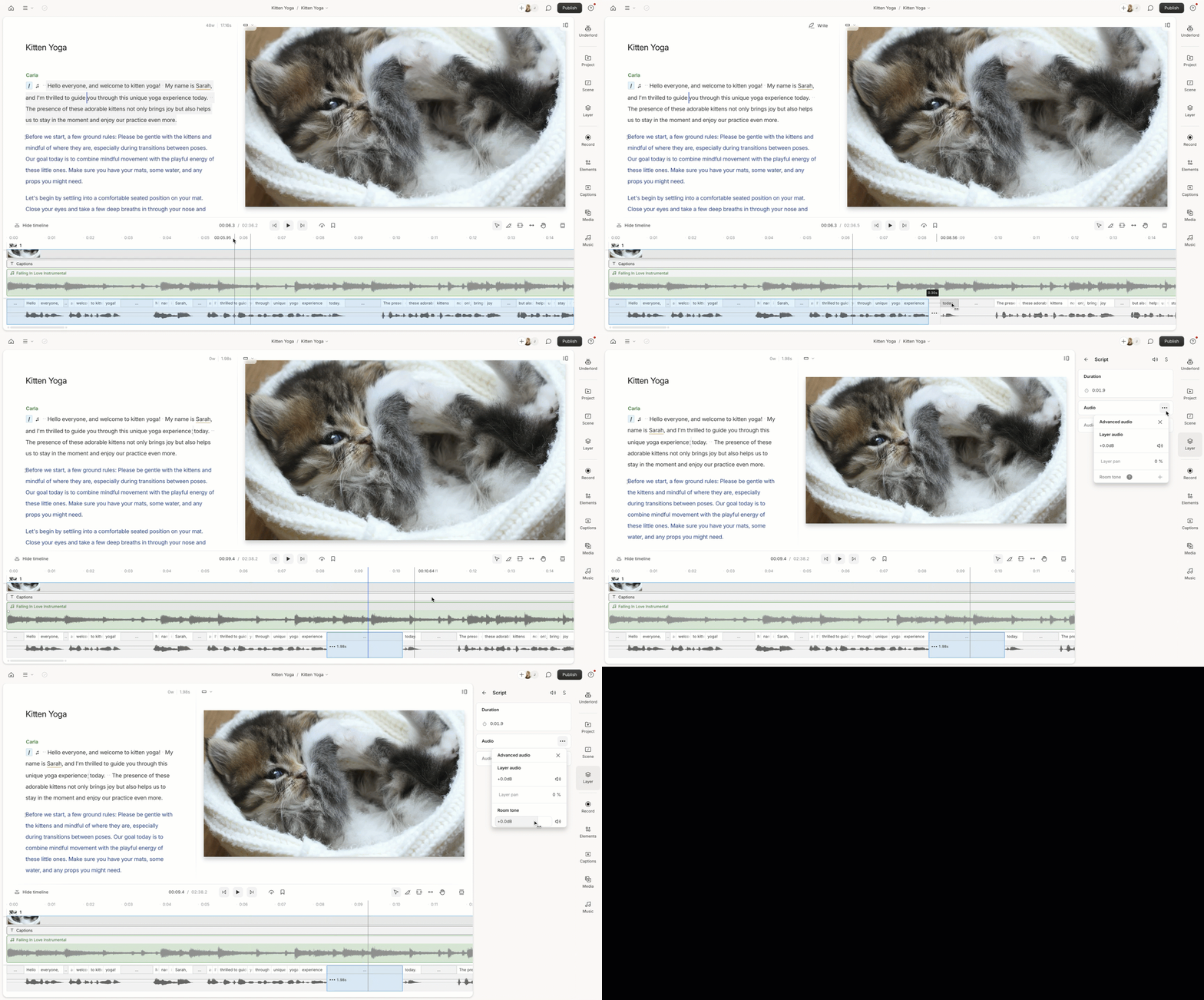
1. [Add a gap clip](/timeline/using-gap-clips) - **click and drag** a word in [the wordbar](/script-editing/the-wordbar) wherever you want to create some space.
2. Select the gap clip in the [Timeline](/timeline/timeline-overview).
3. Click on the **Properties** panel.
4. Click the three dots in the Audio section of the **Properties** panel.
5. In the Advanced audio window, you can add or delete the room tone, mute the tone, or change its volume.\\
 **Working with room tone**
* Room tone is automatically calculated in sequences based on the surrounding clip volume and cannot be manually adjusted.
* By default, the room tone is active on all new projects. You can change this in your [App settings](/account-and-app-settings/app-settings), or adjust the settings for a single project in your [Project settings](/working-in-projects/project-settings).
* Whenever [Studio Sound](/effects-animations-transitions/studio-sound) is enabled, room tone will become disabled for any clips associated with that file.
**Working with room tone**
* Room tone is automatically calculated in sequences based on the surrounding clip volume and cannot be manually adjusted.
* By default, the room tone is active on all new projects. You can change this in your [App settings](/account-and-app-settings/app-settings), or adjust the settings for a single project in your [Project settings](/working-in-projects/project-settings).
* Whenever [Studio Sound](/effects-animations-transitions/studio-sound) is enabled, room tone will become disabled for any clips associated with that file.