> ## Documentation Index
> Fetch the complete documentation index at: https://help.descript.com/llms.txt
> Use this file to discover all available pages before exploring further.
# Green Screen
> Apply Green Screen to remove or swap your video background.
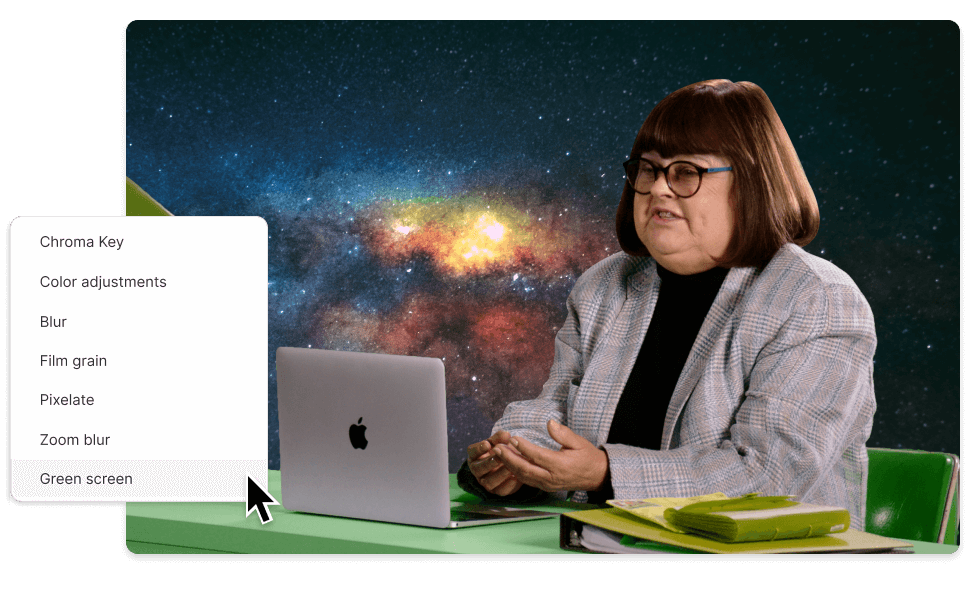
Green Screen uses AI to cut the background out of a video, no actual green screen required. Once it's removed, drop in a new background or leave the space transparent.
 **Usage note**
On current plans, this feature uses **AI Credits**. Learn more about [tracking your Media Minutes and AI Credits](/billing-payments-plans/track-and-understand-your-media-minutes-and-ai-credits).
Legacy and Sunset plans track usage differently. See our [Understanding your Legacy and Sunset plan](/billing-payments-plans/legacy-sunset) guide for details.
## Apply Green Screen
1. In the scene editor, select the visual layer you want to edit.
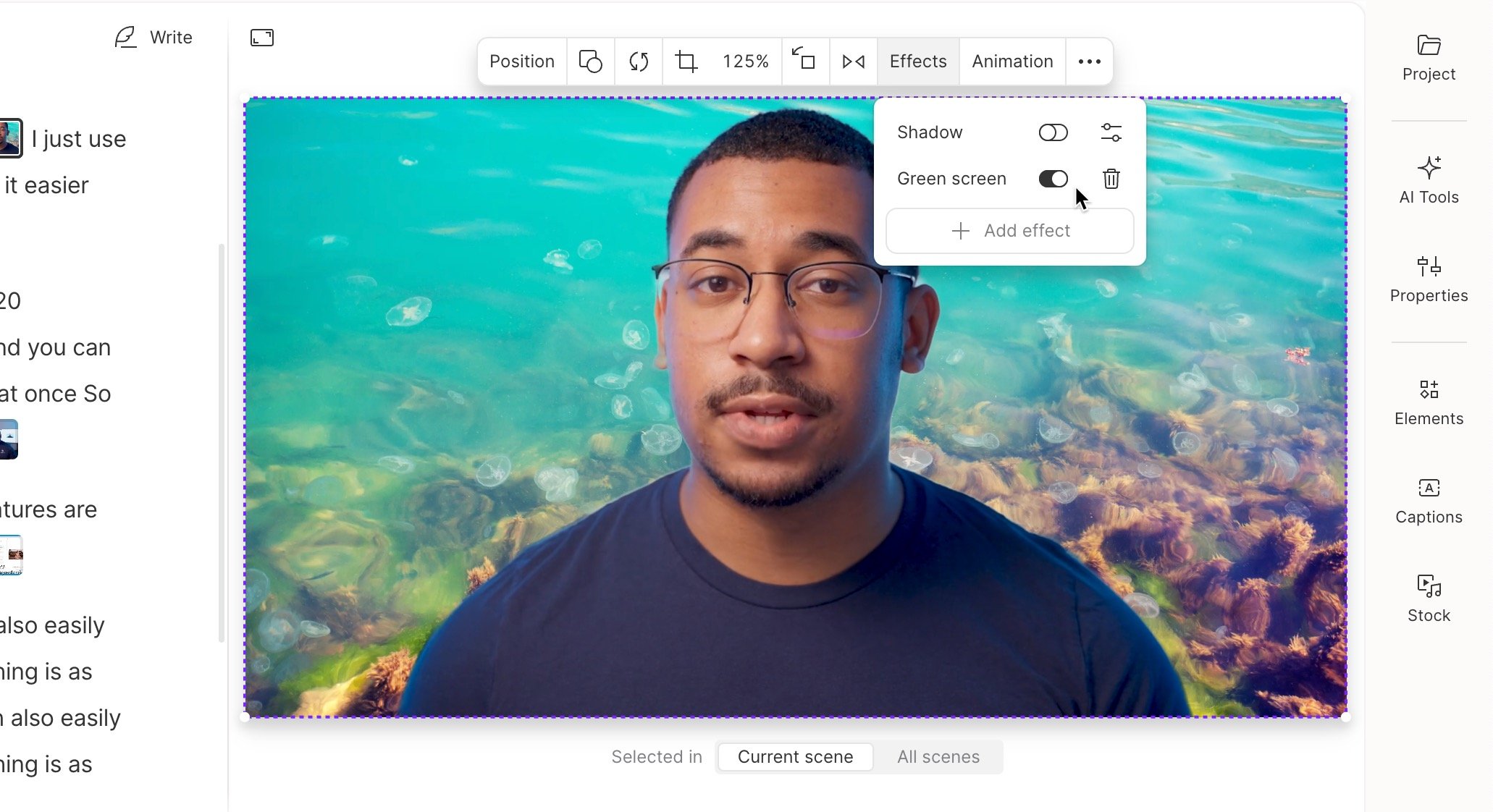
2. From the hover menu, click the **Effects** tab.
3. Click **+ Add effect**.
4. Select **Green Screen** from the list.
Once processed, you can toggle Green Screen on or off without reprocessing. Apply it across [all scenes or just a single scene](/getting-started/scenes).
**Usage note**
On current plans, this feature uses **AI Credits**. Learn more about [tracking your Media Minutes and AI Credits](/billing-payments-plans/track-and-understand-your-media-minutes-and-ai-credits).
Legacy and Sunset plans track usage differently. See our [Understanding your Legacy and Sunset plan](/billing-payments-plans/legacy-sunset) guide for details.
## Apply Green Screen
1. In the scene editor, select the visual layer you want to edit.
2. From the hover menu, click the **Effects** tab.
3. Click **+ Add effect**.
4. Select **Green Screen** from the list.
Once processed, you can toggle Green Screen on or off without reprocessing. Apply it across [all scenes or just a single scene](/getting-started/scenes).
 ### Tips for best results
* Stay connected to the internet — Green Screen requires a network connection.
* Keep other people, pets, and foreground objects like microphones out of the frame.
* Avoid upside-down faces (you can flip video after processing).
* Use soft, even lighting to reduce shadows.
* Maintain strong contrast between you and the background.
### Tips for best results
* Stay connected to the internet — Green Screen requires a network connection.
* Keep other people, pets, and foreground objects like microphones out of the frame.
* Avoid upside-down faces (you can flip video after processing).
* Use soft, even lighting to reduce shadows.
* Maintain strong contrast between you and the background.