> ## Documentation Index
> Fetch the complete documentation index at: https://help.descript.com/llms.txt
> Use this file to discover all available pages before exploring further.
# Blur Speaker Background
> The Blur speaker background effect allows you to blur everything behind a person, making the speaker the focal point.
Blur speaker background pushes everything behind a person out of focus to keep attention on the speaker. It's an editing effect, so it applies to video you've already recorded.
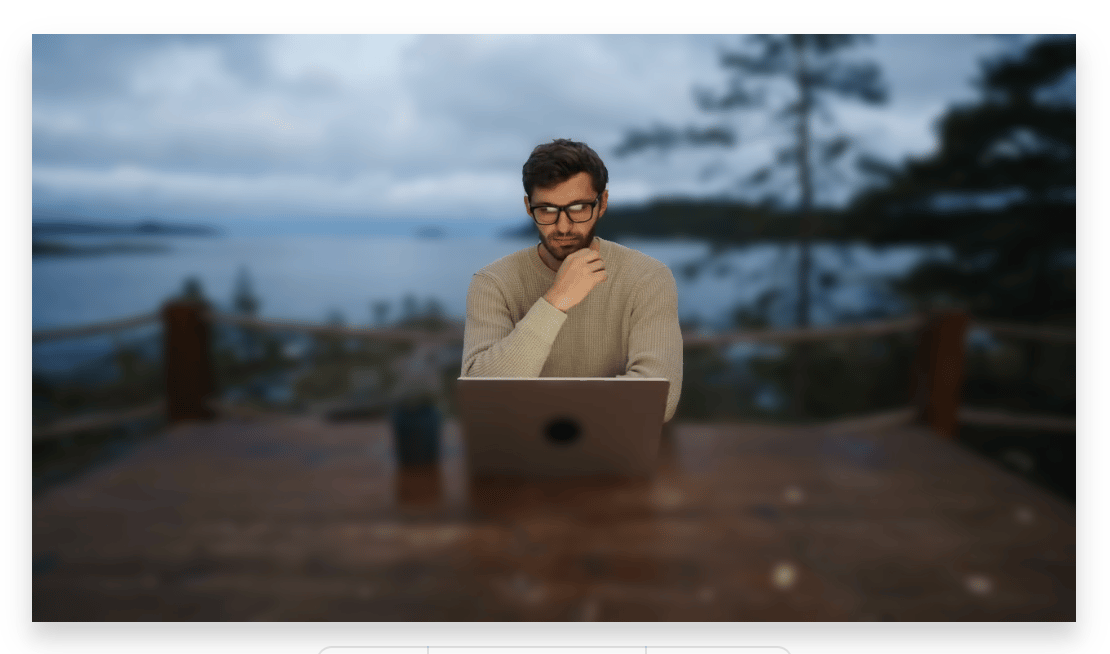 **Important note:** The Blur speaker background effect works best with a person who is front and center and not obstructed. Non-human subjects such as **pets, inanimate objects, or ghostly apparitions** will be blurred as part of the background.
**Usage note**
On current plans, this feature uses **AI Credits**. Learn more about [tracking your Media Minutes and AI Credits](/billing-payments-plans/track-and-understand-your-media-minutes-and-ai-credits).
Legacy and Sunset plans track usage differently. See our [Understanding your Legacy and Sunset plan](/billing-payments-plans/legacy-sunset) guide for details.
## Add the Blur speaker background effect
1. Select the media you want to apply the effect to in the [**scene editor**](/visuals/scene-editor-overview) or the [**timeline**](/timeline/timeline-overview).
2. Open the [**Properties panel**](/descript-tour/properties-panel) from the right-hand toolbar.
3. Under **Visual effects**, click the **+** button.
4. Choose **Blur speaker background (beta)**.\\
**Important note:** The Blur speaker background effect works best with a person who is front and center and not obstructed. Non-human subjects such as **pets, inanimate objects, or ghostly apparitions** will be blurred as part of the background.
**Usage note**
On current plans, this feature uses **AI Credits**. Learn more about [tracking your Media Minutes and AI Credits](/billing-payments-plans/track-and-understand-your-media-minutes-and-ai-credits).
Legacy and Sunset plans track usage differently. See our [Understanding your Legacy and Sunset plan](/billing-payments-plans/legacy-sunset) guide for details.
## Add the Blur speaker background effect
1. Select the media you want to apply the effect to in the [**scene editor**](/visuals/scene-editor-overview) or the [**timeline**](/timeline/timeline-overview).
2. Open the [**Properties panel**](/descript-tour/properties-panel) from the right-hand toolbar.
3. Under **Visual effects**, click the **+** button.
4. Choose **Blur speaker background (beta)**.\\
 ### Adjust the Blur effect
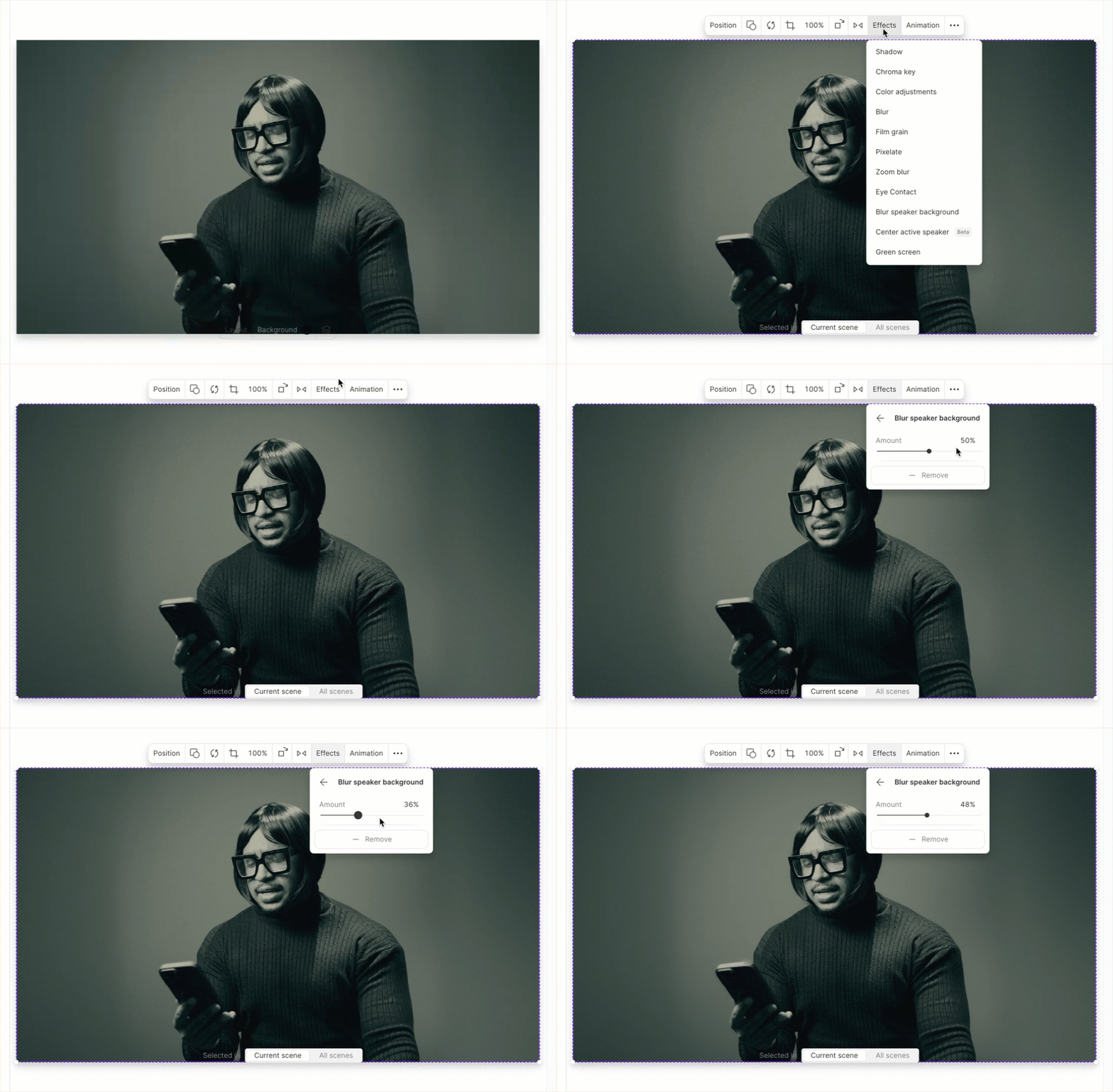
Once applied, toggle the effect on/off using the switch or settings icon next to **Blur speaker background**. Adjust blur intensity with the slider: slide left for less blur, right for more. To remove the effect, click **Remove**.
### Adjust the Blur effect
Once applied, toggle the effect on/off using the switch or settings icon next to **Blur speaker background**. Adjust blur intensity with the slider: slide left for less blur, right for more. To remove the effect, click **Remove**.