> ## Documentation Index
> Fetch the complete documentation index at: https://help.descript.com/llms.txt
> Use this file to discover all available pages before exploring further.
# Auto-leveling
> Descript's auto-leveling feature keeps loudness consistent across your composition.
Auto-leveling nudges every clip's loudness to a consistent target (around –16 dB) so your composition sounds balanced without you touching a volume slider. It's on by default.
## Enable or disable auto-leveling
You can toggle auto-leveling for all projects from [**App settings**](/account-and-app-settings/app-settings), or for a single project from **Project settings**.
### All projects (App settings)
To toggle auto-leveling for all future projects:
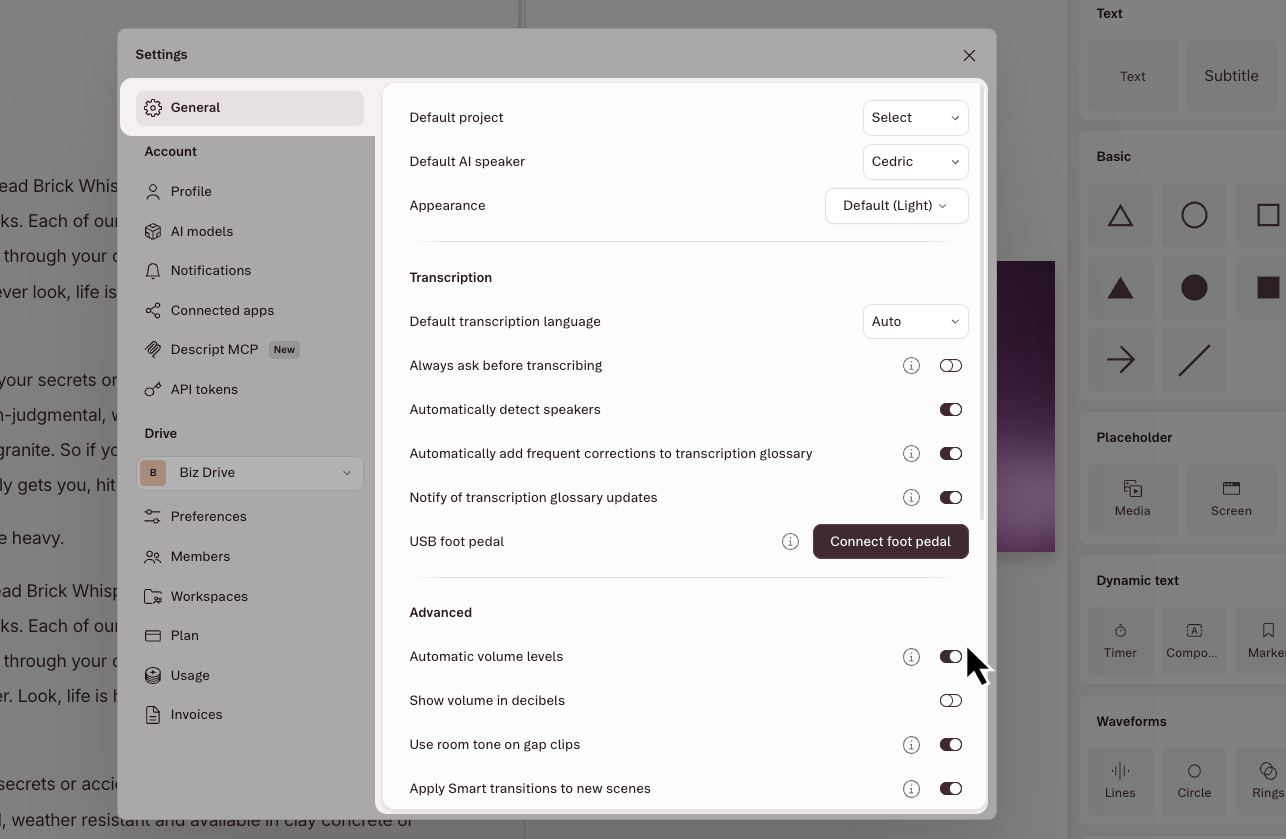
1. Open [App Settings](/account-and-app-settings/app-settings), keyboard shortcut `Command/Control + , (comma)`
2. Select the **General** tab in the left pane.
3. Under **App settings**, toggle **Automatic volume levels**.
[Clicking this link will also take you to your App Settings in Descript for Web](https://web.descript.com/view/settings/account?active=general)
 ### Single project (Project settings)
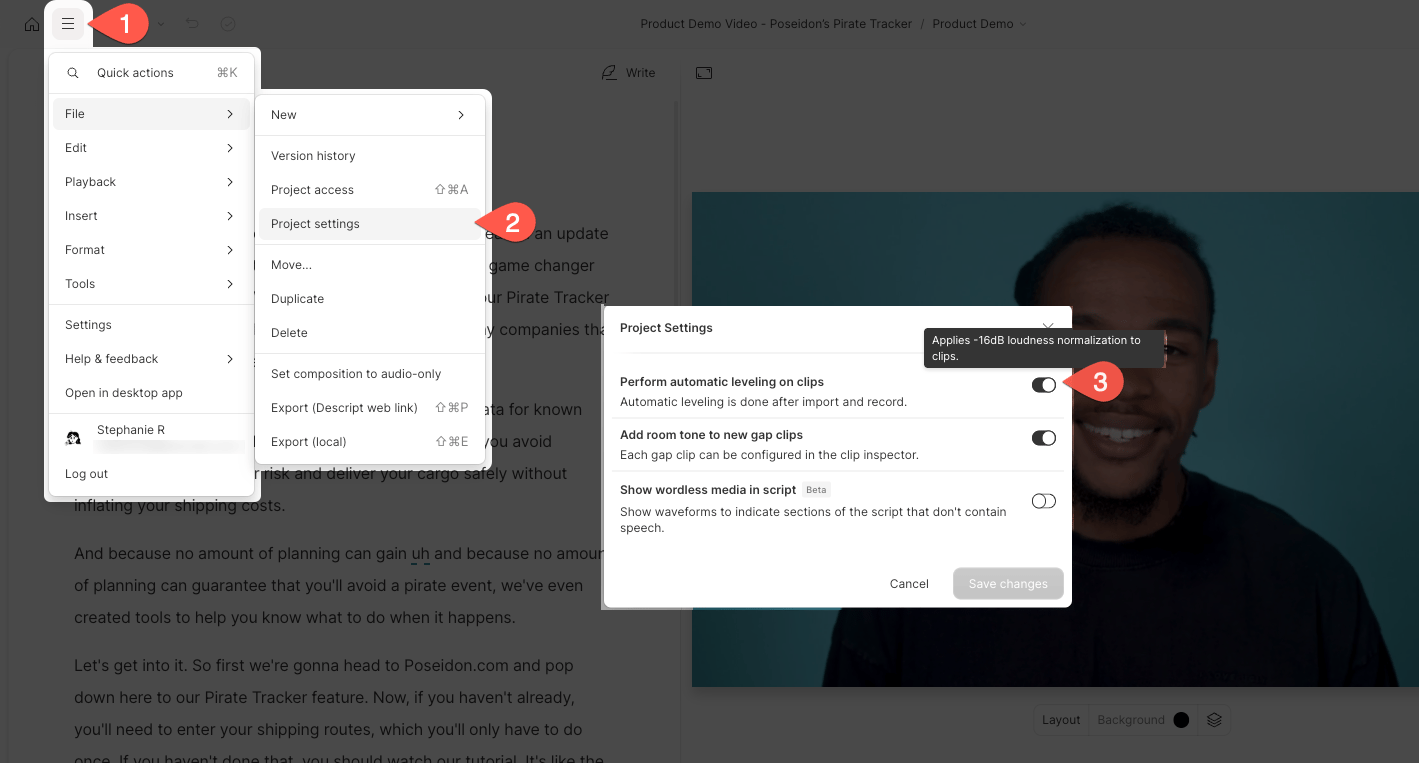
To apply auto-leveling to all clips in one specific project:
1. Open the project in the editor.
2. Click the **File** menu in the top-left corner.
3. Select **Project settings**.
4. Toggle **Perform automatic leveling on clips**.
### Single project (Project settings)
To apply auto-leveling to all clips in one specific project:
1. Open the project in the editor.
2. Click the **File** menu in the top-left corner.
3. Select **Project settings**.
4. Toggle **Perform automatic leveling on clips**.
 ## Individual clips
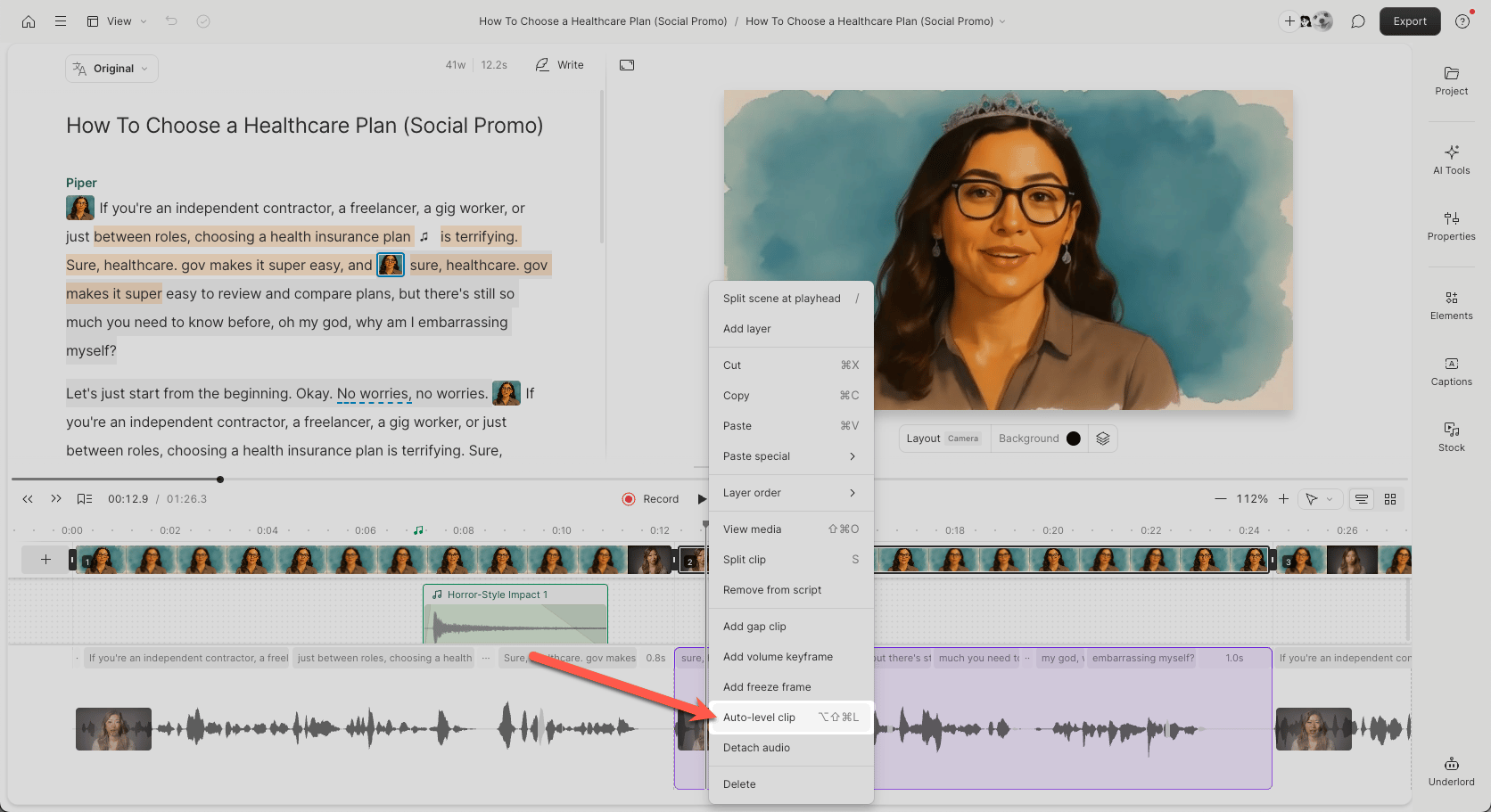
To apply auto-leveling to a single clip in your composition:
1. Select the clip in the **timeline** or **script** panel.
2. In the **Properties panel** on the right, open the **Audio** section.
3. Toggle **Auto-level** to turn it on or off for just that clip.
You can also apply auto-leveling to a clip within a sequence via the **Sequence Editor**.
## Individual clips
To apply auto-leveling to a single clip in your composition:
1. Select the clip in the **timeline** or **script** panel.
2. In the **Properties panel** on the right, open the **Audio** section.
3. Toggle **Auto-level** to turn it on or off for just that clip.
You can also apply auto-leveling to a clip within a sequence via the **Sequence Editor**.
 ## Troubleshooting: Why a clip may not level
If a clip doesn’t get louder where expected, check for brief peaks (like a sneeze or sudden noise). Large spikes can throw off leveling for that section.
**To fix it:**
* Use the [Blade tool](/timeline/timeline-tools) to split the clip before and after the spike.
* Re-run auto-leveling on the quieter portion.
## Troubleshooting: Why a clip may not level
If a clip doesn’t get louder where expected, check for brief peaks (like a sneeze or sudden noise). Large spikes can throw off leveling for that section.
**To fix it:**
* Use the [Blade tool](/timeline/timeline-tools) to split the clip before and after the spike.
* Re-run auto-leveling on the quieter portion.