> ## Documentation Index
> Fetch the complete documentation index at: https://help.descript.com/llms.txt
> Use this file to discover all available pages before exploring further.
# Apply and Adjust Effects
> Understand how to add, adjust, disable, or remove visual and audio effects in your Descript composition.
Every visual and audio effect in Descript is managed from the [Properties panel](/descript-tour/properties-panel), and applies to your selected scene or layer. [Browse the full list of effects](/effects-animations-transitions/overview).
**Properties panel behavior**
The panel is context-aware and updates based on what you have selected—showing either scene-level or layer-level options. If the effect options you expect aren’t visible, check which item is selected in the Layer list. [Learn more about how the Properties panel works](/descript-tour/properties-panel).
## Add a visual effect
1. In the scene editor, select the scene or layer.
2. Click **Effects** in the hover toolbar, then select **+ Add effect**.
3. In the Effects drawer, hover over an effect to preview it on your current frame, then click to apply.
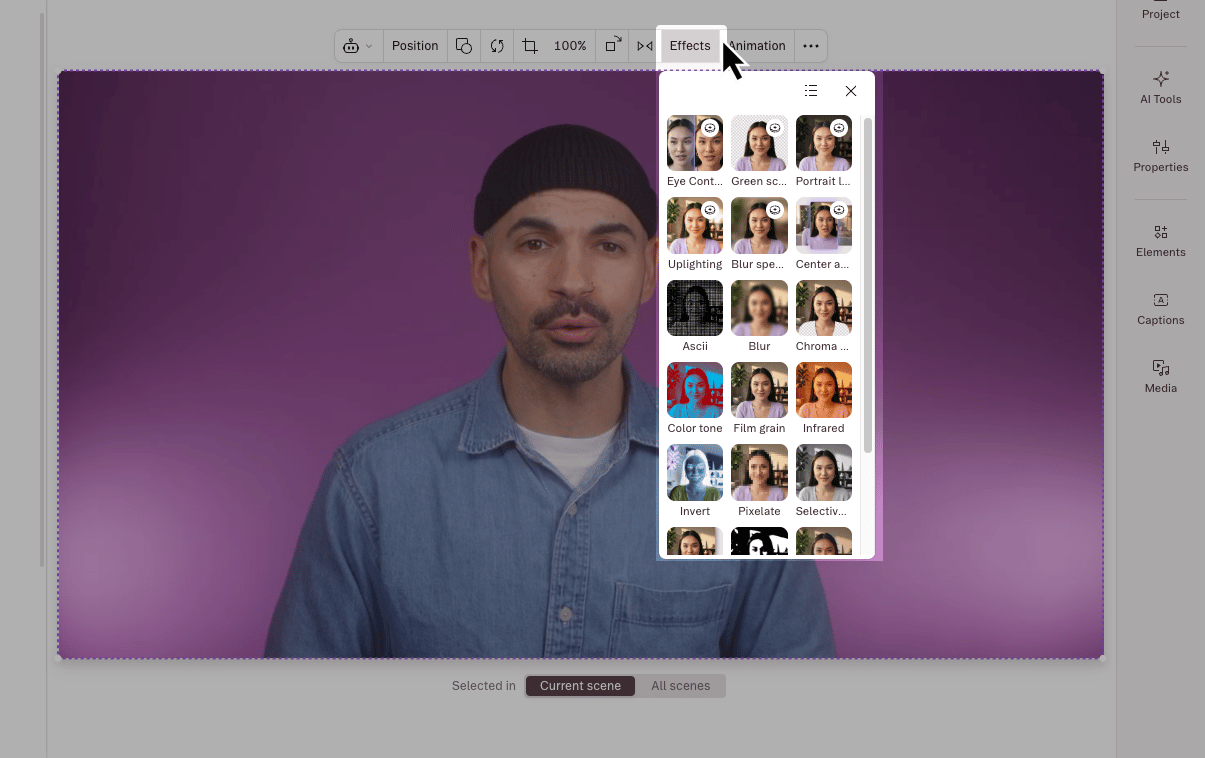 You can also open the Effects drawer from the **+** button next to **Visual effects** in the Properties panel.
By default, an effect added at the scene level applies to the current scene only. To apply it to all scenes in your composition, use the **All scenes** toggle in the scene editor.
**Effects in sequences**
Visual effects in a sequence can also be added and adjusted from the Properties panel, just like in the main editor.
## Add an audio effect
### To a script layer
1. Select the script layer in the scene editor or from the **Layer list** in the Properties panel.
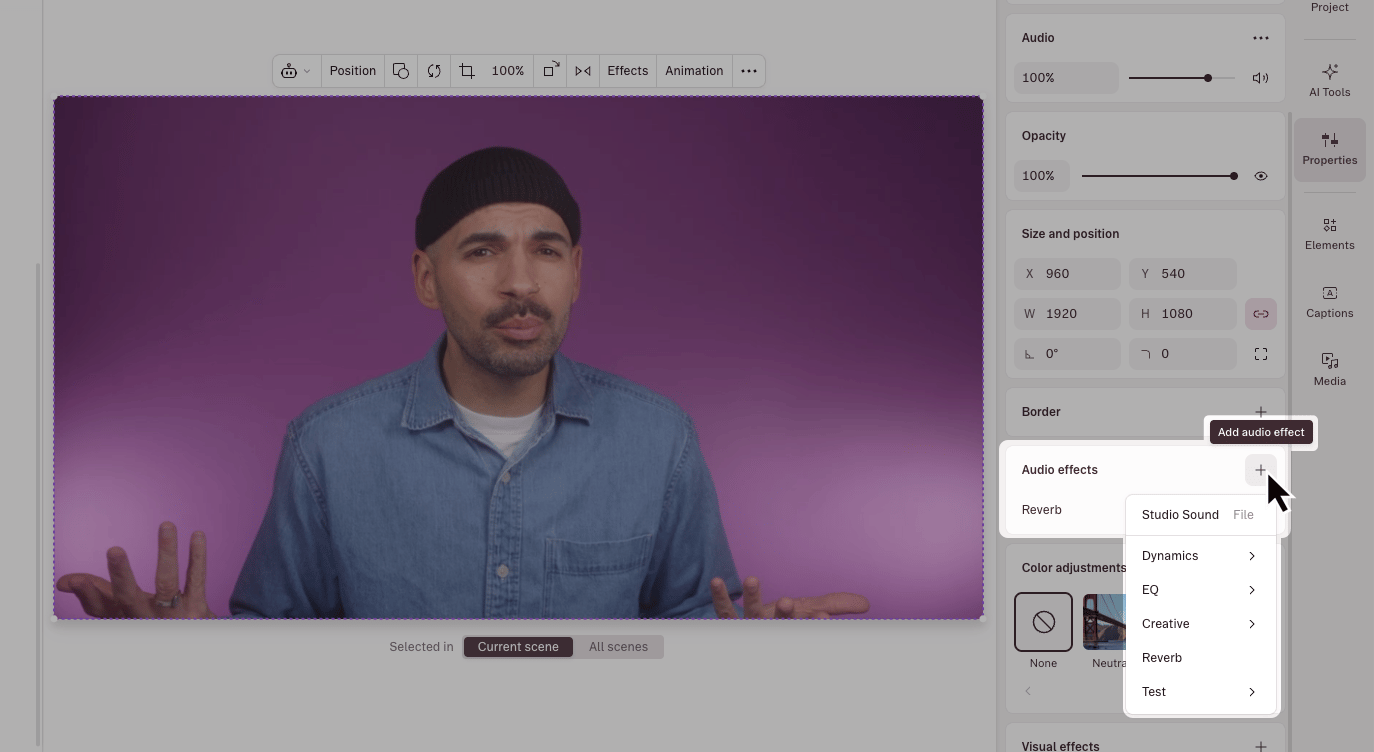
2. Click the **+** button next to **Audio effects** in the Properties panel.
3. Choose the audio effect you want to apply.
You can also open the Effects drawer from the **+** button next to **Visual effects** in the Properties panel.
By default, an effect added at the scene level applies to the current scene only. To apply it to all scenes in your composition, use the **All scenes** toggle in the scene editor.
**Effects in sequences**
Visual effects in a sequence can also be added and adjusted from the Properties panel, just like in the main editor.
## Add an audio effect
### To a script layer
1. Select the script layer in the scene editor or from the **Layer list** in the Properties panel.
2. Click the **+** button next to **Audio effects** in the Properties panel.
3. Choose the audio effect you want to apply.
 ### To a sequence track
1. Open your sequence in the [Sequence Editor](/script-editing/sequence-editor).
2. Select a track.
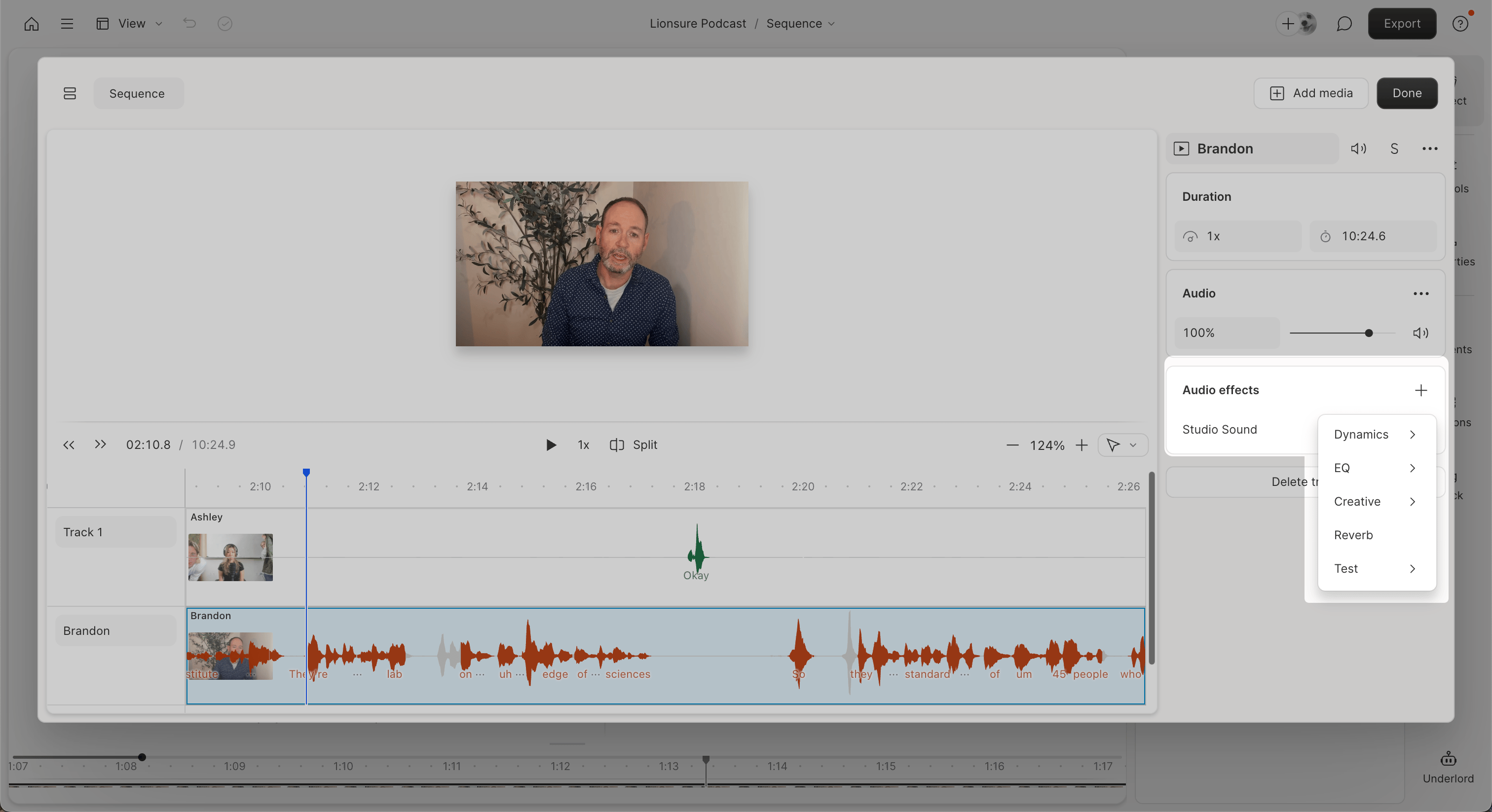
3. Click the **+** button in the **Audio effects** section.
4. Choose the effect you want to apply.
Audio effects persist across all scenes the layer appears in.
### To a sequence track
1. Open your sequence in the [Sequence Editor](/script-editing/sequence-editor).
2. Select a track.
3. Click the **+** button in the **Audio effects** section.
4. Choose the effect you want to apply.
Audio effects persist across all scenes the layer appears in.
 ## Adjust an effect
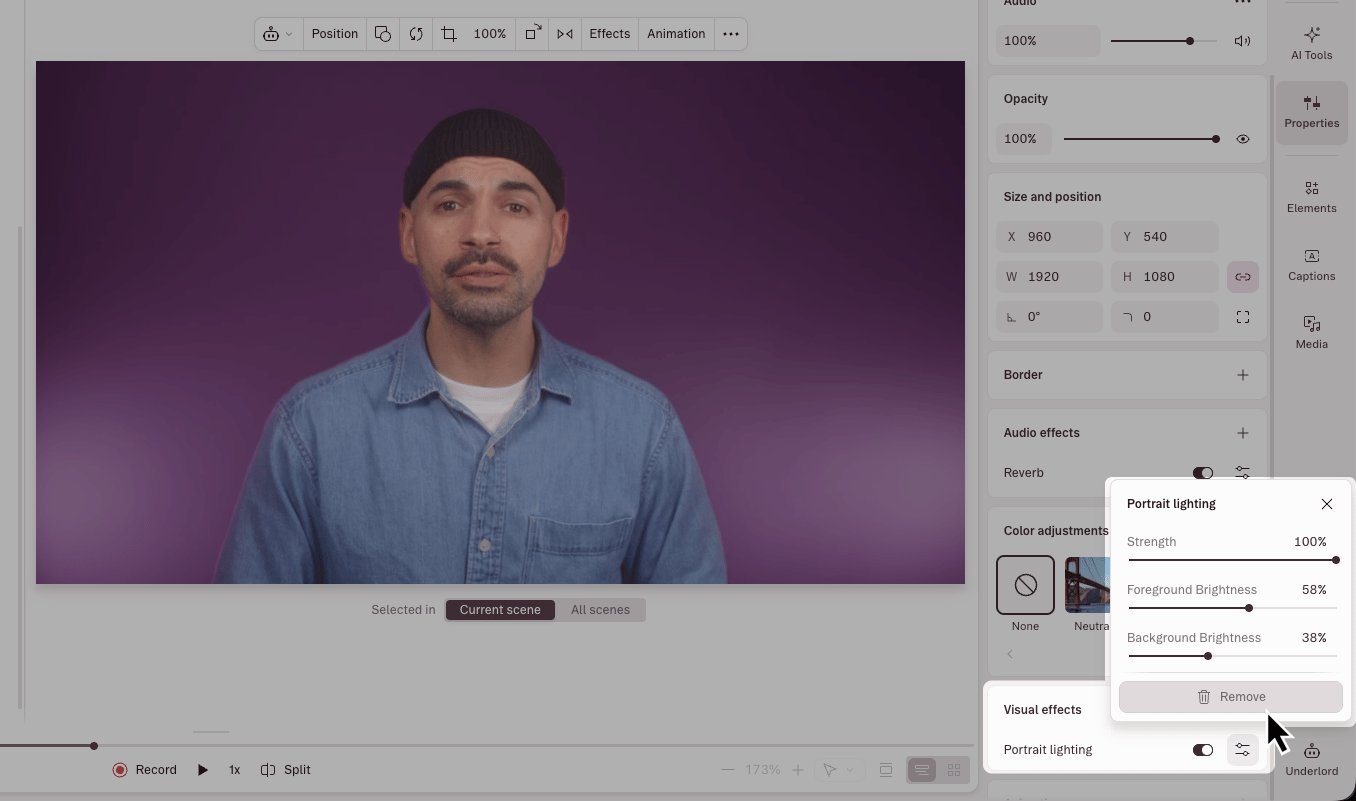
Once an effect is added, it appears in the appropriate Properties panel section — **Visual effects** for visual effects, **Audio effects** for audio.
* Click the **sliders** icon next to an effect to expand its controls.
* Drag a slider or enter a specific value to adjust settings.
* Some audio effects include preset configurations. Click the **Effect settings** menu (•••), then choose a preset from the dropdown.
## Disable or remove an effect
**To temporarily disable an effect,** toggle the switch next to the effect name in the **Effects** section. This preserves your settings but hides the effect.
**To remove the effect:**
1. Click the **Effect settings** menu (•••) next to the effect name.
2. Select **Remove effect**.
This works the same way for both visual and audio effects.
## Adjust an effect
Once an effect is added, it appears in the appropriate Properties panel section — **Visual effects** for visual effects, **Audio effects** for audio.
* Click the **sliders** icon next to an effect to expand its controls.
* Drag a slider or enter a specific value to adjust settings.
* Some audio effects include preset configurations. Click the **Effect settings** menu (•••), then choose a preset from the dropdown.
## Disable or remove an effect
**To temporarily disable an effect,** toggle the switch next to the effect name in the **Effects** section. This preserves your settings but hides the effect.
**To remove the effect:**
1. Click the **Effect settings** menu (•••) next to the effect name.
2. Select **Remove effect**.
This works the same way for both visual and audio effects.