> ## Documentation Index
> Fetch the complete documentation index at: https://help.descript.com/llms.txt
> Use this file to discover all available pages before exploring further.
# Manage the Editor Layout with the View Menu
> The View menu lets you control how Descript's project editor is displayed.
Show or hide panels, toggle editing guides, and change how audio and visuals appear in the timeline.
You'll find the **View** menu at the top left of the editor window.
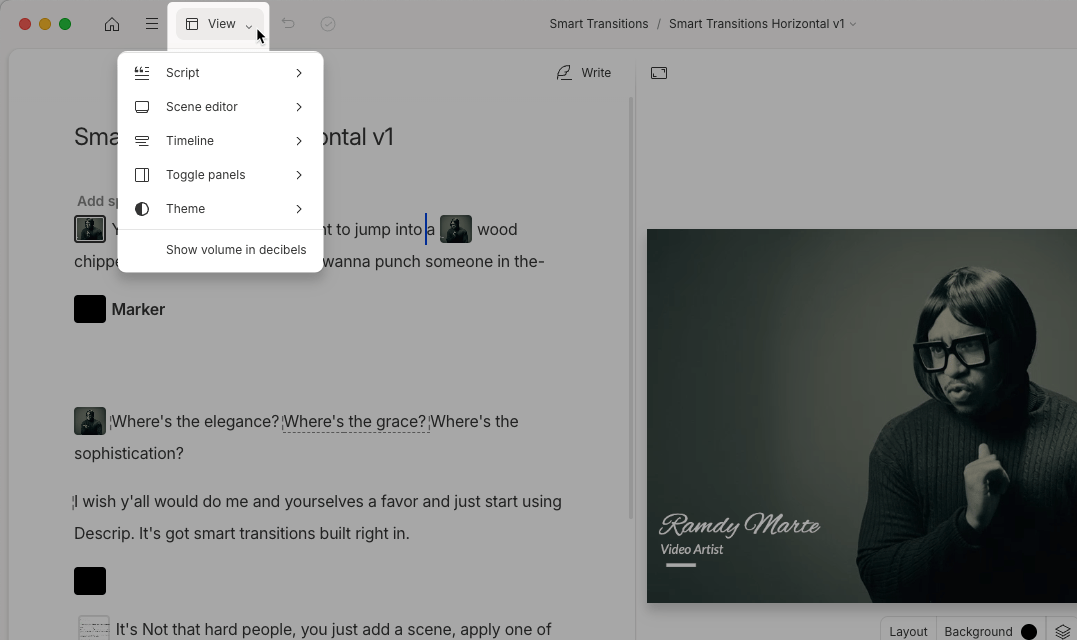 ## Script panel settings
* **Toggle script:** Show or hide the script panel. When hidden, the scene editor expands to fill the workspace.
* **Show edit boundaries:** Display cut and edit markers within the script.\\
## Script panel settings
* **Toggle script:** Show or hide the script panel. When hidden, the scene editor expands to fill the workspace.
* **Show edit boundaries:** Display cut and edit markers within the script.\\
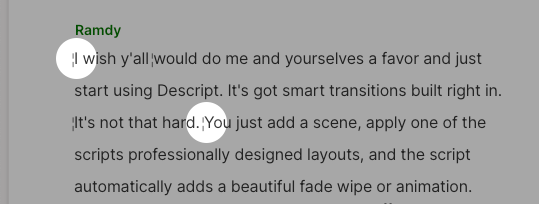 * **Underline filler words:** Highlight filler words with a dashed blue underline.
* **Underline word errors:** Underline instances where alignment fails.
## Scene editor settings
* **Toggle scene editor:** Show or hide the visual scene editor. When hidden, only the script is visible.
* **Scene editor placement:** Choose where the scene editor appears. Some placement options are only available when the window is wide or zoom is below 100%.
* **Snap-to guides:** Show alignment guides while moving elements. Layers snap to guides for precise positioning.
## Timeline settings
* **Underline filler words:** Highlight filler words with a dashed blue underline.
* **Underline word errors:** Underline instances where alignment fails.
## Scene editor settings
* **Toggle scene editor:** Show or hide the visual scene editor. When hidden, only the script is visible.
* **Scene editor placement:** Choose where the scene editor appears. Some placement options are only available when the window is wide or zoom is below 100%.
* **Snap-to guides:** Show alignment guides while moving elements. Layers snap to guides for precise positioning.
## Timeline settings
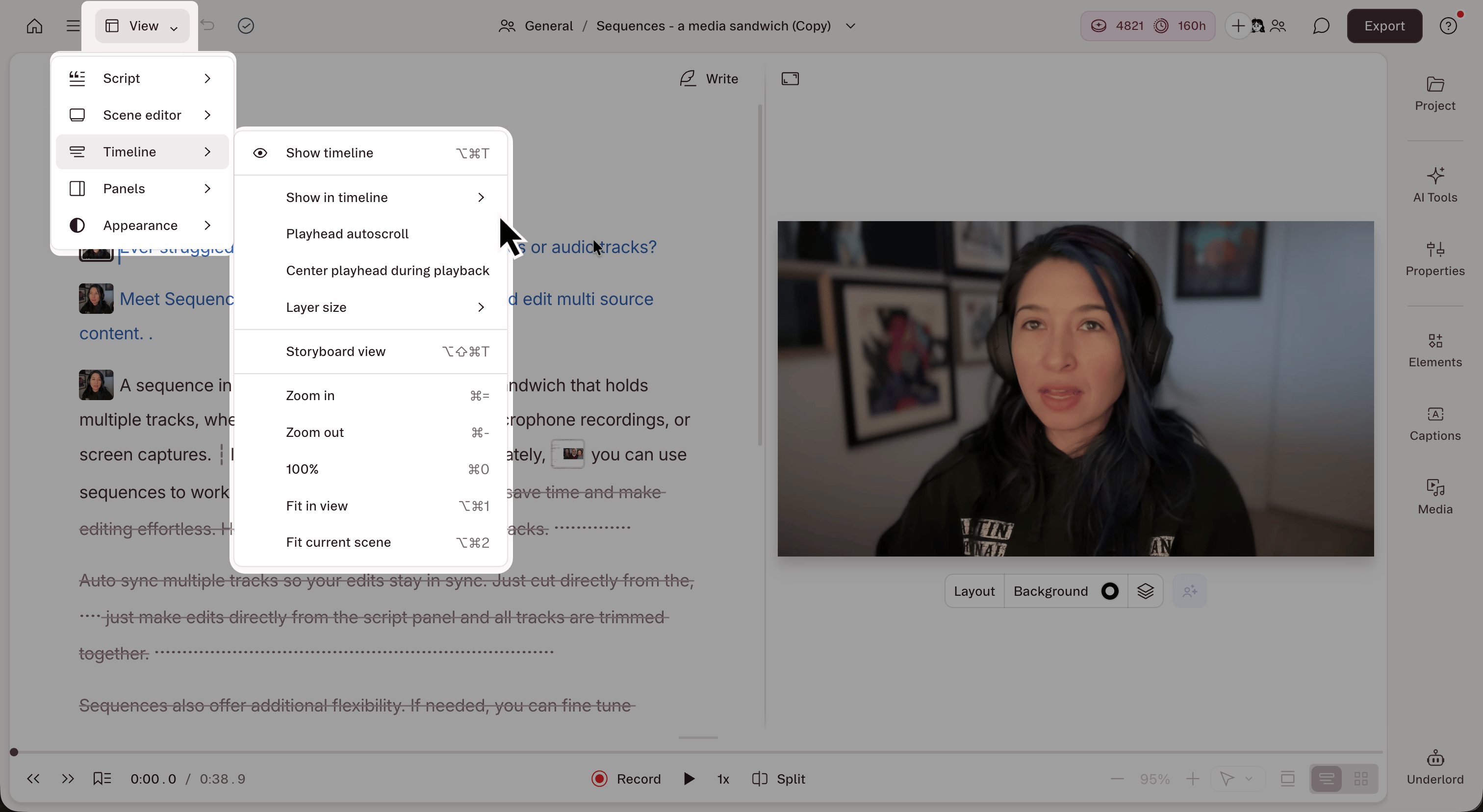 * **Toggle timeline:** Show or collapse the timeline. Use `Shift + Cmd/Ctrl + S` to toggle quickly.
* **Playhead autoscroll:** Turn automatic scrolling of the timeline playhead on or off.
### Show in timeline
* **Advanced timeline tools:** Enables additional options in the timeline toolbar.\\
* **Toggle timeline:** Show or collapse the timeline. Use `Shift + Cmd/Ctrl + S` to toggle quickly.
* **Playhead autoscroll:** Turn automatic scrolling of the timeline playhead on or off.
### Show in timeline
* **Advanced timeline tools:** Enables additional options in the timeline toolbar.\\
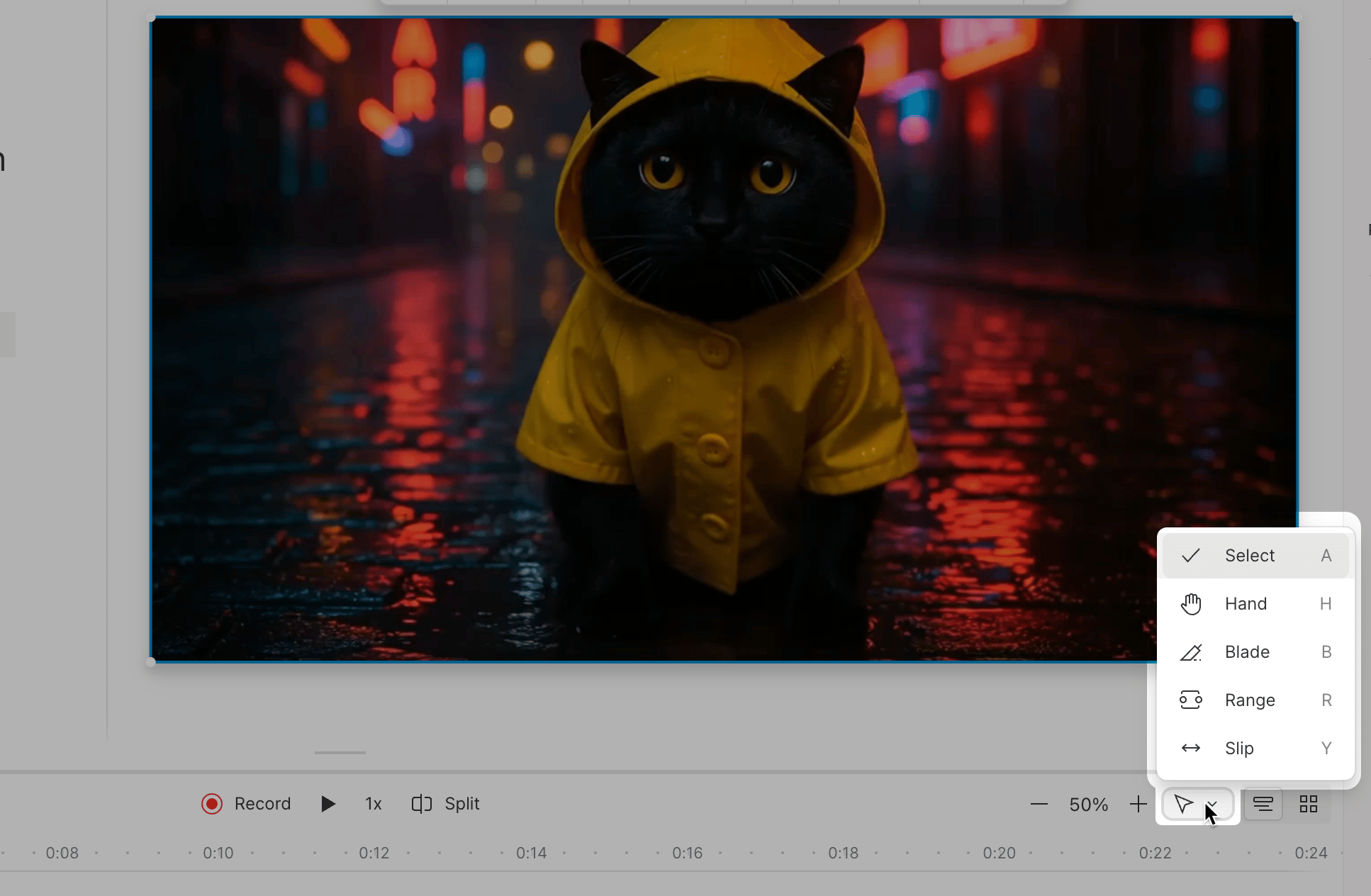 * **Volume meter:** Displays a VU meter for real-time audio levels.\\
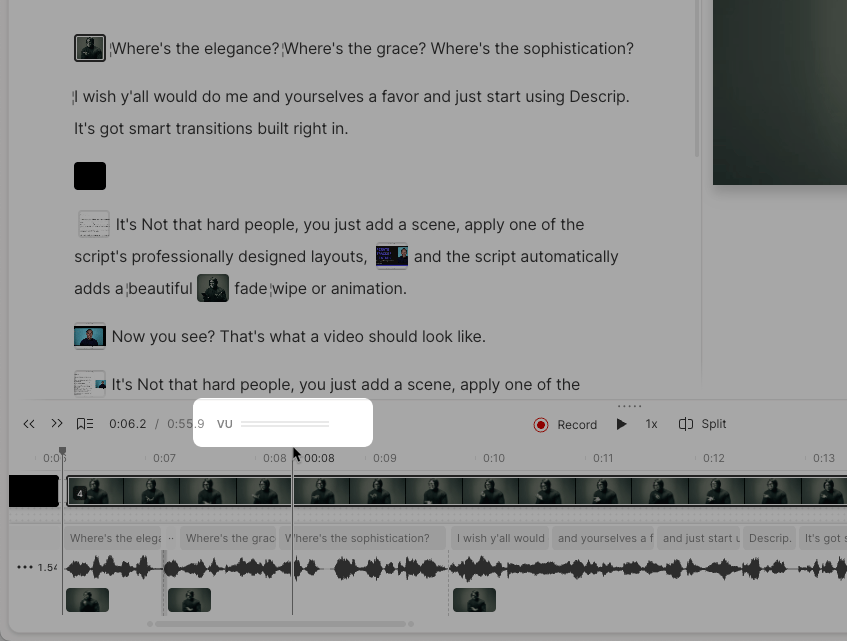 * **Markers, comments, and audio pins:** Show or hide these indicators in the timeline view.
### Timeline display options
* **Layer size:** Switch between compact, default, and large track height.
* **Timeline view / Storyboard view:** Toggle between a full layer timeline and a scene thumbnail layout.
* **Zoom in / Zoom out:** Adjust the timeline zoom level.
* **100%:** Reset the timeline zoom to 100%.
* **Fit in view:** Fit the full composition into the visible timeline area.
* **Fit current scene:** Fit only the current scene into the visible timeline.
## Sidebar panel visibility
Toggle the visibility of these side panels:
* [Project](/descript-tour/project-panel)
* [Media](/descript-tour/media-panel)
* [Properties](/descript-tour/properties-panel)
* [Comments](/collaboration/project-comments)
## Appearance settings
* **Theme:** Switch between Light, Dark, or System theme modes.
* **Markers, comments, and audio pins:** Show or hide these indicators in the timeline view.
### Timeline display options
* **Layer size:** Switch between compact, default, and large track height.
* **Timeline view / Storyboard view:** Toggle between a full layer timeline and a scene thumbnail layout.
* **Zoom in / Zoom out:** Adjust the timeline zoom level.
* **100%:** Reset the timeline zoom to 100%.
* **Fit in view:** Fit the full composition into the visible timeline area.
* **Fit current scene:** Fit only the current scene into the visible timeline.
## Sidebar panel visibility
Toggle the visibility of these side panels:
* [Project](/descript-tour/project-panel)
* [Media](/descript-tour/media-panel)
* [Properties](/descript-tour/properties-panel)
* [Comments](/collaboration/project-comments)
## Appearance settings
* **Theme:** Switch between Light, Dark, or System theme modes.