> ## Documentation Index
> Fetch the complete documentation index at: https://help.descript.com/llms.txt
> Use this file to discover all available pages before exploring further.
# Properties Panel
> Adjust layout, background, animations, and effects for a scene or layer via the Properties panel.
Select a scene or layer, and the panel displays the controls for that element, updating automatically as your selection changes.
* **No selection** → Displays scene-level properties for the scene where the playhead is positioned
* **Scene selected** → Displays scene-level properties for the selected scene
* **Layer selected** → Displays layer-level properties for the selected video, image, text, or audio element
## What you’ll find in the Properties panel
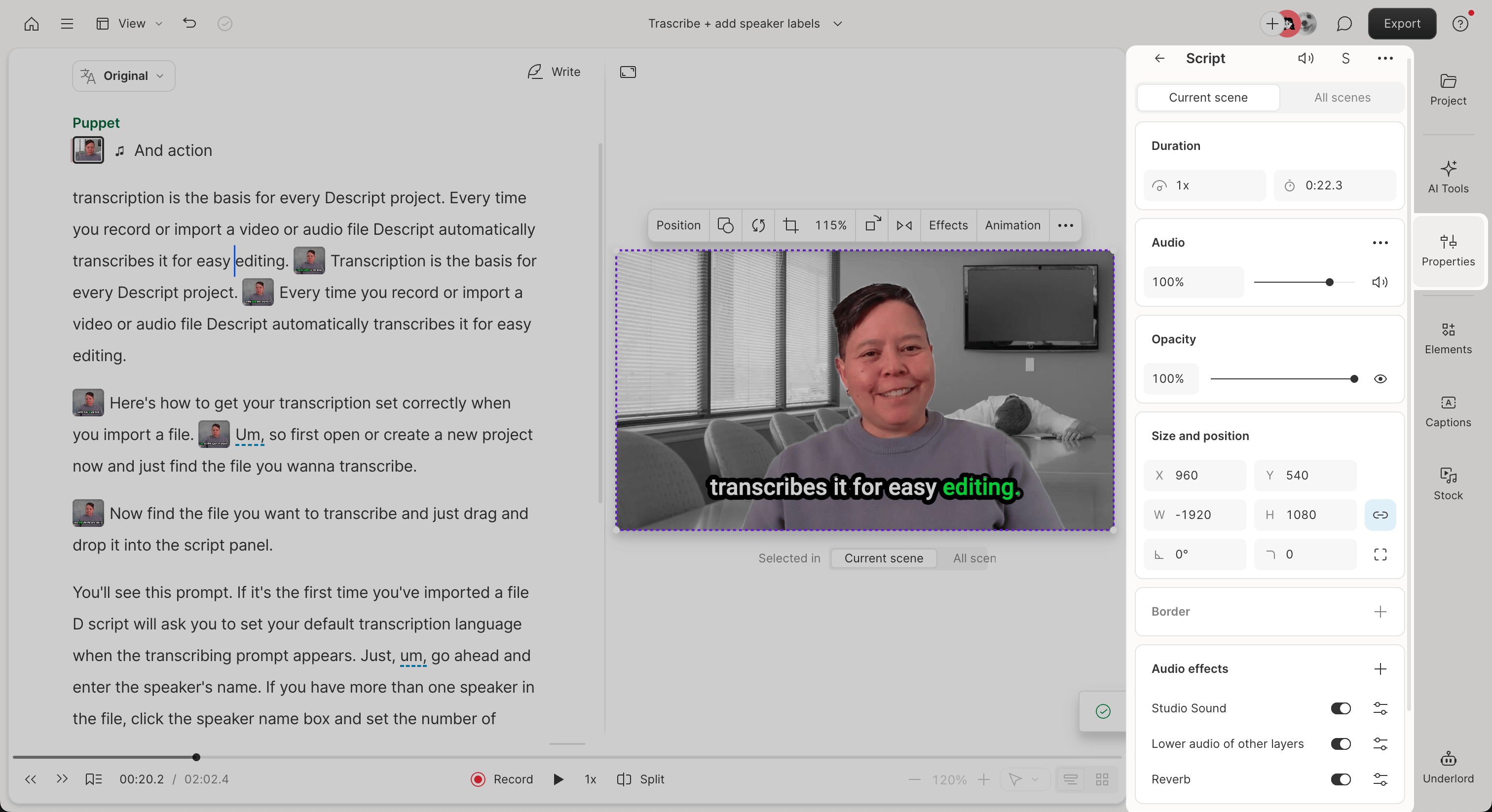 Depending on your selection, the Properties panel will display some or all of the following editable properties. Note, certain layer types may include additional editable properties not listed here.
| Property | Scene | Layer | Description |
| ---------------- | ----- | ----- | -------------------------------------------------------------------------------------------------------------------------------------------------------------------------------------- |
| Layout | ✅ | — | Choose a preset layout for the scene, such as side-by-side or full screen. [Learn more about using layouts to quickly style your scenes.](/templates-and-presets/overview) |
| Duration | ✅ | ✅ | Adjust how long the scene or clip lasts. |
| Background | ✅ | — | Set a background color for the scene. |
| Size & position | — | ✅ | Resize, crop, and position the selected layer on the scene editor. |
| Effects | ✅ | ✅ | Apply audio or visual effects. Some effects apply to the entire scene; others apply to individual layers. [View the full list of effects](/effects-animations-transitions/overview) |
| Transitions | ✅ | — | Add an entrance or exit transition to the scene. [See available transitions here and learn how to apply them to your scenes.](/effects-animations-transitions/transitions) |
| Audio | — | ✅ | Adjust audio-specific settings like volume, panning, or mute/solo. |
| Opacity, borders | — | ✅ | Make a layer more transparent and/or add a border. |
| Animations | — | ✅ | Add entrance, exit, or motion animations to a layer. [Learn more about using animation presets and/or custom animations.](/effects-animations-transitions/apply-and-adjust-animations) |
## Manage layers in a scene
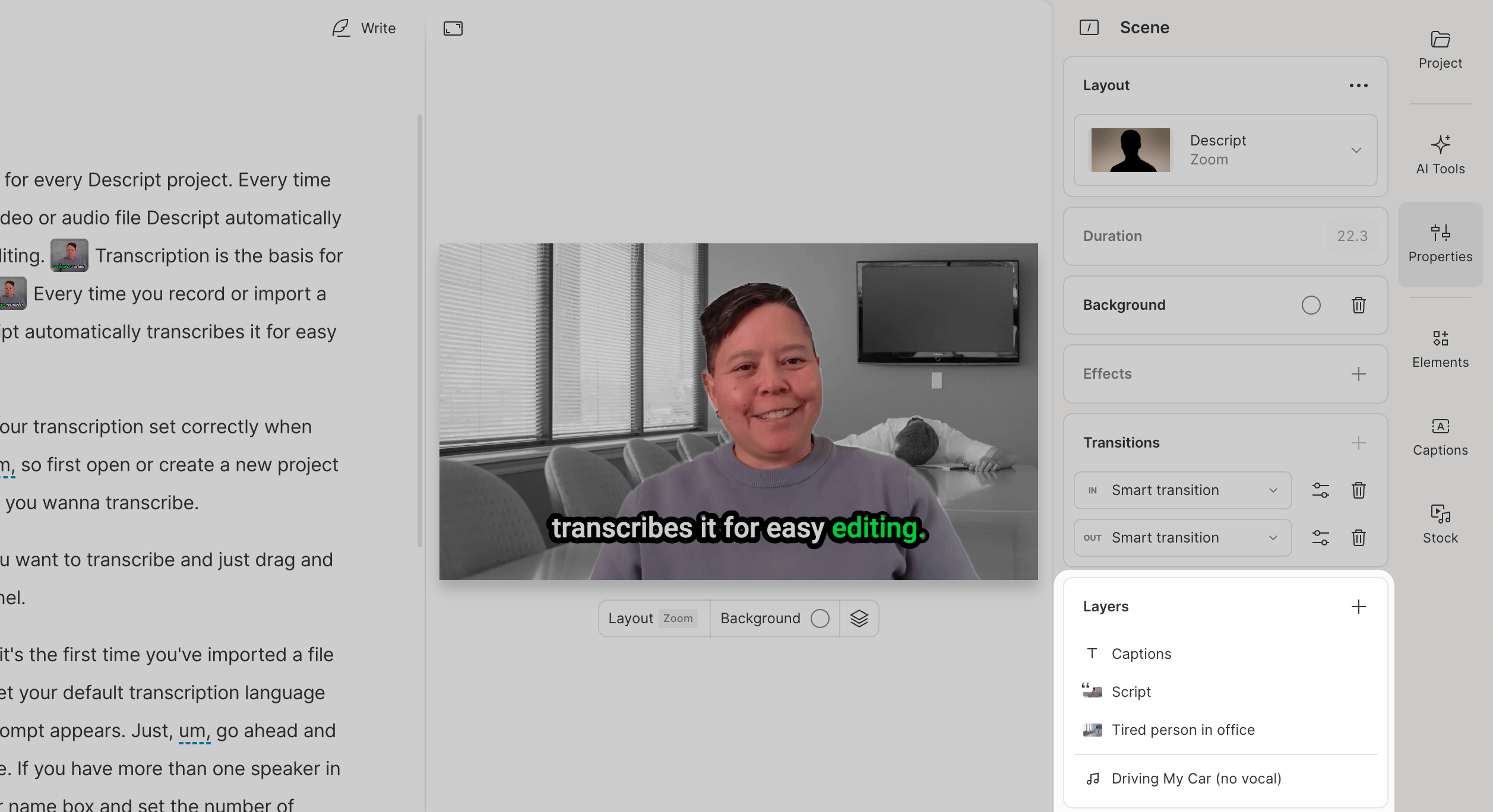
When no layer is selected, the scene-level view appears by default. Scroll to the bottom of the Properties panel to find the **Layer list**, which shows every visual or audio layer in the current scene.
* Click a layer to view and edit its properties
* Drag layers to reorder them on the scene editor
* Right-click a layer to rename, hide, or delete it
* Click the lock icon to lock or unlock a layer
* Change a layer's visual role using the dropdown next to its name
Depending on your selection, the Properties panel will display some or all of the following editable properties. Note, certain layer types may include additional editable properties not listed here.
| Property | Scene | Layer | Description |
| ---------------- | ----- | ----- | -------------------------------------------------------------------------------------------------------------------------------------------------------------------------------------- |
| Layout | ✅ | — | Choose a preset layout for the scene, such as side-by-side or full screen. [Learn more about using layouts to quickly style your scenes.](/templates-and-presets/overview) |
| Duration | ✅ | ✅ | Adjust how long the scene or clip lasts. |
| Background | ✅ | — | Set a background color for the scene. |
| Size & position | — | ✅ | Resize, crop, and position the selected layer on the scene editor. |
| Effects | ✅ | ✅ | Apply audio or visual effects. Some effects apply to the entire scene; others apply to individual layers. [View the full list of effects](/effects-animations-transitions/overview) |
| Transitions | ✅ | — | Add an entrance or exit transition to the scene. [See available transitions here and learn how to apply them to your scenes.](/effects-animations-transitions/transitions) |
| Audio | — | ✅ | Adjust audio-specific settings like volume, panning, or mute/solo. |
| Opacity, borders | — | ✅ | Make a layer more transparent and/or add a border. |
| Animations | — | ✅ | Add entrance, exit, or motion animations to a layer. [Learn more about using animation presets and/or custom animations.](/effects-animations-transitions/apply-and-adjust-animations) |
## Manage layers in a scene
When no layer is selected, the scene-level view appears by default. Scroll to the bottom of the Properties panel to find the **Layer list**, which shows every visual or audio layer in the current scene.
* Click a layer to view and edit its properties
* Drag layers to reorder them on the scene editor
* Right-click a layer to rename, hide, or delete it
* Click the lock icon to lock or unlock a layer
* Change a layer's visual role using the dropdown next to its name
 ## Navigate between scene-level and layer-level properties
Selecting a layer in the scene editor will automatically open that layer’s properties in the Properties panel. To return to scene-level settings, click the **Back** button in the top-left corner of the Properties panel.
## Navigate between scene-level and layer-level properties
Selecting a layer in the scene editor will automatically open that layer’s properties in the Properties panel. To return to scene-level settings, click the **Back** button in the top-left corner of the Properties panel.
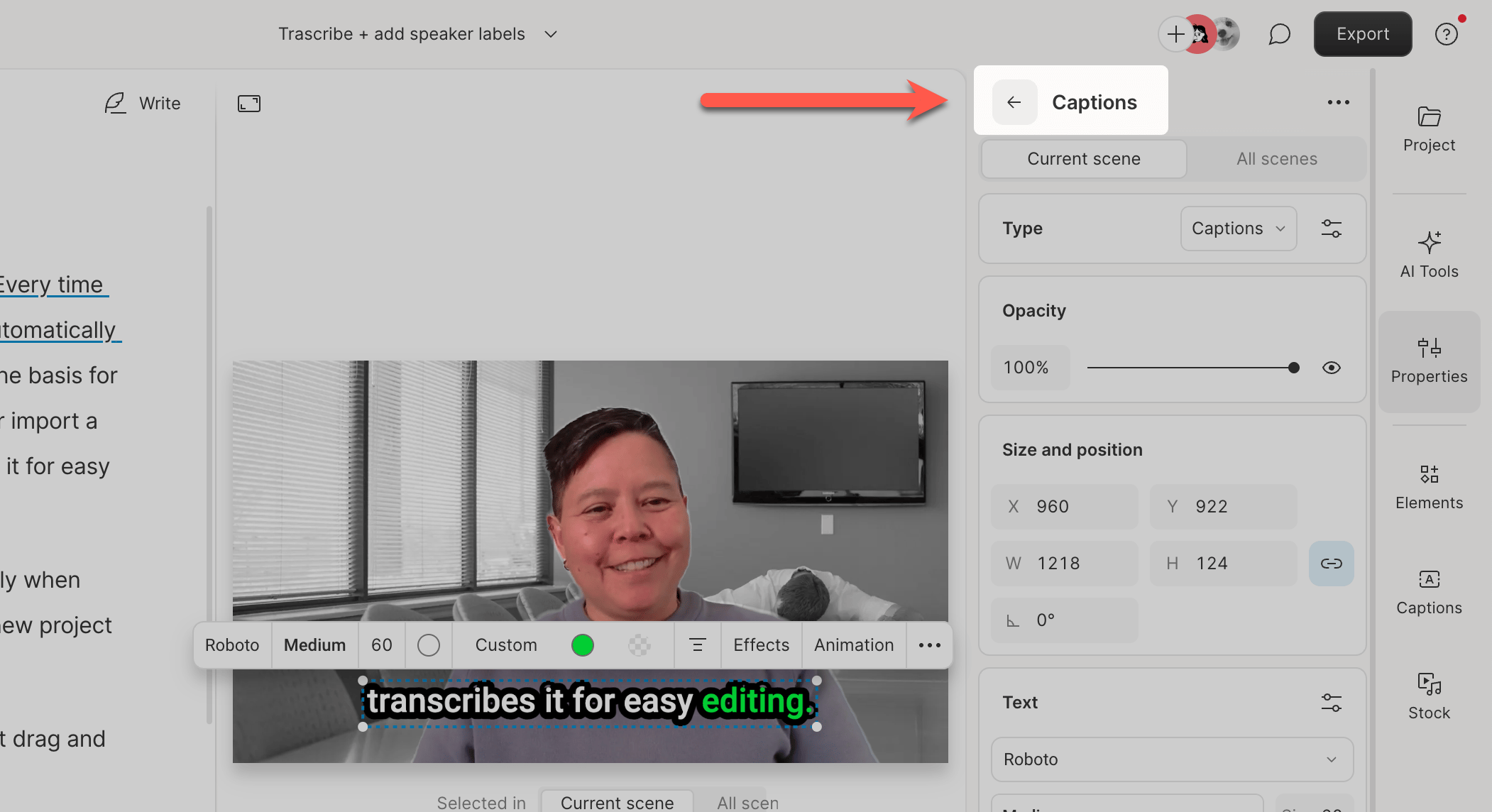 **Tip**
You’ll know you’re editing a layer when the panel shows the layer’s name at the top. If you're editing scene-level properties, it will display **Scene** instead.
## Related articles
* [Scene properties](/visuals/properties)
* [Layer properties](/visuals/layer-properties)
* [Visual and audio effects overview](/effects-animations-transitions/overview)
**Tip**
You’ll know you’re editing a layer when the panel shows the layer’s name at the top. If you're editing scene-level properties, it will display **Scene** instead.
## Related articles
* [Scene properties](/visuals/properties)
* [Layer properties](/visuals/layer-properties)
* [Visual and audio effects overview](/effects-animations-transitions/overview)