> ## Documentation Index
> Fetch the complete documentation index at: https://help.descript.com/llms.txt
> Use this file to discover all available pages before exploring further.
# Project Panel
> The Project panel contains all the media in your Descript project.
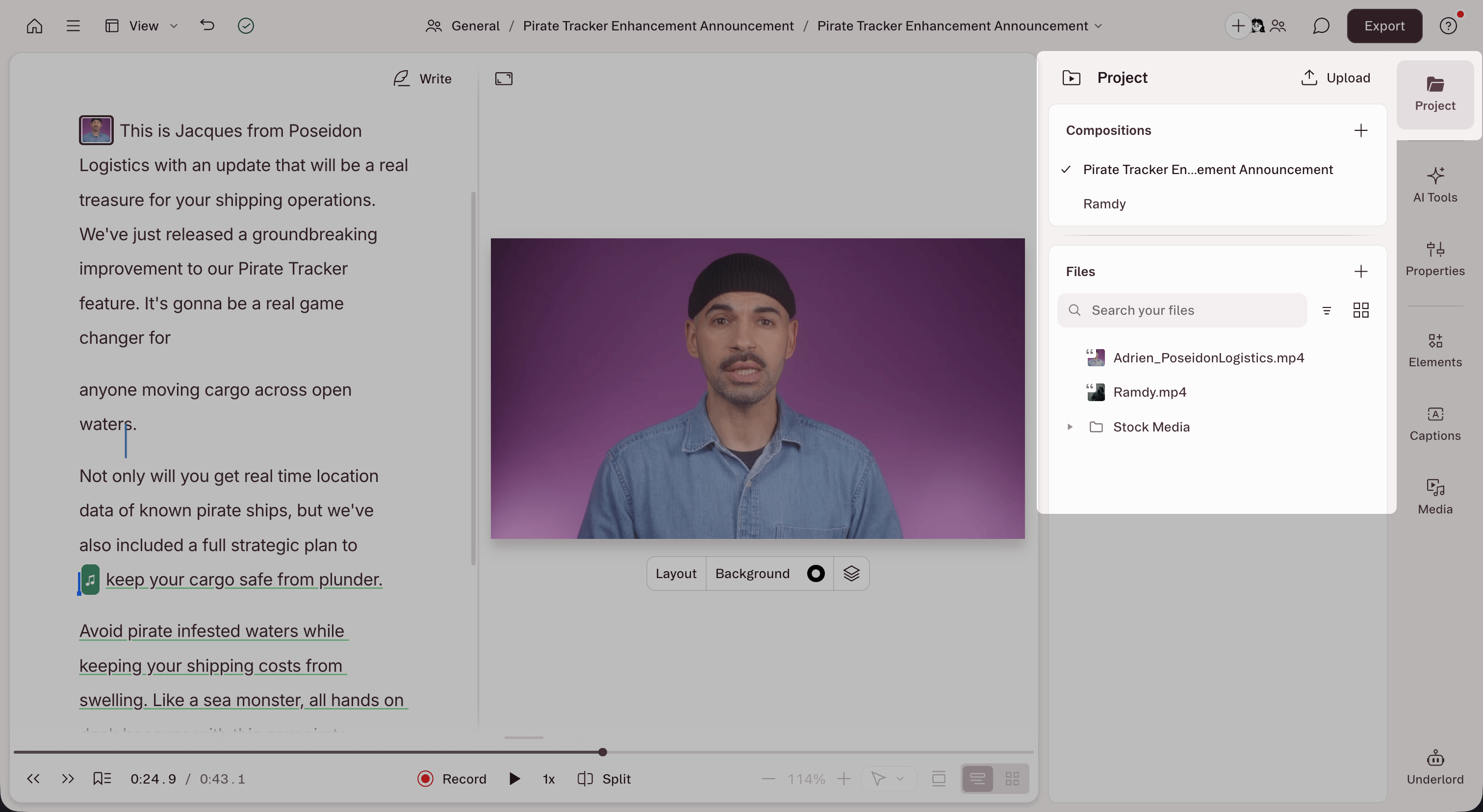
Every file your project touches lives here: uploads, recordings, stock media, and anything you've generated in Descript. To open it, click **Project** on the right side of the editor.
 ## What's in the Project panel
The Project panel is split into two main sections:
* **Compositions:** Lists all compositions in your project. [Learn more about compositions.](/working-in-projects/overview)
* **Files:** Shows all project files you've [imported](/getting-started/import-overview) or recorded, including audio, video, and media assets. [Learn more about individual project file actions.](/add-and-manage-media/project-file-actions)
## Organize files with folders
Folders help you group related files and keep large projects organized. You can create folders, nest subfolders, and move files between them.
* **Create a folder:** Click the **+** button in the Files section, select **Add Folder** from the menu, give the folder a name, and drag files into it.
* **Rename or delete a folder:** Right-click the folder or click the three dots next to its name.
* **Create subfolders:** Organize further by nesting folders inside folders.
### Automatically created folders
Descript also creates some folders automatically:
* **Sequences:** Multiple tracks grouped together—typically for interviews or recordings with camera, screen, mic, and computer audio inputs. [Learn more about sequences.](/script-editing/multi-track-sequences-overview)
* **AI Assets:** Images or videos you've created with the [generate media](/generative-media/generate-media) features in the [AI Tools](/descript-tour/ai-tools-overview) panel.
* **Saved keyframes:** Images of your canvas captured with the [Save current frame tool.](/visuals/save-a-frame-from-your-video)
## Search and filter files
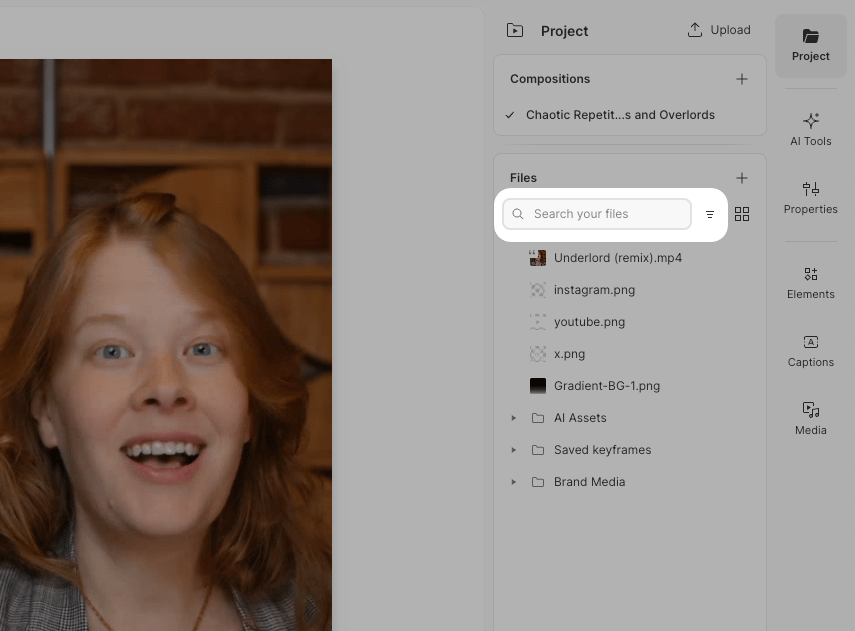
Use the search bar at the top of the **Files** section to find files by name. Type any part of a file name to filter the list.
For more options, click the filter icon to the right of the search bar. This lets you:
* **Filter by file type** — Show only audio, video, images, or other media types
* **Sort files** — Organize by name, date added, or date modified
## What's in the Project panel
The Project panel is split into two main sections:
* **Compositions:** Lists all compositions in your project. [Learn more about compositions.](/working-in-projects/overview)
* **Files:** Shows all project files you've [imported](/getting-started/import-overview) or recorded, including audio, video, and media assets. [Learn more about individual project file actions.](/add-and-manage-media/project-file-actions)
## Organize files with folders
Folders help you group related files and keep large projects organized. You can create folders, nest subfolders, and move files between them.
* **Create a folder:** Click the **+** button in the Files section, select **Add Folder** from the menu, give the folder a name, and drag files into it.
* **Rename or delete a folder:** Right-click the folder or click the three dots next to its name.
* **Create subfolders:** Organize further by nesting folders inside folders.
### Automatically created folders
Descript also creates some folders automatically:
* **Sequences:** Multiple tracks grouped together—typically for interviews or recordings with camera, screen, mic, and computer audio inputs. [Learn more about sequences.](/script-editing/multi-track-sequences-overview)
* **AI Assets:** Images or videos you've created with the [generate media](/generative-media/generate-media) features in the [AI Tools](/descript-tour/ai-tools-overview) panel.
* **Saved keyframes:** Images of your canvas captured with the [Save current frame tool.](/visuals/save-a-frame-from-your-video)
## Search and filter files
Use the search bar at the top of the **Files** section to find files by name. Type any part of a file name to filter the list.
For more options, click the filter icon to the right of the search bar. This lets you:
* **Filter by file type** — Show only audio, video, images, or other media types
* **Sort files** — Organize by name, date added, or date modified