> ## Documentation Index
> Fetch the complete documentation index at: https://help.descript.com/llms.txt
> Use this file to discover all available pages before exploring further.
# Playback and Navigation
> Learn how playback and navigation controls work in the Descript editor.
Descript's playback and navigation features show where you are in the script and [Timeline](/timeline/timeline-overview) and play your composition. These features are made up of two elements: the transport and playhead.
## Transport
The transport is the main playback and navigation control center, located at the top of the Timeline.
 | | |
| ------------------- | ----------------------------------------------------- |
| Skip forward icon | Skip to the next scene |
| Skip back icon | Skip to the previous scene |
| Play icon | Play at playhead |
| Pause icon | Pause at playhead |
| Playback speed icon | Set the project's playback speed |
| Markers icon | View a list of markers in the project and jump to one |
## Playback speed
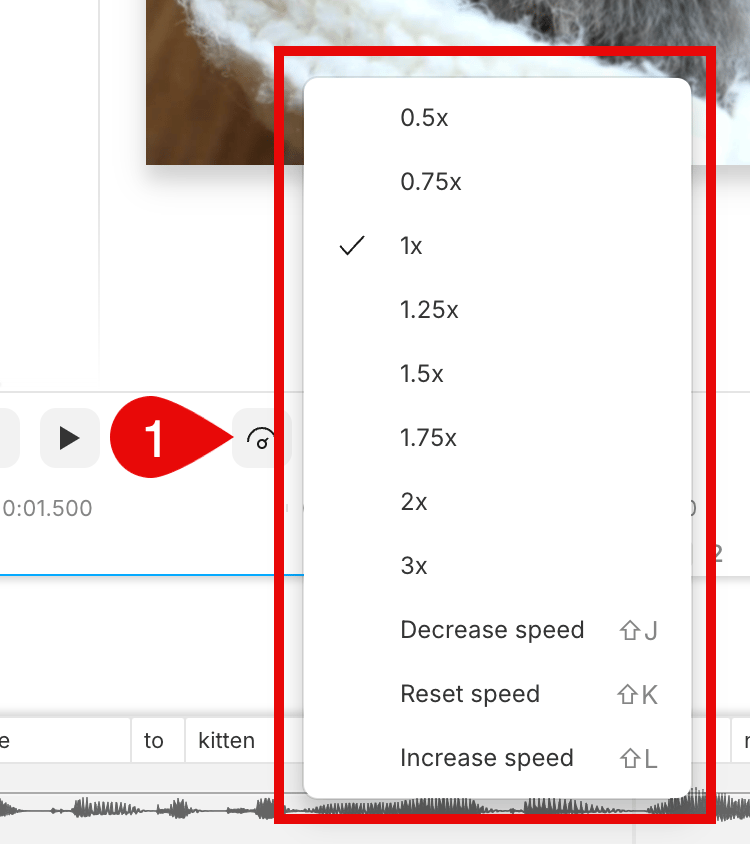
Changing your playback speed lets you listen at up to 3x the normal speed while editing. This only adjusts playback within the Descript editor. To adjust the speed of clips in your exported files, see [looping and clip speed adjustment](/visuals/clip-properties).
To adjust playback speed, click the
| | |
| ------------------- | ----------------------------------------------------- |
| Skip forward icon | Skip to the next scene |
| Skip back icon | Skip to the previous scene |
| Play icon | Play at playhead |
| Pause icon | Pause at playhead |
| Playback speed icon | Set the project's playback speed |
| Markers icon | View a list of markers in the project and jump to one |
## Playback speed
Changing your playback speed lets you listen at up to 3x the normal speed while editing. This only adjusts playback within the Descript editor. To adjust the speed of clips in your exported files, see [looping and clip speed adjustment](/visuals/clip-properties).
To adjust playback speed, click the  **playback speed** button and choose an option from the menu.
 ## Playhead
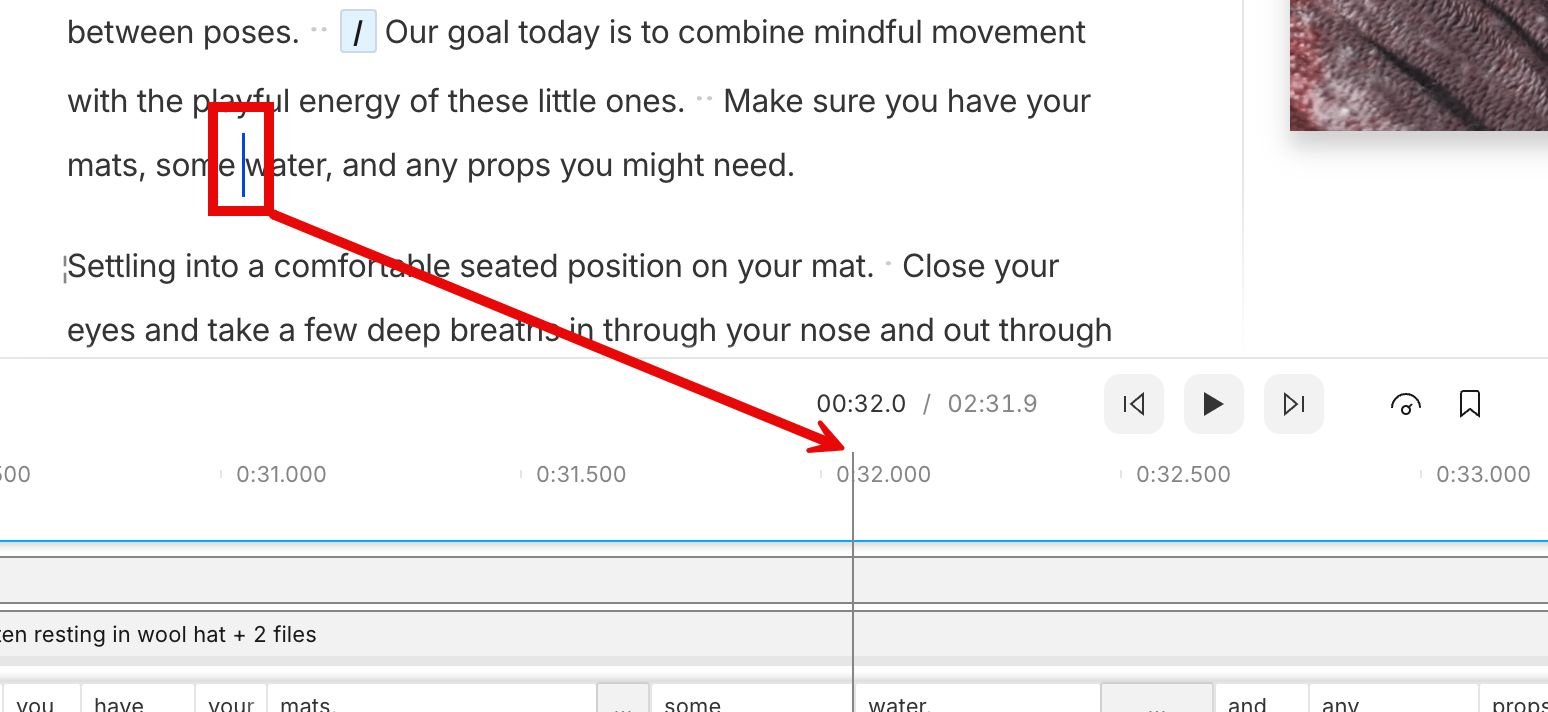
The playhead indicates the starting position of your playback media. It appears as a blue cursor in the Script editor and a vertical blue line in the Timeline. During playback, the playhead also highlights the current word in your script.
## Playhead
The playhead indicates the starting position of your playback media. It appears as a blue cursor in the Script editor and a vertical blue line in the Timeline. During playback, the playhead also highlights the current word in your script.
 ### Text cursor and playhead
During playback, the text cursor moves independently from the playhead. This means you can make edits in your script while the project keeps playing. When playback is stopped, the text cursor and the playhead move together.
## Navigating frame by frame
Press the left or right arrow keys to step through your project one frame at a time. This is especially useful for pinpointing a specific frame for precise edits or adding new video or audio content. Hold down an arrow key to scrub through the timeline more quickly.
### Timeline focus
To navigate frame by frame with the arrow keys, make sure the Timeline is the active editor panel. Click anywhere in the [Timeline](/timeline/timeline-overview) to activate it.
### Text cursor and playhead
During playback, the text cursor moves independently from the playhead. This means you can make edits in your script while the project keeps playing. When playback is stopped, the text cursor and the playhead move together.
## Navigating frame by frame
Press the left or right arrow keys to step through your project one frame at a time. This is especially useful for pinpointing a specific frame for precise edits or adding new video or audio content. Hold down an arrow key to scrub through the timeline more quickly.
### Timeline focus
To navigate frame by frame with the arrow keys, make sure the Timeline is the active editor panel. Click anywhere in the [Timeline](/timeline/timeline-overview) to activate it.