> ## Documentation Index
> Fetch the complete documentation index at: https://help.descript.com/llms.txt
> Use this file to discover all available pages before exploring further.
# Media Panel
> Add stock video, images, music, and sound effects, media library files, and Brand Studio assets to your Descript project.
The Media panel is your in-app library for reusable media. Pull in your own [Media Library](/add-and-manage-media/overview) files or Descript's built-in stock, and drop them into a project without leaving the editor.
 **Resolve a YouTube copyright strike**
Review our guide on [how to avoid and resolve copyright claims](/add-and-manage-media/copyright-strikes) when using stock media.
## What's in the Media panel
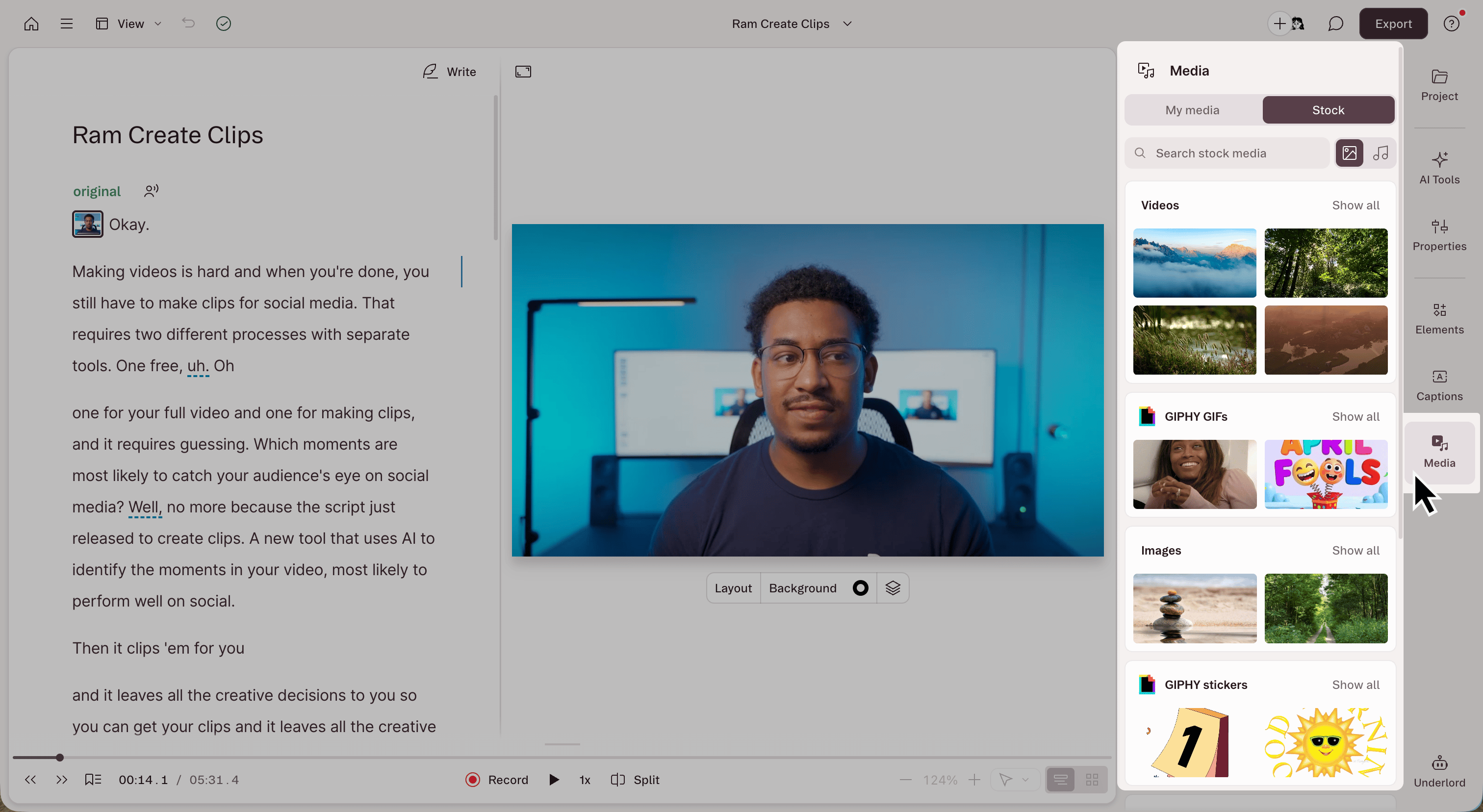
Open the Media panel by selecting **Media** in the right-hand sidebar when viewing your composition in [the Descript editor](/descript-tour/the-editor-interface).
The Media panel includes two types of media:
* **My Media**: Files from your drive's [Media Library](/add-and-manage-media/overview), plus approved [Brand Studio](/branding/brand-studio) assets. Reuse already-uploaded files across projects without waiting for processing or consuming additional [media minutes](/billing-payments-plans/track-and-understand-your-media-minutes-and-ai-credits).
* **Stock Media**: Descript's built-in library of stock videos, images, GIFs, stickers, backgrounds, music, and sound effects.
If the drive owner or an admin has disabled stock media permissions, stock media may be unavailable. [Learn more about Brand Studio permissions](/branding/bs-permissions).
## Add media to your project
1. Open the **Media** panel in the right sidebar.
2. Select **My Media** or **Stock**.
3. Browse folders, search by keyword, or choose a media type such as **Visual** or **Audio**.
4. Add the media to your composition.
Descript transcribes audio or video added from My Media when it lands in your project. If a transcript was already generated in the [Media Library](/add-and-manage-media/overview), it's included automatically.
Once added, media behaves like any other project media. Reuse it across compositions, replace it, or manage it from the Project panel.
## Commercial use of integrated libraries
Descript includes a host of video, image, and audio integrations, including content from stock media providers GIPHY and Storyblocks. When using stock media in commercial content, keep the following in mind:
* GIPHY GIFs and stickers can't be used commercially.
* Other stock content may be used in most commercial, personal, and editorial projects.
For full details, check our [Terms of Use](https://www.descript.com/terms) and those of our partners:
* [GIPHY](https://support.giphy.com/hc/en-us/articles/360020027752-GIPHY-User-Terms-of-Service)
* [Storyblocks](https://www.descript.com/terms-storyblocks)
## Trademark and copyright considerations
Some stock media may include imagery that depicts trademarks, logos, or other copyrighted content. Copyright or trademark law may protect this material, so use it with caution. Always review your content for possible third-party rights before publishing.
**Resolve a YouTube copyright strike**
Review our guide on [how to avoid and resolve copyright claims](/add-and-manage-media/copyright-strikes) when using stock media.
## What's in the Media panel
Open the Media panel by selecting **Media** in the right-hand sidebar when viewing your composition in [the Descript editor](/descript-tour/the-editor-interface).
The Media panel includes two types of media:
* **My Media**: Files from your drive's [Media Library](/add-and-manage-media/overview), plus approved [Brand Studio](/branding/brand-studio) assets. Reuse already-uploaded files across projects without waiting for processing or consuming additional [media minutes](/billing-payments-plans/track-and-understand-your-media-minutes-and-ai-credits).
* **Stock Media**: Descript's built-in library of stock videos, images, GIFs, stickers, backgrounds, music, and sound effects.
If the drive owner or an admin has disabled stock media permissions, stock media may be unavailable. [Learn more about Brand Studio permissions](/branding/bs-permissions).
## Add media to your project
1. Open the **Media** panel in the right sidebar.
2. Select **My Media** or **Stock**.
3. Browse folders, search by keyword, or choose a media type such as **Visual** or **Audio**.
4. Add the media to your composition.
Descript transcribes audio or video added from My Media when it lands in your project. If a transcript was already generated in the [Media Library](/add-and-manage-media/overview), it's included automatically.
Once added, media behaves like any other project media. Reuse it across compositions, replace it, or manage it from the Project panel.
## Commercial use of integrated libraries
Descript includes a host of video, image, and audio integrations, including content from stock media providers GIPHY and Storyblocks. When using stock media in commercial content, keep the following in mind:
* GIPHY GIFs and stickers can't be used commercially.
* Other stock content may be used in most commercial, personal, and editorial projects.
For full details, check our [Terms of Use](https://www.descript.com/terms) and those of our partners:
* [GIPHY](https://support.giphy.com/hc/en-us/articles/360020027752-GIPHY-User-Terms-of-Service)
* [Storyblocks](https://www.descript.com/terms-storyblocks)
## Trademark and copyright considerations
Some stock media may include imagery that depicts trademarks, logos, or other copyrighted content. Copyright or trademark law may protect this material, so use it with caution. Always review your content for possible third-party rights before publishing.