> ## Documentation Index
> Fetch the complete documentation index at: https://help.descript.com/llms.txt
> Use this file to discover all available pages before exploring further.
# Keyboard Shortcuts
> A comprehensive list of keyboard shortcuts for working in Descript.
Descript has keyboard shortcuts for editing, navigating, and switching tools faster. They're listed below for both Mac and Windows, grouped by feature area.
**Some shortcuts only work in specific modes**
Single-letter keyboard shortcuts will only be available when working in the Script Editor while *not* using [Write Mode](/ai-speech/write-mode) or [Correct Mode](/script-editing/correct-your-transcript).
# Access the keyboard shortcut list in Descript
To view all available shortcuts in the app:
* Press `Option + /` (Mac), or `Ctrl + /` (Windows)
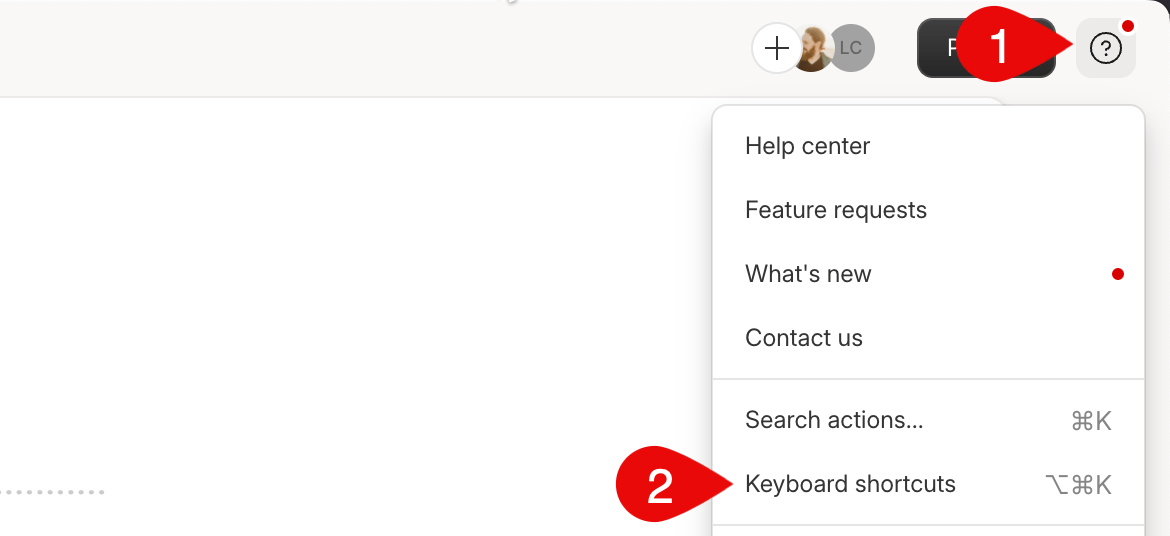
* Or click the Help icon in the upper-right corner of your Descript window, then select **Keyboard Shortcuts**
 ## Screen Recorder
This section includes shortcuts for starting and stopping the Screen Recorder in the Descript desktop application. The default shortcut is Command/Ctrl + Shift + 2, but can be customized via your settings. [Learn more about Descript's Screen Recorder.](/record/screen-recorder)
| Action | Mac | Windows |
| -------------------------- | --------------- | ---------------- |
| Start/stop Screen Recorder | Cmd + Shift + 2 | Ctrl + Shift + 2 |
## Playback
This section includes shortcuts for controlling playback, setting markers, scrubbing through your project, and adjusting playback speed.
| Action | Mac | Windows |
| -------------------------- | ----------------------------------------------------------------------------------------- | --------------------------------------------------------------------------------------- |
| Play / Pause | Space (while [script tools](/ai-speech/write-mode) are inactive), Cmd + S, Option + Click | Space (while [script tools](/ai-speech/write-mode) are inactive), Ctrl + S, Alt + Click |
| Play from cursor | Shift + Space | Shift + Space |
| Spot audition | Shift + Cmd + Space | Ctrl + Shift + Space |
| Move playhead to beginning | Home | Home |
| Next marker | Option + Cmd + . | Ctrl + Alt + . |
| Previous marker | Option + Cmd + , | Ctrl + Alt + , |
| Next scene | Shift + Cmd + . | Ctrl + Shift + . |
| Previous scene | Shift + Cmd + , | Ctrl + Shift + , |
| Step forward by a frame | Right arrow | Right arrow |
| Step backward by a frame | Left arrow | Left arrow |
| Next clip | Option + Shift + Cmd + . | Ctrl + Alt + Shift + . |
| Previous clip | Option + Shift + Cmd + , | Ctrl + Alt + Shift + , |
| Decrease playback speed | Shift + J | Shift + J |
| Reset playback speed | Shift + K | Shift + K |
| Increase playback speed | Shift + L | Shift + L |
| Autoscroll | Esc | Esc |
## Timeline
These shortcuts help you navigate and edit directly in the timeline — including tools for zooming, cutting clips, replacing content, and toggling the timeline view.
| Action | Mac | Windows |
| --------------------------------------- | ------------------------------------- | ------------------------------------- |
| Select tool | A or hold A | A or hold A |
| Range tool | R or hold R | R or hold R |
| Blade tool | B or hold B | B or hold B |
| Hand tool | H or hold H | H or hold H |
| Slip tool | Y or hold Y | Y or hold Y |
| Zoom in | Cmd + Scroll down or Cmd + = | Ctrl + Scroll down or Ctrl + = |
| Zoom out | Cmd + Scroll up or Cmd + - | Ctrl + Scroll up or Ctrl + - |
| Zoom to playhead | Option + Cmd + 3 | Ctrl + Alt + 3 |
| Fit selection | Option + Cmd + 4 | Ctrl + Alt + 4 |
| Scroll left | Shift + Scroll Down or H + Drag Right | Shift + Scroll Down or H + Drag Right |
| Scroll right | Shift + Scroll Up or H + Drag Left | Shift + Scroll Up or H + Drag Left |
| Add clip boundary (split clip) | S | S |
| Replace with gap clip | Shift + Delete | Shift + Backspace |
| Replace with (requires visual selected) | Option + R | Alt + R |
| Toggle timeline | Shift + Cmd + S | Ctrl + Shift + S |
## Tools
The Tools section includes shortcuts for toggling text correction, punctuation, and capitalization, as well as searching for actions within the app.
| Action | Mac | Windows |
| --------------------- | ------------------------- | ------------------------- |
| Toggle capitalization | Hold Z, then click a word | Hold Z, then click a word |
| Toggle punctuation | Hold X, then click a word | Hold X, then click a word |
| Correct the selection | Highlight and press C | Highlight and press C |
| Search actions | Cmd + K | Ctrl + K |
You can also use Correct mode - smake a selection in the transcript and click the **Correct text** icon (pencil) in the hover toolbar — or use the \`Option
* C`(macOS) or`Alt + C\` (Windows) keyboard shortcut. [Learn more about correcting your transcript.](/script-editing/correct-your-transcript)
## Selection
This section covers text- and clip-level shortcuts like ignoring, highlighting, commenting, duplicating, and quick duplication.
| Action | Mac | Windows |
| ---------------- | ------------------------ | ---------------------- |
| Ignore | Cmd + Delete | Ctrl + Backspace |
| Bold text | Cmd + B | Ctrl + B |
| Italic text | Cmd + I | Ctrl + I |
| Highlight | Shift + Cmd + H | Ctrl + Shift + H |
| Paste attributes | Shift + Cmd + V | Ctrl + Shift + V |
| Edit sequence | Shift + Cmd + O | Ctrl + Shift + O |
| Auto-level clip | Option + Shift + Cmd + L | Ctrl + Alt + Shift + L |
| Comment | Shift + Cmd + M | Ctrl + Shift + M |
| Duplicate | Shift + Cmd + C | Ctrl + Shift + C |
| Quick duplicate | Option + Shift + Cmd + C | Ctrl + Alt + Shift + C |
## Insert
Insert shortcuts help you quickly add speaker labels, markers, text, shapes, or scenes into your script or video project.
| Action | Mac | Windows |
| ------------------------------------------------ | ---------------- | -------------- |
| Speaker label | @ | @ |
| Marker (not while the correction tool is active) | # | # |
| Regenerate | D | D |
| Text | Option + Cmd + T | Ctrl + Alt + T |
| Shape | Option + Cmd + S | Ctrl + Alt + S |
| Scene (not while the correction tool is active) | / | / |
## Scene Editor
Scene Editor shortcuts are used for adjusting layers and arranging visual elements — like moving objects forward or backward, locking layers, or toggling visibility.
| Action | Mac | Windows |
| ---------------------------- | --------------- | ---------------- |
| Bring to front | ] | ] |
| Move forward | Shift + ] | Shift + ] |
| Move backward | Shift + \[ | Shift + \[ |
| Send to back | \[ | \[ |
| Duplicate layer | Cmd + D | Ctrl + D |
| Hide layer | Option + H | Alt + H |
| Toggle layer lock | Option + L | Alt + L |
| Snap to guides | Shift + Cmd + ' | Ctrl + Shift + ' |
| Expand / shrink scene editor | Cmd + . | Ctrl + . |
## View
These shortcuts control the layout of the Descript editor — including toggling panels like media library, layout picker, and project contents.
| Action | Mac | Windows |
| ----------------------- | ------------------------ | ---------------------- |
| Show / hide video | Option + Cmd + V | Ctrl + Alt + V |
| Move video | Option + Shift + Cmd + V | Ctrl + Alt + Shift + V |
| Toggle project contents | Option + Cmd + C | Ctrl + Alt + C |
| Media library | Option + Cmd + L | Ctrl + Alt + L |
| Toggle layout picker | Option + Cmd + P | Ctrl + Alt + P |
| Toggle AI Tools | Option + Cmd + Y | Ctrl + Alt + Y |
| Increase text size | Command + Shift + = | Ctrl + Shift + = |
| Decrease text size | Command + Shift + - | Ctrl + Shift + - |
| Keyboard shortcuts | Option + Cmd + K | Ctrl + Alt + K |
## Edit
Edit shortcuts include project-level actions like undo, redo, find and replace, and toggling Write or Correct modes.
| Action | Mac | Windows |
| ------------------------ | -------------------- | ------------------------ |
| New project | Cmd + N | Ctrl + N |
| New composition | Option + Cmd + N | Ctrl + Alt + N |
| Toggle write mode | Cmd + E | Ctrl + E |
| Toggle correct text mode | Option + C | Alt + C |
| Undo | Cmd + Z | Ctrl + Z |
| Redo | Shift + Cmd + Z | Ctrl + Shift + Z |
| Select all | Cmd + A | Ctrl + A |
| Find | Cmd + F | Ctrl + F |
| Find in project | Shift + Cmd + F | Ctrl + Shift + F |
| Find previous | Shift + Cmd + G | Ctrl + Shift + G |
| Find next | Cmd + G | Ctrl + G |
| Restore removed media | Shift + Cmd + Delete | Ctrl + Shift + Backspace |
## Share
These shortcuts help you share your project, copy the project link, or export to a Descript share page or local file.
| Action | Mac | Windows |
| ----------------------------- | --------------- | ---------------- |
| Project access | Shift + Cmd + A | Ctrl + Shift + A |
| Export to Descript share page | Shift + Cmd + P | Ctrl + Shift + P |
| Copy project link | Cmd + L | Ctrl + L |
| Local export | Shift + Cmd + E | Ctrl + Shift + E |
## Screen Recorder
This section includes shortcuts for starting and stopping the Screen Recorder in the Descript desktop application. The default shortcut is Command/Ctrl + Shift + 2, but can be customized via your settings. [Learn more about Descript's Screen Recorder.](/record/screen-recorder)
| Action | Mac | Windows |
| -------------------------- | --------------- | ---------------- |
| Start/stop Screen Recorder | Cmd + Shift + 2 | Ctrl + Shift + 2 |
## Playback
This section includes shortcuts for controlling playback, setting markers, scrubbing through your project, and adjusting playback speed.
| Action | Mac | Windows |
| -------------------------- | ----------------------------------------------------------------------------------------- | --------------------------------------------------------------------------------------- |
| Play / Pause | Space (while [script tools](/ai-speech/write-mode) are inactive), Cmd + S, Option + Click | Space (while [script tools](/ai-speech/write-mode) are inactive), Ctrl + S, Alt + Click |
| Play from cursor | Shift + Space | Shift + Space |
| Spot audition | Shift + Cmd + Space | Ctrl + Shift + Space |
| Move playhead to beginning | Home | Home |
| Next marker | Option + Cmd + . | Ctrl + Alt + . |
| Previous marker | Option + Cmd + , | Ctrl + Alt + , |
| Next scene | Shift + Cmd + . | Ctrl + Shift + . |
| Previous scene | Shift + Cmd + , | Ctrl + Shift + , |
| Step forward by a frame | Right arrow | Right arrow |
| Step backward by a frame | Left arrow | Left arrow |
| Next clip | Option + Shift + Cmd + . | Ctrl + Alt + Shift + . |
| Previous clip | Option + Shift + Cmd + , | Ctrl + Alt + Shift + , |
| Decrease playback speed | Shift + J | Shift + J |
| Reset playback speed | Shift + K | Shift + K |
| Increase playback speed | Shift + L | Shift + L |
| Autoscroll | Esc | Esc |
## Timeline
These shortcuts help you navigate and edit directly in the timeline — including tools for zooming, cutting clips, replacing content, and toggling the timeline view.
| Action | Mac | Windows |
| --------------------------------------- | ------------------------------------- | ------------------------------------- |
| Select tool | A or hold A | A or hold A |
| Range tool | R or hold R | R or hold R |
| Blade tool | B or hold B | B or hold B |
| Hand tool | H or hold H | H or hold H |
| Slip tool | Y or hold Y | Y or hold Y |
| Zoom in | Cmd + Scroll down or Cmd + = | Ctrl + Scroll down or Ctrl + = |
| Zoom out | Cmd + Scroll up or Cmd + - | Ctrl + Scroll up or Ctrl + - |
| Zoom to playhead | Option + Cmd + 3 | Ctrl + Alt + 3 |
| Fit selection | Option + Cmd + 4 | Ctrl + Alt + 4 |
| Scroll left | Shift + Scroll Down or H + Drag Right | Shift + Scroll Down or H + Drag Right |
| Scroll right | Shift + Scroll Up or H + Drag Left | Shift + Scroll Up or H + Drag Left |
| Add clip boundary (split clip) | S | S |
| Replace with gap clip | Shift + Delete | Shift + Backspace |
| Replace with (requires visual selected) | Option + R | Alt + R |
| Toggle timeline | Shift + Cmd + S | Ctrl + Shift + S |
## Tools
The Tools section includes shortcuts for toggling text correction, punctuation, and capitalization, as well as searching for actions within the app.
| Action | Mac | Windows |
| --------------------- | ------------------------- | ------------------------- |
| Toggle capitalization | Hold Z, then click a word | Hold Z, then click a word |
| Toggle punctuation | Hold X, then click a word | Hold X, then click a word |
| Correct the selection | Highlight and press C | Highlight and press C |
| Search actions | Cmd + K | Ctrl + K |
You can also use Correct mode - smake a selection in the transcript and click the **Correct text** icon (pencil) in the hover toolbar — or use the \`Option
* C`(macOS) or`Alt + C\` (Windows) keyboard shortcut. [Learn more about correcting your transcript.](/script-editing/correct-your-transcript)
## Selection
This section covers text- and clip-level shortcuts like ignoring, highlighting, commenting, duplicating, and quick duplication.
| Action | Mac | Windows |
| ---------------- | ------------------------ | ---------------------- |
| Ignore | Cmd + Delete | Ctrl + Backspace |
| Bold text | Cmd + B | Ctrl + B |
| Italic text | Cmd + I | Ctrl + I |
| Highlight | Shift + Cmd + H | Ctrl + Shift + H |
| Paste attributes | Shift + Cmd + V | Ctrl + Shift + V |
| Edit sequence | Shift + Cmd + O | Ctrl + Shift + O |
| Auto-level clip | Option + Shift + Cmd + L | Ctrl + Alt + Shift + L |
| Comment | Shift + Cmd + M | Ctrl + Shift + M |
| Duplicate | Shift + Cmd + C | Ctrl + Shift + C |
| Quick duplicate | Option + Shift + Cmd + C | Ctrl + Alt + Shift + C |
## Insert
Insert shortcuts help you quickly add speaker labels, markers, text, shapes, or scenes into your script or video project.
| Action | Mac | Windows |
| ------------------------------------------------ | ---------------- | -------------- |
| Speaker label | @ | @ |
| Marker (not while the correction tool is active) | # | # |
| Regenerate | D | D |
| Text | Option + Cmd + T | Ctrl + Alt + T |
| Shape | Option + Cmd + S | Ctrl + Alt + S |
| Scene (not while the correction tool is active) | / | / |
## Scene Editor
Scene Editor shortcuts are used for adjusting layers and arranging visual elements — like moving objects forward or backward, locking layers, or toggling visibility.
| Action | Mac | Windows |
| ---------------------------- | --------------- | ---------------- |
| Bring to front | ] | ] |
| Move forward | Shift + ] | Shift + ] |
| Move backward | Shift + \[ | Shift + \[ |
| Send to back | \[ | \[ |
| Duplicate layer | Cmd + D | Ctrl + D |
| Hide layer | Option + H | Alt + H |
| Toggle layer lock | Option + L | Alt + L |
| Snap to guides | Shift + Cmd + ' | Ctrl + Shift + ' |
| Expand / shrink scene editor | Cmd + . | Ctrl + . |
## View
These shortcuts control the layout of the Descript editor — including toggling panels like media library, layout picker, and project contents.
| Action | Mac | Windows |
| ----------------------- | ------------------------ | ---------------------- |
| Show / hide video | Option + Cmd + V | Ctrl + Alt + V |
| Move video | Option + Shift + Cmd + V | Ctrl + Alt + Shift + V |
| Toggle project contents | Option + Cmd + C | Ctrl + Alt + C |
| Media library | Option + Cmd + L | Ctrl + Alt + L |
| Toggle layout picker | Option + Cmd + P | Ctrl + Alt + P |
| Toggle AI Tools | Option + Cmd + Y | Ctrl + Alt + Y |
| Increase text size | Command + Shift + = | Ctrl + Shift + = |
| Decrease text size | Command + Shift + - | Ctrl + Shift + - |
| Keyboard shortcuts | Option + Cmd + K | Ctrl + Alt + K |
## Edit
Edit shortcuts include project-level actions like undo, redo, find and replace, and toggling Write or Correct modes.
| Action | Mac | Windows |
| ------------------------ | -------------------- | ------------------------ |
| New project | Cmd + N | Ctrl + N |
| New composition | Option + Cmd + N | Ctrl + Alt + N |
| Toggle write mode | Cmd + E | Ctrl + E |
| Toggle correct text mode | Option + C | Alt + C |
| Undo | Cmd + Z | Ctrl + Z |
| Redo | Shift + Cmd + Z | Ctrl + Shift + Z |
| Select all | Cmd + A | Ctrl + A |
| Find | Cmd + F | Ctrl + F |
| Find in project | Shift + Cmd + F | Ctrl + Shift + F |
| Find previous | Shift + Cmd + G | Ctrl + Shift + G |
| Find next | Cmd + G | Ctrl + G |
| Restore removed media | Shift + Cmd + Delete | Ctrl + Shift + Backspace |
## Share
These shortcuts help you share your project, copy the project link, or export to a Descript share page or local file.
| Action | Mac | Windows |
| ----------------------------- | --------------- | ---------------- |
| Project access | Shift + Cmd + A | Ctrl + Shift + A |
| Export to Descript share page | Shift + Cmd + P | Ctrl + Shift + P |
| Copy project link | Cmd + L | Ctrl + L |
| Local export | Shift + Cmd + E | Ctrl + Shift + E |