> ## Documentation Index
> Fetch the complete documentation index at: https://help.descript.com/llms.txt
> Use this file to discover all available pages before exploring further.
# Customize the Editor
> Customize Descript's editor layout to speed up your editing workflow.
Resize panels, rearrange them, or pop them out as floating windows to set the editor up the way you work.
**Layout preferences**
While the app is open, new [compositions](/working-in-projects/overview) keep your Timeline and sidebar sizes. Descript saves your custom layout preferences (like script and scene editor visibility) per project, so the layout is preserved when you return.
## Adjust editor panels
### Resize panels
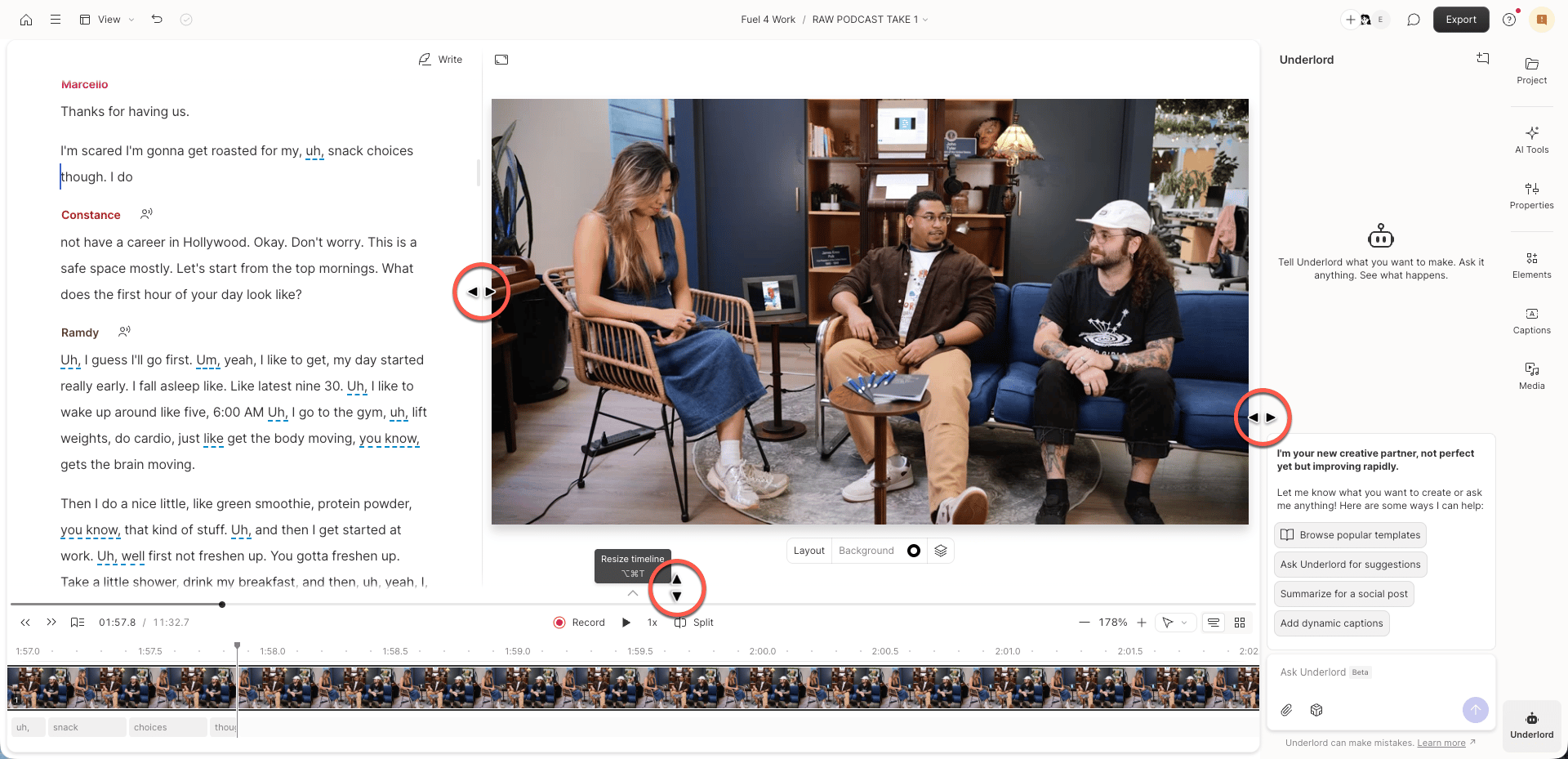
Resize the Script editor, [scene editor](/visuals/scene-editor-overview), [Timeline](/timeline/timeline-overview), and sidebar by clicking and dragging the border between panels.
 ### Show or hide comments
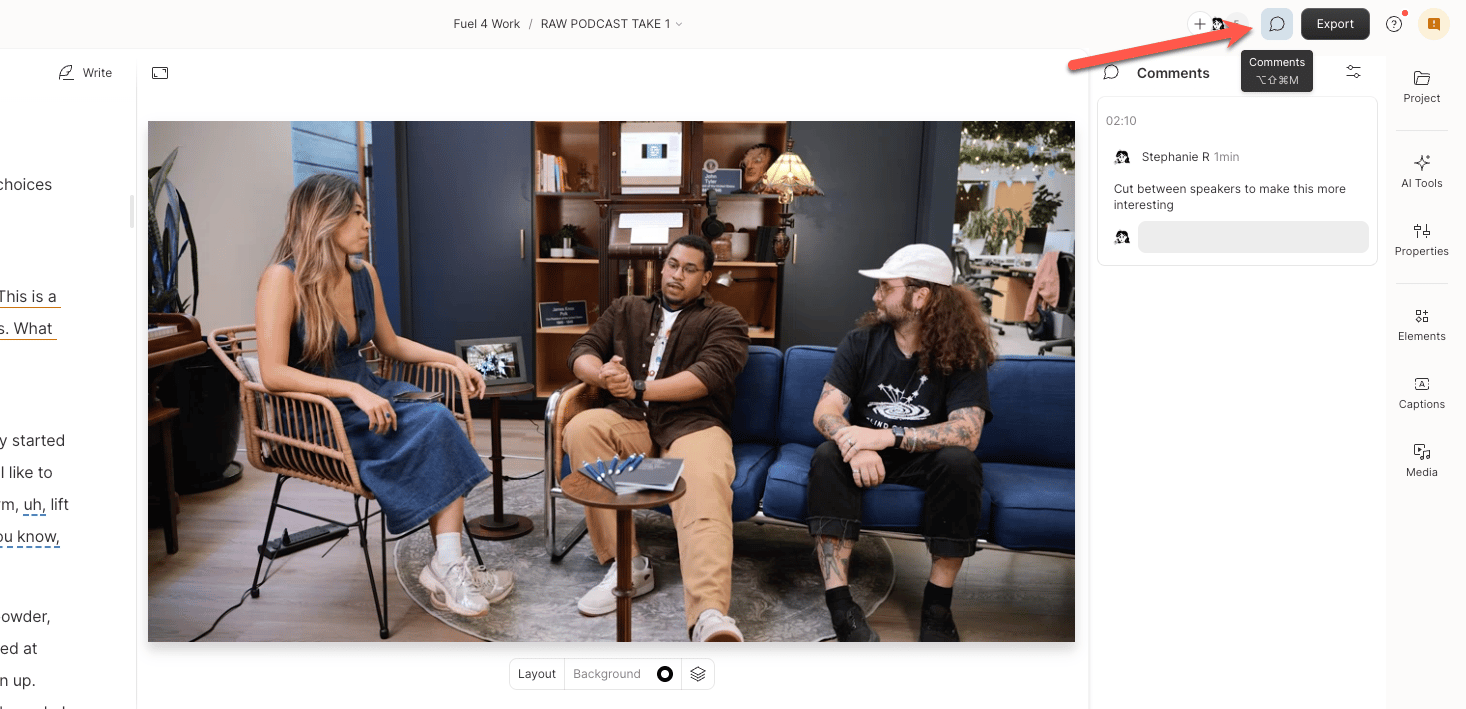
Show or hide [comments](/collaboration/project-comments) — or collapse the panel entirely — by clicking the **Comments** icon in the top right corner of the window.
### Show or hide comments
Show or hide [comments](/collaboration/project-comments) — or collapse the panel entirely — by clicking the **Comments** icon in the top right corner of the window.
 ### Change the layout in video compositions
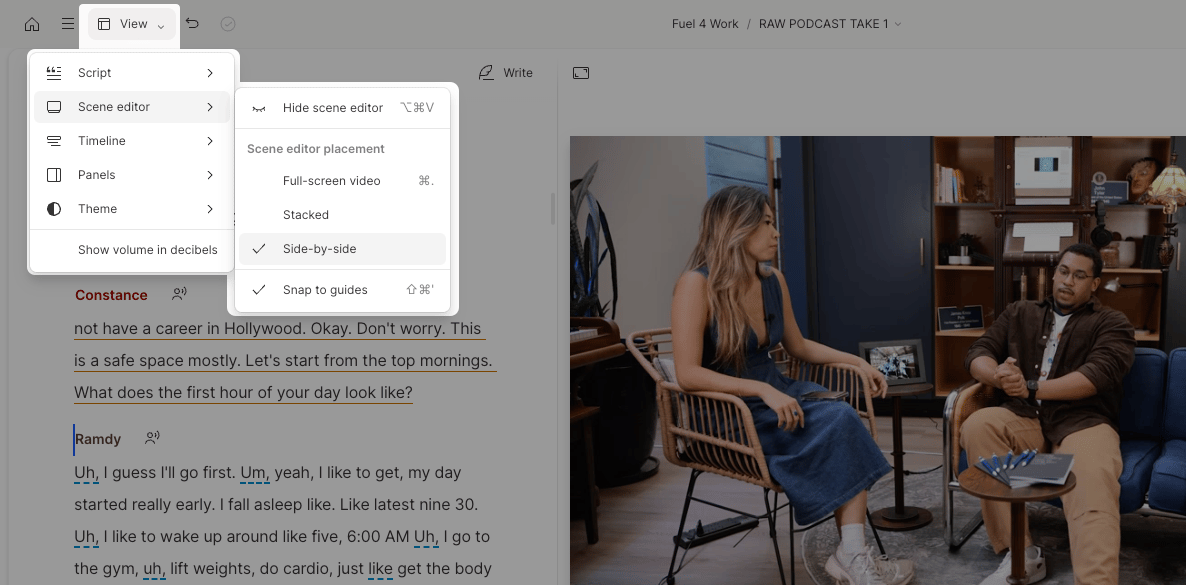
In video compositions, you can arrange the Script editor and scene editor side by side or stack the scene editor above the Script editor. Open the top-left menu and select **View > Scene editor** to switch layouts.
### Change the layout in video compositions
In video compositions, you can arrange the Script editor and scene editor side by side or stack the scene editor above the Script editor. Open the top-left menu and select **View > Scene editor** to switch layouts.
 **Side-by-side layout not available?**
If the side-by-side option is disabled, your browser window is likely too narrow. Maximize the window or increase its width to enable this layout.
## Adjustable panels
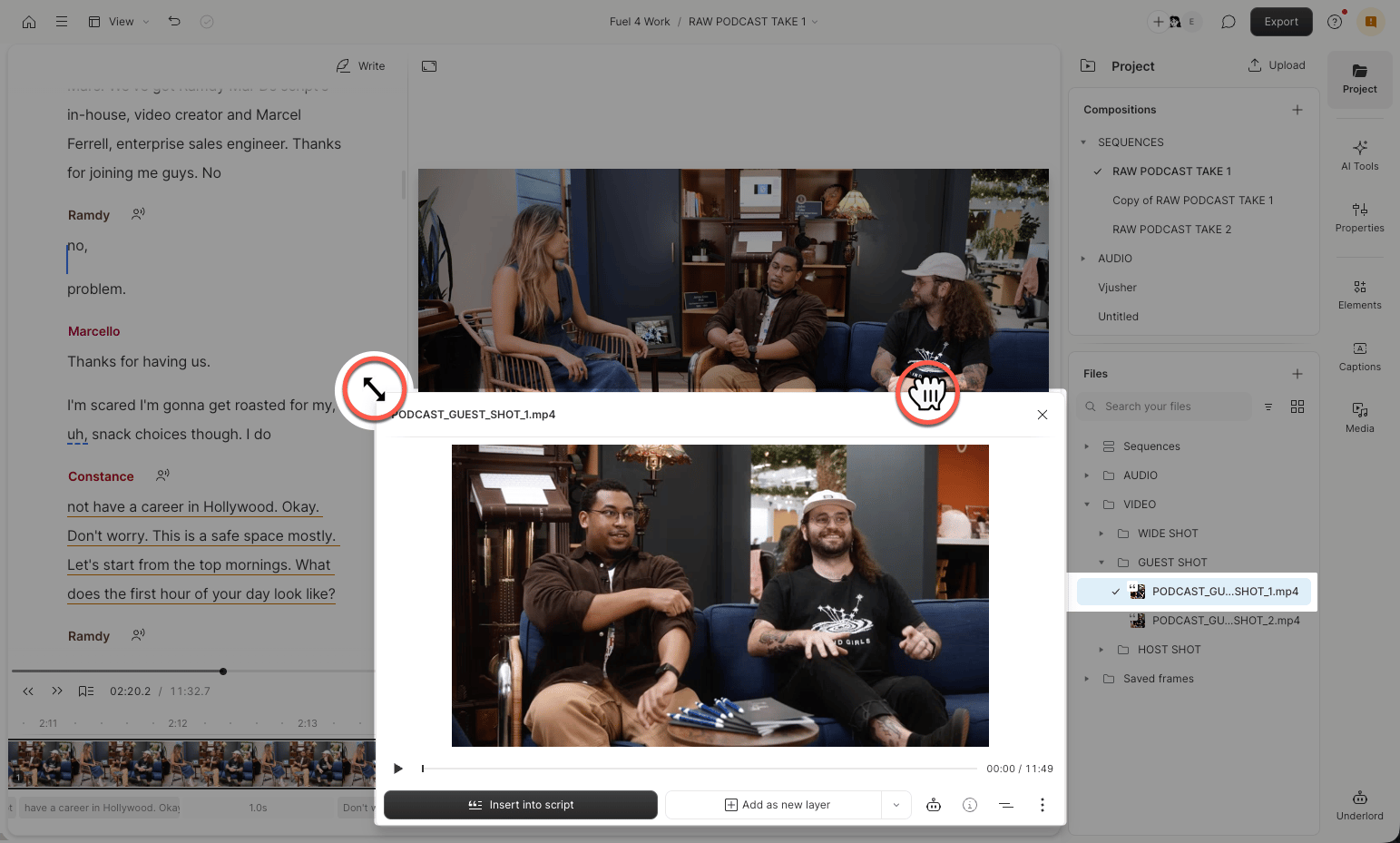
You can move and resize floating panels that appear when you open settings or project assets.
### Move a panel
Click a blank area in the panel’s top bar, then drag the panel anywhere within the editor.
### Resize floating panels
Drag the edge or corner of a floating panel to resize it.
**Side-by-side layout not available?**
If the side-by-side option is disabled, your browser window is likely too narrow. Maximize the window or increase its width to enable this layout.
## Adjustable panels
You can move and resize floating panels that appear when you open settings or project assets.
### Move a panel
Click a blank area in the panel’s top bar, then drag the panel anywhere within the editor.
### Resize floating panels
Drag the edge or corner of a floating panel to resize it.