> ## Documentation Index
> Fetch the complete documentation index at: https://help.descript.com/llms.txt
> Use this file to discover all available pages before exploring further.
# AI Tools Overview
> Descript's suite of AI tools streamlines common editing, content polish, and publishing tasks.
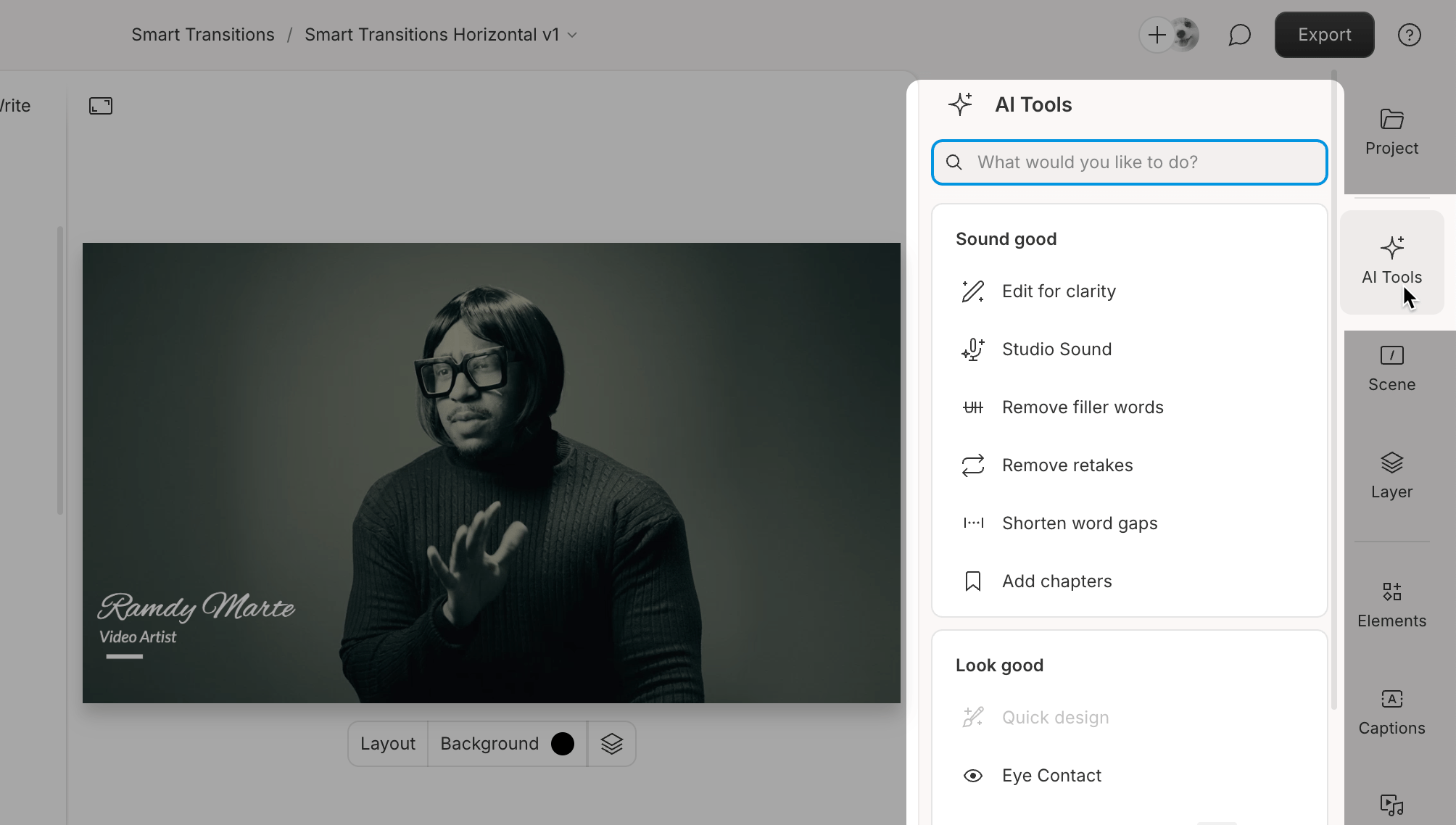
Descript's AI tools handle the tedious parts of editing for you: cleaning up audio, cutting filler words and repeats, drafting show notes and social posts, and more.
## What’s included in AI Tools
AI Tools are grouped into five categories based on what you're trying to do. Click the links below to explore the tools within each section:
* [Sound good](/descript-tour/sound-good-tools) — Clean up audio with Studio Sound, remove filler words, and tighten word gaps.
* [Look good](/descript-tour/look-good-tools) — Instantly polish your content with Quick Design, apply Eye Contact, reframe your video, or replace your background with Green Screen.
* [Repurpose](/descript-tour/repurpose-tools) — Turn long content into short clips or posts for any platform, or translate it to reach global audiences.
* [Publish](/descript-tour/publish-tools) — Prep and format your video for sharing.
* [Write](/descript-tour/write-tools) — Generate titles, social posts, summaries, and more.
 **Usage note**
On current plans, this feature uses **AI Credits**. Learn more about [tracking your Media Minutes and AI Credits](/billing-payments-plans/track-and-understand-your-media-minutes-and-ai-credits).
Legacy and Sunset plans track usage differently. See our [Understanding your Legacy and Sunset plan](/billing-payments-plans/legacy-sunset) guide for details.
## Why are some AI tools disabled?
Some AI Tools may appear grayed out in the editor. Hover over the disabled tool option to see a tooltip explaining why it’s unavailable.
Here are the most common reasons an AI Tool might be disabled:
Many AI tools require a transcribed file in the script. Add a file to the script, transcribe it, and then try again. Learn more about [automatic transcription](/script-editing/automatic-transcription).
Some AI tools require a sequence with multiple video tracks. Ensure your script includes a multi-track sequence. Learn more about [automatic multicam](/visuals/automatic-multicam).
Certain AI tools work only with video and are incompatible with audio-only files. Upload a video file and try again.
Some AI tools don’t support sequences. To use these features, work with a single-track file. [Learn more about projects and compositions](/working-in-projects/overview).
Select the appropriate layer in your project before attempting the action. Learn more about [timeline tools](/timeline/timeline-tools).
This message means you’ve hit a temporary rate limit after too many requests in a short time. Wait a bit and try again — most limits clear within a few hours. If you’re still blocked after 24 hours, [contact Support](/connect-with-us/get-help).
**Usage note**
On current plans, this feature uses **AI Credits**. Learn more about [tracking your Media Minutes and AI Credits](/billing-payments-plans/track-and-understand-your-media-minutes-and-ai-credits).
Legacy and Sunset plans track usage differently. See our [Understanding your Legacy and Sunset plan](/billing-payments-plans/legacy-sunset) guide for details.
## Why are some AI tools disabled?
Some AI Tools may appear grayed out in the editor. Hover over the disabled tool option to see a tooltip explaining why it’s unavailable.
Here are the most common reasons an AI Tool might be disabled:
Many AI tools require a transcribed file in the script. Add a file to the script, transcribe it, and then try again. Learn more about [automatic transcription](/script-editing/automatic-transcription).
Some AI tools require a sequence with multiple video tracks. Ensure your script includes a multi-track sequence. Learn more about [automatic multicam](/visuals/automatic-multicam).
Certain AI tools work only with video and are incompatible with audio-only files. Upload a video file and try again.
Some AI tools don’t support sequences. To use these features, work with a single-track file. [Learn more about projects and compositions](/working-in-projects/overview).
Select the appropriate layer in your project before attempting the action. Learn more about [timeline tools](/timeline/timeline-tools).
This message means you’ve hit a temporary rate limit after too many requests in a short time. Wait a bit and try again — most limits clear within a few hours. If you’re still blocked after 24 hours, [contact Support](/connect-with-us/get-help).