> ## Documentation Index
> Fetch the complete documentation index at: https://help.descript.com/llms.txt
> Use this file to discover all available pages before exploring further.
# Project Links
> Use project links to share your work with other Descript users.
A project link shares your whole project, every composition and file, open in the full editor. Reach for it when a teammate needs to work inside the project with you.
**Recipients must be signed in to a Descript account to view a project link.**
**Sharing with a non-Descript user?** Consider a Descript web link instead. Sometimes called “share links,” these links give anyone (even non-Descript users) the ability to view and comment on a specific composition with a more “front facing” view, and there’s no Descript account required. [Learn more about using Descript web links.](/export-and-share/share-page-settings)
## Copying project links
### From an open project
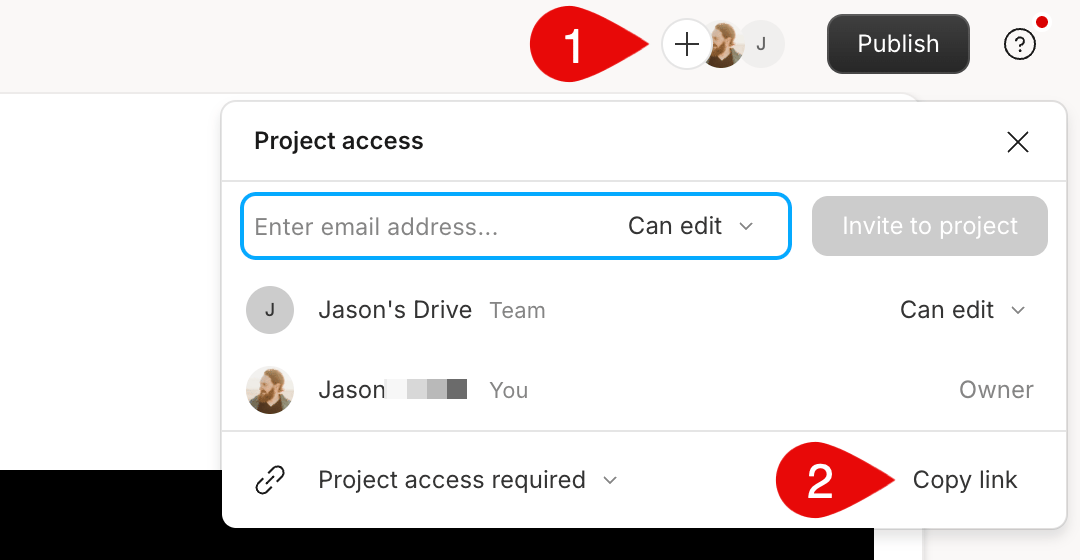
1. Click the **Project Access** icon (circular button with a plus) in the top-right corner.
2. Select **Copy link**.
 ### From the Drive view
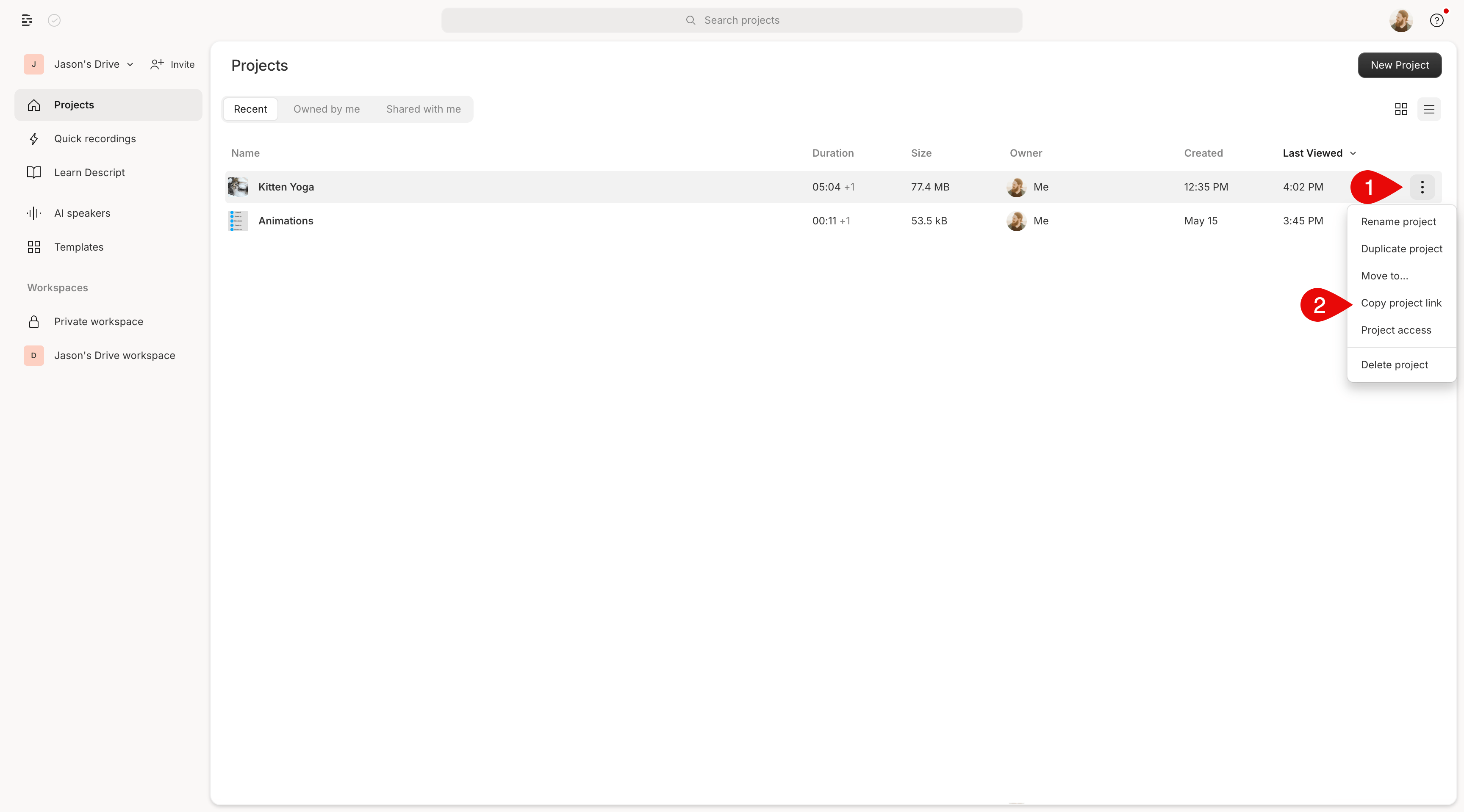
1. Hover over the project name in your Drive.
2. Click the **More options** icon (three vertical dots).
3. Select **Copy project link**.
### From the Drive view
1. Hover over the project name in your Drive.
2. Click the **More options** icon (three vertical dots).
3. Select **Copy project link**.
 ## How project link permissions work
By default, project links are set to **Project access required**. Who can open the link depends on where the project lives:
* **Drive workspace (shared):** Everyone on your Drive has access based on their role:
* **Editors** can view and edit, so long as the Team setting is "Can edit"
* **Viewers** can view and comment
* **Personal workspace (private):** Only you can access the project. If you change project access, Descript automatically moves the project to your Drive workspace.
## How to change project link access
Update access settings to share more broadly without inviting people individually:
1. In the project editor, click the **Project Access** icon. In the Drive view, click **More options**.
2. Select one of the following access levels:
* **Anyone with the link can comment:** View access plus the ability to leave [comments](/collaboration/project-comments).
* **Anyone with the link can view:** View-only, no commenting or editing.
* **Project access required:** Only people with explicit access can open the link.
For more control over individual project collaborators, see [Project access and collaborator roles](/working-in-projects/access).
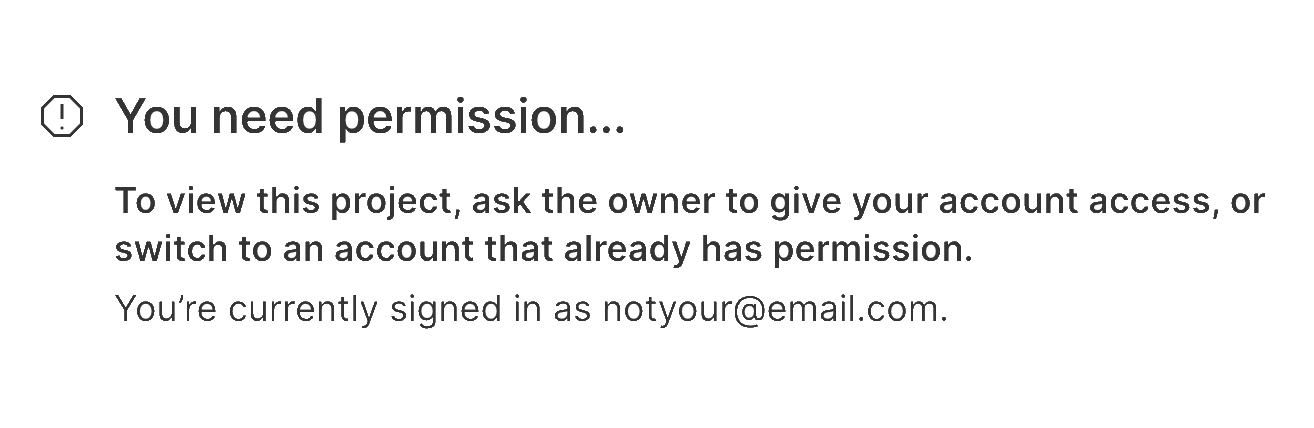
If someone without access tries to open a restricted link, they’ll see this message:
> *You need permission... To view this project, ask the owner to give your account access, or switch to an account that already has permission.*
## How project link permissions work
By default, project links are set to **Project access required**. Who can open the link depends on where the project lives:
* **Drive workspace (shared):** Everyone on your Drive has access based on their role:
* **Editors** can view and edit, so long as the Team setting is "Can edit"
* **Viewers** can view and comment
* **Personal workspace (private):** Only you can access the project. If you change project access, Descript automatically moves the project to your Drive workspace.
## How to change project link access
Update access settings to share more broadly without inviting people individually:
1. In the project editor, click the **Project Access** icon. In the Drive view, click **More options**.
2. Select one of the following access levels:
* **Anyone with the link can comment:** View access plus the ability to leave [comments](/collaboration/project-comments).
* **Anyone with the link can view:** View-only, no commenting or editing.
* **Project access required:** Only people with explicit access can open the link.
For more control over individual project collaborators, see [Project access and collaborator roles](/working-in-projects/access).
If someone without access tries to open a restricted link, they’ll see this message:
> *You need permission... To view this project, ask the owner to give your account access, or switch to an account that already has permission.*